Category: Python

  • วิธีสร้าง functions ใน Python: def, docstring, arguments, และ lambda พร้อมตัวอย่าง

    วิธีสร้าง functions ใน Python: def, docstring, arguments, และ lambda พร้อมตัวอย่าง

    ในบทความนี้ เราจะมาดูวิธีสร้าง function ใน Python กัน โดยบทความนี้แบ่งเป็น 4 ส่วน:

    1. def syntax: การใช้ def เพื่อสร้าง function
    2. Docstring: การเขียนวิธีใช้งาน function
    3. Arguments: การกำหนด arguments ใน function
    4. lambda: การสร้าง function แบบไม่ระบุชื่อ

    ถ้าพร้อมแล้ว ไปเริ่มกันเลย


    1. 💻 def Syntax
    2. 📃 Docstring
      1. 🤔 Why Docstring?
      2. 🥸 What Is Docstring?
      3. 😎 Reading Docstring
    3. 💬 Arguments
      1. 🫡 Default Arguments
      2. 😶‍🌫️ Arbitrary Arguments
    4. 🛋️ lambda
    5. 😺 GitHub
    6. 📃 References

    💻 def Syntax

    ใน Python เราสามารถสร้าง function ได้ด้วย def ซึ่งประกอบด้วย 4 ส่วน:

    # Name and arguments
    def name(arguments):
    # Body
    Do something
    # Return
    return result
    1. name = ชื่อ function
    2. arguments = input สำหรับ function
    3. Body = การทำงานของ function
    4. Return = ส่งผลลัพธ์กลับออกมาจาก function *

    (Note: * เราสามารถใช้ print() แทน return ได้ ในกรณีที่เราต้องการแสดงผลลัพธ์ใน console)

    ยกตัวอย่างเช่น สร้าง function สำหรับคำนวณ BMI (body mass index) ซึ่งต้องการ 2 arguments คือ น้ำหนัก (weight) และส่วนสูง (height):

    # Create a function that calculates BMI
    def calculate_bmi(weight, height):
    
        # Calculate BMI
        bmi = weight / (height ** 2)
    
        # Round to 2 decimals
        bmi_rounded = round(bmi, 2)
    
        # Return BMI
        return bmi_rounded
    

    เราสามารถเรียกใช้ function ที่สร้างเสร็จแล้ว ด้วยการเรียกใช้ชื่อ function เช่น:

    # Use the BMI calculator function
    my_bmi = calculate_bmi(weight=80, height=1.8)
    
    # Print the result
    print(my_bmi)
    

    ผลลัพธ์:

    24.69
    

    📃 Docstring

    .

    🤔 Why Docstring?

    ในตัวอย่าง bmi_cal() เราจะเห็นว่า weight และ height มีได้หลายค่า ขึ้นอยู่กับหน่วยวัดที่ใช้ เช่น:

    • height: metre = 1.8; feet = 5.9
    • weight: kg = 80; pound = 176

    ถ้าเราใส่ค่าไม่ถูกต้องลงใน function เราจะได้ผลลัพธ์ที่ผิดกลับมา เช่น ใส่ height เป็น cm:

    # Using incorrect input
    wrong_bmi = calculate_bmi(weight=80, height=180)
    
    # Print the result
    print(wrong_bmi)
    

    ผลลัพธ์:

    0.0
    

    .

    🥸 What Is Docstring?

    เราสามารถแก้ปัญหานี้ได้ 2 วิธี:

    1. ตั้งชื่อ arguments ให้เรารู้ว่า ต้องใส่อะไรใน function (เช่น height_in_m, weight_in_kg)
    2. ใส่ docstring หรือ string ที่เก็บวิธีใช้ function ไว้

    เราสามารถเพิ่ม docstring ใน function ได้แบบนี้:

    # Adding docstring to the function
    def calculate_bmi(height, weight):
    
        # Docstring
        """
        Calculate BMI using weight and height:
        - Weight: kg
        - Height: m
    
        Return BMI rounded to 2 decimals.
        """
    
        # Calculate BMI
        bmi = weight / (height ** 2)
    
        # Round to 2 decimals
        bmi_rounded = round(bmi, 2)
    
        # Return BMI
        return bmi_rounded
    

    Pro tip: เราควรใส่ docstring ไว้ใน function โดยเฉพาะใน code ที่ใช้งานร่วมกับคนอื่น เพื่อให้คนอื่นเข้าใจการทำงาน function ของเรา

    .

    😎 Reading Docstring

    เราสามารถอ่าน docstring ได้ 2 วิธี:

    วิธีที่ 1. ใช้ help():

    # Read docstring with help()
    help(calculate_bmi)
    

    ผลลัพธ์:

    Help on function calculate_bmi in module __main__:
    
    calculate_bmi(height, weight)
        Calculate BMI using weight and height:
        - Weight: kg
        - Height: m
    
        Return BMI rounded to 2 decimals.
    

    วิธีที่ 2. ใช้ .__doc__:

    # Read docstring with .__doc__:
    print(calculate_bmi.__doc__)
    

    ผลลัพธ์:

    Calculate BMI using weight and height:
        - Weight: kg
        - Height: m
    
        Return BMI rounded to 2 decimals.
    

    💬 Arguments

    เรามาดูการกำหนด 2 ประเภท arguments ใน functions กัน:

    1. Default arguments
    2. Arbitrary arguments

    .

    🫡 Default Arguments

    Default arguments เป็นค่าที่ function จะเรียกใช้ถ้าเราไม่กำหนด arguments เอง

    ยกตัวอย่างเช่น สร้าง function สำหรับคิดเลขยกกำลัง ซึ่งจะยกกำลัง 2 โดย default:

    # Create a function with default arguments
    def calculate_power(number, power=2):
    
        # Calculate number to the power of power
        result = number ** power
    
        # Return result
        return result
    
    # Call the function without power
    print(calculate_power(10))
    

    ผลลัพธ์:

    100
    

    แต่ถ้าเรากำหนด power เอง:

    # Call the function with power
    print(calculate_power(10, 3))
    

    ผลลัพธ์จะเปลี่ยนไป:

    1000
    

    .

    😶‍🌫️ Arbitrary Arguments

    Arbitrary arguments เป็นประเภท argument ที่เรากำหนดในกรณีที่เราไม่รู้ว่า จะมีกี่ arguments

    เราสามารถสร้าง function ที่รับ arguments แบบไม่ระบุจำนวนได้ 2 วิธี:

    1. *args: มี positional arguments (arguments ที่ใส่ตามลำดับ) แบบไม่ระบุจำนวน
    2. **kargs: มี keyword arguments (arguments ที่ใส่ตาม keywords) แบบไม่ระบุจำนวน

    ยกตัวอย่าง *args เช่น สร้าง function สำหรับคำนวณราคาสินค้าในตระกร้า ซึ่งเราไม่รู้ว่า จะมีสินค้ากี่ชิ้น:

    # Create a function calculate total price
    def calculate_total_price(*prices):
    
        # Calculate sum
        total = sum(prices)
    
        # Return total
        return total
    
    # Examples
    total_basket_01 = calculate_total_price(500, 1000)
    total_basket_02 = calculate_total_price(100, 200, 300)
    
    print(f"Basket 1: {total_basket_01}")
    print(f"Basket 2: {total_basket_02}")
    

    ผลลัพธ์:

    Basket 1: 1500
    Basket 2: 600
    

    ยกตัวอย่าง **kargs เช่น สร้าง function เก็บข้อมูล user ซึ่งแต่ละ user มีข้อมูลไม่เท่ากัน:

    # Create a function to return user's data
    def user_profile(**user_data):
        return user_data
    
    # Examples
    print(f"User 1: {user_profile(name='John')}")
    print(f"User 2: {user_profile(name='Jane', gender='F', age=20)}")
    

    ผลลัพธ์:

    User 1: {'name': 'John'}
    User 2: {'name': 'Jane', 'gender': 'F', 'age': 20}
    

    Note:

    • Arguments ใน *args จะถูกเก็บรวมในรูปของ tuple
    • Arguments ใน **kargs จะถูกเก็บรวมในรูปของ dictionary

    🛋️ lambda

    lambda เป็นการสร้าง function แบบไม่ระบุชื่อ โดยเราเขียนได้ดังนี้:

    lambda arguments: expression

    lambda มักใช้สร้าง function ขนาดเล็ก เช่น function หาผลรวม:

    # Create a function using lambda
    addition = lambda a, b: a + b
    
    # Call addition
    print(addition(1, 1))
    

    ผลลัพธ์:

    2
    

    จะเห็นได้ว่า lambda ในตัวอย่างมีค่าเท่ากับการใช้ def แบบนี้:

    # Same as lambda
    def addition(a, b):
        return a + b
    

    เมื่อเทียบกับ def จะเห็นว่า lambda มีการเขียนที่สั้นและง่ายกว่า

    เรามักใช้ lambda ในกรณีที่ต้องการสร้าง function อย่างง่ายและรวดเร็ว

    และเรามักใช้ def ในกรณีที่:

    • สร้าง function ที่มีความซับซ้อน (มีการทำงานหลายขั้นตอน)
    • สร้าง function สำหรับใช้งานร่วมกับคนอื่น เพราะ def จะทำให้คนอื่นอ่าน code ได้ง่ายกว่า

    😺 GitHub

    ดูตัวอย่าง code ทั้งหมดได้ที่ GitHub


    📃 References

  • if, for, while ใน Python: วิธีใช้ conditional statements, control flow, และ loop control ใน Python พร้อมตัวอย่าง

    if, for, while ใน Python: วิธีใช้ conditional statements, control flow, และ loop control ใน Python พร้อมตัวอย่าง

    ในบทความนี้ เราจะมาดูวิธีใช้ code 3 ประเภท ที่จะช่วยให้ Python code สามารถตัดสินใจแทนเราได้:

    1. Conditional statements: if, elif, else
    2. Control flow statements: for, while
    3. Loop control statements: continue, break, pass

    ก่อนไปดูวิธีใช้ทั้ง 3 ประเภท เราจะไปทำความรู้จักกับ comparison และ logical statement ซึ่งเราจะใช้ร่วมกับ code 3 ประเภทนี้กัน

    ถ้าพร้อมแล้ว ไปเริ่มกันเลย


    1. 🧮 1. Comparison & Logical Operators
      1. #️⃣ (1) Comparison Operators
      2. ♟️ (2) Logical Operators
    2. 🚦 2. Conditional Statements
    3. 🌊 3. Control Flow Statements
      1. 📦 (1) for Loop
      2. 🔁 (2) while Loop
    4. 🚄 4. Loop Control Statements
    5. 💪 5. Summary
    6. 😺 GitHub
    7. 📃 References

    🧮 1. Comparison & Logical Operators

    #️⃣ (1) Comparison Operators

    Comparison operators เป็นเครื่องหมายใช้เปรียบเทียบข้อมูล:

    OperatorDescription
    ==เท่ากับ
    !=ไม่เท่ากับ
    >มากกว่า
    >=มากกว่า/เท่ากับ
    <น้อยกว่า
    <=น้อยกว่า/เท่ากับ

    โดย comparison operators จะให้ผลลัพธ์เป็น Boolean (True, False) กลับมา เช่น:

    # True statement
    10 > 5
    

    ผลลัพธ์:

    True
    

    และ:

    # False statement
    10 < 5
    

    ผลลัพธ์:

    False
    

    ♟️ (2) Logical Operators

    Logical operators เป็น keywords เชื่อมเงื่อนไข ช่วยให้เราประเมินหลายเงื่อนไขพร้อมกันได้:

    OperatorDescription
    andLogical AND
    orLogical OR
    notLogical NOT

    โดยผลลัพธ์เป็นไปตาม truth table:

    Condition 1OperatorCondition 2Result
    TrueandTrueTrue
    TrueandFalseFalse
    FalseandFalseFalse
    TrueorTrueTrue
    TrueorFalseTrue
    FalseorFalseFalse
    notTrueFalse
    notFalseTrue

    ยกตัวอย่างเช่น:

    # True and True
    1 == 1 and 2 < 4
    

    ผลลัพธ์:

    True
    

    🚦 2. Conditional Statements

    Conditional statements ใช้กำหนดเงื่อนไขว่า code จะรันได้เมื่อไร และมีอยู่ 3 แบบ ได้แก่:

    • if: กำหนดเงื่อนไขแรก
    • elif: กำหนดเงื่อนไขเพิ่มเติม
    • else: รันเมื่อตรงกับเงื่อนไขอื่น ๆ ที่ไม่ใช่ if และ elif

    ยกตัวอย่างเช่น เราต้องการ print ข้อความแจ้งเตือนตามสภาพอากาศ:

    # Weather today
    weather = "snowy"
    

    เราสามารถทำได้แบบนี้:

    # Print when sunny
    if weather == "sunny":
        print("It's a sunny day. Don't forget your sunscreen!")
    
    # Print when rainy
    elif weather == "rainy":
        print("It's raining. Remember to bring an umbrella!")
    
    # Print when other conditions
    else:
        print("Likely chilly. Wear a jacket!")
    

    ผลลัพธ์:

    Likely chilly. Wear a jacket!
    

    อธิบาย code:

    • if block: ประเมินว่า weather เป็น "sunny" ไหม ถ้าใช่ จะ print "It's a sunny day. Don't forget your sunscreen!"
    • elif block: weather เป็น "rainy" ไหม ถ้าใช่ จะ print "It's raining. Remember to bring an umbrella!"
    • else block: ถ้า weather เป็นค่าอื่น ๆ (เช่น "snowy") จะ print "Likely chilly. Wear a jacket!"

    เพราะ weather มีค่าตรงกับ else block เราจึงได้ผลลัพธ์เป็น "Likely chilly. Wear a jacket!"


    🌊 3. Control Flow Statements

    Control flow statements ใช้ควบคุมลำดับการทำงานของ code และมีอยู่ 2 แบบ ได้แก่:

    1. for: รัน code ตามจำนวนข้อมูลที่มี
    2. while: รัน code จนกว่าเงื่อนไขจะไม่เป็นจริง

    📦 (1) for Loop

    ตัวอย่าง for loop เช่น print ชื่อแขกในงาน:

    # Guest list
    guests = ["James Bond", "John Wick", "Jack Reacher", "Jason Bourne", "Jack Ryan"]
    
    # Print guest names
    for name in guests:
        
        # Print name
        print(name)
    

    ผลลัพธ์:

    James Bond
    John Wick
    Jack Reacher
    Jason Bourne
    Jack Ryan
    

    อธิบาย code:

    • guest = ...: สร้าง list เก็บรายชื่อแขก
    • for ...: นำชื่อแขกใน list มา print จนกว่าจะครบทุกคน

    🔁 (2) while Loop

    ตัวอย่าง while loop เช่น นับเลข 1 ถึง 10:

    # Starting number
    number = 1
    
    # Count to 10
    while number <= 10:
        
        # Print number
        print(number)
        
        # Add 1 to number
        number += 1
    

    ผลลัพธ์:

    1
    2
    3
    4
    5
    6
    7
    8
    9
    10
    

    อธิบาย code:

    • number = 1: กำหนดเลขเริ่มต้น
    • while ...: print number และปรับ number ให้สูงขึ้น 1 ค่า ทำอย่างนี้วนไปจนกว่า number จะมากกว่า 10 (number <= 10 ไม่เป็นจริง)

    🚄 4. Loop Control Statements

    Loop control statements ใช้ควบคุมการทำงานของ control flow และมีอยู่ 3 แบบ ได้แก่:

    1. continue: skip ไป item ถัดไป
    2. break: หยุดการทำงานของ control flow
    3. pass: placeholder สำหรับใส่ code ในอนาคต

    ยกตัวอย่างเช่น เรามีรายการของที่ต้องซื้อ และแต่ละอย่างมี action ไม่เหมือนกัน:

    # A shopping list program
    shopping_list = ["milk", "bread", "chips", "apple", "toothpaste", "chocolate"]
    
    # Loop through the list
    for item in shopping_list:
    
        # Skip item if chip
        if item == "chips":
            print("Chips are unhealthy. Skipping ...")
            continue
        
        # Stop the loop if toothpaste
        if item == "toothpaste":
            print("Found toothpaste, done shopping early!")
            break
        
        # Do nothing if milk
        if item == "milk" or item == "bread":
            pass
        
        # Print item
        print("Putting", item, "into the cart.")
    

    ผลลัพธ์:

    Putting milk into the cart.
    Putting bread into the cart.
    Chips are unhealthy. Skipping ...
    Putting apple into the cart.
    Found toothpaste, done shopping early!
    

    อธิบาย code:

    • shopping_list = ...: สร้าง list เก็บรายการซื้อของ
    • if item == "chips" block: ประเมินว่า item ใช่ "chip" ไหม ถ้าใช่ ให้ print "Chips are unhealthy. Skipping ..." และข้ามไป item ถัดไป (continue)
    • if item == "toothpaste" block: ประเมินว่า item ใช่ "toothpaste" ไหม ถ้าใช่ ให้ print "Found toothpaste, done shopping early!" และจบ loop ทันที (break)
    • if item == "milk" … block: ประเมินว่า item ใช่ "milk" หรือ "bread" ไหม ถ้าใช่ ไม่ต้องทำอะไร (pass)
    • print ...: print ว่า กำลังเอา item ใส่ตระกร้า

    สังเกตว่า:

    • มีแค่ milk, bread, apple ที่ “กำลังใส่ตระกร้า” เพราะ milk และ bread อยู่ใน pass block และ apple ไม่ได้อยู่ใน block ไหนเลย
    • Chip ถูกข้ามไป เพราะอยู่ใน continue block
    • Toothpaste อยู่ใน break block และมาก่อน chocolate ทำให้เราไม่เห็น chocolate เพราะ toothpaste

    💪 5. Summary

    ในบทความนี้ เราได้ไปดูวิธีการเขียน code ใน Python เพื่อให้ code ตัดสินใจได้:

    Comparison operators:

    OperatorDescription
    ==เท่ากับ
    !=ไม่เท่ากับ
    >มากกว่า
    >=มากกว่า/เท่ากับ
    <น้อยกว่า
    <=น้อยกว่า/เท่ากับ

    Logical operators:

    OperatorDescription
    andLogical AND
    orLogical OR
    notLogical NOT

    Conditional statements:

    StatementDescription
    ifกำหนดเงื่อนไขแรก
    elifกำหนดเงื่อนไขเพิ่มเติม
    elseทำ action เมื่อเข้าเงื่อนไขอื่น ๆ

    Control flow statements:

    StatementDescription
    forวนจนครบทุก item
    whileวนจนกว่าเงื่อนไขจะเป็น False

    Loop control statements:

    StatementDescription
    continueSkip
    breakStop
    passDo nothing

    😺 GitHub

    ดูตัวอย่าง code ทั้งหมดในบทความนี้ได้ที่ GitHub


    📃 References

  • pandas fundamentals: 5 กลุ่ม pd functions ที่ควรรู้ในการทำงานกับข้อมูล พร้อมตัวอย่างจาก Spotify dataset

    pandas fundamentals: 5 กลุ่ม pd functions ที่ควรรู้ในการทำงานกับข้อมูล พร้อมตัวอย่างจาก Spotify dataset

    pandas เป็น library ใน Python ที่นิยมใช้ทำงานกับ data เพราะ:

    • pandas สามารถเก็บข้อมูลในรูปแบบ table หรือ data frame ได้
    • มี functions/methods สำหรับทำงานกับ data frame

    .

    ในบทความนี้ เราจะมาดูวิธีใช้ pandas ในการทำงานกับ data เบื้องต้นกัน

    โดย functions ของ pandas ที่เราจะดู แบ่งเป็น 5 กลุ่ม ได้แก่:

    No.GroupDescription
    1Exploringสำรวจข้อมูลเบื้องต้น
    2Selecting and filteringเลือกและกรองข้อมูล
    3Sortingจัดลำดับข้อมูล
    4Slicingตัดแบ่งข้อมูล
    5Aggregatingสรุปข้อมูล

    ถ้าพร้อมแล้ว ไปเริ่มกันเลย


    1. 🎧 Dataset: Spotify Tracks
    2. ▶️ Press Play
      1. 1️⃣ Install
      2. 2️⃣ Import
      3. 3️⃣ Read
    3. 🎶 Playlist #1 – Exploring
      1. 1️⃣ .head()
      2. 2️⃣ .info()
      3. 3️⃣ .describe()
      4. 4️⃣ .shape
    4. 🎶 Playlist #2 – Selecting & Filtering
      1. 1️⃣ df[condition]
      2. 2️⃣ .query()
    5. 🎶 Playlist #3 – Sorting
      1. 1️⃣ .sort_values()
    6. 🎶 Playlist #4 – Slicing
      1. 1️⃣ df[column_name]
      2. 2️⃣ .loc[]
      3. 3️⃣ .iloc[]
      4. 4️⃣ .filter()
    7. 🎶 Playlist #5 – Aggregating
      1. 1️⃣ Aggregation Functions
      2. 2️⃣ .agg()
      3. 3️⃣ .groupby()
    8. ⏭️ Next Song
      1. 💻 Example Code
      2. 📚 Further Reading

    🎧 Dataset: Spotify Tracks

    ในบทความนี้ dataset ที่จะใช้เป็นตัวอย่าง คือ Spotify Tracks Dataset จาก Kaggle

    Spotify Tracks Dataset เป็นชุดข้อมูลเพลงใน Spotify ทั้งหมด 125 แนวเพลง และประกอบด้วย 20 columns เช่น:

    • track_name: ชื่อเพลง
    • artists: ชื่อศิลปิน
    • popularity: คะแนนความนิยม
    • energy: ความดัง + ความเร็ว
    • liveness: เป็นเพลง live หรืออัดใน studio

    ▶️ Press Play

    ก่อนไปดูการใช้งาน pandas เรามาดูวิธีการเตรียม pandas และ dataset กันก่อน:

    1. Install
    2. Import
    3. Read

    .

    1️⃣ Install

    ในการใช้งาน pandas ให้เราเริ่มจากติดตั้ง pandas ก่อน:

    # Install pandas
    !pip install pandas
    

    Note: ถ้าใครติดตั้งแล้ว สามารถไปที่ step ต่อไปได้เลย

    .

    2️⃣ Import

    หลังติดตั้ง pandas แล้ว ให้เรียกใช้งานผ่านคำสั่ง import:

    # Load pandas
    import pandas as pd
    

    Note:

    • pandas มักใช้ตัวย่อ pd เพื่อง่ายต่อการทำงาน
    • ทุกครั้งที่เปิด session ใหม่ จะต้อง run บรรทัดนี้ก่อนทำงานเสมอ

    .

    3️⃣ Read

    เมื่อติดตั้งและเรียกใช้งาน pandas แล้ว ให้โหลด dataset ที่ต้องการใช้งานซึ่งในกรณีนี้ คือ Spotify Tracks Dataset ซึ่งเป็นไฟล์ CSV โดยเราจะโหลดผ่าน read_csv() ของ pandas:

    # Load the dataset
    spotify = pd.read_csv("spotify_tracks_dataset.csv", index_col=0)
    

    Note: ในกรณีของ Spotify Tracks Dataset เราต้องใช้ index_col=0 เพื่อบอก pandas ว่า เราจะไม่ต้องการสร้าง column ที่เป็น running number

    .

    หลังจากทำครบทั้ง 3 ขั้นตอนนี้แล้ว เราสามารถเริ่มทำงานกับข้อมูลด้วย pandas กันได้เลย


    🎶 Playlist #1 – Exploring

    เริ่มแรก เรามาดูการใช้งาน pandas เพื่อสำรวจข้อมูลเบื้องต้นกัน

    Functions ในกลุ่มนี้ประกอบด้วย 4 functions/methods:

    1. .head()
    2. .info()
    3. .describe()
    4. .shape

    .

    1️⃣ .head()

    Use case:

    เรียกดู 5 rows แรกของ dataset

    ตัวอย่าง:

    # View the first 5 rows
    spotify.head()
    

    ผลลัพธ์:

    Note:

    • ถ้าต้องการดูมากกว่า 5 rows ให้ใส่จำนวน rows ที่ต้องการ เช่น spotify.head(10) จะเรียกดู 10 rows แรก

    .

    2️⃣ .info()

    Use case:

    ดูข้อมูลภาพรวมของ dataset

    ตัวอย่าง:

    # Get overview of the dataset
    spotify.info()
    

    ผลลัพธ์:

    .

    3️⃣ .describe()

    Use case:

    เรียกดู summary stats ของ datasets ซึ่งได้แก่:

    • Count
    • Mean
    • Standard deviation (std)
    • Min
    • Quartiles
      • 25
      • 50
      • 75
    • Max

    ตัวอย่าง:

    # Get summary stats
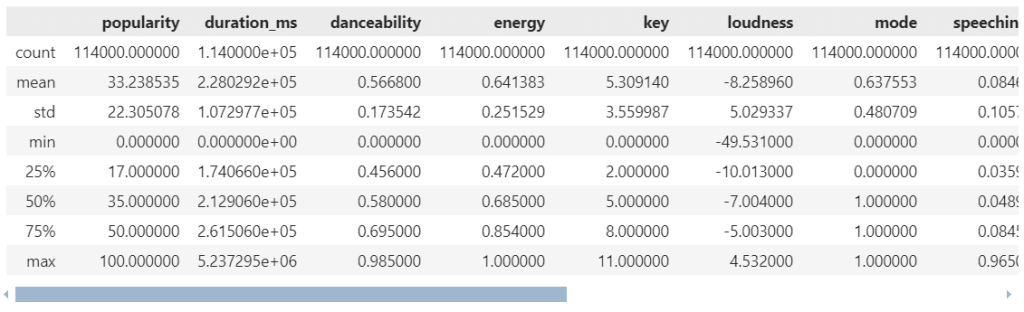
    spotify.describe()
    

    ผลลัพธ์:

    Note:

    โดย default, .describe() จะสรุปข้อมูลเฉพาะ column ที่เป็น numerical variable เท่านั้น

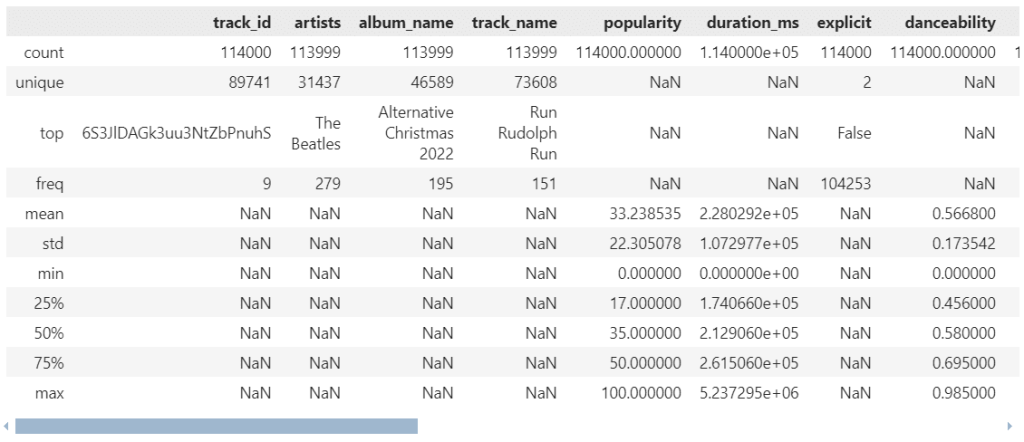
    ถ้าเราต้องการ summary stats ของ categorical variable เราสามารถใช้ argument include="all" ได้:

    # Get summary stats for all variable types
    spotify.describe(include="all")
    

    ผลลัพธ์:

    จะเห็นได้ว่า ตอนนี้เราจะได้ summary stats ของทั้ง numerical (เช่น popularity) และ categorical variables (เช่น artists)

    .

    4️⃣ .shape

    Use case:

    ดูจำนวน rows และ columns ของ dataset

    ตัวอย่าง:

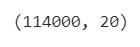
    # See the dimensions of the dataset
    spotify.shape


    ผลลัพธ์:

    • 114000 คือ จำนวน rows
    • 20 คือ จำนวน columns

    🎶 Playlist #2 – Selecting & Filtering

    ในกลุ่มการใช้งานที่ 2 เรามาดูวิธีการเลือกและกรองข้อมูลกัน:

    1. df[condition]
    2. .query()

    .

    1️⃣ df[condition]

    Use case:

    df[condition] เป็น syntax เพื่อกรองข้อมูล

    ตัวอย่าง:

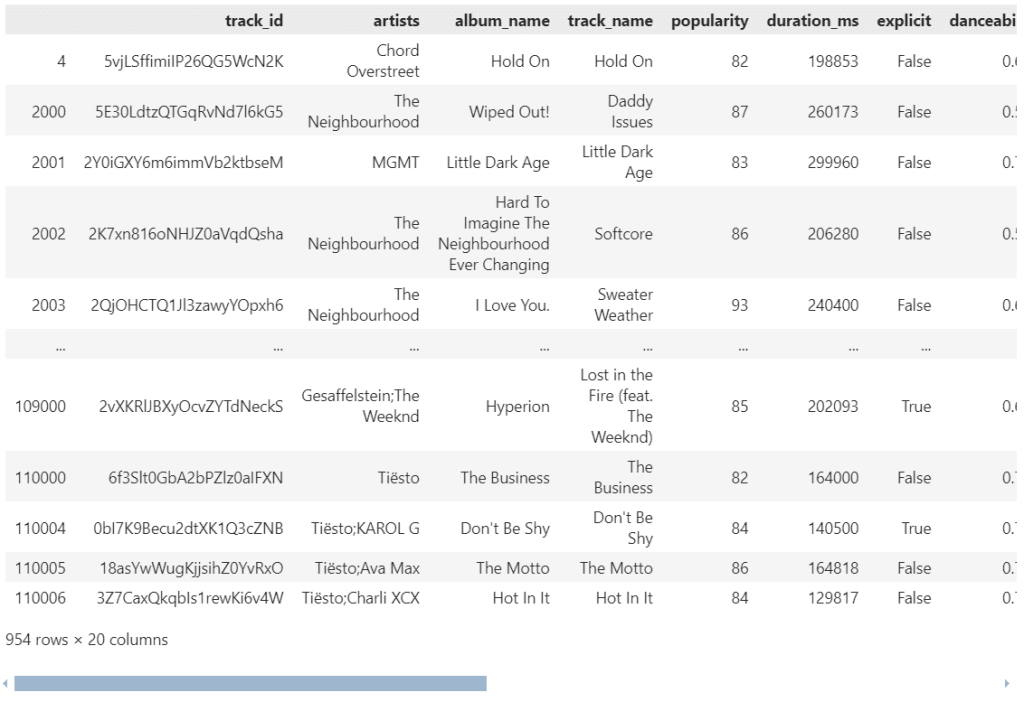
    เราต้องการดูข้อมูลเพลงที่มีคะแนนความนิยม (popularity) สูงกว่า 80:

    # Select records where popularity is greater than 80
    spotify[spotify["popularity"] > 80]
    

    ผลลัพธ์:

    Note:

    ในการกรอง เราสามารถใช้ comparison operators เหล่านี้ช่วยได้:

    Comparison OperatorMeaning
    ==เท่ากับ
    !=ไม่เท่ากับ
    >มากกว่า
    >=มากกว่า/เท่ากับ
    <น้อยกว่า
    <=น้อยกว่า/เท่ากับ

    นอกจากนี้ เราสามารถใช้ Boolean operators เพื่อเพิ่ม conditions ในการกรองข้อมูลได้:

    Boolean OperatorMeaning
    &and
    ``
    !not

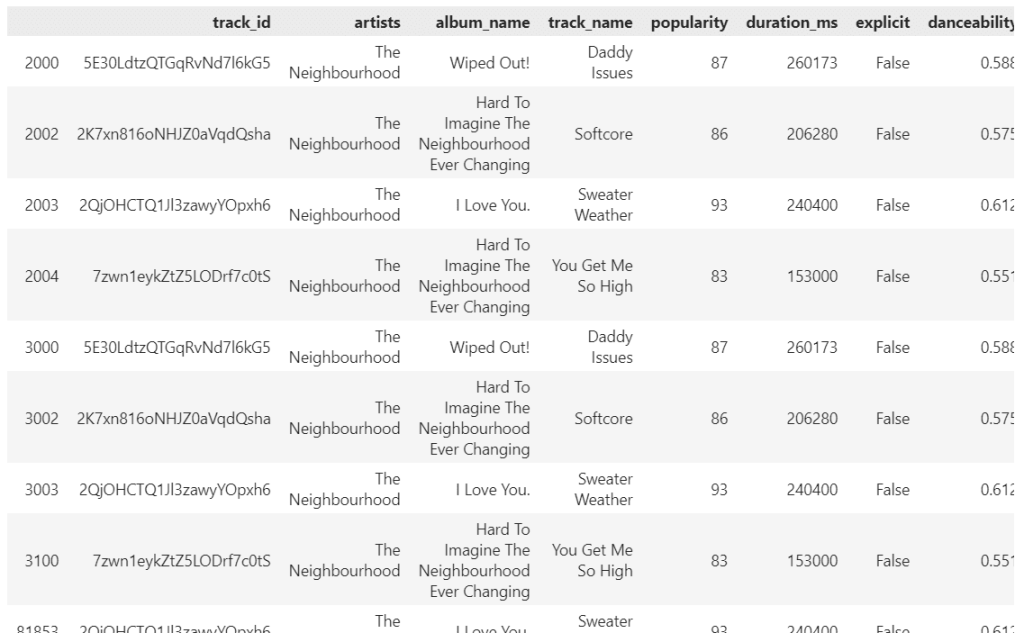
    เช่น ดูข้อมูลเพลงที่มีคะแนนความนิยม (popularity) สูงกว่า 80 จากวง The Neighbourhood (ดูจาก artists):

    # Select records where popularity is greater than 80 from The Neighbourhood
    spotify[(spotify["popularity"] > 80) & (spotify["artists"] == "The Neighbourhood")]
    

    ผลลัพธ์:

    .

    2️⃣ .query()

    Use case:

    .query() ทำหน้าที่คล้ายกับ df[condition] นั่นคือ กรองข้อมูล

    แต่ .query() มีข้อดีอยู่ 2 อย่าง:

    1. ใช้งานง่าย
    2. เหมาะกับการกรองข้อมูล ด้วย conditions ที่ซับซ้อน

    การเขียน input ของ .query() เราจะใช้ใน syntax ของ SQL

    ตัวอย่าง:

    จากตัวอย่างก่อนหน้านี้ที่เราต้องการดูข้อมูลเพลงที่:

    • มีคะแนนความนิยม (popularity) สูงกว่า 80
    • จากวง The Neighbourhood (ดูจาก artists)

    เราสามารถเขียน .query() ได้ดังนี้:

    # Filter with .query()
    spotify.query("popularity > 80 and artists == 'The Neighbourhood'")
    

    ผลลัพธ์:

    Note:

    ถ้าเราเทียบระหว่าง df[condition] และ .query() :

    df[condition].query()
    spotify[(spotify["popularity"] > 80) & (spotify["artists"] == "The Neighbourhood")]spotify.query("popularity > 80 and artists == 'The Neighbourhood'")

    จะเห็นว่า .query():

    • สั้นกว่า
    • ทำความเข้าใจได้ง่ายกว่า

    🎶 Playlist #3 – Sorting

    หลังจากกรองข้อมูล บางครั้งเราอยากจะจัดลำดับข้อมูล เพื่อช่วยในการทำความเข้าใจข้อมูล:

    • .sort_values()

    .

    1️⃣ .sort_values()

    Use case:

    จัดเรียงข้อมูล โดย:

    • default จะเรียงจากน้อยไปมาก (A-Z)
    • ถ้าต้องการเรียงจากมากไปน้อย (Z-A) ให้ใช้ ascending=False

    ตัวอย่าง:

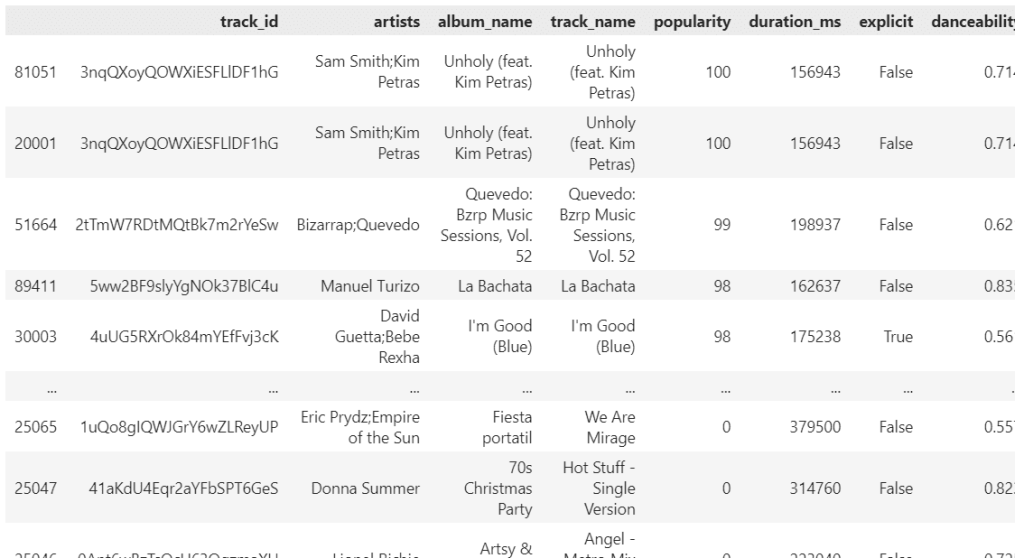
    ต้องการเรียงเพลงตามคะแนนความนิยม (popularity) จากสูงไปต่ำ เพื่อหาเพลงฮิต:

    # Sort tracks by popularity in descending order
    spotify.sort_values(by="popularity", ascending=False)
    

    ผลลัพธ์:


    🎶 Playlist #4 – Slicing

    ในกลุ่มนี้ เราจะมาดู 4 วิธี เพื่อดึง rows และ/หรือ columns ออกจาก dataset กัน:

    1. df[column]
    2. .loc[]
    3. .iloc[]
    4. .filter()

    .

    1️⃣ df[column_name]

    Use case:

    df[column_name] เป็น syntax เพื่อเลือกข้อมูลจาก column ที่ต้องการ โดย:

    • df หมายถึง ชื่อ dataset
    • column_name หมายถึง ชื่อ column ที่เราเลือก

    ตัวอย่าง:

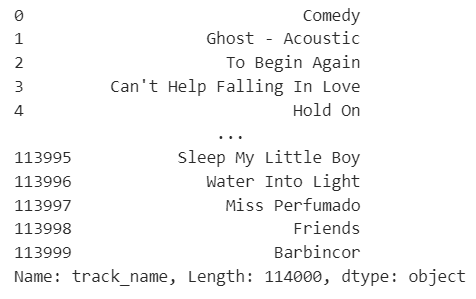
    เลือกดูชื่อเพลง (track_name):

    # Select column track_name
    spotify["track_name"]
    

    ผลลัพธ์:

    Note:

    ถ้าต้องการมากกว่า 1 column เราสามารถใส่ input เป็น list ได้

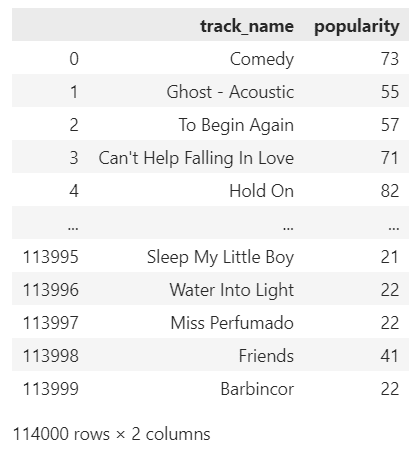
    เช่น เลือกชื่อเพลง (track_name) และคะแนนความนิยม (popularity):

    # Select columns track_name and popularity
    spotify[["track_name", "popularity"]]
    

    ผลลัพธ์:

    .

    2️⃣ .loc[]

    Use case:

    เลือก rows และ/หรือ columns โดยใช้ ชื่อ rows และ columns (label-based)

    Syntax:

    .loc[] มีหลักการใช้งานดังนี้:

    SyntaxFor
    df.loc[r_lab]เลือก 1 row
    df.loc[rx:ry]เลือกมากกว่า 1 rows
    df.loc[[r_list]]เลือกมากกว่า 1 rows
    df.loc[:, c_lab]เลือก 1 column
    df.loc[:, cx:cy]เลือกมากกว่า 1 column
    df.loc[:, [c_list]]เลือกมากกว่า 1 columns
    • r_lab คือ ชื่อ row
    • rx:ry คือ ช่วง rows ที่ต้องการเลือก
    • [r_list] คือ list ของ rows ที่ต้องการเลือก
    • c_lab คือ ชื่อ column ที่ต้องการเลือก
    • cx:cy คือ ช่วง columns ที่ต้องการเลือก
    • [c_list] คือ list ของ columns ที่ต้องการเลือก

    ตัวอย่าง:

    เลือก 5 rows แรก และแสดงเฉพาะ:

    • ชื่อเพลง (track_name)
    • ชื่อศิลปิน (artists)
    • คะแนนความนิยม (popularity)
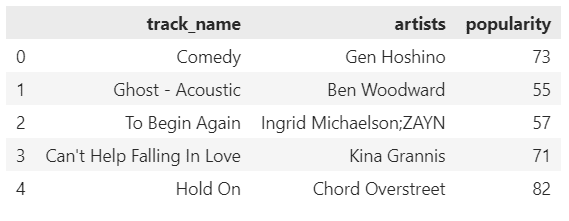
    # Select first 5 rows from track_name, artists, popularity
    spotify.loc[0:4, ["track_name", "artists", "popularity"]]
    

    ผลลัพธ์:

    .

    3️⃣ .iloc[]

    Use case:

    เลือก rows และ/หรือ columns โดยใช้ ตำแหน่ง rows และ columns (position-based)

    Syntax:

    .iloc[] มีวิธีการใช้งาน คล้ายกับ .loc[] ดังนี้:

    SyntaxFor
    df.iloc[r_index]เลือก 1 row
    df.iloc[rx:ry]เลือกมากกว่า 1 rows
    df.iloc[[r_list]]เลือกมากกว่า 1 rows
    df.iloc[:, c_index]เลือก 1 column
    df.iloc[:, cx:cy]เลือกมากกว่า 1 column
    df.iloc[:, [c_list]]เลือกมากกว่า 1 columns
    • r_index คือ ตำแหน่ง row
    • rx:ry คือ ช่วง rows ที่ต้องการเลือก
    • [r_list] คือ list ของ rows ที่ต้องการเลือก
    • c_index คือ ตำแหน่ง column ที่ต้องการเลือก
    • cx:cy คือ ช่วง columns ที่ต้องการเลือก
    • [c_list] คือ list ของ columns ที่ต้องการเลือก

    ความแตกต่างระหว่าง .loc[] และ .iloc[] คือ สิ่งที่ใช้ในการเลือก s และ columns:

    • .loc[] ใช้ ชื่อ (label)
    • .iloc[] ใช้ ตำแหน่ง (position)

    ตัวอย่าง:

    เลือก 5 rows แรก และแสดงเฉพาะ:

    • ชื่อเพลง (track_name)
    • ชื่อศิลปิน (artist_name)
    • คะแนนความนิยม (popularity)
    # Select first 5 rows from track_name, artists, popularity
    spotify.iloc[0:5, [0, 1, 5]]
    

    ผลลัพธ์:

    .

    4️⃣ .filter()

    Use case:

    .filter() ทำหน้าที่คล้ายกับ df[condition] แต่ทรงพลังกว่า เพราะเลือกกรองข้อมูลได้ทั้ง rows และ columns

    Syntax:

    df.filter(condition, axis)
    
    • df คือ ชื่อ dataset
    • condition คือ เงื่อนไขในการเลือกข้อมูล ซึ่งเรามี 3 parametres ให้เลือกใช้:
      • items กรองตาม labels ของ rows หรือ columns
      • like กรองตาม คำค้นหา
      • reg กรองตาม regular expression
    • axis ระบุว่า ต้องการเลือก rows (0) หรือ columns (1)

    ตัวอย่าง:

    เลือก rows ที่เลข 123:

    # Select rows with "123"
    spotify.filter(like="123", axis=0)
    

    ผลลัพธ์:

    หรือ เลือกข้อมูลจาก columns:

    • ชื่อเพลง (track_name)
    • ชื่อศิลปิน (artist_name)
    • คะแนนความนิยม (popularity)
    # Select first 5 rows from track_name, artists, popularity
    spotify.filter(items=["track_name", "artists", "popularity"])
    

    ผลลัพธ์:


    🎶 Playlist #5 – Aggregating

    สุดท้าย เรามาดูวิธีการสรุปข้อมูลกัน:

    1. Aggregation functions
    2. .agg()
    3. .groupby()

    .

    1️⃣ Aggregation Functions

    ในกรณีที่เราต้องการ คำนวณค่าทางสถิติ pandas มี functions ให้เลือกใช้งานมากมาย เช่น:

    FunctionMeaning
    .sum()หาผลรวม
    .mean()หาค่าเฉลี่ย
    .median()หาค่ากลาง
    .mode()หาค่าที่ซ้ำมากที่สุด
    .min()หาค่าน้อยที่สุด
    .max()หาค่ามากที่สุด
    .std()หา standard deviation (SD)
    .cumsum()หาผลรวมสะสม
    .value_counts()นับจำนวนข้อมูล
    .nunique()นับจำนวนข้อมูลที่ไม่ซ้ำ

    ตัวอย่าง:

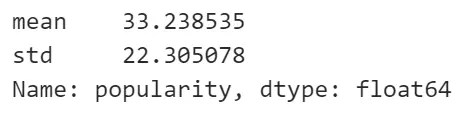
    ต้องการหาค่าเฉลี่ยของคะแนนความนิยม (popularity):

    # Calculate the mean of popularity
    spotify["popularity"].mean()
    

    ผลลัพธ์:

    หรือหา SD ของคะแนนความนิยม (popularity):

    # Calculate the SD of popularity
    spotify["popularity"].std()


    ผลลัพธ์:

    .

    2️⃣ .agg()

    Use case:

    ในบางครั้ง เราต้องการคำนวณหลายค่าทางสถิติพร้อมกัน เช่น ตัวอย่างก่อนหน้านี้ที่เราต้องการหา mean และ SD

    แทนที่เราจะเขียน code เพื่อแสดงผลแยกกัน เช่น:

    # Calculate mean
    spotify["popularity"].mean()
    
    # Calculate SD
    spotify["popularity"].std()
    

    เราสามารถใช้ agg() เพื่อช่วยลดเวลาได้

    ตัวอย่าง:

    หาค่าเฉลี่ยและ SD ของคะแนนความนิยม (popularity):

    # Calculate mean and SD of popularity
    spotify["popularity"].agg(["mean", "std"])
    

    ผลลัพธ์:

    Note:

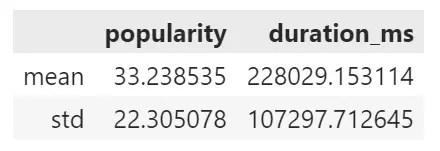
    เราสามารถใช้ .agg() เพื่อคำนวณค่าทางสถิติกับหลาย column พร้อมกันได้ เช่น หาค่า:

    • mean
    • std

    ให้กับ:

    • คะแนนความนิยม
    • ความยาวของเพลง
    # Calculate mean and SD for popularity and duration_ms
    spotify[["popularity", "duration_ms"]].agg({
    		"popularity": ["mean", "std"],
    		"duration_ms": ["mean", "std"]
    		})
    

    ผลลัพธ์:

    .

    3️⃣ .groupby()

    Use case:

    บางครั้ง เราต้องการคำนวณค่าทางสถิติตามกลุ่มข้อมูล

    เราสามารถใช้ .groupby() เพื่อจับกลุ่มข้อมูล ก่อนจะคำนวณค่าทางสถิติได้

    ตัวอย่าง:

    ต้องการหา ค่าเฉลี่ยและ SD ของคะแนนความนิยม (popularity) ของศิลปินแต่ละคน:

    # Group by artists and calculate mean of popularity 
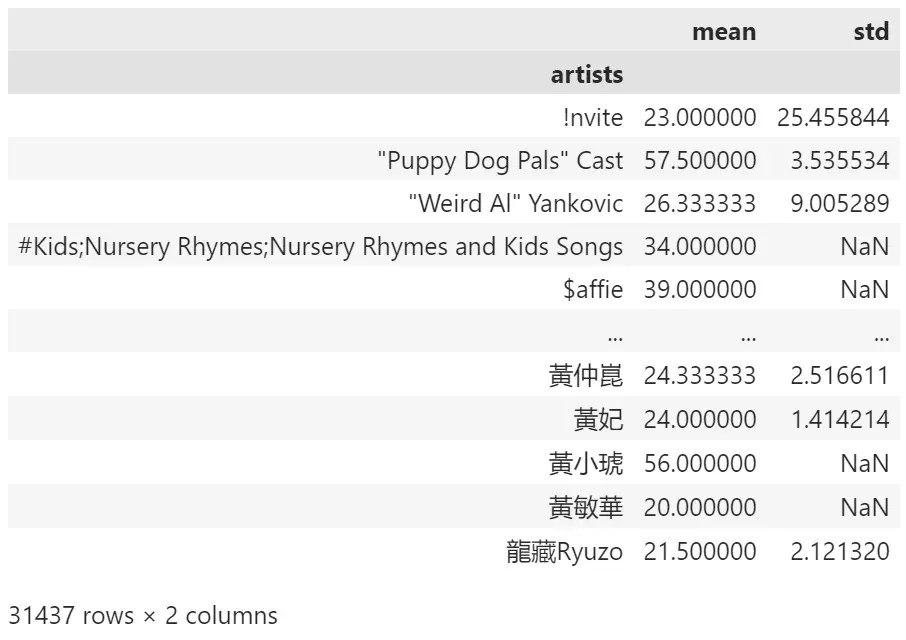
    spotify.groupby("artists")["popularity"].agg(["mean", "std"])
    

    ผลลัพธ์:


    ⏭️ Next Song

    .

    💻 Example Code

    สำหรับคนที่ลองรัน code ด้วยตัวเอง สามารถโหลด code ตัวอย่างได้ที่ GitHub

    .

    📚 Further Reading

    สำหรับคนที่สนใจเรียนรู้เพิ่มเติมเกี่ยวกับ pandas สามารถศึกษาต่อได้ตาม links ด้านล่าง:

  • Intro to Python: ทำความรู้จักกับภาษา Python และวิธีใช้งานเบื้องต้น สำหรับผู้เริ่มต้น พร้อมตัวอย่าง

    Intro to Python: ทำความรู้จักกับภาษา Python และวิธีใช้งานเบื้องต้น สำหรับผู้เริ่มต้น พร้อมตัวอย่าง

    ในบทความนี้ เราจะไปทำความรู้จักกับภาษา Python กัน:

    • Python คืออะไร?
    • วิธีเขียน Python เบื้องต้น
    • Data types ใน Python
    • การทำงานกับ data types ใน Python

    ถ้าพร้อมแล้ว ไปเริ่มกันเลย


    1. 🐍 Python คืออะไร?
    2. 🏁 Getting Started With Python
    3. 👶 Baby Steps
      1. 🔢 (1) Basic Arithmetic
      2. 📦 (2) Variables
    4. 🍞 Data Types
    5. 👉 Integre & Float
      1. 1️⃣ Arithmetic
      2. 2️⃣ Type Casting
    6. 👉 String
      1. 1️⃣ Markers of String
      2. 2️⃣ Type Casting
      3. 3️⃣ Concatenate
      4. 4️⃣ String Methods
    7. 👉 Boolean
      1. 1️⃣ Check for True & False
      2. 2️⃣ Comparison
    8. 👉 List
      1. 1️⃣ Purpose
      2. 2️⃣ Indexing & Slicing
      3. 3️⃣ Check Length
      4. 4️⃣ Add to List
      5. 5️⃣ Update List
      6. 6️⃣ Delete From List
    9. 👉 Dictionary
      1. 1️⃣ Purpose
      2. 2️⃣ Extract Values
      3. 3️⃣ Get Keys & Values
      4. 4️⃣ Add to Dictionary
      5. 5️⃣ Update Dictionary
      6. 6️⃣ Delete From Dictionary

    🐍 Python คืออะไร?

    Python เป็น high-level programming language ที่พัฒนาโดย programmer ชาวดัชต์ Guido van Rossum ในช่วง ปี ค.ศ. 1980-1990 เพื่อทำให้การเขียน programme เป็นเรื่องง่าย

    van Rossum เรียกภาษาที่คิดขึ้นมาว่า Python ตามชื่อกลุ่มนักแสดงตลกจากประเทศอังกฤษ Monty Python หรือ The Pythons เพราะคำว่า Python สั้น จำง่าย และดูลึกลับ (ไม่มีความเกี่ยวข้องกับชนิดงู Python แต่อย่างใด)

    .

    เนื่องจาก Python เป็น high-level language หรือมีความใกล้เคียงกับภาษามนุษย์ (มากกว่าภาษาคอมพิวเตอร์) จึงเป็นภาษาที่ใช้งานและทำความเข้าใจง่าย และเป็นที่นิยมของนักพัฒนาทั่วโลก

    ในปัจจุบัน (2025) Python ครองอันดับในฐานะ programming language ที่เป็นที่นิยมมากที่สุด (อ้างอิง TIOBE):

    นอกจากใช้งานง่ายแล้ว Python ยังมีข้อดีอื่น ๆ อีก ได้แก่:

    • เป็น open source
    • มี libraries รองรับการใช้งานที่มากมายและหลากหลาย
    • แก้ bug ได้ง่าย
    • ใช้ได้กับหลายระบบปฏิบัติการ ทั้ง Windows, macOS, และ Linux

    .

    การใช้งาน Python มีตั้งแต่:

    • เขียน programme
    • เขียน web application
    • ทำ web scraping
    • ทำ data analysis
    • พัฒนา AI และ machine learning

    🏁 Getting Started With Python

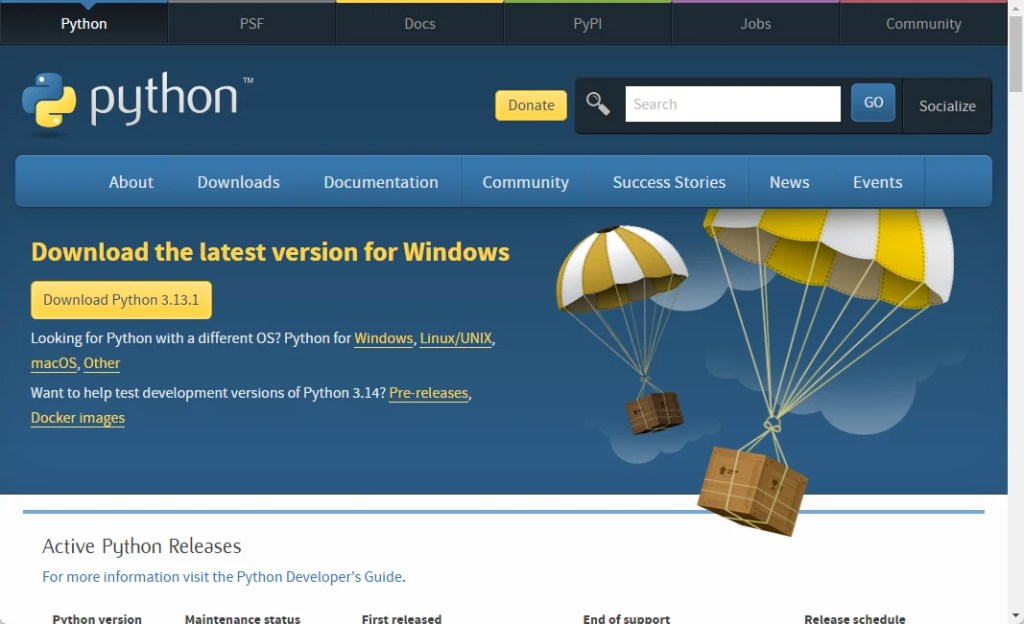
    สำหรับการเริ่มใช้งาน Python เราสามารถติดตั้ง Python บนคอมพิวเตอร์ของเรา โดยดาวน์โหลด Python จาก https://www.python.org/downloads/:

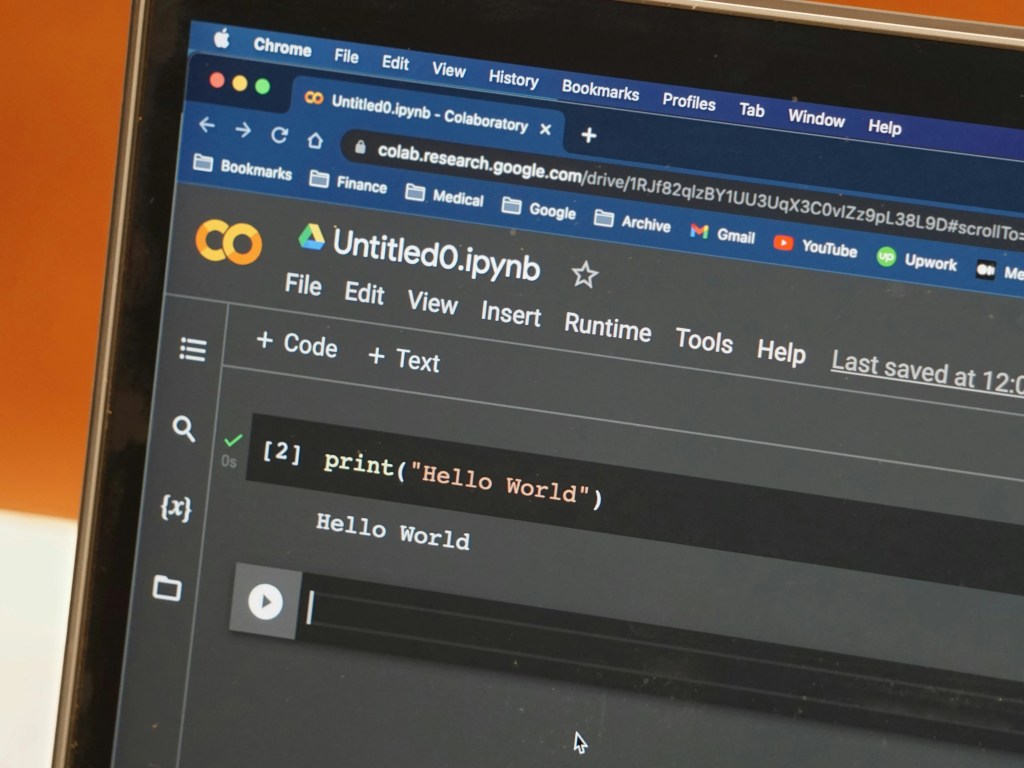
    หรือใช้งานผ่าน online services ฟรี เช่น:

    Note: บทความนี้มีตัวอย่าง code ใน Google Colab สามารถกดเข้าไปดูได้


    👶 Baby Steps

    หลังจากเตรียมตัวให้พร้อมแล้ว เรามาดูวิธีเขียน Python เบื้องต้นกัน

    .

    🔢 (1) Basic Arithmetic

    สำหรับก้าวแรกในการเขียน Python เรามาเริ่มจากการคิดเลขง่าย ๆ กัน เช่น:

    บวก:

    # Addition
    3 + 4
    

    ลบ:

    # Subtraction
    10 - 7
    

    คูณ:

    # Multiplication
    2 * 2
    

    หาร:

    # Division
    9 / 3
    

    เราจะเห็นได้ว่า Python สามารถคิดเลขให้ได้อย่างรวดเร็ว:

    .

    📦 (2) Variables

    ในการทำงานกับ Python เราสามารถสร้าง variable เพื่อช่วยเก็บข้อมูลได้ (แทนที่การเขียน code เรียกใช้ข้อมูลเองทุกครั้ง)

    เช่น เราสามารถเก็บเงินค่าขนม:

    # Create allowance variable
    allowance = 100
    

    และค่าใช้จ่าย:

    # Create expense variable
    expense = 40
    

    แล้วเรียกใช้งานทั้งสองค่า เช่น ดูว่าเดือนนี้เราเหลือเงินเท่าไร:

    # Calculate remaining balance
    allowance - expense
    

    ผลลัพธ์:

    60

    .

    เราสามารถ update ค่าใน variable ได้ เช่น update expense จาก 40 เป็น 70:

    # Update expense
    expense = 70
    

    ถ้าเราคำนวณเงินคงเหลือ:

    # Calculate remaining balance
    allowance - expense
    

    เราจะได้ค่าที่ต่างไปจากเดิม:

    30

    .

    สุดท้าย เราสามารถเก็บผลลัพธ์ที่ได้ ไว้ใน variable ตัวใหม่ เพื่อเรียกใช้งานในภายหลังได้:

    # Store remaining balance in a variable
    remain = allowance - expense
    
    # Check remaining balance
    remain
    

    ผลลัพธ์:

    30

    Note: เราสามารถลบ variable ได้ด้วย del() เช่น del(remain) จะลบ remain จาก Python


    🍞 Data Types

    ตอนนี้ เรารู้วิธีการทำงานกับ Python เบื้องต้นแล้ว

    เรามาทำความรู้จักกับ data type หรือประเภทข้อมูล ซึ่งเป็นตัวกำหนด action ที่เราสามารถกระทำใช้กับข้อมูลได้

    .

    โดย Python มี 6 data types ที่เราใช้บ่อย ได้แก่:

    No.TypeMeaningExample
    1Integreเลขจำนวนเต็ม11
    2Floatเลขทศนิยม3.78104
    3Stringข้อความ"Python"
    4Booleanจริง/ไม่จริงTrue
    5Listเก็บข้อมูลได้หลายประเภท[”John”, 34, True]
    6Dictionaryเก็บ key-value pair{"name": "John", "age": 34, "is_male": True}

    เราไปดูกันว่า แต่ละ data type สามารถทำอะไรได้บ้าง


    👉 Integre & Float

    .

    1️⃣ Arithmetic

    จากที่ได้เห็นก่อนหน้านี้ เราสามารถใช้ integre และ float ในการคำนวณเลขได้ เช่น:

    3 * 7
    

    และ

    7.3915 - 3.2914
    

    .

    2️⃣ Type Casting

    ทั้งนี้ เราสามารถเปลี่ยนข้อมูลบางประเภท ให้เป็น integre และ float ได้ดังนี้

    เปลี่ยนให้เป็น integre:

    # Convert to integre
    int(100.50)
    

    ผลลัพธ์:

    100

    เปลี่ยนให้เป็น float:

    # Convert to float
    float("100")
    

    ผลลัพธ์:

    100.0

    👉 String

    .

    1️⃣ Markers of String

    String ใน Python จะอยู่ใน "" หรือ '' เสมอ เช่น

    # Single-line string
    "John"
    

    หรือ

    # Single-line string
    'John'
    

    ถ้าเรามีข้อความหลายบรรทัด ให้ใช้ """ หรือ ''':

    # Multiple-line string
    """
    My name is Wick.
    John Wick.
    I'm looking for my dog.
    """
    

    หรือ

    # Multiple-line string
    '''
    My name is Wick.
    John Wick.
    I'm looking for my dog.
    '''
    

    .

    2️⃣ Type Casting

    เราสามารถเปลี่ยนข้อมูลต่าง ๆ ให้เป็น string ได้โดยใช้ str() เช่น:

    str(100)
    

    ผลลัพธ์:

    '100'

    สังเกตว่า ตอนนี้ 100 อยู่ใน '' แสดงว่า 100 เป็น string และไม่ใช่ integre แล้ว

    ถ้าเราเอา 100 นี้ไปคิดเลข ระบบจะส่ง error กลับมา เพราะเราไม่สามารถคำนวณเลขด้วย string ได้:

    TypeError                                 Traceback (most recent call last)
    <ipython-input-49-efc4e6e83db0> in <cell line: 0>()
          1 # String cannot be used in arithmetic operation
    ----> 2 str(100) + 100
    
    TypeError: can only concatenate str (not "int") to str

    .

    3️⃣ Concatenate

    แม้ว่าเราจะไม่สามารถบวกลบ string ได้ แต่เราสามารถใช้ + เพื่อรวม string เข้าด้วยกันได้ เช่น:

    "I have " + str(100) + " THB."
    

    ผลลัพธ์:

    'I have 100 THB.'

    .

    4️⃣ String Methods

    นอกจากการรวม string แล้ว เรายังมีอย่างอื่นที่ใช้กับ string ได้อีก เช่น:

    No.MethodExplain
    1upper()เปลี่ยนให้เป็นพิมพ์ใหญ่ทั้งหมด
    2lower()เปลี่ยนให้เป็นพิมพ์เล็กทั้งหมด
    3capitalize()เปลี่ยนอักษรแรกให้เป็นพิมพ์ใหญ่
    4title()เปลี่ยนอักษรแรกของทุกคำให้เป็นพิมพ์ใหญ่
    5strip()ลบ space ออกจากก่อนและหลังคำ
    6replace()แทนที่คำ
    7split()แยกคำ
    8join(iterable)รวมคำ
    9find(substring)หาตำแหน่งของคำ
    10count()นับตัวอักษรที่ต้องการ

    👉 Boolean

    Boolean เป็นเหมือนกับค่า on (True) และ off (False) ของ switch ซึ่งเป็นพื้นฐานของการทำงานของคอมพิวเตอร์

    .

    1️⃣ Check for True & False

    เราสามารถใช้ bool() เพื่อเช็กว่า ข้อมูลเราเป็น True หรือ False เช่น:

    bool("John")
    

    ผลลัพธ์:

    True

    .

    bool() จะส่ง True กลับมาทุกครั้ง ยกเว้นในกรณีเหล่านี้:

    TypeFalseExplain
    Integrebool(0)เลขเป็น 0
    Stringbool("")String ที่เป็นค่าว่าง
    Booleanbool(False)Boolean ที่เป็นค่า False
    Listbool([])List ที่เป็นค่าว่าง
    Dictionarybool({})Dictionary ที่เป็นค่าว่าง

    .

    2️⃣ Comparison

    Python จะส่งค่า boolean กลับมา เมื่อเราทำการเปรียบเทียบ เช่น:

    10 > 5
    

    ผลลัพธ์:

    True

    .

    หรือ

    10 < 5
    

    ผลลัพธ์:

    False

    👉 List

    .

    1️⃣ Purpose

    List ใช้เก็บข้อมูลหลาย ๆ ค่า เช่น:

    • Integre
    • Float
    • String
    • Boolean
    • List
    • Dictionary
    • etc.

    เช่น:

    # List can store data of different types
    a_list = [10, 15.94, "ok", True, ["egg", "milk"], {"store": "Walmart"}]
    

    .

    2️⃣ Indexing & Slicing

    เราสามารถดึงข้อมูลที่อยู่ใน list ได้ โดยการใช้ []:

    SyntaxExplain
    list[x]ดึงข้อมูลในตำแหน่งที่ x
    list[-x]ดึงข้อมูลในตำแหน่งที่ -x (นับจากหลังมาหน้า)
    list[x:y]ดึงข้อมูลในตำแหน่งระหว่าง x และ y-1 (ข้อมูลที่ y จะไม่ถูกดึงมาด้วย)
    list[-x:-y]ดึงข้อมูลในตำแหน่งระหว่าง -x และ -y-1 (ข้อมูลที่ -y จะไม่ถูกดึงมาด้วย)

    .

    เช่น เรามี list ผลไม้:

    # A list
    my_list = ["apple", "banana", "cherry"]
    

    เราสามารถดึง “apple” ออกได้โดยใช้:

    # Get "apple"
    my_list[0]
    

    ผลลัพธ์:

    'apple'

    Note: เราใช้ 0 เพราะใน Python เราจะเริ่มนับตำแหน่งที่ 1 เป็น 0

    .

    หรือเลือก “apple” ถึง “cherry”:

    # Get "apple" to "cherry"
    my_list[0:3]
    

    ผลลัพธ์:

    ['apple', 'banana', 'cherry']

    .

    3️⃣ Check Length

    เราสามารถหาความยาวของ list ได้ด้วย len() เช่น:

    # Check length
    len(my_list)
    

    ผลลัพธ์:

    3

    .

    4️⃣ Add to List

    เราสามารถเพิ่มข้อมูลลงใน list ได้ด้วย 2 วิธี:

    No.WayExample
    1.append()เพิ่มข้อมูล 1 ค่า
    2.extend()เพิ่มข้อมูลจาก list หรือ string

    .

    ตัวอย่าง .append():

    # append()
    my_list.append("orange")
    
    my_list
    

    ผลลัพธ์:

    ['apple', 'banana', 'cherry', 'orange']

    .

    ตัวอย่าง .extend():

    เรามี 2 lists ที่ต้องการรวมกัน:

    # Lists to merge
    list_1 = [1, 2, 3]
    list_2 = [4, 5, 6]
    

    ให้เราใช้ .extend() แบบนี้:

    # extend()
    list_1.extend(list_2)
    

    ผลลัพธ์:

    [1, 2, 3, 4, 5, 6]

    .

    5️⃣ Update List

    เราสามารถ update ข้อมูลใน list ได้ โดยการระบุตำแหน่งข้อมูลที่เราต้องการ update

    เช่น เราต้องการเปลี่ยน “orange” เป็น “kiwi”:

    # Update list
    my_list[3] = "kiwi"
    
    my_list
    

    เมื่อเราเรียกดู my_list เราจะเห็นว่า “orange” เปลี่ยนเป็น “kiwi”:

    ['apple', 'banana', 'cherry', 'kiwi']

    .

    6️⃣ Delete From List

    เราสามารถลบข้อมูลออกจาก list ได้ด้วย .remove()

    เช่น ลบ “kiwi” ออกจาก my_list:

    # Delete from list
    my_list.remove("kiwi")
    
    my_list
    

    ผลลัพธ์:

    ['apple', 'banana', 'cherry']

    👉 Dictionary

    .

    1️⃣ Purpose

    Dictionary มีไว้เก็บ key-value pair เช่น:

    # A dictionary
    cities = {"Thailand": "Bangkok",
              "Japan": "Tokyo",
              "Brazil": "Brasilia"}
    

    .

    2️⃣ Extract Values

    เราสามารถดึงข้อมูลออกจาก dictionary ได้ด้วยการระบุ key ของข้อมูล

    เช่น ต้องการดึง “Tokyo” ให้เราระบุ “Japan”:

    # Extract values from list
    cities["Japan"]
    

    ผลลัพธ์:

    'Tokyo'

    .

    3️⃣ Get Keys & Values

    เราสามารถดู keys และ values ทั้งหมดใน dictionary ได้ด้วย .keys() และ .values() เช่น:

    # Get keys
    cities.keys()
    

    ผลลัพธ์:

    dict_keys(['Thailand', 'Japan', 'Brazil'])

    .

    และ

    # Get values
    cities.values()
    

    ผลลัพธ์:

    dict_values(['Bangkok', 'Tokyo', 'Brasilia'])

    .

    4️⃣ Add to Dictionary

    เราสามารถเพิ่มข้อมูลลงใน dictionary ได้ โดยการใส่ key และ value ใหม่ เช่น:

    # Add to dictionary
    cities["US"] = "New York"
    
    cities
    

    ผลลัพธ์:

    {'Thailand': 'Bangkok',
     'Japan': 'Tokyo',
     'Brazil': 'Brasilia',
     'US': 'New York'}

    .

    5️⃣ Update Dictionary

    เราสามารถ update ข้อมูลใน dictionary ได้ด้วยเรียก key และใส่ value ใหม่ เช่น:

    # Update dictionary
    cities["US"] = "Washington DC"
    
    cities
    

    ผลลัพธ์:

    {'Thailand': 'Bangkok',
     'Japan': 'Tokyo',
     'Brazil': 'Brasilia',
     'US': 'Washington DC'}

    .

    6️⃣ Delete From Dictionary

    เราสามารถลบข้อมูลออกจาก dictionary ได้ด้วย del

    เช่น ลบ “US”: “Washington DC” ออก:

    # Delete from dictionary
    del cities["US"]
    
    cities
    

    ผลลัพธ์:

    {'Thailand': 'Bangkok', 'Japan': 'Tokyo', 'Brazil': 'Brasilia'}
  • Seaborn 101: มาดูวิธีสร้างกราฟ 5 แบบ + 3 วิธีตกแต่งกราฟอย่างง่ายใน Seaborn กัน

    Seaborn 101: มาดูวิธีสร้างกราฟ 5 แบบ + 3 วิธีตกแต่งกราฟอย่างง่ายใน Seaborn กัน

    ในบทความนี้ เราจะมาทำความรู้จักกับ seaborn และวิธีการใช้ seaborn เพื่อสร้างและตกแต่งกราฟเบื้องต้นกัน

    ถ้าพร้อมแล้วมาเริ่มกันเลย


    1. ⚓ Intro to Seaborn
    2. 🍔 Dataset ตัวอย่าง
    3. 🤔 ก่อนเริ่มสร้างกราฟ
    4. 💻 Syntax ของ Seaborn
    5. 👉 การสร้างกราฟพื้นฐาน
      1. 📊 1. Histograms
      2. 📊 2. Box Plots
      3. 📊 3. Scatter Plots
      4. 📊 4. Line Plots
      5. 📊 5. Bar Plots
    6. 🔵 การใช้สีเพื่อเพิ่มตัวแปรในกราฟ
    7. 🖼️ การตกแต่งกราฟ
      1. 🎨 1. สี
      2. 🎨 2. Style
      3. 🎨 3. ข้อความ
    8. 💪 สรุป Seaborn 101
    9. ⏭️ Next
      1. 🧑‍💻 Example Code on GitHub
      2. 📚 Further Reading

    ⚓ Intro to Seaborn

    seaborn เป็น library สำหรับ visualise data ใน Python ซึ่งต่อยอดมาจาก:

    • pandas: library สำหรับ data transformation
    • matplotlib: library สำหรับสร้างกราฟ

    เพราะ seaborn ต่อยอดจาก pandas และ matplotlib จึงทำให้เราสามารถใช้ 3 libraries นี้ร่วมกันได้อย่างลงตัว

    จุดเด่นหลักของ seaborn คือ ความสามารถในการสร้างกราฟที่สวยงามได้อย่างง่าย

    มาดูกันว่า การสร้างกราฟด้วย seaborn ง่ายแค่ไหน


    🍔 Dataset ตัวอย่าง

    ในบทความนี้ เราจะใช้ tips ซึ่งเป็น built-in datasets ของ seaborn เพื่อดูวิธีใช้ seaborn กัน

    tips เป็น dataset เกี่ยวกับ tip ที่พนักงานในร้านอาหารได้รับ โดยมี columns ดังนี้:

    No.ColumnDescription
    1total_billจำนวนเงินค่าอาหาร
    2tipจำนวนเงินค่า tip
    3sexเพศของคนจ่ายบิล
    4smokerสถานะการสูบบุหรี่ของคนจ่ายบิล (สูบ vs ไม่สูบ)
    5dayวันของสัปดาห์
    6timeช่วงเวลาของวัน (lunch vs dinner)
    7sizeจำนวนแขกที่มาด้วยกัน

    🤔 ก่อนเริ่มสร้างกราฟ

    ก่อนเริ่มสร้างกราฟ ให้เราทำ 2 อย่างก่อน:

    .

    (1) import seaborn ก่อน พร้อมกับ libraries อื่น ๆ ที่มักใช้ร่วมกัน:

    # Import libraries
    import pandas as pd
    import matplotlib.pyplot as plt
    import seaborn as sns
    

    Note: seaborn ใช้ตัวย่อว่า sns ตามชื่อตัวละคร Samuel Norman Seaborn จากทีวีซีรี่ย์ The West Wing

    .

    (2) ต่อจากนั้นให้ load dataset tips ที่จะใช้งาน:

    # Load the dataset
    tips = sns.load_dataset("tips")
    

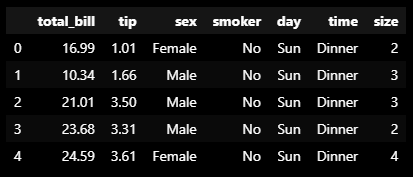
    Note: ถ้าเรา preview ด้วย .head() เราจะเห็นข้อมูลแบบนี้:

    Dataset: tips

    ในกรณีที่เราต้องการ import dataset จากข้างนอก เราสามารถใช้ pandas ช่วยได้ เช่น pd.read_csv() เพื่อโหลดไฟล์ CSV


    💻 Syntax ของ Seaborn

    Syntax ในการสร้างกราฟด้วย seaborn มีดังนี้:

    sns.plot(data, x, y, customisation)
    plt.show()
    • sns.plot = เรียกชื่อกราฟที่ต้องการสร้าง
    • data = ชุดข้อมูลที่ใช้สร้างกราฟ
    • x = ข้อมูลแกน x
    • y = ข้อมูลแกน y
    • customisation = การตั้งค่าเพื่อตกแต่งกราฟ
    • plt.show() = แสดงกราฟบนหน้าจอ

    👉 การสร้างกราฟพื้นฐาน

    มาดูวิธีการสร้าง 5 กราฟพื้นฐานกัน:

    1. Histogram
    2. Box plot
    3. Scatter plot
    4. Line plot
    5. Bar plot

    .

    📊 1. Histograms

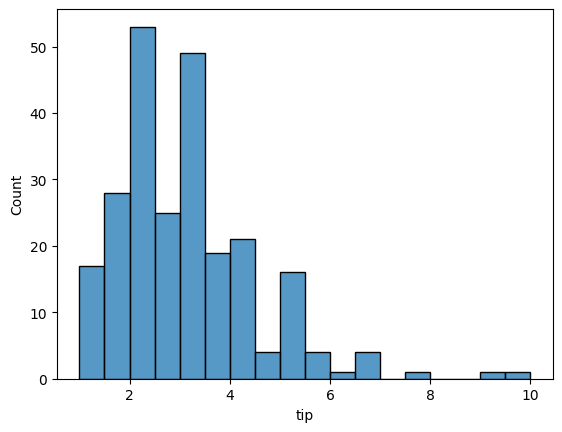
    Histogram เป็นกราฟเพื่อสำรวจการกระจายตัว (distribution) ของข้อมูล

    ตัวอย่าง:

    ดูการกระจายตัวของ tip ที่พนักงานได้รับ:

    # Create a histogram of tips
    sns.histplot(data = tips,
                 x = "tip")
    
    # Show the plot
    plt.show()
    

    Note: สำหรับ histogram เราจะละแกน y ไว้ เพราะ y จะแสดงความถี่ของข้อมูลบนแกน x

    ผลลัพธ์:

    Histogram

    Note: จะเห็นว่า tip ที่พนักงานได้รับ อยู่ในช่วง 0.5 ถึง 10 ดอลล่าร์ โดยอยู่ในช่วง 2 ถึง 4 ดอลล่าร์มากที่สุด

    .

    📊 2. Box Plots

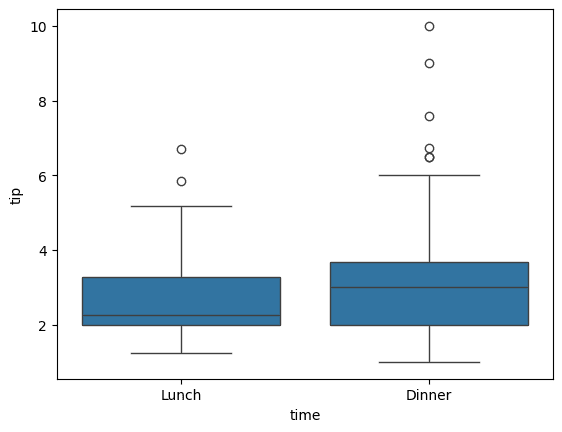
    Box plot ทำหน้าที่คล้ายกับ histogram คือ ช่วยในการสำรวจการกระจายตัวของข้อมูล

    ข้อแตกต่างของ box plot จาก histogram ก็คือ เราสามารถดู distribution หลาย ๆ อันได้บน box plot

    ตัวอย่าง:

    ดูการกระจายตัวของ tip ที่ได้ แบ่งตามมื้ออาหาร

    # Create a box plot of tips by time
    sns.boxplot(data = tips,
                x = "time",
                y = "tip")
    
    # Show the plot
    plt.show()
    

    ผลลัพธ์:

    Box plot

    Note: จะเห็นว่า การกระจายตัวของ tip ในแต่ละมื้อมีความใกล้เคียงกันมาก

    .

    📊 3. Scatter Plots

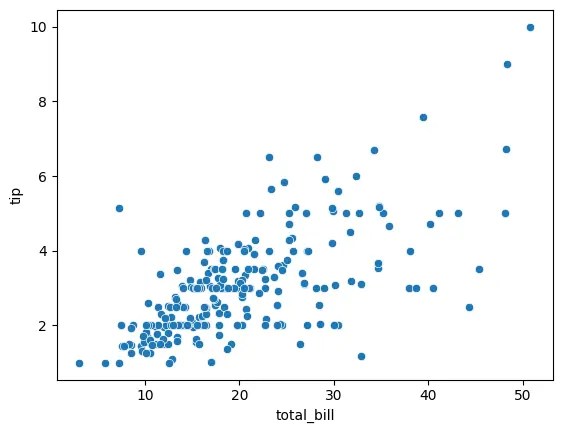
    Scatter plot ใช้สำรวจความสัมพันธ์ระหว่างตัวแปร 2 ตัว

    ตัวอย่าง:

    ความสัมพันธ์ระหว่างจำนวนเงินค่าอาหาร และ tip

    # Create a scatter plot of tips vs total bill
    sns.scatterplot(data = tips,
                    x = "total_bill",
                    y = "tip")
    
    # Show the plot
    plt.show()
    

    ผลลัพธ์:

    Scatter plot

    Note: จากกราฟ เราจะเห็นได้ว่า จำนวน tip ดูเหมือนจะเพิ่มขึ้นตามจำนวนเงินค่าอาหาร

    .

    📊 4. Line Plots

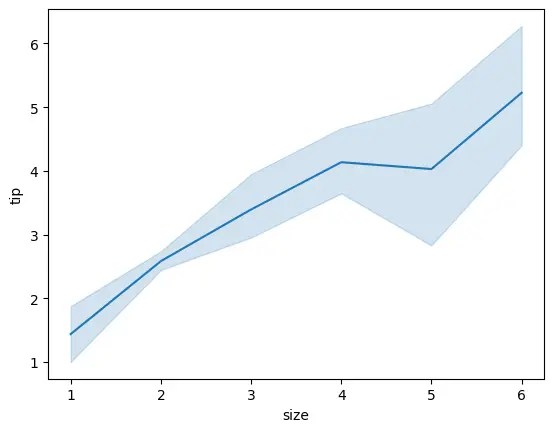
    Line plot ใช้สำรวจการเปลี่ยนแปลงของตัวแปรตามช่วงเวลา หรือตามตัวแปรอีกตัว

    ตัวอย่าง:

    ดูการเปลี่ยนแปลงของ tip ตามจำนวนแขก

    # Create a line plot of tips vs party size
    sns.lineplot(data = tips,
                 x = "size",
                 y = "tip")
    
    # Show the plot
    plt.show()
    

    ผลลัพธ์:

    Line plot

    Note: กราฟแสดงให้เห็นว่า tip เพิ่มขึ้นตามจำนวนแขก

    .

    📊 5. Bar Plots

    Bar plot ใช้สำรวจตัวแปรตามการจัดกลุ่มของตัวแปรอีกตัว

    ตัวอย่าง:

    ดูจำนวน tip ในแต่ละวันของสัปดาห์

    # Create a bar plot of tips vs day of week
    sns.barplot(data = tips,
                x = "day",
                y = "tip")
    
    # Show the plot
    plt.show()
    

    ผลลัพธ์:

    Bar plot

    Note: เราจะเห็นว่า ในแต่ละวัน พนักงานได้ tip ใกล้เคียงกัน แต่ในวันเสาร์และอาทิตย์จะได้เยอะกว่าวันพฤหัสฯ และวันศุกร์


    🔵 การใช้สีเพื่อเพิ่มตัวแปรในกราฟ

    จนถึงตอนนี้ เราจะเห็นว่า กราฟที่เราสร้างได้มีตัวแปร 1-2 ตัวเท่านั้น

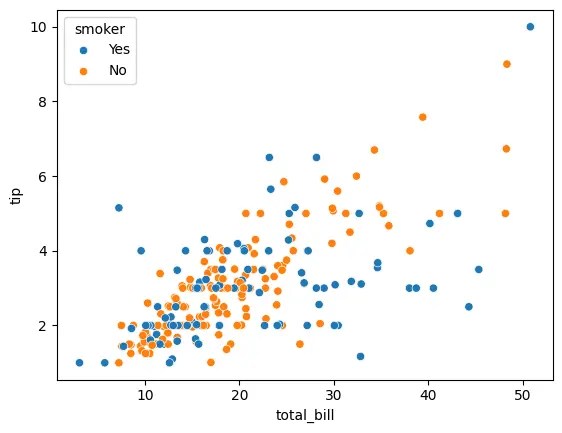
    ถ้าเราต้องการเพิ่มตัวแปรที่สามเข้าไป (โดยไม่เปลี่ยนประเภทกราฟ) เราสามารถทำได้ง่าย ๆ ด้วยการใช้สี ผ่านการเพิ่ม parametre ชื่อ hue

    ยกตัวอย่างเช่น:

    ใน scatter plot ที่แสดงความสัมพันธ์ระหว่าง tip และจำนวนเงินค่าอาหาร เราต้องการเพิ่มตัวแปรการสูบบุหรี่เข้าไปด้วย

    • ตัวแปร 1: tip
    • ตัวแปร 2: ค่าอาหาร
    • ตัวแปร 3: การสูบบุหรี่ของลูกค้า

    เราสามารถทำได้ตามนี้:

    # Create a scatter plot: tips vs total bill vs smoker types
    sns.scatterplot(data = tips,
                    x = "total_bill",
                    y = "tip",
                    hue = "smoker")
    
    # Show the plot
    plt.show()
    

    ผลลัพธ์:

    Third variable added as hue

    จากกราฟ เราจะเห็นได้ว่า seaborn จัดการเปลี่ยนสีข้อมูลให้เองโดยอัตโนมัติ

    ทั้งนี้ ถ้าเราต้องการเปลี่ยนกราฟเป็นสีอื่น เราต้องปรับ code ของเราเพิ่มเติม


    🖼️ การตกแต่งกราฟ

    มาดู 3 วิธีในการตกแต่งกราฟใน seaborn กัน:

    1. สี
    2. Style
    3. ข้อความ

    .

    🎨 1. สี

    ใน seaborn เราสามารถปรับสีของกราฟได้ด้วย 2 วิธี:

    1. ใช้ palette
    2. ใช้ sns.set_palette()

    .

    วิธีที่ 1: กำหนด parametre ที่เรียกว่า palette

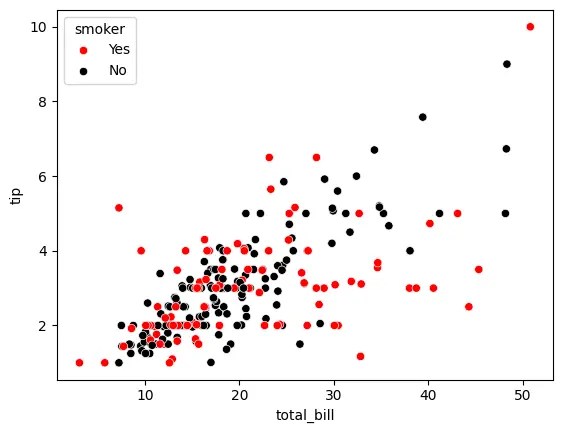
    เช่น สำหรับ scatter plot ก่อนหน้านี้ ถ้าเราอยากเปลี่ยนข้อมูลเป็นสีดำและแดง เราสามารถเขียน code ได้ดังนี้:

    • เราสร้าง dictionary ชื่อ colours เพื่อระบุว่า สีไหนจะใช้กับการสูบบุหรี่ประเภทไหน:
    # Specify colours
    colours = {"Yes": "red",
               "No": "black"}
    
    • จากนั้น เราก็ใช้ colours เป็น argument ของ palette:
    # Create a scatter plot
    sns.scatterplot(data = tips,
                    x = "total_bill",
                    y = "tip",
                    hue = "smoker",
                    palette = colours)
    
    # Show the plot
    plt.show()
    

    ผลลัพธ์:

    Customise colour with palette

    .

    วิธีที่ 2: เรียกใช้ sns.set_palette()

    ในกรณีที่เราไม่อยากกำหนด palette เอง เราสามารถเรียก sns.set_palette() แทนได้

    sns.set_palette() จะเรียกใช้และ apply ชุดสีที่เราต้องการให้กับกราฟของเราโดยอัตโนมัติ

    สำหรับ sns.set_palette() เราสามารถใส่ argument ได้ดังนี้:

    No.Argumentค่าสี
    1"deep"ค่า default ที่ seaborn ใช้
    2"muted"เป็น "deep" เวอร์ชันสีอ่อนกว่า
    3"pastel"สีพาสเทล
    4"dark"สีเข้ม
    5"colorblind"สีสำหรับคนตาบอดสี

    เช่น:

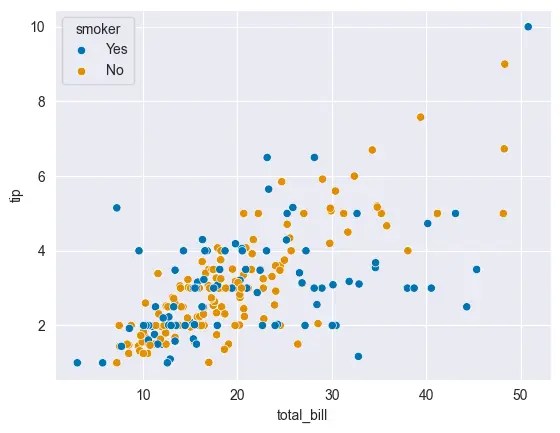
    สร้าง scatter plot โดยใช้ "colorblind":

    • เราเรียกใช้ sns.set_palette() โดยใส่ argument เป็นชื่อ palette ที่ต้องการใช้ (ในกรณีนี้ คือ "colorblind" ซึ่งเหมาะกับคนตาบอดสี):
    # Set the palette
    sns.set_palette("colorblind")
    
    • จากนั้น สร้าง scatter plot เหมือนเดิม (3 ตัวแปร แต่ไม่มี palette):
    # Create a scatter plot
    sns.scatterplot(data = tips,
                    x = "total_bill",
                    y = "tip",
                    hue = "smoker")
    
    # Show the plot
    plt.show()
    

    ผลลัพธ์:

    Customise colour with sns.set_palette()

    .

    🎨 2. Style

    นอกจากการเปลี่ยนสีกราฟแล้ว เรายังสามารถปรับ style ของกราฟได้ ผ่าน sns.set_style()

    โดยสำหรับ sns.set_style() เราสามารถใส่ argument ได้ดังนี้:

    No.Argumentสีพื้นหลังสีเส้นกราฟ
    1"white"ขาว ⚪ขาว ⚪
    2"dark"ดำ ⚫ดำ ⚫
    3"whitegrid"ขาว ⚪ดำ ⚫
    4"darkgrid"ดำ ⚫ขาว ⚪
    5"ticks"ขาว ⚪ไม่มี ✖️

    Note:

    • "white" เป็นค่า default ของ seaborn
    • "tick" เหมาะสำหรับกราฟที่เราต้องการเน้นแกน x และ y

    ยกตัวอย่างเช่น:

    เราต้องการปรับกราฟของเราเป็น dark theme ที่มี grid:

    • กำหนด argument ของ sns.set_style() เป็น "darkgrid":
    # Set the style
    sns.set_style("darkgrid")
    
    • สร้างกราฟที่ต้องการ:
    # Create a scatter plot
    sns.scatterplot(data = tips,
                    x = "total_bill",
                    y = "tip",
                    hue = "smoker")
    
    # Show the plot
    plt.show()
    

    ผลลัพธ์:

    Customise style with sns.set_style()

    .

    🎨 3. ข้อความ

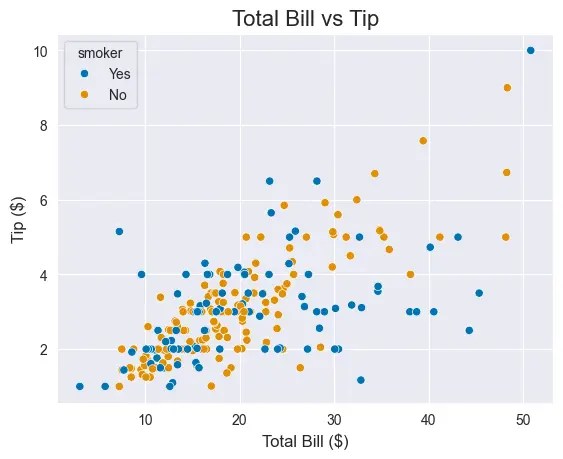
    นอกจากสีและ style แล้ว เรายังสามารถตกแต่งกราฟเพิ่มเติม ด้วยการเพิ่มข้อความกำกับกราฟ อย่าง title และ labels (ชื่อแกน x และ y) ได้ด้วย

    เราสามารถทำสิ่งนี้ได้โดยใช้ functions ของ matplotlib (plt) แบบนี้:

    • สร้างกราฟ:
    # Create a scatter plot
    sns.scatterplot(data = tips,
                    x = "total_bill",
                    y = "tip",
                    hue = "smoker")
    
    • เพิ่ม title:
    # Add a title
    plt.title("Total Bill vs Tip", fontsize = 16)
    
    • เพิ่ม labels:
    # Add labels
    plt.xlabel("Total Bill ($)", fontsize = 12)
    plt.ylabel("Tip ($)", fontsize = 12)
    
    • แสดงกราฟ
    # Show the plot
    plt.show()
    

    ผลลัพธ์:

    Adding title and labels with plt.title(), and plt.xlabel() and plt.label()

    Note: จะเห็นแล้วว่า ตอนนี้กราฟของเรามีข้อความกำกับหัวข้อกราฟ (title) รวมทั้งแกน x และ y (labels)


    💪 สรุป Seaborn 101

    ในบทความนี้ เราเรียนรู้วิธีการสร้างกราฟง่าย ๆ ใน seaborn กัน

    โดยเราเริ่มจากการสร้างกราฟพื้นฐาน 5 อย่าง:

    กราฟSeaborn
    Histogramsns.histplot()
    Box plotsns.boxplot()
    Scatter plotsns.scatterplot()
    Line plotsns.lineplot()
    Bar plotsns.barplot()

    พร้อมการเพิ่มตัวแปรที่สาม:

    เพิ่มตัวแปรที่สามSeaborn
    เพิ่มผ่านสีhue

    และจบด้วยการปรับแต่งกราฟ:

    ปรับแต่งSeaborn
    สีpalette
    sns.set_palette()
    Stylesns.set_style()
    ข้อความplt.title()
    plt.xlabel()
    plt.ylabel()

    ⏭️ Next

    หวังว่า บทความนี้จะเป็นประโยชน์สำหรับคนที่ต้องการเรียนรู้เบื้องต้นเกี่ยวกับ seaborn

    .

    🧑‍💻 Example Code on GitHub

    สำหรับใครที่ต้องการลงมือทำเอง สามารถดูตัวอย่าง code ของบทความนี้ได้ที่ GitHub

    .

    📚 Further Reading

    สำหรับคนที่ต้องการเรียนรู้เพิ่มเติม สามารถอ่านเกี่ยวกับ seaborn ได้ตาม link ด้านล่าง: