Category: Data analytics

  • Python for AI: รวบรวม 8 บทความการทำงานกับ AI ด้วย Python

    Python for AI: รวบรวม 8 บทความการทำงานกับ AI ด้วย Python

    ในช่วงที่ผ่านมา ผมได้มีโอกาสแชร์การใช้ Python เบื้องต้นเพื่อทำงานกับ AI จากการที่ผมได้ทำงานในส่วนที่เกี่ยวข้องกับ AI มากขึ้น

    เพื่อช่วยในการแชร์ความรู้ ผมได้สรุปเนื้อหาไว้เป็นบทความทั้งหมด 8 บทความ ดังนี้:

    Session #1. Intro to Python:

    • Intro to Python: แนะนำการใช้งานและประเภมข้อมูลใน Python

    Session #2. Control flow:

    • Control flow: สอนใช้ statement เช่น if, for, while เพื่อควบคุมการทำงานของ Python

    Session #3. Functions:

    • Functions: สอนการสร้าง function ใน Python

    Session #4. Packages and files:

    • open(): สอนการทำงานกับไฟล์ด้วย base Python
    • json package: สอนการทำงานกับ JSON ด้วย json package
    • pd.read_csv(): สอนการทำงานกับ CSV ด้วย pandas package

    Session #5. AI packages:

    • openai package: สอนการทำงานกับ AI API ผ่าน openai package
    • google-genai package: สอนการใช้ google-genai เพื่อทำงานกับ Gemini API
  • สรุป 10 วิธีในการทำงานกับ data frame ในภาษา R: creating, indexing, subsetting, filtering, sorting, และอื่น ๆ — ตัวอย่างการทำงานกับ Jujutsu Kaisen data frame

    สรุป 10 วิธีในการทำงานกับ data frame ในภาษา R: creating, indexing, subsetting, filtering, sorting, และอื่น ๆ — ตัวอย่างการทำงานกับ Jujutsu Kaisen data frame

    Data frame เป็นหนึ่งใน data structure ที่พบบ่อยที่สุดในการทำงานกับข้อมูล

    Data frame เก็บข้อมูลในรูปแบบตาราง โดย:

    • 1 row = 1 รายการ (เช่น ข้อมูลของ John)
    • 1 column = 1 ประเภทข้อมูล (เช่น อายุ)

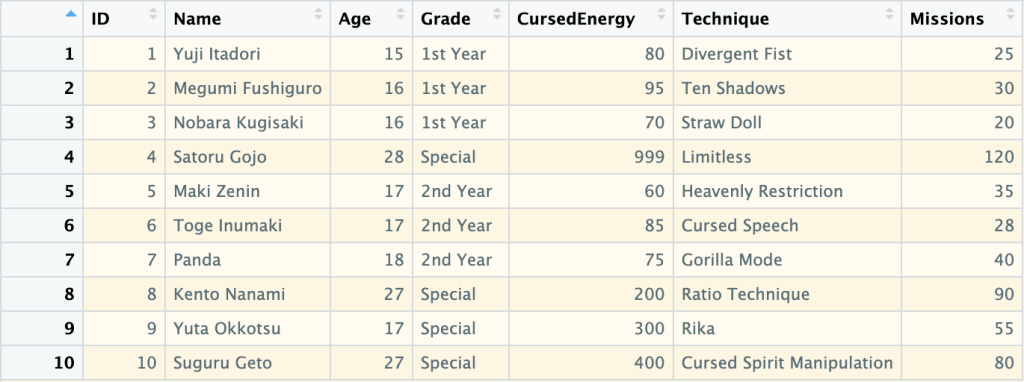
    ตัวอย่าง data frame:

    ในบทความนี้ เราจะมาสรุป 10 วิธีในการทำงานกับ data frame กัน:

    1. Creating: การสร้าง data frame
    2. Previewing: การดูข้อมูล data frame
    3. Indexing: การเลือก columns ที่ต้องการ
    4. Subsetting: การเลือก rows และ columns ที่ต้องการ
    5. Filtering: การกรองข้อมูล
    6. Sorting: การจัดลำดับข้อมูล
    7. Aggregating: การสรุปข้อมูล
    8. Adding columns: การเพิ่ม columns ใหม่
    9. Removing columns: การลบ columns
    10. Binding: การเชื่อมข้อมูลใหม่เข้ากับ data frame

    ถ้าพร้อมแล้ว ไปเริ่มกันเลย


    1. 1️⃣ Creating
    2. 2️⃣ Previewing
      1. 👀 View()
      2. 🙊 head()
      3. 🐒 tail()
      4. 🏗️ str()
      5. 🧮 summary()
      6. 💠 dim()
      7. 🚣 nrow()
      8. 🏦 ncol()
    3. 3️⃣ Indexing
      1. 💰 Using $
      2. 🔳 Using [[]]
    4. 4️⃣ Subsetting
      1. 🍽️ df[rows, cols]
      2. 🔪 subset()
    5. 5️⃣ Filtering
      1. 🍽️ df[rows, cols]
      2. 🔪 subset()
    6. 6️⃣ Sorting
      1. ⬇️ Ascending
      2. ⬆️ Descending
      3. ↔️ Sort by Multiple Columns
    7. 7️⃣ Aggregating
    8. 8️⃣ Adding Columns
    9. 9️⃣ Removing Columns
    10. 🔟 Binding
      1. 🤝 rbind()
      2. 🤲 cbind()
    11. 😺 GitHub
    12. 📃 References
    13. ✅ R Book for Psychologists: หนังสือภาษา R สำหรับนักจิตวิทยา

    1️⃣ Creating

    เราสามารถสร้าง data frame ด้วย data.frame() ซึ่งต้องการ ชื่อ column และ vector ที่เก็บข้อมูลของ column นั้น ๆ:

    # Create a data frame
    jjk_df <- data.frame(
      ID = 1:10,
      Name = c("Yuji Itadori", "Megumi Fushiguro", "Nobara Kugisaki", "Satoru Gojo",
               "Maki Zenin", "Toge Inumaki", "Panda", "Kento Nanami", "Yuta Okkotsu", "Suguru Geto"),
      Age = c(15, 16, 16, 28, 17, 17, 18, 27, 17, 27),
      Grade = c("1st Year", "1st Year", "1st Year", "Special", "2nd Year",
                "2nd Year", "2nd Year", "Special", "Special", "Special"),
      CursedEnergy = c(80, 95, 70, 999, 60, 85, 75, 200, 300, 400),
      Technique = c("Divergent Fist", "Ten Shadows", "Straw Doll", "Limitless",
                    "Heavenly Restriction", "Cursed Speech", "Gorilla Mode",
                    "Ratio Technique", "Rika", "Cursed Spirit Manipulation"),
      Missions = c(25, 30, 20, 120, 35, 28, 40, 90, 55, 80)
    )
    
    # View the result
    jjk_df
    

    ผลลัพธ์:

       ID             Name Age    Grade CursedEnergy                  Technique Missions
    1   1     Yuji Itadori  15 1st Year           80             Divergent Fist       25
    2   2 Megumi Fushiguro  16 1st Year           95                Ten Shadows       30
    3   3  Nobara Kugisaki  16 1st Year           70                 Straw Doll       20
    4   4      Satoru Gojo  28  Special          999                  Limitless      120
    5   5       Maki Zenin  17 2nd Year           60       Heavenly Restriction       35
    6   6     Toge Inumaki  17 2nd Year           85              Cursed Speech       28
    7   7            Panda  18 2nd Year           75               Gorilla Mode       40
    8   8     Kento Nanami  27  Special          200            Ratio Technique       90
    9   9     Yuta Okkotsu  17  Special          300                       Rika       55
    10 10      Suguru Geto  27  Special          400 Cursed Spirit Manipulation       80
    

    2️⃣ Previewing

    เรามี 8 functions สำหรับดูข้อมูล data frame:

    No.FunctionFor
    1View()ดูข้อมูลทั้งหมด
    2head()ดูข้อมูล 6 rows แรก
    3tail()ดูข้อมูล 6 rows สุดท้าย
    4str()ดูโครงสร้างข้อมูล
    5summary()ดูสถิติข้อมูล
    6dim()ดูจำนวน rows และ columns
    7nrow()ดูจำนวน rows
    8ncol()ดูจำนวน columns

    เราไปดูตัวอย่างทั้ง 8 functions กัน

    .

    👀 View()

    View() ใช้ดูข้อมูลทั้งหมดใน data frame:

    # View the whole data frame
    View(jjk_df)
    

    เราจะเห็นผลลัพธ์ในหน้าต่างใหม่:

    Note: เนื่องจาก View() แสดงข้อมูลทั้งหมด จึงเหมาะกับการใช้งานกับ data frame ขนาดเล็ก

    .

    head() ใช้ดูข้อมูล 6 rows แรกใน data frame:

    # View the first 6 rows
    head(jjk_df)
    

    ผลลัพธ์:

      ID             Name Age    Grade CursedEnergy            Technique Missions
    1  1     Yuji Itadori  15 1st Year           80       Divergent Fist       25
    2  2 Megumi Fushiguro  16 1st Year           95          Ten Shadows       30
    3  3  Nobara Kugisaki  16 1st Year           70           Straw Doll       20
    4  4      Satoru Gojo  28  Special          999            Limitless      120
    5  5       Maki Zenin  17 2nd Year           60 Heavenly Restriction       35
    6  6     Toge Inumaki  17 2nd Year           85        Cursed Speech       28
    

    .

    🐒 tail()

    tail() ใช้ดูข้อมูล 6 rows สุดท้ายใน data frame:

    # View the last 6 rows
    tail(jjk_df)
    

    ผลลัพธ์:

       ID         Name Age    Grade CursedEnergy                  Technique Missions
    5   5   Maki Zenin  17 2nd Year           60       Heavenly Restriction       35
    6   6 Toge Inumaki  17 2nd Year           85              Cursed Speech       28
    7   7        Panda  18 2nd Year           75               Gorilla Mode       40
    8   8 Kento Nanami  27  Special          200            Ratio Technique       90
    9   9 Yuta Okkotsu  17  Special          300                       Rika       55
    10 10  Suguru Geto  27  Special          400 Cursed Spirit Manipulation       80
    

    .

    🏗️ str()

    str() ใช้ดูโครงสร้างข้อมูลของ data frame:

    # View the data frame structure
    str(jjk_df)
    

    ผลลัพธ์:

    'data.frame':	10 obs. of  7 variables:
     $ ID          : int  1 2 3 4 5 6 7 8 9 10
     $ Name        : chr  "Yuji Itadori" "Megumi Fushiguro" "Nobara Kugisaki" "Satoru Gojo" ...
     $ Age         : num  15 16 16 28 17 17 18 27 17 27
     $ Grade       : chr  "1st Year" "1st Year" "1st Year" "Special" ...
     $ CursedEnergy: num  80 95 70 999 60 85 75 200 300 400
     $ Technique   : chr  "Divergent Fist" "Ten Shadows" "Straw Doll" "Limitless" ...
     $ Missions    : num  25 30 20 120 35 28 40 90 55 80
    

    จากผลลัพธ์ เราจะเห็นข้อมูล 5 อย่าง ได้แก่:

    1. จำนวน rows (obs.)
    2. จำนวน columns (variables)
    3. ชื่อ columns (เช่น ID)
    4. ประเภทข้อมูลของแต่ละ column (เช่น int)
    5. ตัวอย่างข้อมูลของแต่ละ column (เช่น 1 2 3 4 5 6 7 8 9 10)

    .

    🧮 summary()

    summary() ใช้สรุปข้อมูลใน data frame เช่น:

    • ค่าเฉลี่ย (Mean)
    • จำนวนข้อมูล (Length)
    # View the summary
    summary(jjk_df)
    

    ผลลัพธ์:

           ID            Name                Age           Grade            CursedEnergy     Technique            Missions     
     Min.   : 1.00   Length:10          Min.   :15.00   Length:10          Min.   : 60.00   Length:10          Min.   : 20.00  
     1st Qu.: 3.25   Class :character   1st Qu.:16.25   Class :character   1st Qu.: 76.25   Class :character   1st Qu.: 28.50  
     Median : 5.50   Mode  :character   Median :17.00   Mode  :character   Median : 90.00   Mode  :character   Median : 37.50  
     Mean   : 5.50                      Mean   :19.80                      Mean   :236.40                      Mean   : 52.30  
     3rd Qu.: 7.75                      3rd Qu.:24.75                      3rd Qu.:275.00                      3rd Qu.: 73.75  
     Max.   :10.00                      Max.   :28.00                      Max.   :999.00                      Max.   :120.00 
    

    .

    💠 dim()

    dim() ใช้แสดงจำนวน rows และ columns ใน data frame:

    # View the dimensions
    dim(jjk_df)
    

    ผลลัพธ์:

    [1] 10  7
    

    .

    🚣 nrow()

    nrow() ใช้แสดงจำนวน rows ใน data frame:

    # Get the number of rows
    nrow(jjk_df)
    

    ผลลัพธ์:

    [1] 10
    

    .

    🏦 ncol()

    ncol() ใช้แสดงจำนวน columns ใน data frame:

    # Get the number of columns
    ncol(jjk_df)
    

    ผลลัพธ์:

    [1] 7
    

    3️⃣ Indexing

    Indexing หมายถึง การเลือก columns ที่ต้องการ ซึ่งเราทำได้ 2 วิธี:

    1. ใช้ $ (นิยมใช้)
    2. ใช้ [[]]

    💰 Using $

    เราสามารถใช้ $ ได้แบบนี้:

    df$col
    

    ยกตัวอย่างเช่น เลือก column Name:

    # Index with $
    jjk_df$Name
    

    ผลลัพธ์:

     [1] "Yuji Itadori"     "Megumi Fushiguro" "Nobara Kugisaki"  "Satoru Gojo"      "Maki Zenin"      
     [6] "Toge Inumaki"     "Panda"            "Kento Nanami"     "Yuta Okkotsu"     "Suguru Geto"   
    

    .

    🔳 Using [[]]

    เราสามารถใช้ [[]] ได้แบบนี้:

    df[["col"]]
    

    ยกตัวอย่างเช่น เลือก column Name:

    # Index with [[]]
    jjk_df[["Name"]]
    

    ผลลัพธ์:

     [1] "Yuji Itadori"     "Megumi Fushiguro" "Nobara Kugisaki"  "Satoru Gojo"      "Maki Zenin"      
     [6] "Toge Inumaki"     "Panda"            "Kento Nanami"     "Yuta Okkotsu"     "Suguru Geto"   
    

    4️⃣ Subsetting

    Subsetting คือ การเลือก rows และ columns จาก data frame ซึ่งเราทำได้ 2 วิธี:

    1. ใช้ df[rows, cols] syntax
    2. ใช้ subset()

    .

    🍽️ df[rows, cols]

    เราสามารถใช้ df[rows, cols] ได้ 3 แบบ:

    1. เลือก rows
    2. เลือก columns
    3. เลือก rows และ columns

    แบบที่ 1. เลือก rows อย่างเดียว:

    # Subset rows only
    jjk_df[1:5, ]
    

    ผลลัพธ์:

      ID             Name Age    Grade CursedEnergy            Technique Missions
    1  1     Yuji Itadori  15 1st Year           80       Divergent Fist       25
    2  2 Megumi Fushiguro  16 1st Year           95          Ten Shadows       30
    3  3  Nobara Kugisaki  16 1st Year           70           Straw Doll       20
    4  4      Satoru Gojo  28  Special          999            Limitless      120
    5  5       Maki Zenin  17 2nd Year           60 Heavenly Restriction       35


    แบบที่ 2. เลือก columns อย่างเดียว:

    # Subset columns only
    jjk_df[, "Name"]
    

    ผลลัพธ์:

     [1] "Yuji Itadori"     "Megumi Fushiguro" "Nobara Kugisaki"  "Satoru Gojo"      "Maki Zenin"      
     [6] "Toge Inumaki"     "Panda"            "Kento Nanami"     "Yuta Okkotsu"     "Suguru Geto" 


    แบบที่ 3. เลือก rows และ columns:

    # Subset rows and columns
    jjk_df[1:5, c("Name", "Technique")]


    ผลลัพธ์:

                  Name            Technique
    1     Yuji Itadori       Divergent Fist
    2 Megumi Fushiguro          Ten Shadows
    3  Nobara Kugisaki           Straw Doll
    4      Satoru Gojo            Limitless
    5       Maki Zenin Heavenly Restriction
    

    .

    🔪 subset()

    เราสามารถ subset ข้อมูลได้ด้วย subset() ซึ่งต้องการ 2 arguemnts:

    subset(x, select)
    
    1. x = data frame
    2. select = columns ที่ต้องการเลือก
    # Subset using susbet() - select conlumns only
    subset(jjk_df, select = c("Name", "Technique"))
    

    ผลลัพธ์:

                   Name                  Technique
    1      Yuji Itadori             Divergent Fist
    2  Megumi Fushiguro                Ten Shadows
    3   Nobara Kugisaki                 Straw Doll
    4       Satoru Gojo                  Limitless
    5        Maki Zenin       Heavenly Restriction
    6      Toge Inumaki              Cursed Speech
    7             Panda               Gorilla Mode
    8      Kento Nanami            Ratio Technique
    9      Yuta Okkotsu                       Rika
    10      Suguru Geto Cursed Spirit Manipulation
    

    ในกรณีที่เราต้องการเลือก rows ด้วย เราจะต้องกำหนด rows ใน x:

    # Subset using susbet() - select both rows and columns
    subset(jjk_df[1:5, ], select = c("Name", "Technique"))
    

    ผลลัพธ์:

                  Name            Technique
    1     Yuji Itadori       Divergent Fist
    2 Megumi Fushiguro          Ten Shadows
    3  Nobara Kugisaki           Straw Doll
    4      Satoru Gojo            Limitless
    5       Maki Zenin Heavenly Restriction
    

    5️⃣ Filtering

    เราสามารถกรองข้อมูลใน data frame ได้ 2 วิธี:

    1. ใช้ df[rows, cols] syntax
    2. ใช้ subset()

    .

    🍽️ df[rows, cols]

    เราสามารถกรองข้อมูลด้วย df[rows, cols] โดยกำหนดเงื่อนไขการกรองใน rows

    เช่น กรองข้อมูลตัวละครที่อยู่ปี 1:

    # Filter using df[rows, cols] - 1 condition
    jjk_df[jjk_df$Grade == "1st Year", ]
    

    ผลลัพธ์:

      ID             Name Age    Grade CursedEnergy      Technique Missions
    1  1     Yuji Itadori  15 1st Year           80 Divergent Fist       25
    2  2 Megumi Fushiguro  16 1st Year           95    Ten Shadows       30
    3  3  Nobara Kugisaki  16 1st Year           70     Straw Doll       20
    

    ในกรณีที่เรามีมากกว่า 1 เงื่อนไข เราสามารถใช้ logical operators ช่วยได้:

    OperatorMeaning
    &AND
    |OR
    !NOT

    ยกตัวอย่างเช่น กรองข้อมูลตัวละครที่อยู่ปี 1 และมีอายุ 15 ปี:

    # Filter using df[rows, cols] - multiple conditions
    jjk_df[jjk_df$Grade == "1st Year" & jjk_df$Age == 15, ]
    

    ผลลัพธ์:

      ID         Name Age    Grade CursedEnergy      Technique Missions
    1  1 Yuji Itadori  15 1st Year           80 Divergent Fist       25
    

    .

    🔪 subset()

    เราสามารถใช้ subset() เพื่อกรองข้อมูลได้แบบนี้:

    # Filter using sbuset() - 1 condition
    subset(jjk_df, Grade == "1st Year")
    

    ผลลัพธ์:

      ID             Name Age    Grade CursedEnergy      Technique Missions
    1  1     Yuji Itadori  15 1st Year           80 Divergent Fist       25
    2  2 Megumi Fushiguro  16 1st Year           95    Ten Shadows       30
    3  3  Nobara Kugisaki  16 1st Year           70     Straw Doll       20
    

    เราสามารถเพิ่มเงื่อนไขการกรองได้ด้วย logical operator เช่น:

    # Filter using sbuset() - multiple conditions
    subset(jjk_df, Grade == "1st Year" & Age == 15)
    

    ผลลัพธ์:

      ID         Name Age    Grade CursedEnergy      Technique Missions
    1  1 Yuji Itadori  15 1st Year           80 Divergent Fist       25
    

    6️⃣ Sorting

    สำหรับการเรียงข้อมูล เราจะใช้ order() ซึ่งเพื่อเรียงข้อมูลได้ 3 แบบ:

    1. Ascending (A–Z)
    2. Descending (Z–A)
    3. Sort by multiple columns: จัดเรียงด้วยหลาย columns

    .

    ⬇️ Ascending

    ยกตัวอย่างเช่น เรียงลำดับตามจำนวนภารกิจ (Missions):

    # Sort ascending (default)
    jjk_df[order(jjk_df$Missions), ]
    

    ผลลัพธ์:

       ID             Name Age    Grade CursedEnergy                  Technique Missions
    3   3  Nobara Kugisaki  16 1st Year           70                 Straw Doll       20
    1   1     Yuji Itadori  15 1st Year           80             Divergent Fist       25
    6   6     Toge Inumaki  17 2nd Year           85              Cursed Speech       28
    2   2 Megumi Fushiguro  16 1st Year           95                Ten Shadows       30
    5   5       Maki Zenin  17 2nd Year           60       Heavenly Restriction       35
    7   7            Panda  18 2nd Year           75               Gorilla Mode       40
    9   9     Yuta Okkotsu  17  Special          300                       Rika       55
    10 10      Suguru Geto  27  Special          400 Cursed Spirit Manipulation       80
    8   8     Kento Nanami  27  Special          200            Ratio Technique       90
    4   4      Satoru Gojo  28  Special          999                  Limitless      120
    

    .

    ⬆️ Descending

    เราสามารถเรียงข้อมูลแบบ descending ได้ 2 วิธี:

    1. ใช้ decreasing
    2. ใช้ -

    วิธีที่ 1. ใช้ decreasing:

    # Sort descending with decreasing
    jjk_df[order(jjk_df$Missions, decreasing = TRUE), ]
    

    ผลลัพธ์:

       ID             Name Age    Grade CursedEnergy                  Technique Missions
    4   4      Satoru Gojo  28  Special          999                  Limitless      120
    8   8     Kento Nanami  27  Special          200            Ratio Technique       90
    10 10      Suguru Geto  27  Special          400 Cursed Spirit Manipulation       80
    9   9     Yuta Okkotsu  17  Special          300                       Rika       55
    7   7            Panda  18 2nd Year           75               Gorilla Mode       40
    5   5       Maki Zenin  17 2nd Year           60       Heavenly Restriction       35
    2   2 Megumi Fushiguro  16 1st Year           95                Ten Shadows       30
    6   6     Toge Inumaki  17 2nd Year           85              Cursed Speech       28
    1   1     Yuji Itadori  15 1st Year           80             Divergent Fist       25
    3   3  Nobara Kugisaki  16 1st Year           70                 Straw Doll       20
    

    วิธีที่ 2. ใช้ -:

    # Sort descending with -
    jjk_df[order(-jjk_df$Missions), ]
    

    ผลลัพธ์:

       ID             Name Age    Grade CursedEnergy                  Technique Missions
    4   4      Satoru Gojo  28  Special          999                  Limitless      120
    8   8     Kento Nanami  27  Special          200            Ratio Technique       90
    10 10      Suguru Geto  27  Special          400 Cursed Spirit Manipulation       80
    9   9     Yuta Okkotsu  17  Special          300                       Rika       55
    7   7            Panda  18 2nd Year           75               Gorilla Mode       40
    5   5       Maki Zenin  17 2nd Year           60       Heavenly Restriction       35
    2   2 Megumi Fushiguro  16 1st Year           95                Ten Shadows       30
    6   6     Toge Inumaki  17 2nd Year           85              Cursed Speech       28
    1   1     Yuji Itadori  15 1st Year           80             Divergent Fist       25
    3   3  Nobara Kugisaki  16 1st Year           70                 Straw Doll       20
    

    .

    ↔️ Sort by Multiple Columns

    เราสามารถจัดเรียงข้อมูลได้มากกว่า 1 column ด้วยการเลือก columns ที่ต้องการจัดเรียงเพิ่ม

    เช่น จัดเรียงด้วย:

    • Grade
    • จำนวนภารกิจ (Missions)
    # Sort by mulitple columns
    jjk_df[order(jjk_df$Grade, jjk_df$Missions), ]
    

    ผลลัพธ์:

       ID             Name Age    Grade CursedEnergy                  Technique Missions
    3   3  Nobara Kugisaki  16 1st Year           70                 Straw Doll       20
    1   1     Yuji Itadori  15 1st Year           80             Divergent Fist       25
    2   2 Megumi Fushiguro  16 1st Year           95                Ten Shadows       30
    6   6     Toge Inumaki  17 2nd Year           85              Cursed Speech       28
    5   5       Maki Zenin  17 2nd Year           60       Heavenly Restriction       35
    7   7            Panda  18 2nd Year           75               Gorilla Mode       40
    9   9     Yuta Okkotsu  17  Special          300                       Rika       55
    10 10      Suguru Geto  27  Special          400 Cursed Spirit Manipulation       80
    8   8     Kento Nanami  27  Special          200            Ratio Technique       90
    4   4      Satoru Gojo  28  Special          999                  Limitless      120
    

    7️⃣ Aggregating

    เราสามารถสรุปข้อมูลโดยใช้ statistics functions เช่น:

    FunctionFor
    mean()หาค่าเฉลี่ย
    median()หาค่ามัธยฐาน
    min()หาค่าต่ำสุด
    max()หาค่าสูงสุด
    sd()หาค่า standard deviation

    ยกตัวอย่างเช่น หาค่าเฉลี่ย Cursed Energy (CursedEnergy):

    # Find average Cursed Energy
    mean(jjk_df$CursedEnergy)
    

    ผลลัพธ์:

    [1] 236.4
    

    8️⃣ Adding Columns

    เราสามารถเพิ่ม columns ใหม่ได้ด้วยแบบนี้:

    df$new_col <- value
    

    ยกตัวอย่างเช่น เพิ่ม column Ranking:

    # Add a column
    jjk_df$Ranking <- ifelse(jjk_df$CursedEnergy > 100, "High", "Low")
    
    # View the result
    jjk_df
    

    ผลลัพธ์:

       ID             Name Age    Grade CursedEnergy                  Technique Missions Ranking
    1   1     Yuji Itadori  15 1st Year           80             Divergent Fist       25     Low
    2   2 Megumi Fushiguro  16 1st Year           95                Ten Shadows       30     Low
    3   3  Nobara Kugisaki  16 1st Year           70                 Straw Doll       20     Low
    4   4      Satoru Gojo  28  Special          999                  Limitless      120    High
    5   5       Maki Zenin  17 2nd Year           60       Heavenly Restriction       35     Low
    6   6     Toge Inumaki  17 2nd Year           85              Cursed Speech       28     Low
    7   7            Panda  18 2nd Year           75               Gorilla Mode       40     Low
    8   8     Kento Nanami  27  Special          200            Ratio Technique       90    High
    9   9     Yuta Okkotsu  17  Special          300                       Rika       55    High
    10 10      Suguru Geto  27  Special          400 Cursed Spirit Manipulation       80    High
    

    9️⃣ Removing Columns

    เราสามารถลบ columns ได้ด้วยวิธีเดียวกันกับการเพิ่ม columns:

    df$col <- NULL
    

    ยกตัวอย่างเช่น ลบ column Ranking:

    # Remove a column
    jjk_df$Ranking <- NULL
    
    # View the result
    jjk_df
    

    ผลลัพธ์:

       ID             Name Age    Grade CursedEnergy                  Technique Missions
    1   1     Yuji Itadori  15 1st Year           80             Divergent Fist       25
    2   2 Megumi Fushiguro  16 1st Year           95                Ten Shadows       30
    3   3  Nobara Kugisaki  16 1st Year           70                 Straw Doll       20
    4   4      Satoru Gojo  28  Special          999                  Limitless      120
    5   5       Maki Zenin  17 2nd Year           60       Heavenly Restriction       35
    6   6     Toge Inumaki  17 2nd Year           85              Cursed Speech       28
    7   7            Panda  18 2nd Year           75               Gorilla Mode       40
    8   8     Kento Nanami  27  Special          200            Ratio Technique       90
    9   9     Yuta Okkotsu  17  Special          300                       Rika       55
    10 10      Suguru Geto  27  Special          400 Cursed Spirit Manipulation       80
    

    🔟 Binding

    เราสามารถเชื่อม data frame ได้ 2 แบบ:

    1. rbind(): เชื่อม row
    2. cbind(): เชื่อม column

    .

    🤝 rbind()

    rbind() ใช้เชื่อม data frame กับ row ใหม่ และต้องการ 2 arguments:

    rbind(df1, df2)
    
    1. df1 = data frame ที่ 1
    2. df2 = data frame ที่ 2

    ยกตัวอย่างเช่น เพิ่มชื่อตัวละครใหม่ (Hajime Kashimo):

    # Create a new data frame
    new_sorcerer <- data.frame(
      ID = 11,
      Name = "Hajime Kashimo",
      Age = 25,
      Grade = "Special",
      CursedEnergy = 500,
      Technique = "Lightning",
      Missions = 60
    )
    
    # Bind the data frames by rows
    jjk_df <- rbind(jjk_df, new_sorcerer)
    
    # View the result
    jjk_df
    

    ผลลัพธ์:

       ID             Name Age    Grade CursedEnergy                  Technique Missions
    1   1     Yuji Itadori  15 1st Year           80             Divergent Fist       25
    2   2 Megumi Fushiguro  16 1st Year           95                Ten Shadows       30
    3   3  Nobara Kugisaki  16 1st Year           70                 Straw Doll       20
    4   4      Satoru Gojo  28  Special          999                  Limitless      120
    5   5       Maki Zenin  17 2nd Year           60       Heavenly Restriction       35
    6   6     Toge Inumaki  17 2nd Year           85              Cursed Speech       28
    7   7            Panda  18 2nd Year           75               Gorilla Mode       40
    8   8     Kento Nanami  27  Special          200            Ratio Technique       90
    9   9     Yuta Okkotsu  17  Special          300                       Rika       55
    10 10      Suguru Geto  27  Special          400 Cursed Spirit Manipulation       80
    11 11   Hajime Kashimo  25  Special          500                  Lightning       60
    

    .

    🤲 cbind()

    cbind() ใช้เชื่อม data frame กับ column ใหม่ และต้องการ 2 arguments ได้แก่:

    cbind(df, vector)
    
    1. df = data frame
    2. vector = vector ที่เก็บข้อมูลของ column ใหม่

    ยกตัวอย่างเช่น เพิ่ม column ที่บอกว่าตัวละครเป็นครูหรือไม่ (IsTeacher):

    # Bind a column
    jjk_df <- cbind(
      jjk_df,
      IsTeacher = c(FALSE, FALSE, FALSE, TRUE, FALSE,
                    FALSE, FALSE, TRUE, FALSE, TRUE, FALSE)
    )
    
    # View the result
    jjk_df
    

    ผลลัพธ์:

       ID             Name Age    Grade CursedEnergy                  Technique Missions IsTeacher
    1   1     Yuji Itadori  15 1st Year           80             Divergent Fist       25     FALSE
    2   2 Megumi Fushiguro  16 1st Year           95                Ten Shadows       30     FALSE
    3   3  Nobara Kugisaki  16 1st Year           70                 Straw Doll       20     FALSE
    4   4      Satoru Gojo  28  Special          999                  Limitless      120      TRUE
    5   5       Maki Zenin  17 2nd Year           60       Heavenly Restriction       35     FALSE
    6   6     Toge Inumaki  17 2nd Year           85              Cursed Speech       28     FALSE
    7   7            Panda  18 2nd Year           75               Gorilla Mode       40     FALSE
    8   8     Kento Nanami  27  Special          200            Ratio Technique       90      TRUE
    9   9     Yuta Okkotsu  17  Special          300                       Rika       55     FALSE
    10 10      Suguru Geto  27  Special          400 Cursed Spirit Manipulation       80      TRUE
    11 11   Hajime Kashimo  25  Special          500                  Lightning       60     FALSE
    

    😺 GitHub

    ดูตัวอย่าง code ทั้งหมดได้ที่ GitHub


    📃 References


    ✅ R Book for Psychologists: หนังสือภาษา R สำหรับนักจิตวิทยา

    📕 ขอฝากหนังสือเล่มแรกในชีวิตด้วยนะครับ 😆

    🙋 ใครที่กำลังเรียนจิตวิทยาหรือทำงานสายจิตวิทยา และเบื่อที่ต้องใช้ software ราคาแพงอย่าง SPSS และ Excel เพื่อทำข้อมูล

    💪 ผมขอแนะนำ R Book for Psychologists หนังสือสอนใช้ภาษา R เพื่อการวิเคราะห์ข้อมูลทางจิตวิทยา ที่เขียนมาเพื่อนักจิตวิทยาที่ไม่เคยมีประสบการณ์เขียน code มาก่อน

    ในหนังสือ เราจะปูพื้นฐานภาษา R และพาไปดูวิธีวิเคราะห์สถิติที่ใช้บ่อยกัน เช่น:

    • Correlation
    • t-tests
    • ANOVA
    • Reliability
    • Factor analysis

    🚀 เมื่ออ่านและทำตามตัวอย่างใน R Book for Psychologists ทุกคนจะไม่ต้องพึง SPSS และ Excel ในการทำงานอีกต่อไป และสามารถวิเคราะห์ข้อมูลด้วยตัวเองได้ด้วยความมั่นใจ

    แล้วทุกคนจะแปลกใจว่า ทำไมภาษา R ง่ายขนาดนี้ 🙂‍↕️

    👉 สนใจดูรายละเอียดหนังสือได้ที่ meb:

  • Machine Learning in R: รวบรวม 13 บทความสอนสร้าง Machine Learning ในภาษา R

    Machine Learning in R: รวบรวม 13 บทความสอนสร้าง Machine Learning ในภาษา R

    ภาษา R มี packages จำนวนมาก สำหรับสร้าง machine learning models

    ในบทความนี้ ผมรวบรวม 13 บทความสอนทำ machine learning ซึ่งแบ่งได้เป็น 4 กลุ่ม ดังนี้:

    1. Supervised learning models หรือการ train models แบบมีเฉลย
    2. Tree-based models หรือการสร้าง model ที่ใช้ decision trees
    3. Unsupervised learning models หรือการ train models แบบไม่มีเฉลย
    4. All-in-one packages หรือ packages สำหรับทำ machine learning แบบครบครัน ตั้งแต่การเตรียมข้อมูลไปจนถึงการประเมินประสิทธิภาพ รวมทั้งใช้ model ได้ตามต้องการ

    กลุ่มที่ 1. Supervised learning models (4 บทความ):

    1. KNN
    2. Naïve Bayes
    3. Linear regression
    4. Logistic regression
    5. Generalised linear models

    กลุ่มที่ 2. Tree-based models (3 บทความ):

    1. ภาค 1: Single tree และ random forest 1
    2. ภาค 2: Random forest 2
    3. ภาค 3: Boosted trees

    กลุ่มที่ 3. Unsupervised learning models (3 บทความ):

    1. k-means
    2. Hierarchical clustering analysis (HCA)
    3. Principal component analysis (PCA)

    กลุ่มที่ 4. All-in-one packages (2 บทความ):

    1. caret (เป็น package ที่เก่ากว่า)
    2. tidymodels (เป็น package ที่ใหม่กว่า)
  • วิเคราะห์ resumes ใน 3 ขั้นตอน ด้วย Gemini ผ่าน OpenAI library ใน Python — ตัวอย่างการทำงานใน Google Colab

    วิเคราะห์ resumes ใน 3 ขั้นตอน ด้วย Gemini ผ่าน OpenAI library ใน Python — ตัวอย่างการทำงานใน Google Colab

    บทความนี้เหมาะสำหรับบริษัทหรือ HR ที่ต้องการใช้ AI ช่วยลดเวลาในการคัดกรองผู้สมัคร เพราะเราจะมาดูวิธีวิเคราะห์ resumes ด้วย Gemini ผ่าน OpenAI library ใน Python กัน

    บทความนี้แบ่งเป็น 3 ส่วนตามขั้นตอนการวิเคราะห์ ได้แก่:

    1. Install and load libraries
    2. Set input
    3. Analyse resumes

    โดยเราจะไปดูตัวอย่างโดยใช้ Google Colab กัน (ดู code ทั้งหมดได้ที่นี่)

    ถ้าพร้อมแล้ว ไปเริ่มกันเลย


    1. ⬇️ 1. Install & Load Libraries
    2. 🔧 2. Set the Input
      1. 🧑‍💻 (1) Client
      2. 💼 (2) JD
      3. 📄 (3) Resumes
    3. ⚡ 3. Analyse the Resumes
      1. 🤖 (1) Function เรียกใช้งาน Gemini
      2. ➕ (2) Function ใส่ Input ใน Prompt
      3. 🤔 (3) วิเคราะห์ Resumes
      4. 👀 (4) Print ผลลัพธ์
    4. 😺 Code & Input Examples
    5. 📃 References

    ⬇️ 1. Install & Load Libraries

    ในขั้นแรก เราจะเรียกติดตั้งและโหลด libraries ที่จำเป็นดังนี้:

    • openai: สำหรับเรียกใช้ AI ผ่าน API
    • drive จาก google.colab: สำหรับเชื่อมต่อกับไฟล์ใน Google Drive
    • PyPDF2: สำหรับดึง text ออกจากไฟล์ PDF
    • textwrap: สำหรับลบย่อหน้าออกจาก string
    • Console จาก rich.console และ Markdown จาก rich.markdown: สำหรับ render การแสดงผล string ให้อ่านง่ายขึ้น

    ติดตั้ง:

    # Install libraries
    !pip install PyPDF2
    

    Note: Google Colab มี libraries อื่น ๆ อยู่แล้ว ทำให้เราแค่ต้องติดตั้ง PyPDF2 อย่างเดียว

    โหลด:

    # Load libraries
    
    # Connect to Gemini
    from openai import OpenAI
    
    # Connect to Google Drive
    from google.colab import drive
    
    # Extract text from PDF
    import PyPDF2
    
    # Dedent text
    import textwrap
    
    # Render markdown text
    from rich.console import Console
    from rich.markdown import Markdown
    

    🔧 2. Set the Input

    สำหรับการวิเคราะห์ resumes เราต้องการ input 3 อย่าง ได้แก่:

    1. Client: สำหรับเรียกใช้ Gemini API
    2. Job description (JD): รายละเอียดตำแหน่งงานที่กำลังต้องการพนักงาน
    3. Resumes: ข้อมูล resume ที่เราต้องการวิเคราะห์

    เราไปดูวิธีกำหนด input แต่ละตัวกัน

    .

    🧑‍💻 (1) Client

    เราสามารถกำหนด client ได้ด้วย OpenAI() ซึ่งต้องการ 2 arguments:

    1. api_key: API key สำหรับเชื่อมต่อ API
    2. base_url: base URL สำหรับเรียกใช้ AI service ซึ่งสำหรับ Gemini เราต้องกำหนดเป็น "<https://generativelanguage.googleapis.com/v1beta/openai/>"

    ในตัวอย่าง เราจะเรียกใช้ OpenAI() แบบนี้:

    # Create a client
    client = OpenAI(api_key="YOUR_API_KEY", base_url="<https://generativelanguage.googleapis.com/v1beta/openai/>")
    

    Note: ในกรณีใช้งานจริง ให้แทนที่ "YOUR_API_KEY" ด้วย API key จริง (ดูวิธีสร้าง API key ฟรีได้ที่ Using Gemini API keys)

    .

    💼 (2) JD

    Input ที่ 2 สำหรับการวิเคราะห์ คือ JD ซึ่งเราสามารถกำหนดเป็น string ได้แบบนี้:

    # Set the job description (JD)
    web_dev_jd = """
    Senior Web Developer
    
    We're looking for a Senior Web Developer with a strong background in front-end development and a passion for creating dynamic, intuitive web experiences. The ideal candidate will have extensive experience with the entire development lifecycle, from project conception to final deployment and quality assurance. This role requires a blend of technical skill, creative collaboration, and a commitment to solving complex programming challenges.
    
    Responsibilities
    * Cooperate with designers to create clean, responsive interfaces and intuitive user experiences.
    * Develop and maintain project concepts, ensuring an optimal workflow throughout the development cycle.
    * Work with a team to manage large, complex design projects for corporate clients.
    * Complete detailed programming tasks for both front-end and back-end server code.
    * Conduct quality assurance tests to discover errors and optimize usability for all projects.
    
    Qualifications
    * Bachelor's degree in Computer Information Systems or a related field.
    * Proven experience in all stages of the development cycle for dynamic web projects.
    * Expertise in programming languages including PHP OOP, HTML5, JavaScript, CSS, and MySQL.
    * Familiarity with various PHP frameworks such as Zend, Codeigniter, and Symfony.
    * A strong background in project management and customer relations.
    """
    

    Note: ในกรณีที่ JD เป็นไฟล์ PDF เราสามารถใช้วิธีดึงข้อมูลแบบเดียวกันกับ resumes ได้

    .

    📄 (3) Resumes

    Input สุดท้าย คือ resumes ที่เราต้องการวิเคราะห์

    ในตัวอย่าง เราจะดึงข้อมูล resumes จากไฟล์ PDF ใน Google Drive ใน 3 ขั้นตอน ได้แก่:

    ขั้นที่ 1. เชื่อมต่อ Google Drive ด้วย drive.mount():

    # Connect to Google Drive
    drive.mount("/content/drive")
    

    Note: Google จะถามยืนยันการให้สิทธิ์เข้าถึงไฟล์ใน Drive ให้เรากดยืนยันเพื่อไปต่อ

    ขั้นที่ 2. กำหนด file path ของไฟล์ PDF ใน Google Drive:

    # Set resume file paths
    rs_file_paths = {
        "George Evans": "/content/drive/My Drive/Resumes/cv_george_evans.pdf",
        "Robert Richardson": "/content/drive/My Drive/Resumes/cv_robert_richardson.pdf",
        "Christine Smith": "/content/drive/My Drive/Resumes/cv_christine_smith.pdf"
    }
    

    Note: ในตัวอย่าง จะเห็นว่า เรามี resumes 3 ใบ (ดาวน์โหลด resumes ฟรีได้ที่ www.coolfreecv.com)

    ขั้นที่ 3. ดึง text ออกจาก resumes ด้วย for loop และ PyPDF2:

    # Extract resume texts
    
    # Instantiate a collector
    rs_texts = {}
    
    # Loop through resume files to get text
    for key in rs_file_paths:
    
        # Instantiate an empty string to store the extracted text
        rs_text = ""
    
        # Open the PDF file
        reader = PyPDF2.PdfReader(rs_file_paths[key])
    
        # Loop through the pages
        for i in range(len(reader.pages)):
    
            # Extract the text from the page
            text = reader.pages[i].extract_text()
    
            # Append the text to the string
            rs_text += text
    
        # Collect the extracted text
        rs_texts[key] = rs_text
    

    ตัวอย่าง PDF และข้อมูลที่ดึงจาก PDF:

    Source: www.coolfreecv.com
    Contact  
    +1 (970) 343  888 999 
    george.evans@gmail.com  
    <https://www.coolfreecv.com>  
    32 ELM STREET MADISON, SD 
    57042  
     George  Evans  
    PHP / OOP   
    Zend Framework  Summary  
    Senior Web Developer specializing in front end development . 
    Experienced with all stages of the development cycle for dynamic 
    web projects. Well -versed in numerous programming languages 
    including HTML5, PHP OOP, JavaScript, CSS, MySQL. Strong 
    background in project management and customer relations. 
    Perceived as versatile, unconventional and committed, I am 
    looking for new and interesting programming challenges.  
    Experience  
    Web Developer - 09/201 8 to 05/20 22 
    Luna Web Design, New York  
    • Cooperate with designers to create clean interfaces and 
    simple, intuitive interactions and experiences.  
    • Develop project concepts and maintain optimal workflow.  
    • Work with senior developer to manage large, complex 
    design projects for corporate clients.  
    • Complete detailed programming and development tasks 
    for front end public and internal websites as well as 
    challenging back -end server code.  
    • Carry out quality assurance tests to discover errors and 
    optimize usability.  
    Education  
    Bachelor of Science: Computer Information Systems  - 2018  
    Columbia University, NY  
     
    Certifications  
    PHP Framework (certificate): Zend, Codeigniter, Symfony. 
    Programming Languages: JavaScript, HTML5, PHP OOP, CSS, SQL, 
    MySQL.  
    Reference  
    Adam Smith - Luna Web Design  
    adam.smith@luna.com  +1(970 )555 555  Skills   
    JavaScript   Symfony Framework
    

    ⚡ 3. Analyse the Resumes

    ในขั้นสุดท้าย เราจะเปรียบเทียบความเหมาะสมของ resumes กับตำแหน่งงาน (JD) ใน 4 ขั้นตอน ดังนี้:

    1. สร้าง function เพื่อเรียกใช้ Gemini
    2. สร้าง function เพื่อใส่ input ใน prompt
    3. วิเคราะห์ resumes โดยใช้ for loop และ functions จากข้อ 1, 2
    4. Print ผลการวิเคราะห์

    .

    🤖 (1) Function เรียกใช้งาน Gemini

    ในขั้นแรก เราจะสร้าง function สำหรับเรียกใช้ Gemini เพื่อให้ง่ายในการใช้งาน AI

    ในตัวอย่าง เราจะกำหนด 3 arguments สำหรับ function:

    1. prompts: list เก็บ system prompt และ user prompt
    2. model: model ของ Gemini ที่เราจะเรียกใช้ (เช่น Gemini 2.5 Flash)
    3. temp: ระดับความคิดสร้างสรรค์ของ model โดยมีค่าระหว่าง 0 และ 2 โดย 0 จะทำให้ model ให้คำตอบเหมือนกันทุกครั้ง และ 2 คำตอบจะแตกต่างกันทุกครั้ง
    # Create a function to get a Gemini response
    def get_gemini_response(prompts, model, temp):
    
        # Generate a response
        response = client.chat.completions.create(
    
            # Set the prompts
            messages=prompts,
    
            # Set the model
            model=model,
    
            # Set the temperature
            temperature=temp
        )
    
        # Return the response
        return response.choices[0].message.content
    

    .

    ➕ (2) Function ใส่ Input ใน Prompt

    ในขั้นที่ 2 เราจะสร้าง function เพื่อประกอบ input เข้ากับ prompt เพื่อพร้อมที่จะนำไปใช้ใน function ในขั้นที่ 1

    ในตัวอย่างเราจะสร้าง function แบบนี้:

    # Create a function to concatenate prompt + JD + resume
    def concat_input(jd_text, rs_text):
    
        # Set the system prompt
        system_prompt = """
        # 1. Your Role
        You are an expert technical recruiter and resume analyst.
        """
    
        # Set the user prompt
        user_prompt = f"""
        # 2. Your Task
        Your task is to meticulously evaluate a candidate's resume against a specific job description (JD) and provide a detailed pre-screening report.
    
        Your analysis must be structured with the following sections and include specific, data-driven insights.
    
        ## 1. Strengths
        - Identify and elaborate on top three key strengths.
        - For each strength, briefly provide specific evidence from the resume (e.g., "The candidate's experience with Python and Django, as shown in their role at Acme Corp, directly addresses the JD's requirement for...") and explain how it directly fulfills a requirement in the JD.
    
        ## 2. Weaknesses
        - Identify top three areas where the candidate's experience or skills may not fully align with the JD's requirements.
        - For each point, briefly explain the potential concern and why it might be a risk for the role (e.g., "The JD requires experience with AWS, but the resume only mentions exposure to Azure. This could indicate a gap in cloud infrastructure expertise.").
    
        ## 3. Candidate Summary
        - Draft a concise summary of the candidate's professional background.
        - Emphasise their JD-relevant core responsibilities, key achievements, and career progression as evidenced in the resume.
    
        ## 4. Overall Fit Score
        - Provide a numerical score from 1 to 100, representing the overall alignment of the candidate's profile with the JD.
        - A higher score indicates a stronger match: 80-100 = best match; 60-80 = strong match; 0-40 = weak match.
    
        ## 5. Hiring Recommendation
        - Conclude with a clear, binary hiring recommendation: "🟢 Proceed to interview", "🟡 Add to waitlist", or "🔴 Do not proceed".
        - Justify this recommendation with a brief, objective explanation based on the analysis above.
    
        ---
    
        # 3. Your Output
        - Use a professional and objective tone.
        - Base your analysis solely on the provided resume and JD. Do not make assumptions.
        - Be concise and to the point; no more than 30 words per sentence; the hiring manager needs to quickly grasp the key findings.
        - Format your final report using markdown headings and bullet points for readability.
    
        Output template:
        '''
        # [candidate's name (Title Case)] ([fit score]/100)
    
        [recommendation]: [justification]
    
        ## Profile Summary:
        [summary]
    
        ## Strengths:
        - [strength 1]
        - [strength 2]
        - [strength 3]
    
        ## Weaknesses:
        - [weakness 1]
        - [weakness 2]
        - [weakness 3]
        '''
    
        ---
    
        # 4. Your Input
        **1. JD:**
        {jd_text}
    
        **2. Resume:**
        {rs_text}
    
        ---
    
        Generate the report.
        """
    
        # Collect prompts
        prompts = [
            {
                "role": "system",
                "content": textwrap.dedent(system_prompt)
            },
            {
                "role": "user",
                "content": textwrap.dedent(user_prompt)
            }
        ]
    
        # Return the prompts
        return prompts
    

    Note: เราใช้ textwrap.dedent() เพื่อลบย่อหน้าที่เกิดจาก indent ใน function ออกจาก prompt เพื่อป้องกันความผิดพลาดในการประมวลผลของ AI และประหยัด input token

    .

    🤔 (3) วิเคราะห์ Resumes

    ในขั้นที่ 3 ซึ่งเป็นขั้นที่สำคัญที่สุด เราจะวิเคราะห์ resumes โดย:

    • ใช้ functions จากขั้นที่ 1 และ 2 เพื่อสร้าง prompt และส่ง prompt ให้กับ Gemini
    • ใช้ for loop เพื่อส่ง resumes ให้กับ Gemini จนครบทุกใบ
    # Instantiate a response collector
    results = {}
    
    # Loop through the resumes
    for rs_name, rs_text in rs_texts.items():
    
        # Create the prompts
        prompts = concat_input(web_dev_jd, rs_text)
    
        # Get the Gemini response
        response = get_gemini_response(prompts=prompts, model="gemini-2.5-flash", temp=0.5)
    
        # Collect the response
        results[rs_name] = response
    

    เมื่อรัน code นี้แล้ว เราจะได้ผลลัพธ์เก็บไว้ใน results

    .

    👀 (4) Print ผลลัพธ์

    สุดท้าย เราจะ print ผลการวิเคราะห์ออกมา โดย:

    • ใช้ for loop ช่วย print ผลจนครบ
    • ใช้ Console กับ Markdown เพื่อทำให้ข้อความอ่านง่ายขึ้น:
    # Instantiate a console
    console = Console()
    
    # Instantiate a counter
    i = 1
    
    # Print the results
    for rs_name, analysis_result in results.items():
    
        # Print the resume name
        print(f"👇 {i}. {rs_name}:")
    
        # Print the response
        console.print(Markdown(analysis_result))
    
        # Add spacers and divider
        print("\\n")
        print("-----------------------------------------------------------")
        print("\\n")
    
        # Add a counter
        i += 1
    

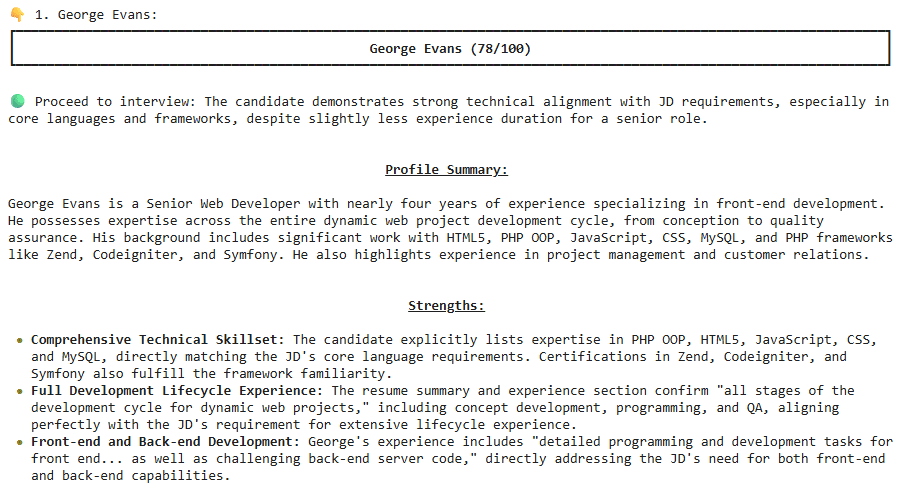
    ตัวอย่างผลลัพธ์:

    ในตัวอย่าง จะเห็นได้ว่า George Evans เหมาะที่จะเป็น Senior Web Developer


    😺 Code & Input Examples

    • ดูตัวอย่าง code ได้ที่ Google Colab
    • ดูตัวอย่าง JD และ resumes ได้ที่ JD & Resumes

    📃 References

  • 4 ขั้นตอนในการใช้ google-genai library เพื่อทำงานกับ Gemini API — ตัวอย่างการสร้างสูตรอาหารที่ไม่เหมือนใคร

    4 ขั้นตอนในการใช้ google-genai library เพื่อทำงานกับ Gemini API — ตัวอย่างการสร้างสูตรอาหารที่ไม่เหมือนใคร

    ในบทความนี้ เราจะมาดู 4 ขั้นตอนในการใช้งาน google-genai ซึ่งเป็น official library สำหรับทำงานกับ Gemini API ผ่านตัวอย่างการสร้างสูตรอาหารใน Google Colab กัน:

    1. Import packages
    2. Create client
    3. Create function
    4. Generate response

    ถ้าพร้อมแล้ว ไปเริ่มกันเลย


    1. 📦 Import Packages
    2. 🧑‍💼 Create Client
    3. 📲 Create Function
    4. 📬 Generate Response
      1. 🤖 Set Model
      2. 🧑‍💻 Set User Prompt
      3. 🛠️ Set Configuration
      4. 📖 Generate Response
      5. 🖨️ Print Response
    5. 😺 Google Colab
    6. 📃 References

    📦 Import Packages

    เริ่มแรก เราจะ import 4 packages ที่จำเป็น ได้แก่:

    FromFunction/ClassFor
    googlegenaiทำงานกับ Gemini API
    google.genai.typesGenerateContentConfigตั้งค่า Gemini
    google.colabuserdataเรียก API key จากเมนู Secrets ใน Google Colab
    pydanticBaseModelกำหนดโครงสร้างของ response จาก Gemini
    # Import packages
    
    # google-genai library
    from google import genai
    from google.genai.types import GenerateContentConfig
    
    # Secret key
    from google.colab import userdata
    
    # pydantic
    from pydantic import BaseModel
    

    🧑‍💼 Create Client

    ในขั้นที่ 2 เราจะสร้าง client สำหรับทำงานกับ Gemini API

    เพื่อความปลอดภัย เราจะเก็บ API key ไว้ในเมนู Secrets ของ Google Colab

    เราสามารถเพิ่ม API key ด้วยการ import ผ่านปุ่ม “Gemini API keys” หรือผ่านการเพิ่ม API key เองด้วยปุ่ม “Add new secret”:

    หลังสร้าง API key ใน Secrets แล้ว เราสามารถเรียกใช้ API key ได้ด้วย userdata.get() ซึ่งต้องการ 1 argument คือ ชื่อ secret:

    # Get API key
    my_api = userdata.get("GOOGLE_API_KEY")
    

    จากนั้น เราจะสร้าง client ด้วย genai.Client() ซึ่งต้องการ 1 argument คือ API key:

    # Create client
    client = genai.Client(api_key=my_api)
    

    Note:

    • ในกรณีที่เราไม่ห่วงความปลอดภัยของ API key เราสามารถใส่ API key ใน genai.Client() ได้โดยตรง เช่น genai.Client(api_key="g04821...")
    • เราสามารถสร้าง API key ได้ฟรี โดยไปที่ Google AI Studio และกด “Create API key”

    📲 Create Function

    ในขั้นที่ 3 เราจะสร้าง function สำหรับเรียกใช้ Gemini ซึ่งต้องการ 3 arguments:

    1. model: Gemini model ที่เราจะเรียกใช้
    2. user_prompt: กำหนด user prompt
    3. config: กำหนดการตั้งค่าต่าง ๆ ของ model

    โดยทั้ง 3 arguments จะอยู่ใน client.models.generate_content():

    # Create a function to get Gemini response
    def get_response(model, user_prompt, config):
    
        # Get response
        response = client.models.generate_content(
    
            # Set model
            model=model,
    
            # Set user prompt
            contents=user_prompt,
    
            # Set config
            config=config
        )
    
        # Return response
        return response.text
    

    📬 Generate Response

    ในขั้นที่ 4 เราจะ get response จาก Gemini โดยใช้ function ที่เราสร้างในขั้นที่ 3

    เนื่องจาก function ต้องการ 3 arguments เราจะต้องกำหนด 3 สิ่งนี้ก่อนที่จะสร้าง response ได้:

    1. Model
    2. User prompt
    3. Configuration

    .

    🤖 Set Model

    ในตัวอย่างนี้ เราจะใช้ model เป็น Gemini 2.5 Flash ซึ่งเราสามารถกำหนดได้ดังนี้:

    # Set model
    gemini_model = "gemini-2.5-flash"
    

    Note: ดูชื่อ model อื่น ๆ ได้ที่ Gemini Models

    .

    🧑‍💻 Set User Prompt

    สำหรับ user prompt เราสามารถกำหนดเป็น string ได้แบบนี้:

    # Set user prompt
    gemini_user_prompt = """
    Create a healthy Thai-inspired burger for one person.
    
    Protein: chicken or tofu
    Bun: whole-wheat if possible (or lettuce wrap)
    
    Deliver (match field names exactly):
    - `menu` (string)
    - `ingredient` (list of items with name, description, amount, unit)
    - `steps` (30-word strings)
    - `calorie_kcal` (float, total for the dish)
    """
    

    .

    🛠️ Set Configuration

    สำหรับ configuration เราสามารถตั้งค่า model ได้หลายค่า

    ในตัวอย่างนี้ เราจะเลือกกำหนด 3 ค่า ได้แก่:

    1. System prompt
    2. Temperature
    3. Output type and structure

    ค่าที่ 1. System prompt คือ prompt ที่กำหนดพฤติกรรมของ Gemini ในการตอบสนองต่อ user prompt ของเรา

    เราสามารถกำหนด system prompt เป็น string ได้แบบนี้:

    # Set system prompt
    system_prompt = """
    You are a highly experienced home cook specialising in healthy Thai-style food.
    
    Constraints:
    - Single-serving
    - Favour grilling/pan-searing over deep-frying
    - Keep ingredients common in Thai kitchens
    - Keep steps <=7
    - Include an approximate total calories for the whole dish
    - Keep language simple
    - Return JSON only that matches the given schema exactly (no extra fields)
    """
    

    ค่าที่ 2. Temperature มีค่าระหว่าง 0 และ 2 โดย:

    • 0 จะทำให้ response ตายตัว (deterministic) มากขึ้น
    • 2 จะทำให้ response สร้างสรรค์ (creative) มากขึ้น

    Note: ค่า default ของ temperature อยู่ที่ 1 (Generate content with the Gemini API in Vertex AI)

    ในตัวอย่าง เราจะกำหนด temperature เป็น 2 เพื่อให้ response มีความสร้างสรรค์สูงสุด:

    # Set temperature
    temp = 2
    

    ค่าที่ 3. สำหรับ output type และ structure เราจะกำหนดดังนี้:

    กำหนด type เป็น "application/json" เพื่อให้ response อยู่ในรูป JSON object:

    # Set output type
    output_type = "application/json"
    

    Note: ดู type อื่น ๆ ได้ที่ Structured output

    กำหนดโครงสร้างของ JSON object ด้วย class และ BaseModel:

    # Set output structure
    class Ingredient(BaseModel):
        name: str
        description: str
        amount: float
        unit: str
    
    class OutputStructure(BaseModel):
        menu: str
        ingredient: list[Ingredient]
        steps: list[str]
        calorie_kcal: float
    

    Note: ดูวิธีใช้ BaseModel ได้ที่ JSON Schema

    หลังกำหนด system prompt, temperature, และ output type กับ structure แล้ว ให้เรารวมค่าทั้งหมดไว้ใน GenerateContentConfig() แบบนี้:

    # Set configuration
    gemini_config = GenerateContentConfig(
    
        # Set system prompt
        system_instruction=system_prompt,
    
        # Set temperature
        temperature=temp,
    
        # Set response type
        response_mime_type=output_type,
    
        # Set response structure
        response_schema=OutputStructure
    )
    

    Note: ดูค่าอื่น ๆ ที่เรากำหนดใน GenerateContentConfig() ได้ที่ Content generation parameters

    .

    📖 Generate Response

    หลังจากกำหนด arguments แล้ว เราจะเรียกใช้ function เพื่อ get response แบบนี้:

    # Generate a recipe
    recipe = get_response(
    
        # Set model
        model=gemini_model,
    
        # Set user prompt
        user_prompt=gemini_user_prompt,
    
        # Set configuration
        config=gemini_config
    )
    

    .

    สุดท้าย เราจะดู response ด้วย print():

    # Print response
    print(recipe)
    

    ผลลัพธ์:

    {
      "menu": "Thai Chicken Burger",
      "ingredient": [
        {
          "name": "Ground Chicken",
          "description": "Lean ground chicken",
          "amount": 150.0,
          "unit": "g"
        },
        {
          "name": "Whole-wheat Burger Bun",
          "description": "Standard size",
          "amount": 1.0,
          "unit": "unit"
        },
        {
          "name": "Lime Juice",
          "description": "Freshly squeezed",
          "amount": 1.0,
          "unit": "tablespoon"
        },
        {
          "name": "Fish Sauce",
          "description": "Thai fish sauce",
          "amount": 1.0,
          "unit": "tablespoon"
        },
        {
          "name": "Fresh Ginger",
          "description": "Grated",
          "amount": 1.0,
          "unit": "teaspoon"
        },
        {
          "name": "Garlic",
          "description": "Minced",
          "amount": 1.0,
          "unit": "clove"
        },
        {
          "name": "Cilantro",
          "description": "Fresh, chopped",
          "amount": 2.0,
          "unit": "tablespoons"
        },
        {
          "name": "Green Onion",
          "description": "Chopped",
          "amount": 1.0,
          "unit": "tablespoon"
        },
        {
          "name": "Red Chilli",
          "description": "Finely minced (optional)",
          "amount": 0.5,
          "unit": "teaspoon"
        },
        {
          "name": "Lettuce Leaf",
          "description": "Fresh, crisp",
          "amount": 1.0,
          "unit": "large"
        },
        {
          "name": "Cucumber",
          "description": "Sliced thinly",
          "amount": 3.0,
          "unit": "slices"
        },
        {
          "name": "Cooking Oil",
          "description": "Any neutral oil",
          "amount": 1.0,
          "unit": "teaspoon"
        }
      ],
      "steps": [
        "Combine ground chicken with fish sauce, lime juice, grated ginger, minced garlic, chopped cilantro, and green onion in a bowl. Mix thoroughly.",
        "Form the seasoned chicken mixture into a single, uniform burger patty. If using chilli, incorporate it now.",
        "Heat cooking oil in a non-stick pan over medium heat. Cook the chicken patty for 5-7 minutes per side, or until it is thoroughly cooked through.",
        "While the patty cooks, lightly toast the whole-wheat burger bun in a dry pan or toaster until golden brown.",
        "Assemble your burger: Place the cooked chicken patty on the bottom half of the toasted bun. Top with fresh lettuce and cucumber slices.",
        "Complete the burger with the top bun. Serve immediately and enjoy your healthy Thai-inspired meal."
      ],
      "calorie_kcal": 450.0
    }
    

    เท่านี้ก็จบ flow การทำงานกับ Gemini API ด้วย google-genai library แล้ว


    😺 Google Colab

    ดูตัวอย่าง code ทั้งหมดได้ที่ Google Colab


    📃 References

  • วิธีใช้ 9 arguments ใน read_csv() จาก pandas library เพื่อโหลดข้อมูลใน Python — ตัวอย่างการโหลดข้อมูลการแข่งขันฟุตบอล

    วิธีใช้ 9 arguments ใน read_csv() จาก pandas library เพื่อโหลดข้อมูลใน Python — ตัวอย่างการโหลดข้อมูลการแข่งขันฟุตบอล

    pandas เป็น Python library สำหรับทำงานกับข้อมูลในรูปแบบตาราง (tabular data) และมี functions หลากหลายสำหรับโหลดข้อมูลเข้ามาใน Python

    โดยหนึ่งใน functions ที่นิยมใช้กันมากที่สุด ได้แก่ read_csv() ซึ่งใช้โหลดข้อมูล CSV (Comma-Separated Values) และมี arguments หลัก 9 อย่าง ได้แก่:

    1. filepath_or_buffer: file path, ชื่อไฟล์, หรือ URL ของไฟล์ที่ต้องการโหลด
    2. sep: กำหนด delimiter
    3. header: กำหนด row ที่เป็นหัวตาราง
    4. skiprows: กำหนด rows ที่ไม่ต้องการโหลด
    5. nrows: เลือกจำนวน rows ที่ต้องการโหลด
    6. usecols: กำหนด columns ที่ต้องการโหลด
    7. index_col: กำหนด column ที่จะเป็น index
    8. names: กำหนดชื่อของ columns
    9. dtype: กำหนดประเภทข้อมูล (data types) ของ columns

    ในบทความนี้ เราจะมาดูวิธีใช้ทั้ง 9 arguments ของ read_csv() เพื่อโหลดตัวอย่างข้อมูลการแข่งขันฟุตบอลในอังกฤษกัน

    ถ้าพร้อมแล้ว ไปเริ่มกันเลย


    1. 🏁 Getting Started
    2. 🗃️ Argument #1. filepath_or_buffer
    3. 🤺 Argument #2. sep
    4. 😶‍🌫️ Argument #3. header
    5. 🛑 Argument #4. skiprows
    6. 📋 Argument #5. nrows
    7. ☑️ Argument #6. usecols
    8. 🔢 Argument #7. index_col
    9. 🔠 Argument #8. names
    10. ⏹️ Argument #9. dtype
    11. ⚡ Summary
    12. 😺 GitHub
    13. 📃 References

    🏁 Getting Started

    ก่อนเริ่มใช้งาน read_csv() เราต้องติดตั้งและโหลด pandas ก่อน:

    # Install pandas
    !pip install pandas
    
    # Import pandas
    import pandas as pd
    

    Note: ในกรณีที่เราเคยติดตั้ง pandas แล้วให้ใช้คำสั่ง import อย่างเดียว


    🗃️ Argument #1. filepath_or_buffer

    filepath_or_buffer เป็น argument หลักที่เราจะต้องกำหนดทุกครั้งที่เรียกใช้ read_csv()

    ยกตัวอย่างเช่น เรามีข้อมูลการแข่งขันฟุตบอล (matches_clean.csv):

    MatchID,HomeTeam,AwayTeam,HomeGoals,AwayGoals,MatchDate
    M001,Manchester United,Chelsea,2,1,2024-08-14
    M002,Liverpool,Arsenal,1,1,2024-08-20
    M003,Tottenham,Everton,3,0,2024-09-02
    M004,Man City,Aston Villa,4,2,2024-09-15
    M005,Newcastle,West Ham,0,0,2024-09-22
    M006,Brighton,Leeds,2,3,2024-09-29
    

    เราสามารถใช้ read_csv() ได้แบบนี้:

    # Load the dataset
    df1 = pd.read_csv("matches_clean.csv")
    
    # View the result
    print(df1)
    

    ผลลัพธ์:

      MatchID           HomeTeam     AwayTeam  HomeGoals  AwayGoals   MatchDate
    0    M001  Manchester United      Chelsea          2          1  2024-08-14
    1    M002          Liverpool      Arsenal          1          1  2024-08-20
    2    M003          Tottenham      Everton          3          0  2024-09-02
    3    M004           Man City  Aston Villa          4          2  2024-09-15
    4    M005          Newcastle     West Ham          0          0  2024-09-22
    5    M006           Brighton        Leeds          2          3  2024-09-29
    

    🤺 Argument #2. sep

    sep ใช้กำหนด delimiter หรือเครื่องหมายในการแบ่ง columns โดย default ของ sep คือ "," ทำให้ปกติ เราไม่ต้องกำหนด sep เมื่อไฟล์เป็น CSV

    เราจะใช้ sep เมื่อข้อมูลมี delimiter อื่น เช่น ";" (matches_semicolon.txt):

    MatchID;HomeTeam;AwayTeam;HomeGoals;AwayGoals;MatchDate
    M001;Manchester United;Chelsea;2;1;2024-08-14
    M002;Liverpool;Arsenal;1;1;2024-08-20
    M003;Tottenham;Everton;3;0;2024-09-02
    M004;Man City;Aston Villa;4;2;2024-09-15
    M005;Newcastle;West Ham;0;0;2024-09-22
    M006;Brighton;Leeds;2;3;2024-09-29
    

    เราสามารถใช้ sep ได้แบบนี้:

    # Load the dataset with ";" as delim
    df2 = pd.read_csv("matches_semicolon.csv", sep=";")
    
    # View the result
    print(df2)
    

    ผลลัพธ์:

      MatchID           HomeTeam     AwayTeam  HomeGoals  AwayGoals   MatchDate
    0    M001  Manchester United      Chelsea          2          1  2024-08-14
    1    M002          Liverpool      Arsenal          1          1  2024-08-20
    2    M003          Tottenham      Everton          3          0  2024-09-02
    3    M004           Man City  Aston Villa          4          2  2024-09-15
    4    M005          Newcastle     West Ham          0          0  2024-09-22
    5    M006           Brighton        Leeds          2          3  2024-09-29
    

    😶‍🌫️ Argument #3. header

    header ใช้กำหนด row ที่จะเป็นหัวตาราง

    เราจะใช้ header เมื่อ rows แรกของข้อมูลมีข้อมูลอื่น เช่น metadata (matches_with_metadata.txt):

    # UK Football Matches Data
    # Created for practice with pd.read_csv()
    MatchID,HomeTeam,AwayTeam,HomeGoals,AwayGoals,MatchDate
    M001,Manchester United,Chelsea,2,1,2024-08-14
    M002,Liverpool,Arsenal,1,1,2024-08-20
    M003,Tottenham,Everton,3,0,2024-09-02
    M004,Man City,Aston Villa,4,2,2024-09-15
    M005,Newcastle,West Ham,0,0,2024-09-22
    M006,Brighton,Leeds,2,3,2024-09-29
    

    เราสามารถใช้ header ได้แบบนี้:

    # Load the dataset where the header is the 3rd row
    df3 = pd.read_csv("matches_with_metadata.txt", header=2)
    
    # View the result
    print(df3)
    

    ผลลัพธ์:

      MatchID           HomeTeam     AwayTeam  HomeGoals  AwayGoals   MatchDate
    0    M001  Manchester United      Chelsea          2          1  2024-08-14
    1    M002          Liverpool      Arsenal          1          1  2024-08-20
    2    M003          Tottenham      Everton          3          0  2024-09-02
    3    M004           Man City  Aston Villa          4          2  2024-09-15
    4    M005          Newcastle     West Ham          0          0  2024-09-22
    5    M006           Brighton        Leeds          2          3  2024-09-29
    

    จะสังเกตว่า metadata จะไม่ถูกโหลดเข้ามาด้วย

    Note: เราสามารถกำหนด header=None ในกรณีที่ข้อมูลไม่มีหัวตาราง เช่น matches_no_header.csv:

    M001,Manchester United,Chelsea,2,1,2024-08-14
    M002,Liverpool,Arsenal,1,1,2024-08-20
    M003,Tottenham,Everton,3,0,2024-09-02
    M004,Man City,Aston Villa,4,2,2024-09-15
    M005,Newcastle,West Ham,0,0,2024-09-22
    M006,Brighton,Leeds,2,3,2024-09-29
    

    🛑 Argument #4. skiprows

    skiprows ใช้เลือก rows ที่เราไม่ต้องการโหลดเข้ามาใน Python ซึ่งเราสามารถกำหนดได้ 2 แบบ:

    1. กำหนดเป็น int (เช่น 2) ในกรณีที่ต้องการข้าม row เดียว
    2. กำหนดเป็น list (เช่น [0, 1, 2]) ในกรณีที่ต้องการข้ามมากกว่า 1 rows

    ยกตัวอย่างเช่น เราต้องการข้าม 2 บรรทัดแรกซึ่งเป็น metadata:

    # UK Football Matches Data
    # Created for practice with pd.read_csv()
    MatchID,HomeTeam,AwayTeam,HomeGoals,AwayGoals,MatchDate
    M001,Manchester United,Chelsea,2,1,2024-08-14
    M002,Liverpool,Arsenal,1,1,2024-08-20
    M003,Tottenham,Everton,3,0,2024-09-02
    M004,Man City,Aston Villa,4,2,2024-09-15
    M005,Newcastle,West Ham,0,0,2024-09-22
    M006,Brighton,Leeds,2,3,2024-09-29
    

    เราสามารถใช้ skiprows ได้แบบนี้:

    # Load the dataset, skipping the metadata
    df4 = pd.read_csv("matches_with_metadata.txt", skiprows=[0, 1])
    
    # View the result
    print(df4)
    

    ผลลัพธ์:

      MatchID           HomeTeam     AwayTeam  HomeGoals  AwayGoals   MatchDate
    0    M001  Manchester United      Chelsea          2          1  2024-08-14
    1    M002          Liverpool      Arsenal          1          1  2024-08-20
    2    M003          Tottenham      Everton          3          0  2024-09-02
    3    M004           Man City  Aston Villa          4          2  2024-09-15
    4    M005          Newcastle     West Ham          0          0  2024-09-22
    5    M006           Brighton        Leeds          2          3  2024-09-29
    

    📋 Argument #5. nrows

    nrows ใช้เลือก rows ที่เราต้องการโหลดเข้ามาใน Python

    เช่น แทนที่จะโหลดข้อมูลทั้งหมด:

    MatchID,HomeTeam,AwayTeam,HomeGoals,AwayGoals,MatchDate
    M001,Manchester United,Chelsea,2,1,2024-08-14
    M002,Liverpool,Arsenal,1,1,2024-08-20
    M003,Tottenham,Everton,3,0,2024-09-02
    M004,Man City,Aston Villa,4,2,2024-09-15
    M005,Newcastle,West Ham,0,0,2024-09-22
    M006,Brighton,Leeds,2,3,2024-09-29
    

    เราจะโหลดข้อมูล 3 rows แรกด้วย nrows แบบนี้:

    # Load the first 3 rows
    df5 = pd.read_csv("matches_clean.csv", nrows=3)
    
    # View the result
    print(df5)
    

    ผลลัพธ์:

      MatchID           HomeTeam AwayTeam  HomeGoals  AwayGoals   MatchDate
    0    M001  Manchester United  Chelsea          2          1  2024-08-14
    1    M002          Liverpool  Arsenal          1          1  2024-08-20
    2    M003          Tottenham  Everton          3          0  2024-09-02
    

    ☑️ Argument #6. usecols

    usecols ใช้กำหนด columns ที่เราต้องการโหลดเข้ามาใน Python

    ยกตัวอย่างเช่น เลือกเฉพาะ HomeTeam และ HomeGoals จาก:

    MatchID,HomeTeam,AwayTeam,HomeGoals,AwayGoals,MatchDate
    M001,Manchester United,Chelsea,2,1,2024-08-14
    M002,Liverpool,Arsenal,1,1,2024-08-20
    M003,Tottenham,Everton,3,0,2024-09-02
    M004,Man City,Aston Villa,4,2,2024-09-15
    M005,Newcastle,West Ham,0,0,2024-09-22
    M006,Brighton,Leeds,2,3,2024-09-29
    

    เราสามารถใช้ usecols ได้แบบนี้:

    # Load only HomeTeam and HomeGoals
    df6 = pd.read_csv("matches_clean.csv", usecols=["HomeTeam", "HomeGoals"])
    
    # View the result
    print(df6)
    

    ผลลัพธ์:

                HomeTeam  HomeGoals
    0  Manchester United          2
    1          Liverpool          1
    2          Tottenham          3
    3           Man City          4
    4          Newcastle          0
    5           Brighton          2
    

    🔢 Argument #7. index_col

    index_col ใช้กำหนด column ที่เป็น index ของข้อมูล เช่น MatchID:

    MatchID,HomeTeam,AwayTeam,HomeGoals,AwayGoals,MatchDate
    M001,Manchester United,Chelsea,2,1,2024-08-14
    M002,Liverpool,Arsenal,1,1,2024-08-20
    M003,Tottenham,Everton,3,0,2024-09-02
    M004,Man City,Aston Villa,4,2,2024-09-15
    M005,Newcastle,West Ham,0,0,2024-09-22
    M006,Brighton,Leeds,2,3,2024-09-29
    

    เราจะใช้ index_col แบบนี้:

    # Load the dataset with MatchID as index col
    df7 = pd.read_csv("matches_clean.csv", index_col="MatchID")
    
    # View the result
    print(df7)
    

    ผลลัพธ์:

                      HomeTeam     AwayTeam  HomeGoals  AwayGoals   MatchDate
    MatchID
    M001     Manchester United      Chelsea          2          1  2024-08-14
    M002             Liverpool      Arsenal          1          1  2024-08-20
    M003             Tottenham      Everton          3          0  2024-09-02
    M004              Man City  Aston Villa          4          2  2024-09-15
    M005             Newcastle     West Ham          0          0  2024-09-22
    M006              Brighton        Leeds          2          3  2024-09-29
    

    🔠 Argument #8. names

    names ใช้กำหนดชื่อ columns ซึ่งเราจะใช้เมื่อ:

    • ข้อมูลไม่มีหัวตาราง
    • ต้องการเปลี่ยนชื่อ columns

    ยกตัวอย่างเช่น ใส่ชื่อ columns ให้กับ matches_no_header.csv:

    M001,Manchester United,Chelsea,2,1,2024-08-14
    M002,Liverpool,Arsenal,1,1,2024-08-20
    M003,Tottenham,Everton,3,0,2024-09-02
    M004,Man City,Aston Villa,4,2,2024-09-15
    M005,Newcastle,West Ham,0,0,2024-09-22
    M006,Brighton,Leeds,2,3,2024-09-29
    

    เราสามารถใช้ names ได้แบบนี้:

    # Set col names
    col_names = [
        "id",
        "home",
        "away",
        "home_goals",
        "away_goals",
        "date"
    ]
    
    # Load the dataset with custom col names
    df8 = pd.read_csv("matches_no_header.csv", names=col_names)
    
    # View the result
    print(df8)
    

    ผลลัพธ์:

         id               home         away  home_goals  away_goals        date
    0  M001  Manchester United      Chelsea           2           1  2024-08-14
    1  M002          Liverpool      Arsenal           1           1  2024-08-20
    2  M003          Tottenham      Everton           3           0  2024-09-02
    3  M004           Man City  Aston Villa           4           2  2024-09-15
    4  M005          Newcastle     West Ham           0           0  2024-09-22
    5  M006           Brighton        Leeds           2           3  2024-09-29
    

    ⏹️ Argument #9. dtype

    dtype ใช้กำหนดประเภทข้อมูลของ columns

    ยกตัวอย่างเช่น กำหนด ประเภทข้อมูลของ MatchID, HomeGoals, และ AwayGoals จาก matches_clean.csv:

    MatchID,HomeTeam,AwayTeam,HomeGoals,AwayGoals,MatchDate
    M001,Manchester United,Chelsea,2,1,2024-08-14
    M002,Liverpool,Arsenal,1,1,2024-08-20
    M003,Tottenham,Everton,3,0,2024-09-02
    M004,Man City,Aston Villa,4,2,2024-09-15
    M005,Newcastle,West Ham,0,0,2024-09-22
    M006,Brighton,Leeds,2,3,2024-09-29
    

    เราสามารถใช้ dtype ได้แบบนี้:

    # Set col data types
    col_dtypes = {
        "MatchID": str,
        "HomeGoals": "int32",
        "AwayGoals": "int32"
    }
    
    # Load the dataset, specifying data types for MatchID, HomeGoals, and AwayGoals
    df9 = pd.read_csv("matches_clean.csv", dtype=col_dtypes)
    
    # View the result
    df9.info()
    

    ผลลัพธ์:

    <class 'pandas.core.frame.DataFrame'>
    RangeIndex: 6 entries, 0 to 5
    Data columns (total 6 columns):
     #   Column     Non-Null Count  Dtype
    ---  ------     --------------  -----
     0   MatchID    6 non-null      object
     1   HomeTeam   6 non-null      object
     2   AwayTeam   6 non-null      object
     3   HomeGoals  6 non-null      int32
     4   AwayGoals  6 non-null      int32
     5   MatchDate  6 non-null      object
    dtypes: int32(2), object(4)
    memory usage: 372.0+ bytes
    

    ⚡ Summary

    ในบทความนี้ เราได้ไปดูวิธีการใช้ 9 arguments ของ read_csv() จาก pandas เพื่อโหลดข้อมูลใน Python กัน:

    1. filepath_or_buffer: ไฟล์ที่ต้องการโหลด
    2. sep: delimiter ในไฟล์
    3. header: row ที่เป็นหัวตาราง
    4. skiprows: rows ที่ไม่ต้องการโหลด
    5. nrows: จำนวน rows ที่ต้องการโหลด
    6. usecols: columns ที่ต้องการโหลด
    7. index_col: column ที่จะเป็น index
    8. names: ชื่อของ columns
    9. dtype: ประเภทข้อมูล (data types) ของ columns

    😺 GitHub

    ดูตัวอย่าง code และ datasets ทั้งหมดได้ที่ GitHub


    📃 References

  • แนะนำ 4 functions ในการทำงานกับ JSON ใน Python: json.dumps(), json.loads(), json.dump(), และ json.load() — ตัวอย่างการทำงานกับข้อมูลคำสั่งซื้อคุกกี้

    แนะนำ 4 functions ในการทำงานกับ JSON ใน Python: json.dumps(), json.loads(), json.dump(), และ json.load() — ตัวอย่างการทำงานกับข้อมูลคำสั่งซื้อคุกกี้

    ในบทความนี้ เราจะไปดูวิธีใช้ 4 functions จาก json package ใน Python สำหรับทำงานกับ JSON (JavaScript Object Notation) ซึ่งเป็น data structure ที่พบได้บ่อยในแอปพลิเคชันและระบบต่าง ๆ กัน:

    1. json.loads()
    2. json.dumps()
    3. json.load()
    4. json.dump()

    ตัวอย่าง JSON คำสั่งซื้อออนไลน์:

    {
      "order_id": 1024,
      "customer": {
        "name": "Ari Lee",
        "phone": "+66 89 123 4567"
      },
      "items": [
        {
          "product": "Cappuccino",
          "size": "Medium",
          "price": 75,
          "quantity": 1
        },
        {
          "product": "Ham Sandwich",
          "price": 95,
          "quantity": 2
        }
      ],
      "payment": {
        "method": "QR Code",
        "total": 170,
        "currency": "THB"
      },
      "status": "Preparing",
      "timestamp": "2025-10-11T09:30:00"
    }
    

    ถ้าพร้อมแล้ว ไปเริ่มกันเลย


    1. 🏁 Introduction to json
    2. 🗨️ Group 1. JSON Strings
      1. ⬇️ json.loads(): JSON String to Python Object
      2. ⬆️ json.dumps(): Python Object to JSON String
    3. 📂 Group 2. JSON Files
      1. ⬇️ json.load(): JSON File to Python Object
      2. ⬆️ json.dump(): Python Object to JSON File
    4. 💪 Summary
    5. 😺 GitHub
    6. 📃 References

    🏁 Introduction to json

    json เป็น built-in package ใน Python และถูกออกแบบมาสำหรับทำงานกับ JSON โดยเฉพาะ

    เราสามารถเริ่มใช้งาน json ด้วยการโหลด package ด้วย import:

    # Import json
    import json
    

    json มี 4 functions สำหรับทำงานกับ JSON ซึ่งแบ่งได้เป็น 2 กลุ่ม:

    1. ทำงานกับ JSON string หรือ JSON ที่อยู่ในรูป Python string:
      1. json.loads()
      2. json.dumps()
    2. ทำงานกับ JSON file หรือ file ที่เห็นข้อมูล JSON เอาไว้:
      1. json.load()
      2. json.dump()

    Note: เทคนิคการจำ คือ function ที่ลงท้ายด้วย s (เช่น json.loads()) แสดงว่าใช้งานกับ JSON string

    ทั้ง 4 functions มีรายละเอียดการใช้งาน ดังนี้:

    FunctionFromTo
    json.loads()JSON string 🗨️Python object 🐍
    json.dumps()Python object 🐍JSON string 🗨️
    json.load()JSON file 📂Python object 🐍
    json.dump()Python object 🐍JSON file 📂

    เราไปดูวิธีใช้งานทั้ง 4 functions กับตัวอย่างข้อมูลสั่งซื้อคุกกี้กัน


    🗨️ Group 1. JSON Strings

    2 functions สำหรับทำงานกับ JSON string หรือ JSON ที่อยู่ในรูปของ Python string ได้แก่:

    FunctionFromTo
    json.loads()JSON string 🗨️Python object 🐍
    json.dumps()Python object 🐍JSON string 🗨️

    .

    ⬇️ json.loads(): JSON String to Python Object

    json.loads() ใช้โหลด JSON string ให้เป็น Python object เช่น:

    • String: ""
    • List: []
    • Dictionary: {}

    ยกตัวอย่างเช่น:

    # Create a Python dict
    cookie_json_string = """
    {
        "customer": "May",
        "cookies": [
            "Chocolate Chip",
            "Oatmeal",
            "Sugar"
        ],
        "is_member": true,
        "total_price": 120
    }
    """
    
    # Convert to Python object
    cookie_python_dict = json.loads(cookie_json_string)
    

    เราสามารถดูผลลัพธ์ได้ด้วย pprint() ซึ่งเป็น function สำหรับ print Python dictionary ให้อ่านง่าย:

    # Import pprint
    from pprint import pprint
    
    # View the result
    pprint(cookie_python_dict)
    

    ผลลัพธ์:

    {'cookies': ['Chocolate Chip', 'Oatmeal', 'Sugar'],
     'customer': 'May',
     'is_member': True,
     'total_price': 120}
    

    .

    ⬆️ json.dumps(): Python Object to JSON String

    ในกรณีที่เรามี Python object เราสามารถแปลงเป็น JSON string ได้ด้วย json.dumps():

    # Create a Python dict
    cookie_py_dict = {
        "customer": "May",
        "cookies": [
            "Chocolate Chip",
            "Oatmeal",
            "Sugar"
        ],
        "is_member": True,
        "total_price": 120
    }
    
    # Convert to JSON string
    cookie_json_str = json.dumps(cookie_py_dict)
    
    # View the result
    print(cookie_json_str)
    

    ผลลัพธ์:

    {"customer": "May", "cookies": ["Chocolate Chip", "Oatmeal", "Sugar"], "is_member": true, "total_price": 120}
    

    ทั้งนี้ เราสามารถใช้ indent เพื่อทำให้ JSON string อ่านง่ายขึ้นได้ เช่น:

    # Convert to JSON string with indent argument
    cookie_json_str_indent = json.dumps(cookie_py_dict, indent=4)
    
    # View the result
    print(cookie_json_str_indent)
    

    ผลลัพธ์:

    {
        "customer": "May",
        "cookies": [
            "Chocolate Chip",
            "Oatmeal",
            "Sugar"
        ],
        "is_member": true,
        "total_price": 120
    }
    

    📂 Group 2. JSON Files

    เรามี 2 functions สำหรับทำงานกับ JSON files ได้แก่:

    FunctionFromTo
    json.load()JSON file 📂Python object 🐍
    json.dump()Python object 🐍JSON file 📂

    .

    ⬇️ json.load(): JSON File to Python Object

    json.load() ใช้สำหรับโหลดข้อมูลจาก JSON file เข้ามาใน Python

    เช่น เรามี JSON file ดังนี้:

    {
        "order_id": 2048,
        "customer": {
            "name": "MJ",
            "phone": "+66 92 888 4321"
        },
        "items": [
            {
                "product": "Double Chocolate Cookie",
                "size": "Large",
                "price": 55,
                "quantity": 2
            },
            {
                "product": "Almond Biscotti",
                "price": 45,
                "quantity": 3
            }
        ],
        "payment": {
            "method": "Credit Card",
            "total": 285,
            "currency": "THB"
        },
        "status": "Baking",
        "timestamp": "2025-10-11T10:15:00"
    }
    

    เราสามารถโหลดขัอมูลได้แบบนี้:

    # Load JSON data
    with open("cookie_order.json", "r") as file:
        cookie_order = json.load(file)
    
    # View the result
    pprint(cookie_order)
    

    ผลลัพธ์:

    {'customer': {'name': 'MJ', 'phone': '+66 92 888 4321'},
     'items': [{'price': 55,
                'product': 'Double Chocolate Cookie',
                'quantity': 2,
                'size': 'Large'},
               {'price': 45, 'product': 'Almond Biscotti', 'quantity': 3}],
     'order_id': 2048,
     'payment': {'currency': 'THB', 'method': 'Credit Card', 'total': 285},
     'status': 'Baking',
     'timestamp': '2025-10-11T10:15:00'}
    

    .

    ⬆️ json.dump(): Python Object to JSON File

    json.dump() ใช้สร้าง JSON file จาก Python objects

    เช่น update ข้อมูลผู้ซื้อใน cookie_order จาก "MJ" เป็น "Peter Parker" และสร้างเป็น JSON file:

    # Update name
    cookie_order["customer"]["name"] = "Peter Parker"
    
    # Write to JSON file
    with open("cookie_order_updated.json", "w") as file:
        json.dump(cookie_order, file, indent=2)
    

    Note: สังเกตว่า เราสามารถกำหนด indent เพื่อทำให้ JSON อ่านง่ายขึ้นได้เหมือนกับ json.dumps()

    ผลลัพธ์ใน JSON file:

    {
      "order_id": 2048,
      "customer": {
        "name": "Peter Parker",
        "phone": "+66 92 888 4321"
      },
      "items": [
        {
          "product": "Double Chocolate Cookie",
          "size": "Large",
          "price": 55,
          "quantity": 2
        },
        {
          "product": "Almond Biscotti",
          "price": 45,
          "quantity": 3
        }
      ],
      "payment": {
        "method": "Credit Card",
        "total": 285,
        "currency": "THB"
      },
      "status": "Baking",
      "timestamp": "2025-10-11T10:15:00"
    }
    

    💪 Summary

    ในบทความนี้ เราได้ไปดูวิธีการใช้ 4 functions จาก json package เพื่อทำงานกับ JSON ใน Python:

    FunctionFromTo
    json.loads()JSON string 🗨️Python object 🐍
    json.dumps()Python object 🐍JSON string 🗨️
    json.load()JSON file 📂Python object 🐍
    json.dump()Python object 🐍JSON file 📂

    Note: json.dumps() และ json.dump() มี indent argument ที่ทำให้ JSON ออกอ่านง่ายได้


    😺 GitHub

    ดูตัวอย่าง code ทั้งหมดได้ที่ GitHub


    📃 References

  • วิธีใช้ open() เพื่อทำงานกับไฟล์ใน Python: วิธีใช้งาน, วิธีเขียนโดยใช้ with และไม่ใช้ with, และ 4 modes ในการทำงานกับไฟล์ (+ bonus การลบไฟล์) พร้อมตัวอย่าง

    วิธีใช้ open() เพื่อทำงานกับไฟล์ใน Python: วิธีใช้งาน, วิธีเขียนโดยใช้ with และไม่ใช้ with, และ 4 modes ในการทำงานกับไฟล์ (+ bonus การลบไฟล์) พร้อมตัวอย่าง

    ในบทความนี้ เราจะมาดูวิธีใช้ open() เพื่อทำงานกับไฟล์ใน Python กัน:

    1. Intro to open(): วิธีการเขียนและการใช้งาน
    2. 4 modes: 4 วิธีการทำงานกับไฟล์
    3. Bonus: วิธีลบไฟล์

    ถ้าพร้อมแล้ว ไปเริ่มกันเลย


    1. 💻 Intro to open()
      1. 🔢 Syntax
      2. 🗄️ Using open()
    2. 🗂️ Mode
      1. 📄 Create
      2. 📖 Read
      3. ➕ Append
      4. ✏️ Write
    3. 🍩 Bonus: Delete
    4. ⚡ Summary
    5. 😺 GitHub
    6. 📃 References

    💻 Intro to open()

    .

    🔢 Syntax

    open() เป็น base function สำหรับทำงานกับไฟล์ และต้องการ 2 arguments:

    open(filename, mode)
    
    • filename = ชื่อไฟล์ (เป็น string เช่น "my_file.txt")
    • mode = mode ในการทำงานกับไฟล์ (เช่น "r" สำหรับอ่านไฟล์)

    .

    🗄️ Using open()

    เราสามารถใช้ open() ได้ 2 วิธี ได้แก่:

    วิธีที่ 1. เปิดไฟล์โดยไม่ใช้ with ซึ่งจะต้องมี .close() เพื่อปิดไฟล์เมื่อทำงานเสร็จ:

    # Open file
    file = open(filename, mode)
    
    # Act on file
    file.method()
    
    # Close file
    file.close()
    

    วิธีที่ 2. เปิดไฟล์โดยใช้ with:

    # Open file
    with open(filename, mode) as file:
        
        # Act on file
        file.method()
    

    วิธีที่ 2 เป็นวิธีที่นิยมใช้มากกว่า เพราะเราไม่จำเป็นต้องปิดไฟล์ด้วย .close() หลังทำงานเสร็จ


    🗂️ Mode

    open() มี 4 modes ในการทำงานกับไฟล์ ได้แก่:

    ModeActionNote
    "x"สร้างไฟล์แสดง error ถ้ามีไฟล์ชื่อเดียวกันอยู่แล้ว
    "r"อ่านไฟล์แสดง error ถ้ามีไม่มีไฟล์ที่ต้องการ
    "a"เพิ่มข้อมูลในไฟล์สร้างไฟล์ใหม่ถ้าไม่มีไฟล์ชื่อเดียวกันอยู่แล้ว
    "w"เขียนทับข้อมูลที่มีในไฟล์สร้างไฟล์ใหม่ถ้าไม่มีไฟล์ชื่อเดียวกันอยู่แล้ว

    ไปดูตัวอย่างการใช้ทั้ง 4 modes กัน

    .

    📄 Create

    ตัวอย่างการสร้างไฟล์ด้วย "x":

    # Create a file
    with open("example.txt", "x") as file:
        file.write("This is the first line.")
        file.write("This is the second line.")
        file.write("This is the third line.")
    

    ผลลัพธ์: เราจะได้ไฟล์ชื่อ example.txt ในเครื่องของเรา

    .

    📖 Read

    เราสามารถอ่านไฟล์ด้วย "r" ได้ 3 วิธี:

    วิธีที่ 1. ใช้ .read() เพื่ออ่านเนื้อหาทั้งหมด:

    # Read the file - all
    with open("example.txt", "r") as file:
        file.read()
    

    ผลลัพธ์ใน console:

    This is the first line.
    This is the second line.
    This is the third line.
    

    วิธีที่ 2. ใช้ .readline() ในกรณีที่ต้องการอ่านรายบรรทัด:

    # Read the file - one line at a time
    with open("example.txt", "r") as file:
        file.readline()
        file.readline()
    

    ผลลัพธ์ใน console:

    This is the first line.
    This is the second line.
    

    วิธีที่ 3. ใช้ for loop เพื่ออ่านเนื้อหาทั้งหมดทีละบรรทัด:

    # Read the file - line by line
    with open("example.txt", "r") as file:
        
        # Loop through each line
        for line in file:
            print(line)
    

    ผลลัพธ์ใน console:

    This is the first line.
    This is the second line.
    This is the third line.
    

    .

    ➕ Append

    ตัวอย่างการเพิ่มข้อมูลด้วย "a":

    # Add content to the file
    with open("example.txt", "a") as file:
        file.write("This is the fourth line.")
    

    เนื้อหาในไฟล์:

    This is the first line.
    This is the second line.
    This is the third line.
    This is the fourth line.
    

    .

    ✏️ Write

    ตัวอย่างการเขียนไฟล์ด้วย "w":

    # Overwrite the file
    with open("example.txt", "w") as file:
        file.write("This is all there is now.")
    

    เนื้อหาในไฟล์:

    This is all there is now.
    

    🍩 Bonus: Delete

    ในกรณีที่เราต้องการลบไฟล์ เราจะต้องเรียกใช้ remove() function จาก os module:

    # Import os module
    import os
    
    # Delete the file
    os.remove("example.txt")
    

    ผลลัพธ์: ไฟล์จะถูกลบออกจากเครื่อง


    ⚡ Summary

    • open() เป็น base Python function สำหรับทำงานกับไฟล์
    • open() ต้องการ 2 arguments คือ:
      • filename: ชื่อไฟล์
      • mode: mode ในการทำงานกับไฟล์
    • วิธีใช้งาน:
      • open() มักใช้คู่กับ with
      • ถ้าไม่ใช้ with เราจะต้องปิดไฟล์ด้วย .close() เมื่อมช้งานเสร็จ
    • open() มี 4 modes ได้แก่:
      • "x": สร้างไฟล์
      • "r": อ่านไฟล์
      • "a": เพิ่มเนื้อหา
      • "w": เขียนทับข้อมูลเดิม
    • ลบไฟล์ด้วย os.remove()

    😺 GitHub

    ดูตัวอย่าง code ทั้งหมดได้ที่ GitHub


    📃 References

  • dbplyr: แนะนำ package และ 6 ขั้นตอนในการทำงานกับ database ด้วย dplyr syntax ในภาษา R — ตัวอย่างการทำงานกับ Chinook database

    dbplyr: แนะนำ package และ 6 ขั้นตอนในการทำงานกับ database ด้วย dplyr syntax ในภาษา R — ตัวอย่างการทำงานกับ Chinook database

    ในบทความนี้ เราจะไปดูวิธีใช้ dbplyr ซึ่งเป็น package สำหรับทำงานกับ database ในภาษา R และเหมาะกับคนที่ต้องการทำงานโดยใช้ภาษา R เป็นหลักกัน

    ถ้าพร้อมแล้ว ไปเริ่มกันเลย


    1. 🤔 What Is dbplyr?
    2. 🏁 Getting Started
    3. 🏃‍♂️‍➡️ Using dbplyr
      1. 1️⃣ Connect to the Database
      2. 2️⃣ Create a Lazy Tibble
      3. 3️⃣ Create a Query
      4. 4️⃣ Show the Query
      5. 5️⃣ Collect the Result
      6. 6️⃣ Disconnect the Database
    4. 💪 Summary
    5. 😺 GitHub
    6. 📃 References
    7. ✅ R Book for Psychologists: หนังสือภาษา R สำหรับนักจิตวิทยา

    🤔 What Is dbplyr?

    dbplyr เป็น package ในภาษา R สำหรับทำงานกับ database โดยใช้ dplyr syntax แทน SQL เช่น แทนที่เราเขียน:

    SELECT * FROM table
    

    เราสามารถใช้ dplyr syntax ได้แบบนี้:

    select(table, everything())
    

    (Note: อ่านวิธีใช้ dplyr ได้ที่นี่)


    🏁 Getting Started

    เราสามารถเริ่มใช้งาน dbplyr ได้โดยติดตั้งและโหลด 4 packages ดังนี้:

    1. DBI: สำหรับเชื่อมต่อกับ database (อ่านวิธีใช้เพิ่มเติมได้ที่นี่)
    2. RSQLite: สำหรับเชื่อมต่อกับ SQLite database (เราจะเปลี่ยน package นี้ตาม database ที่เราใช้ เช่น RPostgres สำหรับ Postgres database)
    3. dplyr: สำหรับ dplyr syntax เช่น select(), filter(), arrange()
    4. dbplyr: สำหรับทำงานกับ database ด้วย dplyr syntax
    # Install packages
    install.packages("DBI")
    install.packages("RSQLite")
    install.packages("dplyr")
    install.packages("dbplyr")
    
    # Load packages
    library(DBI)
    library(RSQLite)
    library(dplyr)
    library(dbplyr)
    

    🏃‍♂️‍➡️ Using dbplyr

    เราสามารถใช้ dbplyr เพื่อทำงานกับ database ได้ใน 6 ขั้นตอน:

    1. Connect to the database
    2. Create a lazy tibble
    3. Create a query
    4. Show the query
    5. Get the result

    .

    1️⃣ Connect to the Database

    ในขั้นแรก เราจะเชื่อมต่อกับ local database ด้วย DBI::dbConnect และ RSQLite::SQLite():

    # Connect to database
    con <- dbConnect(RSQLite::SQLite(),
                     "chinook.sqlite")
    

    Note: โหลด “chinook.sqlite” ได้จาก GitHub

    .

    2️⃣ Create a Lazy Tibble

    ในขั้นที่ 2 เราจะสร้าง lazy tibble หรือ object ที่ใช้แทน database table ซึ่งทำได้ใน 2 steps:

    Step 1. ดูรายชื่อ table ทั้งหมด ใน database ด้วย DBI::dbListTables():

    # View all tables
    dbListTables(con)
    

    ผลลัพธ์:

     [1] "Album"         "Artist"        "Customer"      "Employee"     
     [5] "Genre"         "Invoice"       "InvoiceLine"   "MediaType"    
     [9] "Playlist"      "PlaylistTrack" "Track" 
    

    Step 2. สร้าง lazy tibble จากชื่อ table ที่ต้องการ ด้วย dplyr::tbl():

    # Create lazy tibble
    tracks <- tbl(con,
                  "Track")
    
    # View tibble
    tracks
    

    ผลลัพธ์:

    # Source:   table<`Track`> [?? x 9]
    # Database: sqlite 3.50.1 [C:\\My Code\\RStudio\\chinook.sqlite]
       TrackId Name           AlbumId MediaTypeId GenreId Composer Milliseconds  Bytes UnitPrice
         <int> <chr>            <int>       <int>   <int> <chr>           <int>  <int>     <dbl>
     1       1 For Those Abo…       1           1       1 Angus Y…       343719 1.12e7      0.99
     2       2 Balls to the …       2           2       1 NA             342562 5.51e6      0.99
     3       3 Fast As a Sha…       3           2       1 F. Balt…       230619 3.99e6      0.99
     4       4 Restless and …       3           2       1 F. Balt…       252051 4.33e6      0.99
     5       5 Princess of t…       3           2       1 Deaffy …       375418 6.29e6      0.99
     6       6 Put The Finge…       1           1       1 Angus Y…       205662 6.71e6      0.99
     7       7 Let's Get It …       1           1       1 Angus Y…       233926 7.64e6      0.99
     8       8 Inject The Ve…       1           1       1 Angus Y…       210834 6.85e6      0.99
     9       9 Snowballed           1           1       1 Angus Y…       203102 6.60e6      0.99
    10      10 Evil Walks           1           1       1 Angus Y…       263497 8.61e6      0.99
    # ℹ more rows
    # ℹ Use `print(n = ...)` to see more rows
    

    .

    3️⃣ Create a Query

    ในขั้นที่ 3 เราจะเขียน dplyr syntax เพื่อ query table ที่ต้องการ

    เช่น สรุปข้อมูลจำนวนเพลง ค่าเฉลี่ยความยาวเพลง (Milliseconds) และขนาดเพลง (Bytes) ของแต่ละ album:

    # Create query
    album_info <- tracks |>
      
      # Group by album
      group_by(AlbumId) |>
      
      # Summarise
      summarise(
        
        # Number of tracks
        tracks = n(),
        
        # Average duration
        mean_millisec = mean(Milliseconds,
                             na.rm = TRUE),
        
        # Total size
        total_bytes = sum(Bytes)
      ) |>
      
      # Sort by duration
      arrange(desc(mean_millisec))
    

    ตอนนี้ code ของเราจะยังไม่ถูกส่งไปยัง database เพราะ lazy tibble จะเก็บคำสั่งไว้จนกว่าเราจะมีคำสั่งให้ส่ง

    เราไปดูคำสั่งที่เราสามารถใช้กับ code ที่ยังไม่ถูกส่งไปกัน

    .

    4️⃣ Show the Query

    เราสามารถใช้ dbplyr::show_query() เพื่อดู SQL ที่จะถูกส่งไปยัง database (ซึ่งแปลงมาจาก dplyr syntax ของเรา) ได้:

    # Show query
    show_query(album_info)
    

    ผลลัพธ์:

    <SQL>
    SELECT
      `AlbumId`,
      COUNT(*) AS `tracks`,
      AVG(`Milliseconds`) AS `mean_millisec`,
      SUM(`Bytes`) AS `total_bytes`
    FROM `Track`
    GROUP BY `AlbumId`
    ORDER BY `mean_millisec` DESC
    

    .

    5️⃣ Collect the Result

    เราสามารถส่ง code เพื่อไป query database ได้ด้วย dbplyr::collect():

    # Get result
    album_info_tb <- collect(album_info)
    
    # View the result
    album_info_tb
    

    ผลลัพธ์:

    # A tibble: 347 × 4
       AlbumId tracks mean_millisec total_bytes
         <int>  <int>         <dbl>     <int64>
     1     253     24      2925574. 12872621850
     2     227     19      2778265. 10059916535
     3     229     26      2717907  13917603291
     4     231     24      2637068. 12344960921
     5     226      1      2622250    490750393
     6     228     23      2599142. 11781321607
     7     230     25      2594197.  5280909854
     8     254      1      2484567    492670102
     9     261     17      2321673.  7708725642
    10     251     25      1532684.  7652731262
    # ℹ 337 more rows
    # ℹ Use `print(n = ...)` to see more rows
    

    .

    6️⃣ Disconnect the Database

    สุดท้าย เมื่อเราทำงานเสร็จแล้ว เราจะปิดการเชื่อมต่อกับ database ด้วย DBI::dbDisconnect():

    # Disconnect from database
    dbDisconnect(con)
    

    เป็นการจบ loop การทำงานกับ database ด้วย dbplyr


    💪 Summary

    ในบทความนี้ เราได้ไปทำความรู้จัก 6 ขั้นตอนในการใช้ dbplyr เพื่อทำงานกับ database ในภาษา R กัน:

    1. Connect to the database: DBI::dbConnect() และ RSQLite::SQLite()
    2. Create a lazy tibble: dplyr::tbl()
    3. Create a query: ใช้ dplyr syntax คู่กับ lazy tibble
    4. Show the query: dbplyr::show_query()
    5. Collect the result: dbplyr::collect()
    6. Disconnect the database: DBI::dbDisconnect()

    😺 GitHub

    ดูตัวอย่าง code ทั้งหมดได้ที่ GitHub


    📃 References


    ✅ R Book for Psychologists: หนังสือภาษา R สำหรับนักจิตวิทยา

    📕 ขอฝากหนังสือเล่มแรกในชีวิตด้วยนะครับ 😆

    🙋 ใครที่กำลังเรียนจิตวิทยาหรือทำงานสายจิตวิทยา และเบื่อที่ต้องใช้ software ราคาแพงอย่าง SPSS และ Excel เพื่อทำข้อมูล

    💪 ผมขอแนะนำ R Book for Psychologists หนังสือสอนใช้ภาษา R เพื่อการวิเคราะห์ข้อมูลทางจิตวิทยา ที่เขียนมาเพื่อนักจิตวิทยาที่ไม่เคยมีประสบการณ์เขียน code มาก่อน

    ในหนังสือ เราจะปูพื้นฐานภาษา R และพาไปดูวิธีวิเคราะห์สถิติที่ใช้บ่อยกัน เช่น:

    • Correlation
    • t-tests
    • ANOVA
    • Reliability
    • Factor analysis

    🚀 เมื่ออ่านและทำตามตัวอย่างใน R Book for Psychologists ทุกคนจะไม่ต้องพึง SPSS และ Excel ในการทำงานอีกต่อไป และสามารถวิเคราะห์ข้อมูลด้วยตัวเองได้ด้วยความมั่นใจ

    แล้วทุกคนจะแปลกใจว่า ทำไมภาษา R ง่ายขนาดนี้ 🙂‍↕️

    👉 สนใจดูรายละเอียดหนังสือได้ที่ meb:

  • วิธีสร้าง functions ใน Python: def, docstring, arguments, และ lambda พร้อมตัวอย่าง

    วิธีสร้าง functions ใน Python: def, docstring, arguments, และ lambda พร้อมตัวอย่าง

    ในบทความนี้ เราจะมาดูวิธีสร้าง function ใน Python กัน โดยบทความนี้แบ่งเป็น 4 ส่วน:

    1. def syntax: การใช้ def เพื่อสร้าง function
    2. Docstring: การเขียนวิธีใช้งาน function
    3. Arguments: การกำหนด arguments ใน function
    4. lambda: การสร้าง function แบบไม่ระบุชื่อ

    ถ้าพร้อมแล้ว ไปเริ่มกันเลย


    1. 💻 def Syntax
    2. 📃 Docstring
      1. 🤔 Why Docstring?
      2. 🥸 What Is Docstring?
      3. 😎 Reading Docstring
    3. 💬 Arguments
      1. 🫡 Default Arguments
      2. 😶‍🌫️ Arbitrary Arguments
    4. 🛋️ lambda
    5. 😺 GitHub
    6. 📃 References

    💻 def Syntax

    ใน Python เราสามารถสร้าง function ได้ด้วย def ซึ่งประกอบด้วย 4 ส่วน:

    # Name and arguments
    def name(arguments):
        
        # Body
        Do something
        
        # Return
        return result
    1. name = ชื่อ function
    2. arguments = input สำหรับ function
    3. Body = การทำงานของ function
    4. Return = ส่งผลลัพธ์กลับออกมาจาก function *

    (Note: * เราสามารถใช้ print() แทน return ได้ ในกรณีที่เราต้องการแสดงผลลัพธ์ใน console)

    ยกตัวอย่างเช่น สร้าง function สำหรับคำนวณ BMI (body mass index) ซึ่งต้องการ 2 arguments คือ น้ำหนัก (weight) และส่วนสูง (height):

    # Create a function that calculates BMI
    def calculate_bmi(weight, height):
    
        # Calculate BMI
        bmi = weight / (height ** 2)
    
        # Round to 2 decimals
        bmi_rounded = round(bmi, 2)
    
        # Return BMI
        return bmi_rounded
    

    เราสามารถเรียกใช้ function ที่สร้างเสร็จแล้ว ด้วยการเรียกใช้ชื่อ function เช่น:

    # Use the BMI calculator function
    my_bmi = calculate_bmi(weight=80, height=1.8)
    
    # Print the result
    print(my_bmi)
    

    ผลลัพธ์:

    24.69
    

    📃 Docstring

    .

    🤔 Why Docstring?

    ในตัวอย่าง bmi_cal() เราจะเห็นว่า weight และ height มีได้หลายค่า ขึ้นอยู่กับหน่วยวัดที่ใช้ เช่น:

    • height: metre = 1.8; feet = 5.9
    • weight: kg = 80; pound = 176

    ถ้าเราใส่ค่าไม่ถูกต้องลงใน function เราจะได้ผลลัพธ์ที่ผิดกลับมา เช่น ใส่ height เป็น cm:

    # Using incorrect input
    wrong_bmi = calculate_bmi(weight=80, height=180)
    
    # Print the result
    print(wrong_bmi)
    

    ผลลัพธ์:

    0.0
    

    .

    🥸 What Is Docstring?

    เราสามารถแก้ปัญหานี้ได้ 2 วิธี:

    1. ตั้งชื่อ arguments ให้เรารู้ว่า ต้องใส่อะไรใน function (เช่น height_in_m, weight_in_kg)
    2. ใส่ docstring หรือ string ที่เก็บวิธีใช้ function ไว้

    เราสามารถเพิ่ม docstring ใน function ได้แบบนี้:

    # Adding docstring to the function
    def calculate_bmi(height, weight):
    
        # Docstring
        """
        Calculate BMI using weight and height:
        - Weight: kg
        - Height: m
    
        Return BMI rounded to 2 decimals.
        """
    
        # Calculate BMI
        bmi = weight / (height ** 2)
    
        # Round to 2 decimals
        bmi_rounded = round(bmi, 2)
    
        # Return BMI
        return bmi_rounded
    

    Pro tip: เราควรใส่ docstring ไว้ใน function โดยเฉพาะใน code ที่ใช้งานร่วมกับคนอื่น เพื่อให้คนอื่นเข้าใจการทำงาน function ของเรา

    .

    😎 Reading Docstring

    เราสามารถอ่าน docstring ได้ 2 วิธี:

    วิธีที่ 1. ใช้ help():

    # Read docstring with help()
    help(calculate_bmi)
    

    ผลลัพธ์:

    Help on function calculate_bmi in module __main__:
    
    calculate_bmi(height, weight)
        Calculate BMI using weight and height:
        - Weight: kg
        - Height: m
    
        Return BMI rounded to 2 decimals.
    

    วิธีที่ 2. ใช้ .__doc__:

    # Read docstring with .__doc__:
    print(calculate_bmi.__doc__)
    

    ผลลัพธ์:

    Calculate BMI using weight and height:
        - Weight: kg
        - Height: m
    
        Return BMI rounded to 2 decimals.
    

    💬 Arguments

    เรามาดูการกำหนด 2 ประเภท arguments ใน functions กัน:

    1. Default arguments
    2. Arbitrary arguments

    .

    🫡 Default Arguments

    Default arguments เป็นค่าที่ function จะเรียกใช้ถ้าเราไม่กำหนด arguments เอง

    ยกตัวอย่างเช่น สร้าง function สำหรับคิดเลขยกกำลัง ซึ่งจะยกกำลัง 2 โดย default:

    # Create a function with default arguments
    def calculate_power(number, power=2):
    
        # Calculate number to the power of power
        result = number ** power
    
        # Return result
        return result
    
    # Call the function without power
    print(calculate_power(10))
    

    ผลลัพธ์:

    100
    

    แต่ถ้าเรากำหนด power เอง:

    # Call the function with power
    print(calculate_power(10, 3))
    

    ผลลัพธ์จะเปลี่ยนไป:

    1000
    

    .

    😶‍🌫️ Arbitrary Arguments

    Arbitrary arguments เป็นประเภท argument ที่เรากำหนดในกรณีที่เราไม่รู้ว่า จะมีกี่ arguments

    เราสามารถสร้าง function ที่รับ arguments แบบไม่ระบุจำนวนได้ 2 วิธี:

    1. *args: มี positional arguments (arguments ที่ใส่ตามลำดับ) แบบไม่ระบุจำนวน
    2. **kargs: มี keyword arguments (arguments ที่ใส่ตาม keywords) แบบไม่ระบุจำนวน

    ยกตัวอย่าง *args เช่น สร้าง function สำหรับคำนวณราคาสินค้าในตระกร้า ซึ่งเราไม่รู้ว่า จะมีสินค้ากี่ชิ้น:

    # Create a function calculate total price
    def calculate_total_price(*prices):
    
        # Calculate sum
        total = sum(prices)
    
        # Return total
        return total
    
    # Examples
    total_basket_01 = calculate_total_price(500, 1000)
    total_basket_02 = calculate_total_price(100, 200, 300)
    
    print(f"Basket 1: {total_basket_01}")
    print(f"Basket 2: {total_basket_02}")
    

    ผลลัพธ์:

    Basket 1: 1500
    Basket 2: 600
    

    ยกตัวอย่าง **kargs เช่น สร้าง function เก็บข้อมูล user ซึ่งแต่ละ user มีข้อมูลไม่เท่ากัน:

    # Create a function to return user's data
    def user_profile(**user_data):
        return user_data
    
    # Examples
    print(f"User 1: {user_profile(name='John')}")
    print(f"User 2: {user_profile(name='Jane', gender='F', age=20)}")
    

    ผลลัพธ์:

    User 1: {'name': 'John'}
    User 2: {'name': 'Jane', 'gender': 'F', 'age': 20}
    

    Note:

    • Arguments ใน *args จะถูกเก็บรวมในรูปของ tuple
    • Arguments ใน **kargs จะถูกเก็บรวมในรูปของ dictionary

    🛋️ lambda

    lambda เป็นการสร้าง function แบบไม่ระบุชื่อ โดยเราเขียนได้ดังนี้:

    lambda arguments: expression

    lambda มักใช้สร้าง function ขนาดเล็ก เช่น function หาผลรวม:

    # Create a function using lambda
    addition = lambda a, b: a + b
    
    # Call addition
    print(addition(1, 1))
    

    ผลลัพธ์:

    2
    

    จะเห็นได้ว่า lambda ในตัวอย่างมีค่าเท่ากับการใช้ def แบบนี้:

    # Same as lambda
    def addition(a, b):
        return a + b
    

    เมื่อเทียบกับ def จะเห็นว่า lambda มีการเขียนที่สั้นและง่ายกว่า

    เรามักใช้ lambda ในกรณีที่ต้องการสร้าง function อย่างง่ายและรวดเร็ว

    และเรามักใช้ def ในกรณีที่:

    • สร้าง function ที่มีความซับซ้อน (มีการทำงานหลายขั้นตอน)
    • สร้าง function สำหรับใช้งานร่วมกับคนอื่น เพราะ def จะทำให้คนอื่นอ่าน code ได้ง่ายกว่า

    😺 GitHub

    ดูตัวอย่าง code ทั้งหมดได้ที่ GitHub


    📃 References

  • DBI: แนะนำ 4 ขั้นตอนในการเชื่อมต่อและ query ข้อมูลจาก database โดยใช้ภาษา R — ตัวอย่างการทำงานกับ Chinook database

    DBI: แนะนำ 4 ขั้นตอนในการเชื่อมต่อและ query ข้อมูลจาก database โดยใช้ภาษา R — ตัวอย่างการทำงานกับ Chinook database

    ในบทความนี้ เราจะมาดู 4 ขั้นตอนในการเชื่อมต่อและทำงานกับ database ในภาษา R ด้วย DBI package กัน:

    1. Get started
    2. Explore the database
    3. Query the database
    4. Close the connection

    ถ้าพร้อมแล้ว ไปเริ่มกันเลย


    1. 💻 Step 1. Get Started
      1. 📦 DBI Package
      2. ⬇️ Install & Connect
    2. 👀 Step 2. Explore the Database
      1. 1️⃣ dbListTable()
      2. 2️⃣ dbGetQuery()
    3. 🔍 Step 3. Query the Database
      1. 1️⃣ dbReadTable()
      2. 2️⃣ dbGetQuery()
      3. 3️⃣ dbSendQuery()
    4. 🤚 Step 4. Close the Connection
    5. 💪 Summary
    6. 😺 GitHub
    7. 📃 References
    8. ✅ R Book for Psychologists: หนังสือภาษา R สำหรับนักจิตวิทยา

    💻 Step 1. Get Started

    📦 DBI Package

    DBI (Database Interface) เป็น package สำหรับเชื่อมต่อกับ database ซึ่งทำให้เราทำงานกับ database ในภาษา R ได้โดยตรง

    ในบทความนี้ เรามาลองดูการใช้งาน DBI ผ่านการทำงานกับ Chinook SQLite database กัน (เราสามารถโหลด Chinook เพื่อลองทำตามได้จาก GitHub)

    .

    ⬇️ Install & Connect

    ในขั้นแรกของการใช้งาน เราจะติดตั้งและโหลด DBI พร้อมกับ package สำหรับ database ที่เราจะทำงานด้วย

    อย่างในกรณีนี้ เราจะติดตั้งและโหลด RSQLite package เพราะเราจะทำงานกับ SQLite database

    Note: ถ้าเราทำงานกับ database อื่น เราจะต้องติดตั้งและโหลด package อื่น เช่น:

    • MySQL → RMySQL
    • PostgresSQL → RPostgresSQL
    • Oracle → ROracle

    ติดตั้ง packages:

    # Install
    install.packages("DBI")
    install.packages("RSQLite")
    

    โหลด packages:

    # Load
    library(DBI)
    library(RSQLite)
    

    หลังติดตั้งและโหลด packages แล้ว เราจะเชื่อมต่อกับ database ด้วย dbConnect() แบบนี้:

    # Connect to database
    con <- dbConnect(RSQLite::SQLite(),
                     "chinook.sqlite")
    

    Note: ในกรณีที่ database ไม่ได้อยู่ใน working directory เราจะต้องใช้ absolute file path แทนชื่อไฟล์ เช่น:

    # Connect to database
    con <- dbConnect(RSQLite::SQLite(),
                     "C:/Users/YourUser/Documents/R_Projects/my_data/chinook.sqlite")
    

    เท่านี้ เราก็พร้อมที่จะทำงานกับ database กันแล้ว


    👀 Step 2. Explore the Database

    เริ่มแรก เราจะสำรวจ database เพื่อทำความเข้าใจโครงสร้างข้อมูลกันก่อน

    เรามี 2 functions ที่ช่วยเราได้ ได้แก่:

    1. dbListTables(): ดูรายชื่อ tables ทั้งหมดใน database
    2. dbGetQuety(): ดู columns ใน table ที่ต้องการ

    .

    1️⃣ dbListTable()

    ตัวอย่าง:

    # List tables in the database
    dbListTables(con)
    

    ผลลัพธ์:

     [1] "Album"         "Artist"        "Customer"      "Employee"     
     [5] "Genre"         "Invoice"       "InvoiceLine"   "MediaType"    
     [9] "Playlist"      "PlaylistTrack" "Track"  
    

    .

    2️⃣ dbGetQuery()

    ตัวอย่าง:

    # List columns in a table
    dbGetQuery(con,
               "PRAGMA table_info(Artist)")
    

    ผลลัพธ์:

      cid     name          type notnull dflt_value pk
    1   0 ArtistId       INTEGER       1         NA  1
    2   1     Name NVARCHAR(120)       0         NA  0
    

    ในกรณีที่เราต้องการดู columns ในทุก table เราสามารถใช้ for loop ช่วยได้แบบนี้:

    # Get the table list
    tables <- dbListTables(con)
    
    # Get all columns
    for (table_name in tables) {
      
      # Print the table name
      message(paste0("\\n👉 Table: ", table_name))
      
      # Get the columns
      column_info <- dbGetQuery(con,
                                paste0("PRAGMA table_info(",
                                       table_name, 
                                       ")"))
      
      # Print the columns
      print(column_info)
    }
    

    ผลลัพธ์:

    👉 Table: Album
      cid     name          type notnull dflt_value pk
    1   0  AlbumId       INTEGER       1         NA  1
    2   1    Title NVARCHAR(160)       1         NA  0
    3   2 ArtistId       INTEGER       1         NA  0
    👉 Table: Artist
      cid     name          type notnull dflt_value pk
    1   0 ArtistId       INTEGER       1         NA  1
    2   1     Name NVARCHAR(120)       0         NA  0
    👉 Table: Customer
       cid         name         type notnull dflt_value pk
    1    0   CustomerId      INTEGER       1         NA  1
    2    1    FirstName NVARCHAR(40)       1         NA  0
    3    2     LastName NVARCHAR(20)       1         NA  0
    4    3      Company NVARCHAR(80)       0         NA  0
    5    4      Address NVARCHAR(70)       0         NA  0
    6    5         City NVARCHAR(40)       0         NA  0
    7    6        State NVARCHAR(40)       0         NA  0
    8    7      Country NVARCHAR(40)       0         NA  0
    9    8   PostalCode NVARCHAR(10)       0         NA  0
    10   9        Phone NVARCHAR(24)       0         NA  0
    11  10          Fax NVARCHAR(24)       0         NA  0
    12  11        Email NVARCHAR(60)       1         NA  0
    13  12 SupportRepId      INTEGER       0         NA  0
    👉 Table: Employee
       cid       name         type notnull dflt_value pk
    1    0 EmployeeId      INTEGER       1         NA  1
    2    1   LastName NVARCHAR(20)       1         NA  0
    3    2  FirstName NVARCHAR(20)       1         NA  0
    4    3      Title NVARCHAR(30)       0         NA  0
    5    4  ReportsTo      INTEGER       0         NA  0
    6    5  BirthDate     DATETIME       0         NA  0
    7    6   HireDate     DATETIME       0         NA  0
    8    7    Address NVARCHAR(70)       0         NA  0
    9    8       City NVARCHAR(40)       0         NA  0
    10   9      State NVARCHAR(40)       0         NA  0
    11  10    Country NVARCHAR(40)       0         NA  0
    12  11 PostalCode NVARCHAR(10)       0         NA  0
    13  12      Phone NVARCHAR(24)       0         NA  0
    14  13        Fax NVARCHAR(24)       0         NA  0
    15  14      Email NVARCHAR(60)       0         NA  0
    👉 Table: Genre
      cid    name          type notnull dflt_value pk
    1   0 GenreId       INTEGER       1         NA  1
    2   1    Name NVARCHAR(120)       0         NA  0
    👉 Table: Invoice
      cid              name          type notnull dflt_value pk
    1   0         InvoiceId       INTEGER       1         NA  1
    2   1        CustomerId       INTEGER       1         NA  0
    3   2       InvoiceDate      DATETIME       1         NA  0
    4   3    BillingAddress  NVARCHAR(70)       0         NA  0
    5   4       BillingCity  NVARCHAR(40)       0         NA  0
    6   5      BillingState  NVARCHAR(40)       0         NA  0
    7   6    BillingCountry  NVARCHAR(40)       0         NA  0
    8   7 BillingPostalCode  NVARCHAR(10)       0         NA  0
    9   8             Total NUMERIC(10,2)       1         NA  0
    👉 Table: InvoiceLine
      cid          name          type notnull dflt_value pk
    1   0 InvoiceLineId       INTEGER       1         NA  1
    2   1     InvoiceId       INTEGER       1         NA  0
    3   2       TrackId       INTEGER       1         NA  0
    4   3     UnitPrice NUMERIC(10,2)       1         NA  0
    5   4      Quantity       INTEGER       1         NA  0
    👉 Table: MediaType
      cid        name          type notnull dflt_value pk
    1   0 MediaTypeId       INTEGER       1         NA  1
    2   1        Name NVARCHAR(120)       0         NA  0
    👉 Table: Playlist
      cid       name          type notnull dflt_value pk
    1   0 PlaylistId       INTEGER       1         NA  1
    2   1       Name NVARCHAR(120)       0         NA  0
    👉 Table: PlaylistTrack
      cid       name    type notnull dflt_value pk
    1   0 PlaylistId INTEGER       1         NA  1
    2   1    TrackId INTEGER       1         NA  2
    👉 Table: Track
      cid         name          type notnull dflt_value pk
    1   0      TrackId       INTEGER       1         NA  1
    2   1         Name NVARCHAR(200)       1         NA  0
    3   2      AlbumId       INTEGER       0         NA  0
    4   3  MediaTypeId       INTEGER       1         NA  0
    5   4      GenreId       INTEGER       0         NA  0
    6   5     Composer NVARCHAR(220)       0         NA  0
    7   6 Milliseconds       INTEGER       1         NA  0
    8   7        Bytes       INTEGER       0         NA  0
    9   8    UnitPrice NUMERIC(10,2)       1         NA  0
    

    🔍 Step 3. Query the Database

    หลังสำรวจ database แล้ว เราสามารถ query ข้อมูลได้ด้วย 3 functions ได้แก่:

    1. dbReadTable()
    2. dbGetQuery()
    3. dbSendQuery()

    .

    1️⃣ dbReadTable()

    เราจะใช้ dbReadTable() เมื่อต้องการดึงข้อมูลทั้งหมดมาจาก table ที่ต้องการ

    ตัวอย่างเช่น ดูข้อมูลทั้งหมดใน Genre:

    # Query with dbReadTable()
    dbReadTable(con,
                "Genre")
    

    ผลลัพธ์:

       GenreId               Name
    1        1               Rock
    2        2               Jazz
    3        3              Metal
    4        4 Alternative & Punk
    5        5      Rock And Roll
    6        6              Blues
    7        7              Latin
    8        8             Reggae
    9        9                Pop
    10      10         Soundtrack
    11      11         Bossa Nova
    12      12     Easy Listening
    13      13        Heavy Metal
    14      14           R&B/Soul
    15      15  Electronica/Dance
    16      16              World
    17      17        Hip Hop/Rap
    18      18    Science Fiction
    19      19           TV Shows
    20      20   Sci Fi & Fantasy
    21      21              Drama
    22      22             Comedy
    23      23        Alternative
    24      24          Classical
    25      25              Opera
    

    .

    2️⃣ dbGetQuery()

    ในกรณีที่เราต้องการดูข้อมูลแบบเจาะจง เราจะใช้ dbGetQuery() ซึ่งต้องการ 2 arguments:

    1. Connection ที่เชื่อมต่อกับ database
    2. SQL query ที่กำหนดข้อมูลที่ต้องการจาก database

    ตัวอย่างการใช้งาน #1 – ดึงข้อมูลลูกค้าที่มาจากบราซิล:

    # Query with dbGetQuery() - example 1
    dbGetQuery(con,
               "SELECT
                  CustomerId,
                  FirstName,
                  LastName, Email
                FROM
                  Customer
                WHERE
                  country = 'Brazil';")
    

    ผลลัพธ์:

      CustomerId FirstName  LastName                         Email
    1          1      Luís Gonçalves          luisg@embraer.com.br
    2         10   Eduardo   Martins      eduardo@woodstock.com.br
    3         11 Alexandre     Rocha              alero@uol.com.br
    4         12   Roberto   Almeida roberto.almeida@riotur.gov.br
    5         13  Fernanda     Ramos      fernadaramos4@uol.com.br
    

    ตัวอย่าง #2 – คำนวณยอดขายรวมของแต่ละประเทศ โดยเรียงจากมากไปน้อย:

    # Query with dbGetQuery() - example 2
    dbGetQuery(con,
               "SELECT
                  BillingCountry,
                  SUM(Total) AS TotalSales
                FROM
                  Invoice
                GROUP BY
                  BillingCountry
                ORDER BY
                  TotalSales DESC;")
    

    ผลลัพธ์:

       BillingCountry TotalSales
    1             USA     523.06
    2          Canada     303.96
    3          France     195.10
    4          Brazil     190.10
    5         Germany     156.48
    6  United Kingdom     112.86
    7  Czech Republic      90.24
    8        Portugal      77.24
    9           India      75.26
    10          Chile      46.62
    11        Ireland      45.62
    12        Hungary      45.62
    13        Austria      42.62
    14        Finland      41.62
    15    Netherlands      40.62
    16         Norway      39.62
    17         Sweden      38.62
    18          Spain      37.62
    19         Poland      37.62
    20          Italy      37.62
    21        Denmark      37.62
    22        Belgium      37.62
    23      Australia      37.62
    24      Argentina      37.62
    

    ตัวอย่าง #3 – ดึงชื่อเพลงและชื่ออัลบัม 10 อันดับแรก:

    # Query with dbGetQuery() - example 3
    dbGetQuery(con,
               "SELECT
                  T.Name AS TrackName,
                  A.Title AS AlbumTitle
                FROM
                  Track AS T
                JOIN
                  Album AS A ON T.AlbumID = A.AlbumID
                LIMIT 10;")
    

    ผลลัพธ์:

                                     TrackName                            AlbumTitle
    1  For Those About To Rock (We Salute You) For Those About To Rock We Salute You
    2                        Balls to the Wall                     Balls to the Wall
    3                          Fast As a Shark                     Restless and Wild
    4                        Restless and Wild                     Restless and Wild
    5                     Princess of the Dawn                     Restless and Wild
    6                    Put The Finger On You For Those About To Rock We Salute You
    7                          Let's Get It Up For Those About To Rock We Salute You
    8                         Inject The Venom For Those About To Rock We Salute You
    9                               Snowballed For Those About To Rock We Salute You
    10                              Evil Walks For Those About To Rock We Salute You
    

    .

    3️⃣ dbSendQuery()

    dbSendQuery() ทำงานเหมือนกับ dbGetQuery() แต่ต่างกันที่ dbGetQuery() จะยังส่งข้อมูลใด ๆ กลับมาจนกว่าเราจะเรียกดูด้วย dbFetch()

    ยกตัวอย่างเช่น ดูข้อมูลลูกค้า 10 รายชื่อแรกเมื่อเรียงตามนามสกุล:

    # Send query
    res <- dbSendQuery(con,
                       "SELECT
                          CustomerId,
                          LastName,
                          FirstName,
                          Email
                        FROM
                          Customer
                        ORDER BY
                          LastName
                        LIMIT 10;")
    
    # Fetch results
    dbFetch(res)
    

    ผลลัพธ์:

       CustomerId   LastName FirstName                         Email
    1          12    Almeida   Roberto roberto.almeida@riotur.gov.br
    2          28    Barnett     Julia           jubarnett@gmail.com
    3          39    Bernard   Camille      camille.bernard@yahoo.fr
    4          18     Brooks  Michelle             michelleb@aol.com
    5          29      Brown    Robert              robbrown@shaw.ca
    6          21      Chase     Kathy           kachase@hotmail.com
    7          26 Cunningham   Richard      ricunningham@hotmail.com
    8          41     Dubois      Marc       marc.dubois@hotmail.com
    9          34  Fernandes      João           jfernandes@yahoo.pt
    10         30    Francis    Edward           edfrancis@yachoo.ca
    

    เมื่อเราเรียกดูข้อมูลทั้งหมดแล้ว เราจะไม่สามารถเรียกดูซ้ำได้:

    # Fetch results
    dbFetch(res)
    

    ผลลัพธ์:

    > dbFetch(res)
    [1] CustomerId LastName   FirstName  Email     
    <0 rows> (or 0-length row.names)
    

    ทั้งนี้ เราสามารถกำหนดจำนวนข้อมูลที่จะเรียกดูในแต่ละครั้งได้ เช่น:

    # Send query
    res <- dbSendQuery(con,
                       "SELECT
                          CustomerId,
                          LastName,
                          FirstName,
                          Email
                        FROM
                          Customer
                        ORDER BY
                          LastName
                        LIMIT 10;")
    
    # Fetch five, twice
    dbFetch(res, n = 5)
    dbFetch(res, n = 5)
    dbFetch(res, n = 5)
    

    ผลลัพธ์:

    > dbFetch(res, n = 5)
      CustomerId LastName FirstName                         Email
    1         12  Almeida   Roberto roberto.almeida@riotur.gov.br
    2         28  Barnett     Julia           jubarnett@gmail.com
    3         39  Bernard   Camille      camille.bernard@yahoo.fr
    4         18   Brooks  Michelle             michelleb@aol.com
    5         29    Brown    Robert              robbrown@shaw.ca
    > dbFetch(res, n = 5)
      CustomerId   LastName FirstName                    Email
    1         21      Chase     Kathy      kachase@hotmail.com
    2         26 Cunningham   Richard ricunningham@hotmail.com
    3         41     Dubois      Marc  marc.dubois@hotmail.com
    4         34  Fernandes      João      jfernandes@yahoo.pt
    5         30    Francis    Edward      edfrancis@yachoo.ca
    > dbFetch(res, n = 5)
    [1] CustomerId LastName   FirstName  Email     
    <0 rows> (or 0-length row.names)
    

    เราสามารถใช้ dbSendQuery() และ dbFetch() เพื่อดูข้อมูลเป็นชุด ๆ แทนที่จะดูข้อมูลทั้งหมดในครั้งเดียวแบบ dbGetQuery()

    Note: ในกรณีที่เราต้องการลบ query ที่เราส่งไป database ด้วย dbSendQuery() ให้เราใช้ dbClearResult():

    # Clear results
    dbClearResult(res)
    

    🤚 Step 4. Close the Connection

    สุดท้าย เมื่อเราทำงานกับ database เสร็จแล้ว เราต้องสิ้นสุดการเชื่อมต่อกับ database ด้วย dbDisconnect():

    # Close the connection
    dbDisconnect(con)
    

    เป็นอันจบการทำงานกับ database ด้วย DBI


    💪 Summary

    ในบทความนี้ เราได้ไปดูวิธีการใช้งาน DBI เพื่อทำงานกับ database กัน:

    เชื่อมต่อ database:

    • dbConnect()

    สำรวจ database:

    • dbListTables()
    • dbGetQuery()

    Query ข้อมูล:

    • dbReadTable()
    • dbGetQuery()
    • dbSendQuery(), dbFetch(), และ dbClearResult()

    ปิดการเชื่อมต่อ:

    • dbDisconnect()

    😺 GitHub

    ดู code และ database ในบทความนี้ได้ที่ GitHub


    📃 References


    ✅ R Book for Psychologists: หนังสือภาษา R สำหรับนักจิตวิทยา

    📕 ขอฝากหนังสือเล่มแรกในชีวิตด้วยนะครับ 😆

    🙋 ใครที่กำลังเรียนจิตวิทยาหรือทำงานสายจิตวิทยา และเบื่อที่ต้องใช้ software ราคาแพงอย่าง SPSS และ Excel เพื่อทำข้อมูล

    💪 ผมขอแนะนำ R Book for Psychologists หนังสือสอนใช้ภาษา R เพื่อการวิเคราะห์ข้อมูลทางจิตวิทยา ที่เขียนมาเพื่อนักจิตวิทยาที่ไม่เคยมีประสบการณ์เขียน code มาก่อน

    ในหนังสือ เราจะปูพื้นฐานภาษา R และพาไปดูวิธีวิเคราะห์สถิติที่ใช้บ่อยกัน เช่น:

    • Correlation
    • t-tests
    • ANOVA
    • Reliability
    • Factor analysis

    🚀 เมื่ออ่านและทำตามตัวอย่างใน R Book for Psychologists ทุกคนจะไม่ต้องพึง SPSS และ Excel ในการทำงานอีกต่อไป และสามารถวิเคราะห์ข้อมูลด้วยตัวเองได้ด้วยความมั่นใจ

    แล้วทุกคนจะแปลกใจว่า ทำไมภาษา R ง่ายขนาดนี้ 🙂‍↕️

    👉 สนใจดูรายละเอียดหนังสือได้ที่ meb:

  • sqldf(): แนะนำ function ในการทำงานกับ data frame ด้วย SQL ในภาษา R — ตัวอย่างจาก Cars93

    sqldf(): แนะนำ function ในการทำงานกับ data frame ด้วย SQL ในภาษา R — ตัวอย่างจาก Cars93

    ในบทความนี้ เราจะมาดูวิธีใช้ sqldf() ซึ่งเป็น function ที่ช่วยให้เราทำงานกับ data frame ในภาษา R ได้ด้วย SQL syntax และเหมาะกับคนที่คุ้นเคยกับการใช้ SQL ในการทำงานกัน

    ถ้าพร้อมแล้ว ไปเริ่มกันเลย


    1. 🏁 Getting Started: Install & Load sqldf
    2. 🏃‍♂️‍➡️ Using sqldf
      1. 1️⃣ Example 1. SELECT
      2. 2️⃣ Example 2. WHERE
      3. 3️⃣ Example 3. Aggregate
    3. 😺 GitHub
    4. 📃 References
    5. ✅ R Book for Psychologists: หนังสือภาษา R สำหรับนักจิตวิทยา

    🏁 Getting Started: Install & Load sqldf

    ก่อนเริ่มใช้ sqldf() เราจะต้องติดตั้งและโหลด sqldf ซึ่งเป็น package ต้นทางของ sdldf() ด้วย install.packages() และ library() ตามลำดับ:

    # Install sqldf
    install.packages("sqldf")
    
    # Load sqldf
    library(sqldf)
    

    Note:

    • เราใช้ install.packages() เพื่อติดตั้งแค่ครั้งเดียว
    • เราใช้ library() เพื่อโหลด sqldf ทุกครั้งที่เริ่ม session ใหม่

    🏃‍♂️‍➡️ Using sqldf

    sqldf() ต้องการ 1 argument คือ character ที่มี SQL query เช่น:

    sqldf("SELECT * FROM df")
    

    เราลองมาดูตัวอย่างการใช้ sqldf() กับ Cars93 dataset (จาก MASS package) ซึ่งมีข้อมูลรถ 93 คันที่ขายในปี ค.ศ. 1993:

    # Install MASS
    install.packages("MASS")
    
    # Load MASS
    library(MASS)
    
    # Load the dataset
    data(Cars93)
    
    # View the dataset structure
    str(Cars93)
    

    ผลลัพธ์:

    'data.frame':	93 obs. of  27 variables:
     $ Manufacturer      : Factor w/ 32 levels "Acura","Audi",..: 1 1 2 2 3 4 4 4 4 5 ...
     $ Model             : Factor w/ 93 levels "100","190E","240",..: 49 56 9 1 6 24 54 74 73 35 ...
     $ Type              : Factor w/ 6 levels "Compact","Large",..: 4 3 1 3 3 3 2 2 3 2 ...
     $ Min.Price         : num  12.9 29.2 25.9 30.8 23.7 14.2 19.9 22.6 26.3 33 ...
     $ Price             : num  15.9 33.9 29.1 37.7 30 15.7 20.8 23.7 26.3 34.7 ...
     $ Max.Price         : num  18.8 38.7 32.3 44.6 36.2 17.3 21.7 24.9 26.3 36.3 ...
     $ MPG.city          : int  25 18 20 19 22 22 19 16 19 16 ...
     $ MPG.highway       : int  31 25 26 26 30 31 28 25 27 25 ...
     $ AirBags           : Factor w/ 3 levels "Driver & Passenger",..: 3 1 2 1 2 2 2 2 2 2 ...
     $ DriveTrain        : Factor w/ 3 levels "4WD","Front",..: 2 2 2 2 3 2 2 3 2 2 ...
     $ Cylinders         : Factor w/ 6 levels "3","4","5","6",..: 2 4 4 4 2 2 4 4 4 5 ...
     $ EngineSize        : num  1.8 3.2 2.8 2.8 3.5 2.2 3.8 5.7 3.8 4.9 ...
     $ Horsepower        : int  140 200 172 172 208 110 170 180 170 200 ...
     $ RPM               : int  6300 5500 5500 5500 5700 5200 4800 4000 4800 4100 ...
     $ Rev.per.mile      : int  2890 2335 2280 2535 2545 2565 1570 1320 1690 1510 ...
     $ Man.trans.avail   : Factor w/ 2 levels "No","Yes": 2 2 2 2 2 1 1 1 1 1 ...
     $ Fuel.tank.capacity: num  13.2 18 16.9 21.1 21.1 16.4 18 23 18.8 18 ...
     $ Passengers        : int  5 5 5 6 4 6 6 6 5 6 ...
     $ Length            : int  177 195 180 193 186 189 200 216 198 206 ...
     $ Wheelbase         : int  102 115 102 106 109 105 111 116 108 114 ...
     $ Width             : int  68 71 67 70 69 69 74 78 73 73 ...
     $ Turn.circle       : int  37 38 37 37 39 41 42 45 41 43 ...
     $ Rear.seat.room    : num  26.5 30 28 31 27 28 30.5 30.5 26.5 35 ...
     $ Luggage.room      : int  11 15 14 17 13 16 17 21 14 18 ...
     $ Weight            : int  2705 3560 3375 3405 3640 2880 3470 4105 3495 3620 ...
     $ Origin            : Factor w/ 2 levels "USA","non-USA": 2 2 2 2 2 1 1 1 1 1 ...
     $ Make              : Factor w/ 93 levels "Acura Integra",..: 1 2 4 3 5 6 7 9 8 10 ...
    

    .

    1️⃣ Example 1. SELECT

    เลือกข้อมูลจาก columns Manufacturer, Model, Min.Price, และ Max.Price:

    # Set query
    select_query <- "
    SELECT
      Manufacturer,
      Model,
      `Min.Price`,
      `Max.Price`
    FROM
      Cars93
    "
    
    # Select from df
    select_result <- sqldf(select_query)
    
    # View the result
    select_result
    

    Note: เราใช้ backticks (`) สำหรับชื่อ columns ที่ไม่ valid ใน SQL (เช่น column ที่มี . อย่าง Min.Price และ Max.Price)

    ผลลัพธ์:

        Manufacturer          Model Min.Price Max.Price
    1          Acura        Integra      12.9      18.8
    2          Acura         Legend      29.2      38.7
    3           Audi             90      25.9      32.3
    4           Audi            100      30.8      44.6
    5            BMW           535i      23.7      36.2
    6          Buick        Century      14.2      17.3
    7          Buick        LeSabre      19.9      21.7
    8          Buick     Roadmaster      22.6      24.9
    9          Buick        Riviera      26.3      26.3
    10      Cadillac        DeVille      33.0      36.3
    11      Cadillac        Seville      37.5      42.7
    12     Chevrolet       Cavalier       8.5      18.3
    13     Chevrolet        Corsica      11.4      11.4
    14     Chevrolet         Camaro      13.4      16.8
    15     Chevrolet         Lumina      13.4      18.4
    16     Chevrolet     Lumina_APV      14.7      18.0
    17     Chevrolet          Astro      14.7      18.6
    18     Chevrolet        Caprice      18.0      19.6
    19     Chevrolet       Corvette      34.6      41.5
    20      Chrylser       Concorde      18.4      18.4
    21      Chrysler        LeBaron      14.5      17.1
    22      Chrysler       Imperial      29.5      29.5
    23         Dodge           Colt       7.9      10.6
    24         Dodge         Shadow       8.4      14.2
    25         Dodge         Spirit      11.9      14.7
    26         Dodge        Caravan      13.6      24.4
    27         Dodge        Dynasty      14.8      16.4
    28         Dodge        Stealth      18.5      33.1
    29         Eagle         Summit       7.9      16.5
    30         Eagle         Vision      17.5      21.2
    31          Ford        Festiva       6.9       7.9
    32          Ford         Escort       8.4      11.9
    33          Ford          Tempo      10.4      12.2
    34          Ford        Mustang      10.8      21.0
    35          Ford          Probe      12.8      15.2
    36          Ford       Aerostar      14.5      25.3
    37          Ford         Taurus      15.6      24.8
    38          Ford Crown_Victoria      20.1      21.7
    39           Geo          Metro       6.7      10.0
    40           Geo          Storm      11.5      13.5
    41         Honda        Prelude      17.0      22.7
    42         Honda          Civic       8.4      15.8
    43         Honda         Accord      13.8      21.2
    44       Hyundai          Excel       6.8       9.2
    45       Hyundai        Elantra       9.0      11.0
    46       Hyundai         Scoupe       9.1      11.0
    47       Hyundai         Sonata      12.4      15.3
    48      Infiniti            Q45      45.4      50.4
    49         Lexus          ES300      27.5      28.4
    50         Lexus          SC300      34.7      35.6
    51       Lincoln    Continental      33.3      35.3
    52       Lincoln       Town_Car      34.4      37.8
    53         Mazda            323       7.4       9.1
    54         Mazda        Protege      10.9      12.3
    55         Mazda            626      14.3      18.7
    56         Mazda            MPV      16.6      21.7
    57         Mazda           RX-7      32.5      32.5
    58 Mercedes-Benz           190E      29.0      34.9
    59 Mercedes-Benz           300E      43.8      80.0
    60       Mercury          Capri      13.3      15.0
    61       Mercury         Cougar      14.9      14.9
    62    Mitsubishi         Mirage       7.7      12.9
    63    Mitsubishi       Diamante      22.4      29.9
    64        Nissan         Sentra       8.7      14.9
    65        Nissan         Altima      13.0      18.3
    66        Nissan          Quest      16.7      21.5
    67        Nissan         Maxima      21.0      22.0
    68    Oldsmobile        Achieva      13.0      14.0
    69    Oldsmobile  Cutlass_Ciera      14.2      18.4
    70    Oldsmobile     Silhouette      19.5      19.5
    71    Oldsmobile   Eighty-Eight      19.5      21.9
    72      Plymouth          Laser      11.4      17.4
    73       Pontiac         LeMans       8.2       9.9
    74       Pontiac        Sunbird       9.4      12.8
    75       Pontiac       Firebird      14.0      21.4
    76       Pontiac     Grand_Prix      15.4      21.6
    77       Pontiac     Bonneville      19.4      29.4
    78          Saab            900      20.3      37.1
    79        Saturn             SL       9.2      12.9
    80        Subaru          Justy       7.3       9.5
    81        Subaru         Loyale      10.5      11.3
    82        Subaru         Legacy      16.3      22.7
    83        Suzuki          Swift       7.3      10.0
    84        Toyota         Tercel       7.8      11.8
    85        Toyota         Celica      14.2      22.6
    86        Toyota          Camry      15.2      21.2
    87        Toyota         Previa      18.9      26.6
    88    Volkswagen            Fox       8.7       9.5
    89    Volkswagen        Eurovan      16.6      22.7
    90    Volkswagen         Passat      17.6      22.4
    91    Volkswagen        Corrado      22.9      23.7
    92         Volvo            240      21.8      23.5
    93         Volvo            850      24.8      28.5
    

    .

    2️⃣ Example 2. WHERE

    คัดกรองข้อมูลรถที่ชื่อผู้ผลิตขึ้นต้นด้วย “M”:

    # Set query
    where_result <- "
    SELECT
      Manufacturer,
      Model,
      `Min.Price`,
      `Max.Price`
    FROM
      Cars93
    WHERE
      Manufacturer LIKE 'M%'
    "
    
    # Filter df
    where_result <- sqldf(where_result)
    
    # View the result
    where_result
    

    ผลลัพธ์:

        Manufacturer    Model Min.Price Max.Price
    1          Mazda      323       7.4       9.1
    2          Mazda  Protege      10.9      12.3
    3          Mazda      626      14.3      18.7
    4          Mazda      MPV      16.6      21.7
    5          Mazda     RX-7      32.5      32.5
    6  Mercedes-Benz     190E      29.0      34.9
    7  Mercedes-Benz     300E      43.8      80.0
    8        Mercury    Capri      13.3      15.0
    9        Mercury   Cougar      14.9      14.9
    10    Mitsubishi   Mirage       7.7      12.9
    11    Mitsubishi Diamante      22.4      29.9
    

    .

    3️⃣ Example 3. Aggregate

    หารถ 10 อันดับแรกที่มีราคาสูงสุด:

    # Set query
    aggregate_query <- "
    SELECT
      Manufacturer,
      AVG(Price) AS Avg_Price
    FROM
      Cars93
    GROUP BY
      Manufacturer
    ORDER BY
      Avg_Price DESC
    LIMIT
      10;
    "
    
    # Aggregate df
    aggregate_result <- sqldf(aggregate_query)
    
    # View the result
    aggregate_result
    

    ผลลัพธ์:

        Manufacturer Avg_Price
    1       Infiniti      47.9
    2  Mercedes-Benz      46.9
    3       Cadillac      37.4
    4        Lincoln      35.2
    5           Audi      33.4
    6          Lexus      31.6
    7            BMW      30.0
    8           Saab      28.7
    9          Acura      24.9
    10         Volvo      24.7
    

    😺 GitHub

    ดูตัวอย่าง code ทั้งหมดได้ที่ GitHub


    📃 References


    ✅ R Book for Psychologists: หนังสือภาษา R สำหรับนักจิตวิทยา

    📕 ขอฝากหนังสือเล่มแรกในชีวิตด้วยนะครับ 😆

    🙋 ใครที่กำลังเรียนจิตวิทยาหรือทำงานสายจิตวิทยา และเบื่อที่ต้องใช้ software ราคาแพงอย่าง SPSS และ Excel เพื่อทำข้อมูล

    💪 ผมขอแนะนำ R Book for Psychologists หนังสือสอนใช้ภาษา R เพื่อการวิเคราะห์ข้อมูลทางจิตวิทยา ที่เขียนมาเพื่อนักจิตวิทยาที่ไม่เคยมีประสบการณ์เขียน code มาก่อน

    ในหนังสือ เราจะปูพื้นฐานภาษา R และพาไปดูวิธีวิเคราะห์สถิติที่ใช้บ่อยกัน เช่น:

    • Correlation
    • t-tests
    • ANOVA
    • Reliability
    • Factor analysis

    🚀 เมื่ออ่านและทำตามตัวอย่างใน R Book for Psychologists ทุกคนจะไม่ต้องพึง SPSS และ Excel ในการทำงานอีกต่อไป และสามารถวิเคราะห์ข้อมูลด้วยตัวเองได้ด้วยความมั่นใจ

    แล้วทุกคนจะแปลกใจว่า ทำไมภาษา R ง่ายขนาดนี้ 🙂‍↕️

    👉 สนใจดูรายละเอียดหนังสือได้ที่ meb: