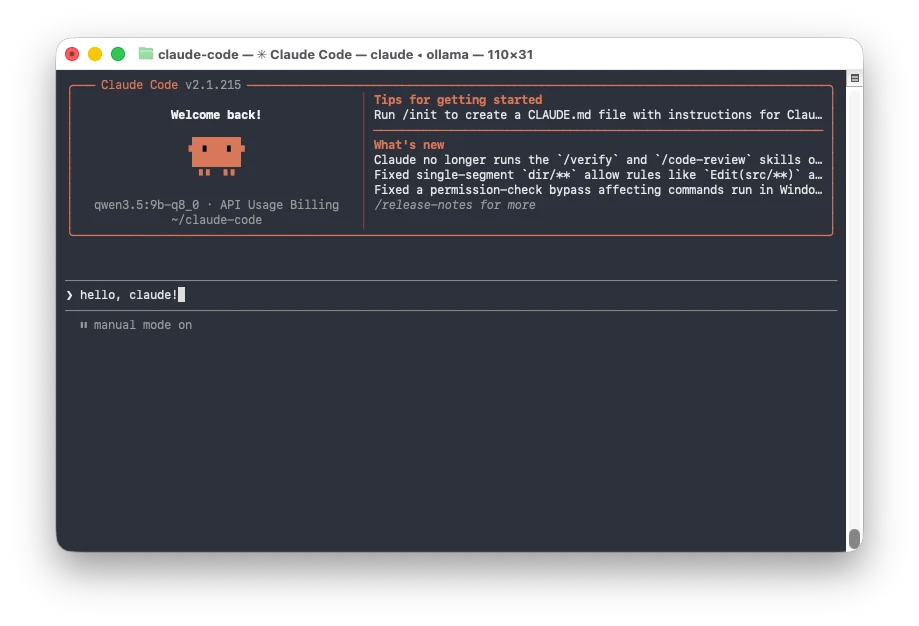
Claude Code เป็น AI ช่วยเขียน code ที่สามารถอ่านและเขียน code ลงบนเครื่องได้โดยตรง ช่วยทุ่นแรงและประหยัดเวลาให้กับทั้ง developer และคนที่เขียน code ไม่เป็น
Claude Code สามารถใช้งานได้ผ่าน Terminal และสั่งงานได้ผ่านทั้งภาษาธรรมชาติ (natural language) และคำสั่งแบบ command line
ในบทความนี้ ผมจะพาทุกคนไปดู 30+ คำสั่งในการทำงานกับ Claude Code โดยบทความแบ่งออกเป็น 3 กลุ่มใหญ่:
- Basic: 12 คำสั่งเบื้องต้นสำหรับเริ่มใช้งาน Claude Code
- Intermediate: 12 คำสั่งสำหรับทำงานกับ Claude Code ได้เข้ามือมากขึ้น
- Advanced: 8 คำสั่งสำหรับให้ Claude Code ทำงานอัตโนมัติ
ถ้าพร้อมแล้ว ไปเริ่มกันเลย
1️⃣ Part 1. Basic
ใน part แรก ไปดู 12 คำสั่งสำหรับเริ่มใช้งาน Claude Code ซึ่งจัดได้เป็น 4 กลุ่มกัน:
- Getting started: เริ่มใช้งาน Claude Code
- Execution: เขียน code
- Review: ตรวจสอบงาน
- Getting help: ดูคู่มือการใช้งาน Claude Code
Getting started↓Execution↓Review↓Getting help
.
🏁 Group 1. Getting Started
กลุ่มแรกมี 5 คำสั่งสำหรับเริ่มทำงานกับ Claude Code:
claude: เริ่ม session หรือห้องเพื่อคุยกับ Claude Code! <command>: รัน shell command ระหว่างใช้ Claude Code (เช่น! cd /new_folder)@<file>: ชี้ไฟล์ให้กับ Claude Code (เช่น@app.pyเพื่อบอกให้ไปที่ไฟล์app.py)/model: เลือก model สำหรับใช้งาน/exit: ออกจาก session
.
💻 Group 2. Execution
กลุ่มที่ 2 มี 4 คำสั่งสำหรับเขียน code กับ Claude Code:
/plan: เข้าโหมดวางแผน เพื่อให้ Claude Code ออกแบบก่อนเขียน/init: สั่งให้ Claude Code สร้างCLAUDE.mdที่ใช้กำหนดบริบทและการเขียน code/memory: แก้ไขCLAUDE.md/btw: คุยกับ Claude Code ในระหว่างที่ Claude Code ยังเขียน code อยู่
.
🧐 Group 3. Review
กลุ่มที่ 3 มี 2 คำสั่งสำหรับตรวจงาน:
/diff: ดูการเปลี่ยนแปลง code แบบบรรทัดต่อบรรทัด/review: สั่งให้ Claude Code ตรวจ code ให้
.
😣 Group 4. Getting Help
กลุ่มสุดท้ายมี 1 คำสั่งสำหรับดูคู่มือการใช้งาน:
/help: ดูคำสั่งทั้งหมดที่ใช้ได้ใน Claude Code
2️⃣ Part 2. Intermediate
ใน part 2 ไปดู 12 คำสั่งที่ให้เราใช้ Claude Code ได้เข้ามือมากขึ้นกัน:
- Session management: จัดการ session
- Context management: จัดการ context
- Customising Claude Code: ตั้งค่า Claude Code ให้ตอบโจทย์
- Usage tracking: ติดตามการใช้งาน
.
🗣️ Group 1. Session Management
Session เป็นเหมือนห้องคุยกับ Claude Code
แต่ละ session มี context หรือความจำในการทำงานแยกจากกัน ทำให้การคุยแต่ละ session ไม่ผสมกัน
เรามี 3 คำสั่งสำหรับจัดการ session ใน Claude Code:
claude -c: กลับไปใช้งาน session ล่าสุด/resume: เลือก session ที่จะกลับไปใช้งานต่อ/rename: เปลี่ยนชื่อ session เพื่อให้หา session ได้ง่ายขึ้น
.
💭 Group 2. Context Management
Context คือ ความจำในการทำงานของ Claude Code ซึ่งมีอยู่อย่างจำกัดในแต่ละ session
Context จะถูกใช้ไปเรื่อย ๆ ตามคำสั่งของเราและการทำงานของ Claude Code และเมื่อ context เต็ม Claude Code จะลืมข้อมูลเก่า ๆ และทำงานผิดพลาดได้
เช่น ตอนแรก เราสั่ง Claude Code สร้างเว็บไซต์สีขาวแดง พอ context เต็ม เว็บไซต์อาจจะมีสีอื่นแทรก เพราะ Claude Code ลืมคำสั่งเรื่องสีที่เราบอกไว้ตั้งแต่ต้น
เรามี 3 คำสั่งสำหรับจัดการ context:
/context: เปิดดู context ที่ถูกใช้ไปใน session ที่ใช้อยู่/compact: ย่อข้อมูลใน context ด้วยการสรุป เพื่อเพิ่มพื้นที่ใน context ในขณะที่ยังเก็บข้อมูลการทำงานให้กับ Claude Code อยู่/clear: ลบข้อมูลใน context ของ session นั้นออกทั้งหมด
.
🦾 Group 3. Customising Claude Code
ในกลุ่มที่ 3 เรามี 4 คำสั่งสำหรับตั้งค่า Claude Code ให้ทำงานได้มีประสิทธิภาพมากขึ้น:
/skills: ตั้งค่า skill ที่ Claude Code ใช้งานได้/mcp: ตั้งค่า MCP ที่ Claude Code ใช้งานได้/agents: ตั้งค่า subagent ที่ Claude Code ใช้งานได้/plugin: ตั้งค่า plugin ที่ Claude Code ใช้งานได้
.
🪙 Group 4. Usage Tracking
ในกลุ่มสุดท้าย เรามี 2 คำสั่งสำหรับดูการใช้งาน Claude Code:
/usage: ดูจำนวนข้อความคงเหลือที่ยังใช้ได้/cost: ดูจำนวนเงินที่ใช้ไป
3️⃣ Part 3. Advanced
ใน part สุดท้าย เราไปดู 8 คำสั่งสำหรับ:
- Multi-tasking: สั่งให้ Claude Code ทำงานเอง
- Troubleshooting: แก้ปัญหาการทำงานของ Claude Code
.
Group 1. Multi-Tasking
ในกลุ่มนี้ เรามี 6 คำสั่งสำหรับให้ Claude Code ทำงานเอง:
/goal: กำหนดเป้าหมายที่ต้องการ โดย Claude Code จะทำงานไปเรื่อย ๆ จนกว่าเป้าหมายนี้จะสำเร็จ/batch: สั่งให้ Claude Code แตกงานขนาดใหญ่ให้เป็นก้อนเล็ก ๆ และรันงานขนานกันไป เหมาะสำหรับการแก้ code หลายจุดพร้อมกัน/schedule: ตั้งเวลาที่จะให้ Claude Code ทำงานบางอย่าง (เช่น ทดสอบ code ทุก 10 โมงเช้า)/loop: สั่งให้ Claude Code ทำงานตามช่วงเวลาที่กำหนด (เช่น ทดสอบ code ทุก ๆ 1 ชั่วโมง)/background: ย้าย session ไปอยู่ใน background ซึ่งจะทำให้เราใช้ Terminal ได้ในขณะที่ Claude Code ยังทำงานอยู่/tasks: เปิดดูรายการ session ที่รันอยู่ใน background
.
Group 2. Troubleshooting
ในกลุ่มสุดท้าย เรามี 2 คำสั่งสำหรับแก้ปัญหาเวลาทำงานกับ Claude Code:
/doctor: ตรวจสอบการตั้งค่า Claude Code เวลามีปัญหา/debug: สั่งให้ Claude Code ค้นหาและอธิบายเหตุของปัญหา
💪 Summary
สรุป 30+ คำสั่งในการทำงานกับ Claude Code:
1️⃣ Part 1. Basic
- Group 1. Getting started
claude! <command>@<file>/model/exit
- Group 2. Execution
/plan/init/memory/btw
- Group 3. Review
/diff/review
- Group 4. Getting help
/help
2️⃣ Part 2. Intermediate
- Group 1. Session management
claude -c/resume/rename
- Group 2. Context Management
/context/compact/clear
- Group 3. Customising Claude
/skills/mcp/agents/plugin
- Group 4. Usage Tracking
/usage/cost
3️⃣ Part 3. Advanced
- Group 1. Multi-tasking
/goal/batch/schedule/loop/background/tasks
- Group 2. Troubleshooting
/doctor/debug
 Shi no Shigoto