
Shell commands เป็นคำสั่งสำหรับทำงานกับคอมพิวเตอร์ โดยแทนที่เราจะใช้ mouse สั่งการ (graphic user interface; GUI) เราจะสั่งการด้วย text แทน
เช่น copy ภาพ แทนที่จะคลิกขวาและกด “Copy” เราจะใช้คำสั่งแบบนี้แทน:
cp image.jpg copy_of_image.jpg
แม้ว่า shell commands จะดูใช้งานยาก แต่ก็ทรงพลังเพราะช่วยให้เราทำงานกับคอมพิวเตอร์ได้อย่างมีประสิทธิภาพใน 3 มุม ได้แก่:
- Automation: ช่วย set ให้คอมพิวเตอร์ทำ task อัตโนมัติได้
- Speed: ช่วยให้เราทำงานได้เร็วกว่า GUI (เราพิมพ์เร็วกว่าใช้ mouse)
- Control: ช่วยในการตั้งค่าคอมพิวเตอร์ได้มากกว่าใช้ GUI
Shell commands เหมาะกับสายอาชีพที่ต้องทำงานกับคอมพิวเตอร์บ่อย ๆ อย่าง:
- System engineer ที่ต้อง set up ระบบที่ไม่มี GUI
- Data engineer ที่ต้องการ automate การทำงานของ data pipeline
- Data analyst สำหรับทำงานกับ file ข้อมูล
- Software developer สำหรับจัดการ source code
- Cybersecurity analyst ใช้วิเคราะห์และตรวจสอบความปลอดภัยของระบบ
- ตำแหน่งงานอื่น ๆ เช่น web developer, cloud specialists, data scientists
ในบทความนี้ ผมจะพาไปดูวิธีใช้ 7 กลุ่ม shell commands (31 commands) พื้นฐานสำหรับคนที่ไม่เคยใช้ shell commands มาก่อน กัน:
- Orienting: ดู directory ที่ใช้ทำงาน
- Preparing: จัดการ files และ folders
- Inspecting: ดูข้อมูลใน files
- Analysing: วิเคราะห์ข้อมูลใน files
- Chaining: เชื่อมต่อ commands เข้าด้วยกัน
- Automating: automate การทำงานของคอมพิวเตอร์
- Getting unstuck: ดูวิธีใช้ commands
เมื่ออ่านบทความนี้แล้ว ผมหวังว่าทุกคนสามารถใช้ shell commands ในเบื้องต้นได้
ถ้าพร้อมแล้ว ไปเริ่มกันเลย
- 🧭 Group #1. Orienting
- ⏹️ Group #2. Preparing
- 👀 Group #3. Inspecting
- 🆕 Group #4. Analysing
- 🔗 Group #5. Chaining
- 🤖 Group #6. Automating
- 💡 Group #7. Getting Unstuck
- 💪 Summary
- 😺 GitHub
- 📖 Further Reading
- 📄 References
🧭 Group #1. Orienting
Commands ในกลุ่มแรกช่วยให้เรารู้ว่า เรากำลังทำงานอยู่ใน directory ไหนของคอมพิวเตอร์ และประกอบด้วย 3 commands ได้แก่:
pwdlscd
.
📍 Command #1. pwd
pwd (print working directory) ใช้ดูว่า เราอยู่ใน directory ไหน:
pwd
ผลลัพธ์:
/home/user/Downloads
.
📝 Command #2. ls
ls ใช้ “list” files และ folders ใน directory ที่ต้องการ
เช่น ดู files และ folders ใน working directory (สมมุติว่าเป็น ”Downloads”):
ls
ผลลัพธ์:
invoice.pdfdata.csvphoto.pngsetup.dmg
หรือดู files และ folders ใน folder อื่น เช่น “Documents”:
ls Documents
ผลลัพธ์:
resume.docxthesis.pdfnotes.txtprojects/
สังเกตว่า เมื่อเราต้องการดู files และ folders ใน directory อื่น เราจะต้องระบุ file path ซึ่งเราทำได้ 2 วิธี:
- Relative: แบบอ้างอิงกับ working directory เช่น Downloads
- Absolute: แบบเต็ม เช่น /home/user/Downloads
Note:
เรามักใช้ 3 flags เหล่านี้ร่วมกับ ls:
-Rเพื่อดู files และ folders (ไม่ว่า folder นั้นจะมี folder ซ้อนกันกี่ชั้น)-lเพื่อดูรายละเอียดของ files-aเพื่อแสดง hidden files
.
⏭️ Command #3. cd
cd (change directory) ใช้เปลี่ยน working directory
เช่น เราอยู่ใน folder ชื่อ “Downloads” และต้องเปลี่ยนไปที่ “Documents”:
cd /home/user/Documents
Note:
เรามี shortcut สำหรับใช้ cd ดังนี้:
/ไปที่ root directory~ไปที่ home directory ที่เรากำหนดไว้..ไปที่ folder ต้นทาง 1 ขั้น (เช่น เราอยู่ใน/home/user/Downloads,cd ..จะพาเราไปที่/home/user)
⏹️ Group #2. Preparing
Commands ในกลุ่มที่ 2 ช่วยในการจัดการ files และ folders และมี 6 commands ได้แก่:
mkdirrmdirtouchcpmvrm
Note:
mkdirและrmdirใช้กับ folder เท่านั้นtouch(ยกเว้นสร้าง folder),cp,mv, และrmใช้ได้ทั้งกับ file และ folder
.
📂 Command #4. mkdir
mkdir (make directory) ใช้สร้าง folder
เช่น สร้าง folder ใหม่ชื่อ new_folder:
mkdir new_folder
.
🚮 Command #5. rmdir
rmdir (remove directory) ใช้ลบ folder
เช่น ลบ folder “new_folder”:
rmdir new_folder
Note:
rmdir ใช้กับ folder ที่มี files อยู่ไม่ได้
ถ้าต้องการลบ folder ที่มีข้อมูล เราทำได้ 2 ทาง คือ:
- ลบข้อมูลออกจาก folder ก่อนใช้
rmdir - ใช้
rm -rแทน
ทั้งนี้ folder ที่ลบแล้วจะกู้คืนไม่ได้ ดังนั้น เราควรเช็กให้แน่ใจว่า เราต้องการลบ folder จริง ๆ ก่อนจะใช้ rmdir
.
✋ Command #6. touch
touch มี 2 การใช้งาน:
- สร้าง file ใหม่ เมื่อยังไม่มี file
- อัปเดต timestamp ของ file เมื่อมี file อยู่แล้ว
เช่น สร้าง file ใหม่ ชื่อ “new_file.txt”:
touch new_file.txt
เราสามารถสร้างได้มากกว่า 1 file แบบนี้:
touch new_file_1.txt new_file_2.txt new_file_3.txt
ในกรณีที่เรามี file “new_file.txt” อยู่แล้ว เราสามารถใช้ touch เพื่ออัปเดต timestamp ของ file ให้เป็นปัจจุบันได้:
touch new_file.txt
โดย timestamp จะถูกอัปเดตให้เป็นเวลาที่ command รันสำเร็จ
.
📋 Command #7. cp
cp (copy) ใช้ copy file หรือ folder
เช่น copy file “new_file.txt” ไว้ใน folder เดิม:
cp new_file.txt copy_of_new_file.txt
ถ้าเราต้องการ copy ไปยัง folder อื่น (เช่น “Documents”) ให้เราใส่ file path ต่อท้ายแบบนี้:
cp new_file.txt /home/user/Documents/copy_of_new_file.txt
ถ้าเราไม่ต้องการเปลี่ยนชื่อ file เราจะไม่กำหนดชื่อ file ใหม่ (เช่น “copy_of_new_file.txt”) แบบนี้:
cp new_file.txt /home/user/Documents
Note:
- เราจะใช้
cpกับ-rเมื่อทำงานกับ folder - ในกรณีที่ folder ปลายทางมี file ชื่อเดียวกัน file เก่าจะถูกแทนที่ด้วย file ใหม่ทันที
- เพื่อป้องกันการแทนที่ ให้ใช้
-iเพื่อให้ shell command ถามเราก่อนว่าต้องการแทนที่ file ไหม
.
📤 Command #8. mv
mv (move) ใช้งานได้ 2 แบบ:
- เปลี่ยนชื่อ file หรือ folder
- ย้าย file หรือ folder
เช่น เปลี่ยนชื่อ file จาก “new_file.txt” เป็น “my_file.txt”:
mv new_file.txt my_file.txt
ถ้าเราต้องการย้าย file ให้เราใส่ file path แทนชื่อ file ใหม่:
mv new_file.txt /home/user/Documents
Note:
- เช่นเดียวกับ
cpถ้า folder ปลายทางมี file ชื่อเดียวกันกับ file ที่เรากำลังย้ายไป file เก่าจะถูกแทนที่ในทันที - เราสามารถใช้
-iเพื่อให้ shell command ถามยืนยันการแทนที่ file ก่อนย้ายได้
.
🗑️ Command #9. rm
rm (remove) ใช้ลบ file หรือ folder
เช่น ลบ “my_file.txt”:
rm my_file.txt
Note:
- เราจะใช้
rmคู่กับ-rเมื่อทำงานกับ folder - File ที่ลบแล้วจะกู้คืนได้ยาก ดังนั้น เราควรเช็ก file ก่อนลบทุกครั้ง
- เราใช้
-iเพื่อให้ shell command ถามยืนยันการลบได้
👀 Group #3. Inspecting
Commands ในกลุ่มที่ 3 ช่วยเราดูข้อมูลใน file โดยไม่ต้องใช้ programme อื่น และประกอบด้วย 4 commands ได้แก่:
catlessheadtail
.
🐈 Command #10. cat
cat (concatenate) ใช้เปิดดูข้อมูลใน file (เหมาะสำหรับ file ที่มีข้อมูลไม่เยอะ)
เช่น เปิดดู “small_file.txt” ที่มีข้อความ 5 บรรทัด:
cat small_file.txt
ผลลัพธ์:

.
⬇️ Command #11. less
less ทำงานเหมือนกับ cat คือ เปิดดู file แต่เหมาะกับ file ที่ข้อมูลจำนวนมาก (เช่น คู่มือ)
เช่น เปิดดู “large_file.txt”:
less large_file.txt
ผลลัพธ์:
Shell command จะแสดงข้อมูลเท่าที่จะแสดงได้ในหน้าต่างแบบนี้:
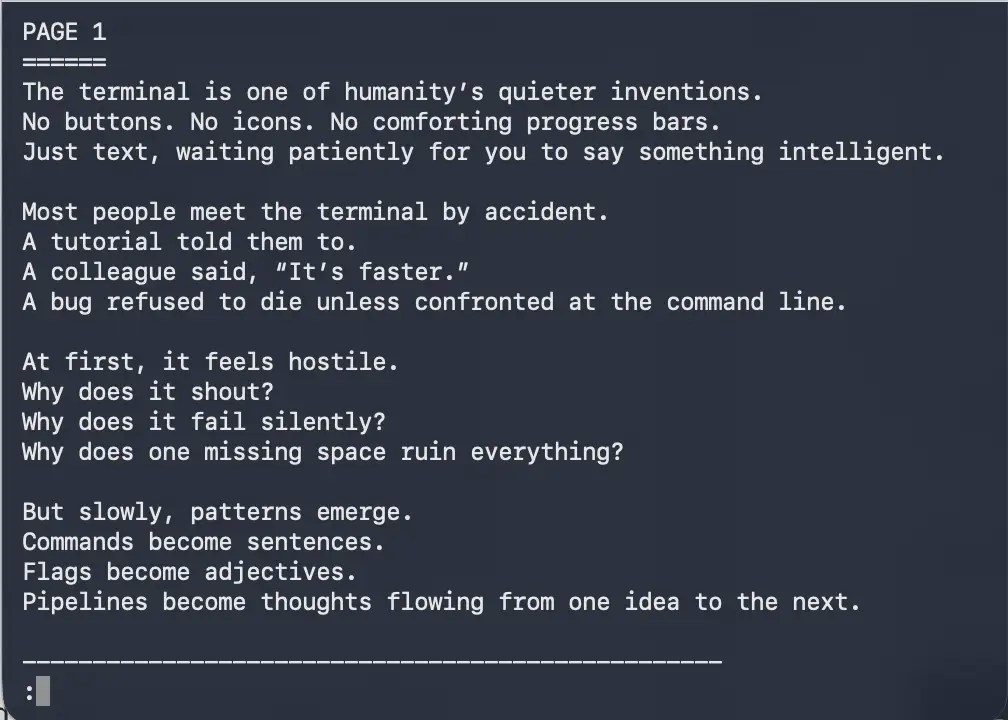
เราสามารถเลือกเลื่อนดูข้อมูลได้ด้วย 5 commands นี้:
- space bar: เลื่อนลง
- b: เลื่อนขึ้น
- q: ออกจาก file
.
🗿 Command #12. head
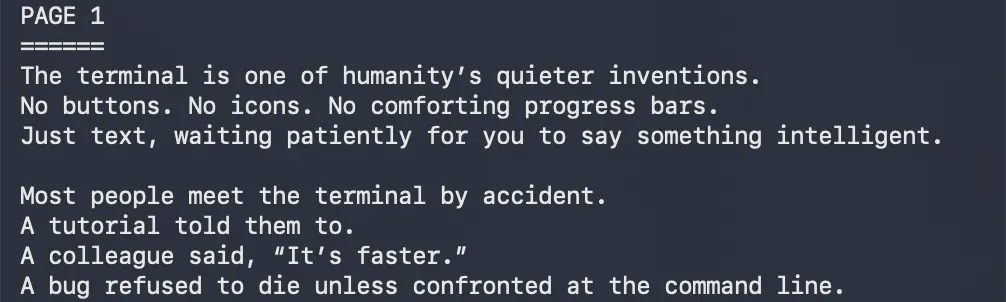
head ใช้ดูข้อมูล 10 บรรทัดแรกของ file
เช่น ดู 10 บรรทัดแรกของ “large_file.txt”:
head large_file.txt
ผลลัพธ์:
Note:
- เราจะใช้
-nเพื่อกำหนดจำนวนบรรทัดที่ต้องการดู เช่นhead -n 2จะแสดง 2 บรรทัดแรก
.
🐒 Command #13. tail
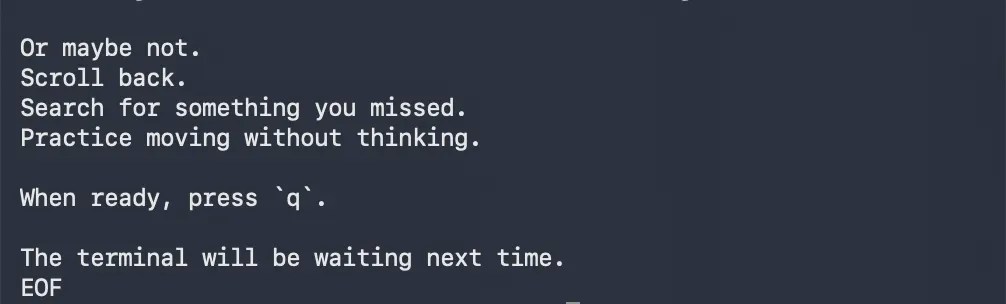
tail ใช้ดูข้อมูล 10 บรรทัดสุดท้ายของ file
เช่น ดู 10 บรรทัดสุดท้ายของ “large_file.txt”:
tail large_file.txt
ผลลัพธ์:
Note:
- เราจะใช้
-nเพื่อกำหนดจำนวนบรรทัดที่ต้องการดู เช่นtail -n 2จะแสดง 2 บรรทัดสุดท้าย
🆕 Group #4. Analysing
Commands ในกลุ่มที่ 4 ช่วยเราวิเคราะห์ข้อมูลใน file และมีอยู่ 7 commands ด้วยกัน ได้แก่:
wcgrepcutpastesortuniq- Wildcards
.
🪝 Command #14. wc
wc (word count) ใช้นับจำนวน:
- บรรทัด เมื่อใช้คู่กับ
-l - คำ เมื่อใช้คู่กับ
-w - ตัวอักษร เมื่อใช้คู่กับ
-c
ถ้าไม่ระบุ -l, -w, -c, wc จะแสดงทั้ง 3 ค่าพร้อมกัน
เช่น แสดงจำนวนบรรทัด คำ และตัวอักษรใน “large_file.txt”:
wc large_file.txt
ผลลัพธ์:
178 523 3703 large_file.txt
หรือแสดงแค่จำนวนคำ:
wc -w large_file.txt
ผลลัพธ์:
523 large_file.txt
.
✂️ Command #15. grep
grep (global regular expression print) ใช้ค้นหา file หรือ folder ที่ตรงกับ pattern คำที่เราต้องการ
เช่น เรามี file “emails.txt” ที่มีรายชื่ออีเมลอยู่ 10 รายการ:
alice@gmail.combob@gmail.comcharlie@outlook.comdiana@outlook.comeric@support.comfrank@support.comgrace@gmail.comhenry@company.orgirene@support.comjack@outlook.com
เราสามารถค้นหา email ที่ลงท้ายด้วย “@support.com” ได้แบบนี้:
grep "@support.com" emails.txt
ผลลัพธ์:
eric@support.comfrank@support.comirene@support.com
Note:
เรามักใช้ grep ร่วมกับ 6 flags ดังนี้:
-cแสดงจำนวนคำที่ตรงกับคำค้นหา-hซ่อนชื่อ file ที่ตรงกับคำค้นหา-iค้นหาแบบ case-insensitive-lแสดงชื่อ file ที่มีข้อมูลตรงกับคำค้นหา-nแสดงเลขบรรทัดของข้อมูลที่ตรงกับคำค้นหา-vแสดงทุกอย่าง ยกเว้นข้อมูลที่ตรงกับคำค้นหา
.
📎 Command #16. cut
cut ใช้ดูข้อมูลตาม columns ใน file โดยเรามักใช้ cut คู่กับ 2 flags นี้:
-dกำหนด delimiter หรือตัวอักษรที่คั่น column (เช่น,)-fเลือก column ที่ต้องการ (เช่น column ที่ 1, 2, 3, …)
เช่น มี file “people.csv” ที่เก็บข้อมูลพนักงานเอาไว้:
id,name,age,city,email1,Alice,29,Bangkok,alice@gmail.com2,Bob,34,Chiang Mai,bob@outlook.com3,Charlie,41,Bangkok,charlie@support.com4,Diana,25,Phuket,diana@gmail.com5,Ethan,38,Bangkok,ethan@outlook.com
เราสามารถเลือกดู column “email” (column ที่ 5) ได้แบบนี้:
cut -d , -f 5 people.csv
ผลลัพธ์:
alice@gmail.combob@outlook.comcharlie@support.comdiana@gmail.comethan@outlook.com
.
🗂️ Command #17. paste
paste ใช้เชื่อมต่อข้อมูลใน file โดยเชื่อมแบบบรรทัดต่อบรรทัด
เช่น เรามี file “job_levels.txt” ที่มีข้อมูลระดับตำแหน่งงาน:
,level,Junior,Mid,Senior,Junior,Lead
ซึ่งเราสามารถเชื่อมกับ “people.csv” ได้แบบนี้:
paste people.csv job_levels.txt
ผลลัพธ์:
id,name,age,city,email ,level1,Alice,29,Bangkok,alice@gmail.com ,Junior2,Bob,34,Chiang Mai,bob@outlook.com ,Mid3,Charlie,41,Bangkok,charlie@support.com ,Senior4,Diana,25,Phuket,diana@gmail.com ,Junior5,Ethan,38,Bangkok,ethan@outlook.com ,Lead
.
☘️ Command #18. sort
sort ใช้เรียงข้อมูล:
- Default จะเรียงจากน้อยไปมาก (ascending)
- ใช้
-rเพื่อเรียงจากมากไปน้อย (descending)
เช่น เรียงอีเมลใน “emails.txt” จากมากไปน้อย:
sort -r emails.txt
ผลลัพธ์:
jack@outlook.comirene@support.comhenry@company.orggrace@gmail.comfrank@support.comeric@support.comdiana@outlook.comcharlie@outlook.combob@gmail.comalice@gmail.com
.
☝️ Command #19. uniq
uniq ใช้แสดงข้อมูลที่ไม่ซ้ำกัน แต่ใช้ได้เฉพาะข้อมูลซ้ำกันที่อยู่ติดกันเท่านั้น
เช่น มี “fruits.txt” ที่มีชื่อผลไม้:
apple 🍎apple 🍎banana 🍌banana 🍌banana 🍌orange 🍊apple 🍎orange 🍊orange 🍊grape 🍇grape 🍇
เราสามารถใช้ uniq เมื่อดึงผลไม้ที่ไม่ซ้ำกันออกมาได้แบบนี้:
uniq fruits.txt
ผลลัพธ์:
apple 🍎banana 🍌orange 🍊apple 🍎orange 🍊grape 🍇
สังเกตว่า เราจะได้ “apple 🍎” และ “orange 🍊” มา 2 ครั้ง เพราะว่า “apple 🍎” และ “orange 🍊” นี้ไม่ได้อยู่บรรทัดติดกัน ทำให้ uniq ไม่มองว่าเป็นค่าซ้ำ
.
♣️ Command #20. Wildcards
Wildcards เป็นตัวอักษรที่ใช้ค้นหาแบบ pattern matching และมีอยู่ 4 ตัวหลัก ได้แก่:
?แทนตัวอักษรใด ๆ 1 ตัว*แทนตัวอักษรใด ๆ ตั้งแต่ 0 ตัวขึ้นไป[]ใช้จับคู่ 1 ตัวอักษร ใน set ที่กำหนด{}ใช้จับคู่ 1 คำ ใน set ที่กำหนด
ตัวอย่าง การใช้ ? เช่น ค้นหา file ที่มีชื่อ เช่น “file1.txt”, “file2.txt”, “file3.txt”:
ls file?.txt
Note: shell command จะไม่แสดง “file10.txt” เพราะ ? ใช้ได้แค่เลขตัวเดียว
ตัวอย่างการใช้ * เช่น แสดง file ที่ลงท้ายด้วย “.txt”:
ls *.txt
ตัวอย่างการใช้ [] เพื่อค้นหา file ของปี 2024 และ 2025:
ls 202[45].txt
ผลลัพธ์: เราจะได้ file “2024.txt” และ “2025.txt” แต่จะไม่ได้ file เช่น “2023.txt”
ตัวอย่างการใช้ {} เพื่อค้นหา file ชื่อ “backup” ที่ลงท้ายด้วย “csv” หรือ “txt”:
ls backup.{csv,txt}
🔗 Group #5. Chaining
Commands ในกลุ่มที่ 5 ใช้เชื่อม commands เข้าด้วยกัน และมีอยู่ 3 commands ได้แก่:
|>>>
.
⛓️ Command #21. |
| (pipe) ใช้เชื่อม shell commands เข้าด้วยกัน แบบนี้:
A | B
Output จาก A เป็น input ให้กับ B
เช่น หาค่า unique ใน “fruits.txt”:
cat fruits.txt | sort | uniq
catเปิด file “fruits.txt”sortจัดเรียงข้อมูลจากน้อยไปมากuniqแสดงค่าเฉพาะ
ผลลัพธ์:
apple 🍎banana 🍌grape 🍇orange 🍊
สังเกตว่า ตอนนี้ เราจะได้ชื่อผลไม้ที่ไม่ซ้ำกันแล้ว เพราะ sort ช่วยจัดให้ข้อมูลที่ซ้ำกันอยู่ในบรรทัดติดกัน ทำให้ uniq ส่งค่าเฉพาะที่ไม่ซ้ำกันได้
.
⚡ Command #22. >
> (output redirection operator) ใช้เก็บผลลัพธ์ไว้ใน file (แทนที่จะแสดงบน shell command)
เช่น เก็บรายการ files ไว้ใน “file_list.txt”:
ls > file_list.txt
ผลลัพธ์:
people.csvjob_levels.txtfruits.txtlarge_file.txtnotes.txtsmall_file.txtREADME.md
Note:
- ถ้า file มีข้อมูลอยู่ ข้อมูลเดิมจะถูกแทนที่
- ถ้าต้องการเพิ่มข้อมูลต่อจากข้อมูลเก่า เราจะต้องใช้
>>แทน
.
🃏 Command #23. >>
>> ใช้เพิ่มข้อมูลผลลัพธ์จาก shell command ลงใน file เช่น:
ls >> file_list.txt
ถ้า “file_list.txt” มีข้อมูลอยู่แล้ว ผลลัพธ์จาก ls จะต่อท้ายข้อมูลเดิม เช่น:
people.csvjob_levels.txtfruits.txtlarge_file.txtnotes.txtsmall_file.txtREADME.mdpeople.csvjob_levels.txtfile_list.txtfruits.txtlarge_file.txtnotes.txtsmall_file.txtREADME.md
🤖 Group #6. Automating
Commands ในกลุ่มที่ 6 ช่วยให้คอมพิวเตอร์ทำงานให้เราโดยอัตโนมัติ และประกอบด้วย 5 commands ได้แก่:
=echoforbashnano
.
🔉 Command #24. =
= (equals sign) ใช้ประกาศตัวแปร (variable)
เช่น ตัวแปรเก็บชื่อ “name”:
name="Gojo"
.
🥠 Command #25. echo
echo ใช้แสดงข้อมูล เช่น ชื่อ file หรือข้อมูลใน folder และมีวิธีใช้ 2 แบบ:
- แสดงค่าที่ต้องการตรง ๆ
- แสดงค่าที่เก็บในตัวแปร
ตัวอย่างการแสดงค่าตรง ๆ เช่น แสดงคำว่า “name”:
echo name
ผลลัพธ์:
name
ตัวอย่างการแสดงค่าในตัวแปร เช่น ค่าที่เก็บในตัวแปร “name”:
echo $name
ผลลัพธ์:
Gojo
.
➰ Command #26. for
for ใช้สร้าง loop เพื่อทำงานซ้ำ ๆ โดยอัตโนมัติ โดยมีวิธีการเขียนแบบนี้:
for x in y; do actions; done
x= คำแทนสิ่งที่อยู่ใน yy= ตัวแปร, ข้อมูล, หรือ file ที่ต้องใช้ทำงานactions= สิ่งที่เราต้องการให้เกิดขึ้นdone= คำลงท้าย loop
เช่น แสดงข้อมูลใน file ที่ลงท้ายด้วย “.txt”:
for i in *.txt; do cat $i; done
.
📃 Command #27. bash
bash (Bourne Again SHell) ใช้เรียกใช้งาน shell commands ที่เก็บไว้ใน file
เช่น เราสร้าง file “script.sh” ซึ่งเก็บ shell command นี้เอาไว้:
ls
เมื่อเราเรียกใช้งาน “script.sh”:
bash script.sh
เราจะได้ผลลัพธ์ของ ls เช่น:
people.csvjob_levels.txtfruits.txtlarge_file.txtnotes.txtsmall_file.txtREADME.md
.
🗒️ Command #28. nano
nano ใช้สร้างหรือแก้ไข text file ด้วย text editor ที่ชื่อ nano
เช่น เราต้องการแก้ไข “script.sh” เราสามารถเปิด nano ได้แบบนี้:
nano script.sh
ผลลัพธ์:

Note:
เมื่ออยู่ใน nano ให้เรากด:
- Ctrl + O เพื่อ save
- Ctrl + X เพื่อ quit
💡 Group #7. Getting Unstuck
Commands ในกลุ่มสุดท้ายช่วยให้เราทำงานกับ shell commands ได้ดีขึ้น และประกอบด้วย 3 commands ได้แก่:
history!man
.
🏛️ Command #29. history
history ใช้เรียกดูประวัติการใช้ commands ที่ผ่านมา เช่น:
history
ผลลัพธ์:

.
🕯️ Command #30. !
! (bang) ใช้เรียกใช้ command ที่เคยใช้ก่อนหน้านี้
เช่น เรียกใช้ command ที่ 71 จาก history (cat fruits.txt | sort | uniq):
!71
ผลลัพธ์:
apple 🍎banana 🍌grape 🍇orange 🍊
.
❓ Command #31. man
man (manual) ใช้ดูคู่มือการใช้งาน command ที่ต้องการ
เช่น ดูการใช้งาน ls:
man ls
ผลลัพธ์:

💪 Summary
ในบทความนี้ ผมพาทุกคนไปดู 7 กลุ่ม shell commands (31 commands) เบื้องต้นสำหรับคนที่ไม่เคยใช้ shell commands มาก่อน
Group #1. Orienting — ดูว่า เราอยู่ directory ไหน:
pwdlscd
Group #2. Preparing — จัดการ files และ folders:
mkdirrmdirtouchcpmvrm
Group #3. Inspecting — ดูข้อมูลใน files:
catlessheadtail
Group #4. Analysing — วิเคราะห์ข้อมูล:
wcgrepcutpastesortuniq- Wildcards
Group #5. Chaining — เชื่อมต่อ shell commands:
|>>>
Group #6. Automating — automate การทำงานของคอมพิวเตอร์:
=echoforbashnano
Group #7. Getting unstuck — ดูวิธีการใช้ shell commands:
history!man
หลังจากอ่านบทความกันแล้ว อย่าลืมลองใช้ shell commands ในการทำงานกันดูนะครับ
😺 GitHub
ดูตัวอย่าง files ในบทความนี้ได้ที่ GitHub
📖 Further Reading
สำหรับคนที่สนใจอ่านเพิ่มเติมเกี่ยวกับ shell commands ผมขอแนะนำ links ตามนี้:
- Bash & zsh Shell Terminal Basics Cheat Sheet
- Linux Commands Cheat Sheet
- Linux Command Line Cheat Sheet by DaveChild
 Shi no Shigoto