Category: Python

  • Python for AI: รวบรวม 8 บทความการทำงานกับ AI ด้วย Python

    Python for AI: รวบรวม 8 บทความการทำงานกับ AI ด้วย Python

    ในช่วงที่ผ่านมา ผมได้มีโอกาสแชร์การใช้ Python เบื้องต้นเพื่อทำงานกับ AI จากการที่ผมได้ทำงานในส่วนที่เกี่ยวข้องกับ AI มากขึ้น

    เพื่อช่วยในการแชร์ความรู้ ผมได้สรุปเนื้อหาไว้เป็นบทความทั้งหมด 8 บทความ ดังนี้:

    Session #1. Intro to Python:

    • Intro to Python: แนะนำการใช้งานและประเภมข้อมูลใน Python

    Session #2. Control flow:

    • Control flow: สอนใช้ statement เช่น if, for, while เพื่อควบคุมการทำงานของ Python

    Session #3. Functions:

    • Functions: สอนการสร้าง function ใน Python

    Session #4. Packages and files:

    • open(): สอนการทำงานกับไฟล์ด้วย base Python
    • json package: สอนการทำงานกับ JSON ด้วย json package
    • pd.read_csv(): สอนการทำงานกับ CSV ด้วย pandas package

    Session #5. AI packages:

    • openai package: สอนการทำงานกับ AI API ผ่าน openai package
    • google-genai package: สอนการใช้ google-genai เพื่อทำงานกับ Gemini API
  • วิเคราะห์ resumes ใน 3 ขั้นตอน ด้วย Gemini ผ่าน OpenAI library ใน Python — ตัวอย่างการทำงานใน Google Colab

    วิเคราะห์ resumes ใน 3 ขั้นตอน ด้วย Gemini ผ่าน OpenAI library ใน Python — ตัวอย่างการทำงานใน Google Colab

    บทความนี้เหมาะสำหรับบริษัทหรือ HR ที่ต้องการใช้ AI ช่วยลดเวลาในการคัดกรองผู้สมัคร เพราะเราจะมาดูวิธีวิเคราะห์ resumes ด้วย Gemini ผ่าน OpenAI library ใน Python กัน

    บทความนี้แบ่งเป็น 3 ส่วนตามขั้นตอนการวิเคราะห์ ได้แก่:

    1. Install and load libraries
    2. Set input
    3. Analyse resumes

    โดยเราจะไปดูตัวอย่างโดยใช้ Google Colab กัน (ดู code ทั้งหมดได้ที่นี่)

    ถ้าพร้อมแล้ว ไปเริ่มกันเลย


    1. ⬇️ 1. Install & Load Libraries
    2. 🔧 2. Set the Input
      1. 🧑‍💻 (1) Client
      2. 💼 (2) JD
      3. 📄 (3) Resumes
    3. ⚡ 3. Analyse the Resumes
      1. 🤖 (1) Function เรียกใช้งาน Gemini
      2. ➕ (2) Function ใส่ Input ใน Prompt
      3. 🤔 (3) วิเคราะห์ Resumes
      4. 👀 (4) Print ผลลัพธ์
    4. 😺 Code & Input Examples
    5. 📃 References

    ⬇️ 1. Install & Load Libraries

    ในขั้นแรก เราจะเรียกติดตั้งและโหลด libraries ที่จำเป็นดังนี้:

    • openai: สำหรับเรียกใช้ AI ผ่าน API
    • drive จาก google.colab: สำหรับเชื่อมต่อกับไฟล์ใน Google Drive
    • PyPDF2: สำหรับดึง text ออกจากไฟล์ PDF
    • textwrap: สำหรับลบย่อหน้าออกจาก string
    • Console จาก rich.console และ Markdown จาก rich.markdown: สำหรับ render การแสดงผล string ให้อ่านง่ายขึ้น

    ติดตั้ง:

    # Install libraries
    !pip install PyPDF2
    

    Note: Google Colab มี libraries อื่น ๆ อยู่แล้ว ทำให้เราแค่ต้องติดตั้ง PyPDF2 อย่างเดียว

    โหลด:

    # Load libraries
    
    # Connect to Gemini
    from openai import OpenAI
    
    # Connect to Google Drive
    from google.colab import drive
    
    # Extract text from PDF
    import PyPDF2
    
    # Dedent text
    import textwrap
    
    # Render markdown text
    from rich.console import Console
    from rich.markdown import Markdown
    

    🔧 2. Set the Input

    สำหรับการวิเคราะห์ resumes เราต้องการ input 3 อย่าง ได้แก่:

    1. Client: สำหรับเรียกใช้ Gemini API
    2. Job description (JD): รายละเอียดตำแหน่งงานที่กำลังต้องการพนักงาน
    3. Resumes: ข้อมูล resume ที่เราต้องการวิเคราะห์

    เราไปดูวิธีกำหนด input แต่ละตัวกัน

    .

    🧑‍💻 (1) Client

    เราสามารถกำหนด client ได้ด้วย OpenAI() ซึ่งต้องการ 2 arguments:

    1. api_key: API key สำหรับเชื่อมต่อ API
    2. base_url: base URL สำหรับเรียกใช้ AI service ซึ่งสำหรับ Gemini เราต้องกำหนดเป็น "<https://generativelanguage.googleapis.com/v1beta/openai/>"

    ในตัวอย่าง เราจะเรียกใช้ OpenAI() แบบนี้:

    # Create a client
    client = OpenAI(api_key="YOUR_API_KEY", base_url="<https://generativelanguage.googleapis.com/v1beta/openai/>")
    

    Note: ในกรณีใช้งานจริง ให้แทนที่ "YOUR_API_KEY" ด้วย API key จริง (ดูวิธีสร้าง API key ฟรีได้ที่ Using Gemini API keys)

    .

    💼 (2) JD

    Input ที่ 2 สำหรับการวิเคราะห์ คือ JD ซึ่งเราสามารถกำหนดเป็น string ได้แบบนี้:

    # Set the job description (JD)
    web_dev_jd = """
    Senior Web Developer
    
    We're looking for a Senior Web Developer with a strong background in front-end development and a passion for creating dynamic, intuitive web experiences. The ideal candidate will have extensive experience with the entire development lifecycle, from project conception to final deployment and quality assurance. This role requires a blend of technical skill, creative collaboration, and a commitment to solving complex programming challenges.
    
    Responsibilities
    * Cooperate with designers to create clean, responsive interfaces and intuitive user experiences.
    * Develop and maintain project concepts, ensuring an optimal workflow throughout the development cycle.
    * Work with a team to manage large, complex design projects for corporate clients.
    * Complete detailed programming tasks for both front-end and back-end server code.
    * Conduct quality assurance tests to discover errors and optimize usability for all projects.
    
    Qualifications
    * Bachelor's degree in Computer Information Systems or a related field.
    * Proven experience in all stages of the development cycle for dynamic web projects.
    * Expertise in programming languages including PHP OOP, HTML5, JavaScript, CSS, and MySQL.
    * Familiarity with various PHP frameworks such as Zend, Codeigniter, and Symfony.
    * A strong background in project management and customer relations.
    """
    

    Note: ในกรณีที่ JD เป็นไฟล์ PDF เราสามารถใช้วิธีดึงข้อมูลแบบเดียวกันกับ resumes ได้

    .

    📄 (3) Resumes

    Input สุดท้าย คือ resumes ที่เราต้องการวิเคราะห์

    ในตัวอย่าง เราจะดึงข้อมูล resumes จากไฟล์ PDF ใน Google Drive ใน 3 ขั้นตอน ได้แก่:

    ขั้นที่ 1. เชื่อมต่อ Google Drive ด้วย drive.mount():

    # Connect to Google Drive
    drive.mount("/content/drive")
    

    Note: Google จะถามยืนยันการให้สิทธิ์เข้าถึงไฟล์ใน Drive ให้เรากดยืนยันเพื่อไปต่อ

    ขั้นที่ 2. กำหนด file path ของไฟล์ PDF ใน Google Drive:

    # Set resume file paths
    rs_file_paths = {
        "George Evans": "/content/drive/My Drive/Resumes/cv_george_evans.pdf",
        "Robert Richardson": "/content/drive/My Drive/Resumes/cv_robert_richardson.pdf",
        "Christine Smith": "/content/drive/My Drive/Resumes/cv_christine_smith.pdf"
    }
    

    Note: ในตัวอย่าง จะเห็นว่า เรามี resumes 3 ใบ (ดาวน์โหลด resumes ฟรีได้ที่ www.coolfreecv.com)

    ขั้นที่ 3. ดึง text ออกจาก resumes ด้วย for loop และ PyPDF2:

    # Extract resume texts
    
    # Instantiate a collector
    rs_texts = {}
    
    # Loop through resume files to get text
    for key in rs_file_paths:
    
        # Instantiate an empty string to store the extracted text
        rs_text = ""
    
        # Open the PDF file
        reader = PyPDF2.PdfReader(rs_file_paths[key])
    
        # Loop through the pages
        for i in range(len(reader.pages)):
    
            # Extract the text from the page
            text = reader.pages[i].extract_text()
    
            # Append the text to the string
            rs_text += text
    
        # Collect the extracted text
        rs_texts[key] = rs_text
    

    ตัวอย่าง PDF และข้อมูลที่ดึงจาก PDF:

    Source: www.coolfreecv.com
    Contact  
    +1 (970) 343  888 999 
    george.evans@gmail.com  
    <https://www.coolfreecv.com>  
    32 ELM STREET MADISON, SD 
    57042  
     George  Evans  
    PHP / OOP   
    Zend Framework  Summary  
    Senior Web Developer specializing in front end development . 
    Experienced with all stages of the development cycle for dynamic 
    web projects. Well -versed in numerous programming languages 
    including HTML5, PHP OOP, JavaScript, CSS, MySQL. Strong 
    background in project management and customer relations. 
    Perceived as versatile, unconventional and committed, I am 
    looking for new and interesting programming challenges.  
    Experience  
    Web Developer - 09/201 8 to 05/20 22 
    Luna Web Design, New York  
    • Cooperate with designers to create clean interfaces and 
    simple, intuitive interactions and experiences.  
    • Develop project concepts and maintain optimal workflow.  
    • Work with senior developer to manage large, complex 
    design projects for corporate clients.  
    • Complete detailed programming and development tasks 
    for front end public and internal websites as well as 
    challenging back -end server code.  
    • Carry out quality assurance tests to discover errors and 
    optimize usability.  
    Education  
    Bachelor of Science: Computer Information Systems  - 2018  
    Columbia University, NY  
     
    Certifications  
    PHP Framework (certificate): Zend, Codeigniter, Symfony. 
    Programming Languages: JavaScript, HTML5, PHP OOP, CSS, SQL, 
    MySQL.  
    Reference  
    Adam Smith - Luna Web Design  
    adam.smith@luna.com  +1(970 )555 555  Skills   
    JavaScript   Symfony Framework
    

    ⚡ 3. Analyse the Resumes

    ในขั้นสุดท้าย เราจะเปรียบเทียบความเหมาะสมของ resumes กับตำแหน่งงาน (JD) ใน 4 ขั้นตอน ดังนี้:

    1. สร้าง function เพื่อเรียกใช้ Gemini
    2. สร้าง function เพื่อใส่ input ใน prompt
    3. วิเคราะห์ resumes โดยใช้ for loop และ functions จากข้อ 1, 2
    4. Print ผลการวิเคราะห์

    .

    🤖 (1) Function เรียกใช้งาน Gemini

    ในขั้นแรก เราจะสร้าง function สำหรับเรียกใช้ Gemini เพื่อให้ง่ายในการใช้งาน AI

    ในตัวอย่าง เราจะกำหนด 3 arguments สำหรับ function:

    1. prompts: list เก็บ system prompt และ user prompt
    2. model: model ของ Gemini ที่เราจะเรียกใช้ (เช่น Gemini 2.5 Flash)
    3. temp: ระดับความคิดสร้างสรรค์ของ model โดยมีค่าระหว่าง 0 และ 2 โดย 0 จะทำให้ model ให้คำตอบเหมือนกันทุกครั้ง และ 2 คำตอบจะแตกต่างกันทุกครั้ง
    # Create a function to get a Gemini response
    def get_gemini_response(prompts, model, temp):
    
        # Generate a response
        response = client.chat.completions.create(
    
            # Set the prompts
            messages=prompts,
    
            # Set the model
            model=model,
    
            # Set the temperature
            temperature=temp
        )
    
        # Return the response
        return response.choices[0].message.content
    

    .

    ➕ (2) Function ใส่ Input ใน Prompt

    ในขั้นที่ 2 เราจะสร้าง function เพื่อประกอบ input เข้ากับ prompt เพื่อพร้อมที่จะนำไปใช้ใน function ในขั้นที่ 1

    ในตัวอย่างเราจะสร้าง function แบบนี้:

    # Create a function to concatenate prompt + JD + resume
    def concat_input(jd_text, rs_text):
    
        # Set the system prompt
        system_prompt = """
        # 1. Your Role
        You are an expert technical recruiter and resume analyst.
        """
    
        # Set the user prompt
        user_prompt = f"""
        # 2. Your Task
        Your task is to meticulously evaluate a candidate's resume against a specific job description (JD) and provide a detailed pre-screening report.
    
        Your analysis must be structured with the following sections and include specific, data-driven insights.
    
        ## 1. Strengths
        - Identify and elaborate on top three key strengths.
        - For each strength, briefly provide specific evidence from the resume (e.g., "The candidate's experience with Python and Django, as shown in their role at Acme Corp, directly addresses the JD's requirement for...") and explain how it directly fulfills a requirement in the JD.
    
        ## 2. Weaknesses
        - Identify top three areas where the candidate's experience or skills may not fully align with the JD's requirements.
        - For each point, briefly explain the potential concern and why it might be a risk for the role (e.g., "The JD requires experience with AWS, but the resume only mentions exposure to Azure. This could indicate a gap in cloud infrastructure expertise.").
    
        ## 3. Candidate Summary
        - Draft a concise summary of the candidate's professional background.
        - Emphasise their JD-relevant core responsibilities, key achievements, and career progression as evidenced in the resume.
    
        ## 4. Overall Fit Score
        - Provide a numerical score from 1 to 100, representing the overall alignment of the candidate's profile with the JD.
        - A higher score indicates a stronger match: 80-100 = best match; 60-80 = strong match; 0-40 = weak match.
    
        ## 5. Hiring Recommendation
        - Conclude with a clear, binary hiring recommendation: "🟢 Proceed to interview", "🟡 Add to waitlist", or "🔴 Do not proceed".
        - Justify this recommendation with a brief, objective explanation based on the analysis above.
    
        ---
    
        # 3. Your Output
        - Use a professional and objective tone.
        - Base your analysis solely on the provided resume and JD. Do not make assumptions.
        - Be concise and to the point; no more than 30 words per sentence; the hiring manager needs to quickly grasp the key findings.
        - Format your final report using markdown headings and bullet points for readability.
    
        Output template:
        '''
        # [candidate's name (Title Case)] ([fit score]/100)
    
        [recommendation]: [justification]
    
        ## Profile Summary:
        [summary]
    
        ## Strengths:
        - [strength 1]
        - [strength 2]
        - [strength 3]
    
        ## Weaknesses:
        - [weakness 1]
        - [weakness 2]
        - [weakness 3]
        '''
    
        ---
    
        # 4. Your Input
        **1. JD:**
        {jd_text}
    
        **2. Resume:**
        {rs_text}
    
        ---
    
        Generate the report.
        """
    
        # Collect prompts
        prompts = [
            {
                "role": "system",
                "content": textwrap.dedent(system_prompt)
            },
            {
                "role": "user",
                "content": textwrap.dedent(user_prompt)
            }
        ]
    
        # Return the prompts
        return prompts
    

    Note: เราใช้ textwrap.dedent() เพื่อลบย่อหน้าที่เกิดจาก indent ใน function ออกจาก prompt เพื่อป้องกันความผิดพลาดในการประมวลผลของ AI และประหยัด input token

    .

    🤔 (3) วิเคราะห์ Resumes

    ในขั้นที่ 3 ซึ่งเป็นขั้นที่สำคัญที่สุด เราจะวิเคราะห์ resumes โดย:

    • ใช้ functions จากขั้นที่ 1 และ 2 เพื่อสร้าง prompt และส่ง prompt ให้กับ Gemini
    • ใช้ for loop เพื่อส่ง resumes ให้กับ Gemini จนครบทุกใบ
    # Instantiate a response collector
    results = {}
    
    # Loop through the resumes
    for rs_name, rs_text in rs_texts.items():
    
        # Create the prompts
        prompts = concat_input(web_dev_jd, rs_text)
    
        # Get the Gemini response
        response = get_gemini_response(prompts=prompts, model="gemini-2.5-flash", temp=0.5)
    
        # Collect the response
        results[rs_name] = response
    

    เมื่อรัน code นี้แล้ว เราจะได้ผลลัพธ์เก็บไว้ใน results

    .

    👀 (4) Print ผลลัพธ์

    สุดท้าย เราจะ print ผลการวิเคราะห์ออกมา โดย:

    • ใช้ for loop ช่วย print ผลจนครบ
    • ใช้ Console กับ Markdown เพื่อทำให้ข้อความอ่านง่ายขึ้น:
    # Instantiate a console
    console = Console()
    
    # Instantiate a counter
    i = 1
    
    # Print the results
    for rs_name, analysis_result in results.items():
    
        # Print the resume name
        print(f"👇 {i}. {rs_name}:")
    
        # Print the response
        console.print(Markdown(analysis_result))
    
        # Add spacers and divider
        print("\\n")
        print("-----------------------------------------------------------")
        print("\\n")
    
        # Add a counter
        i += 1
    

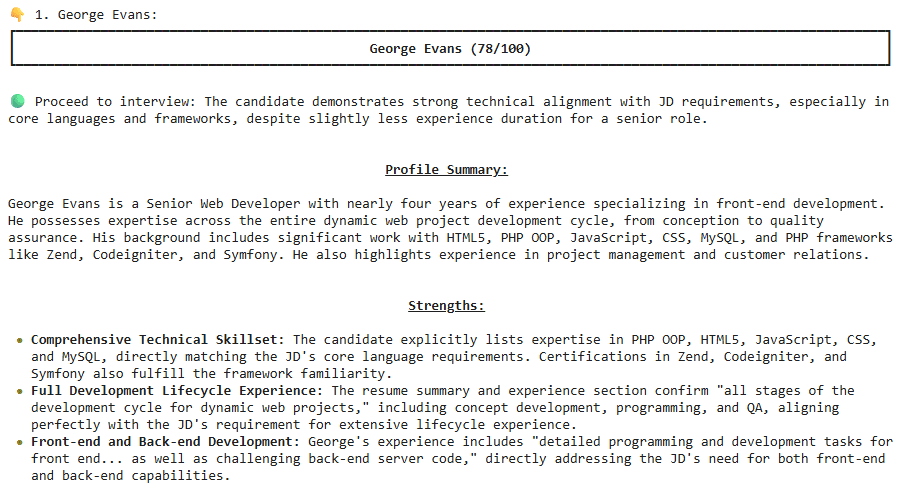
    ตัวอย่างผลลัพธ์:

    ในตัวอย่าง จะเห็นได้ว่า George Evans เหมาะที่จะเป็น Senior Web Developer


    😺 Code & Input Examples

    • ดูตัวอย่าง code ได้ที่ Google Colab
    • ดูตัวอย่าง JD และ resumes ได้ที่ JD & Resumes

    📃 References

  • 4 ขั้นตอนในการใช้ google-genai library เพื่อทำงานกับ Gemini API — ตัวอย่างการสร้างสูตรอาหารที่ไม่เหมือนใคร

    4 ขั้นตอนในการใช้ google-genai library เพื่อทำงานกับ Gemini API — ตัวอย่างการสร้างสูตรอาหารที่ไม่เหมือนใคร

    ในบทความนี้ เราจะมาดู 4 ขั้นตอนในการใช้งาน google-genai ซึ่งเป็น official library สำหรับทำงานกับ Gemini API ผ่านตัวอย่างการสร้างสูตรอาหารใน Google Colab กัน:

    1. Import packages
    2. Create client
    3. Create function
    4. Generate response

    ถ้าพร้อมแล้ว ไปเริ่มกันเลย


    1. 📦 Import Packages
    2. 🧑‍💼 Create Client
    3. 📲 Create Function
    4. 📬 Generate Response
      1. 🤖 Set Model
      2. 🧑‍💻 Set User Prompt
      3. 🛠️ Set Configuration
      4. 📖 Generate Response
      5. 🖨️ Print Response
    5. 😺 Google Colab
    6. 📃 References

    📦 Import Packages

    เริ่มแรก เราจะ import 4 packages ที่จำเป็น ได้แก่:

    FromFunction/ClassFor
    googlegenaiทำงานกับ Gemini API
    google.genai.typesGenerateContentConfigตั้งค่า Gemini
    google.colabuserdataเรียก API key จากเมนู Secrets ใน Google Colab
    pydanticBaseModelกำหนดโครงสร้างของ response จาก Gemini
    # Import packages
    
    # google-genai library
    from google import genai
    from google.genai.types import GenerateContentConfig
    
    # Secret key
    from google.colab import userdata
    
    # pydantic
    from pydantic import BaseModel
    

    🧑‍💼 Create Client

    ในขั้นที่ 2 เราจะสร้าง client สำหรับทำงานกับ Gemini API

    เพื่อความปลอดภัย เราจะเก็บ API key ไว้ในเมนู Secrets ของ Google Colab

    เราสามารถเพิ่ม API key ด้วยการ import ผ่านปุ่ม “Gemini API keys” หรือผ่านการเพิ่ม API key เองด้วยปุ่ม “Add new secret”:

    หลังสร้าง API key ใน Secrets แล้ว เราสามารถเรียกใช้ API key ได้ด้วย userdata.get() ซึ่งต้องการ 1 argument คือ ชื่อ secret:

    # Get API key
    my_api = userdata.get("GOOGLE_API_KEY")
    

    จากนั้น เราจะสร้าง client ด้วย genai.Client() ซึ่งต้องการ 1 argument คือ API key:

    # Create client
    client = genai.Client(api_key=my_api)
    

    Note:

    • ในกรณีที่เราไม่ห่วงความปลอดภัยของ API key เราสามารถใส่ API key ใน genai.Client() ได้โดยตรง เช่น genai.Client(api_key="g04821...")
    • เราสามารถสร้าง API key ได้ฟรี โดยไปที่ Google AI Studio และกด “Create API key”

    📲 Create Function

    ในขั้นที่ 3 เราจะสร้าง function สำหรับเรียกใช้ Gemini ซึ่งต้องการ 3 arguments:

    1. model: Gemini model ที่เราจะเรียกใช้
    2. user_prompt: กำหนด user prompt
    3. config: กำหนดการตั้งค่าต่าง ๆ ของ model

    โดยทั้ง 3 arguments จะอยู่ใน client.models.generate_content():

    # Create a function to get Gemini response
    def get_response(model, user_prompt, config):
    
        # Get response
        response = client.models.generate_content(
    
            # Set model
            model=model,
    
            # Set user prompt
            contents=user_prompt,
    
            # Set config
            config=config
        )
    
        # Return response
        return response.text
    

    📬 Generate Response

    ในขั้นที่ 4 เราจะ get response จาก Gemini โดยใช้ function ที่เราสร้างในขั้นที่ 3

    เนื่องจาก function ต้องการ 3 arguments เราจะต้องกำหนด 3 สิ่งนี้ก่อนที่จะสร้าง response ได้:

    1. Model
    2. User prompt
    3. Configuration

    .

    🤖 Set Model

    ในตัวอย่างนี้ เราจะใช้ model เป็น Gemini 2.5 Flash ซึ่งเราสามารถกำหนดได้ดังนี้:

    # Set model
    gemini_model = "gemini-2.5-flash"
    

    Note: ดูชื่อ model อื่น ๆ ได้ที่ Gemini Models

    .

    🧑‍💻 Set User Prompt

    สำหรับ user prompt เราสามารถกำหนดเป็น string ได้แบบนี้:

    # Set user prompt
    gemini_user_prompt = """
    Create a healthy Thai-inspired burger for one person.
    
    Protein: chicken or tofu
    Bun: whole-wheat if possible (or lettuce wrap)
    
    Deliver (match field names exactly):
    - `menu` (string)
    - `ingredient` (list of items with name, description, amount, unit)
    - `steps` (30-word strings)
    - `calorie_kcal` (float, total for the dish)
    """
    

    .

    🛠️ Set Configuration

    สำหรับ configuration เราสามารถตั้งค่า model ได้หลายค่า

    ในตัวอย่างนี้ เราจะเลือกกำหนด 3 ค่า ได้แก่:

    1. System prompt
    2. Temperature
    3. Output type and structure

    ค่าที่ 1. System prompt คือ prompt ที่กำหนดพฤติกรรมของ Gemini ในการตอบสนองต่อ user prompt ของเรา

    เราสามารถกำหนด system prompt เป็น string ได้แบบนี้:

    # Set system prompt
    system_prompt = """
    You are a highly experienced home cook specialising in healthy Thai-style food.
    
    Constraints:
    - Single-serving
    - Favour grilling/pan-searing over deep-frying
    - Keep ingredients common in Thai kitchens
    - Keep steps <=7
    - Include an approximate total calories for the whole dish
    - Keep language simple
    - Return JSON only that matches the given schema exactly (no extra fields)
    """
    

    ค่าที่ 2. Temperature มีค่าระหว่าง 0 และ 2 โดย:

    • 0 จะทำให้ response ตายตัว (deterministic) มากขึ้น
    • 2 จะทำให้ response สร้างสรรค์ (creative) มากขึ้น

    Note: ค่า default ของ temperature อยู่ที่ 1 (Generate content with the Gemini API in Vertex AI)

    ในตัวอย่าง เราจะกำหนด temperature เป็น 2 เพื่อให้ response มีความสร้างสรรค์สูงสุด:

    # Set temperature
    temp = 2
    

    ค่าที่ 3. สำหรับ output type และ structure เราจะกำหนดดังนี้:

    กำหนด type เป็น "application/json" เพื่อให้ response อยู่ในรูป JSON object:

    # Set output type
    output_type = "application/json"
    

    Note: ดู type อื่น ๆ ได้ที่ Structured output

    กำหนดโครงสร้างของ JSON object ด้วย class และ BaseModel:

    # Set output structure
    class Ingredient(BaseModel):
        name: str
        description: str
        amount: float
        unit: str
    
    class OutputStructure(BaseModel):
        menu: str
        ingredient: list[Ingredient]
        steps: list[str]
        calorie_kcal: float
    

    Note: ดูวิธีใช้ BaseModel ได้ที่ JSON Schema

    หลังกำหนด system prompt, temperature, และ output type กับ structure แล้ว ให้เรารวมค่าทั้งหมดไว้ใน GenerateContentConfig() แบบนี้:

    # Set configuration
    gemini_config = GenerateContentConfig(
    
        # Set system prompt
        system_instruction=system_prompt,
    
        # Set temperature
        temperature=temp,
    
        # Set response type
        response_mime_type=output_type,
    
        # Set response structure
        response_schema=OutputStructure
    )
    

    Note: ดูค่าอื่น ๆ ที่เรากำหนดใน GenerateContentConfig() ได้ที่ Content generation parameters

    .

    📖 Generate Response

    หลังจากกำหนด arguments แล้ว เราจะเรียกใช้ function เพื่อ get response แบบนี้:

    # Generate a recipe
    recipe = get_response(
    
        # Set model
        model=gemini_model,
    
        # Set user prompt
        user_prompt=gemini_user_prompt,
    
        # Set configuration
        config=gemini_config
    )
    

    .

    สุดท้าย เราจะดู response ด้วย print():

    # Print response
    print(recipe)
    

    ผลลัพธ์:

    {
      "menu": "Thai Chicken Burger",
      "ingredient": [
        {
          "name": "Ground Chicken",
          "description": "Lean ground chicken",
          "amount": 150.0,
          "unit": "g"
        },
        {
          "name": "Whole-wheat Burger Bun",
          "description": "Standard size",
          "amount": 1.0,
          "unit": "unit"
        },
        {
          "name": "Lime Juice",
          "description": "Freshly squeezed",
          "amount": 1.0,
          "unit": "tablespoon"
        },
        {
          "name": "Fish Sauce",
          "description": "Thai fish sauce",
          "amount": 1.0,
          "unit": "tablespoon"
        },
        {
          "name": "Fresh Ginger",
          "description": "Grated",
          "amount": 1.0,
          "unit": "teaspoon"
        },
        {
          "name": "Garlic",
          "description": "Minced",
          "amount": 1.0,
          "unit": "clove"
        },
        {
          "name": "Cilantro",
          "description": "Fresh, chopped",
          "amount": 2.0,
          "unit": "tablespoons"
        },
        {
          "name": "Green Onion",
          "description": "Chopped",
          "amount": 1.0,
          "unit": "tablespoon"
        },
        {
          "name": "Red Chilli",
          "description": "Finely minced (optional)",
          "amount": 0.5,
          "unit": "teaspoon"
        },
        {
          "name": "Lettuce Leaf",
          "description": "Fresh, crisp",
          "amount": 1.0,
          "unit": "large"
        },
        {
          "name": "Cucumber",
          "description": "Sliced thinly",
          "amount": 3.0,
          "unit": "slices"
        },
        {
          "name": "Cooking Oil",
          "description": "Any neutral oil",
          "amount": 1.0,
          "unit": "teaspoon"
        }
      ],
      "steps": [
        "Combine ground chicken with fish sauce, lime juice, grated ginger, minced garlic, chopped cilantro, and green onion in a bowl. Mix thoroughly.",
        "Form the seasoned chicken mixture into a single, uniform burger patty. If using chilli, incorporate it now.",
        "Heat cooking oil in a non-stick pan over medium heat. Cook the chicken patty for 5-7 minutes per side, or until it is thoroughly cooked through.",
        "While the patty cooks, lightly toast the whole-wheat burger bun in a dry pan or toaster until golden brown.",
        "Assemble your burger: Place the cooked chicken patty on the bottom half of the toasted bun. Top with fresh lettuce and cucumber slices.",
        "Complete the burger with the top bun. Serve immediately and enjoy your healthy Thai-inspired meal."
      ],
      "calorie_kcal": 450.0
    }
    

    เท่านี้ก็จบ flow การทำงานกับ Gemini API ด้วย google-genai library แล้ว


    😺 Google Colab

    ดูตัวอย่าง code ทั้งหมดได้ที่ Google Colab


    📃 References

  • วิธีใช้ 9 arguments ใน read_csv() จาก pandas library เพื่อโหลดข้อมูลใน Python — ตัวอย่างการโหลดข้อมูลการแข่งขันฟุตบอล

    วิธีใช้ 9 arguments ใน read_csv() จาก pandas library เพื่อโหลดข้อมูลใน Python — ตัวอย่างการโหลดข้อมูลการแข่งขันฟุตบอล

    pandas เป็น Python library สำหรับทำงานกับข้อมูลในรูปแบบตาราง (tabular data) และมี functions หลากหลายสำหรับโหลดข้อมูลเข้ามาใน Python

    โดยหนึ่งใน functions ที่นิยมใช้กันมากที่สุด ได้แก่ read_csv() ซึ่งใช้โหลดข้อมูล CSV (Comma-Separated Values) และมี arguments หลัก 9 อย่าง ได้แก่:

    1. filepath_or_buffer: file path, ชื่อไฟล์, หรือ URL ของไฟล์ที่ต้องการโหลด
    2. sep: กำหนด delimiter
    3. header: กำหนด row ที่เป็นหัวตาราง
    4. skiprows: กำหนด rows ที่ไม่ต้องการโหลด
    5. nrows: เลือกจำนวน rows ที่ต้องการโหลด
    6. usecols: กำหนด columns ที่ต้องการโหลด
    7. index_col: กำหนด column ที่จะเป็น index
    8. names: กำหนดชื่อของ columns
    9. dtype: กำหนดประเภทข้อมูล (data types) ของ columns

    ในบทความนี้ เราจะมาดูวิธีใช้ทั้ง 9 arguments ของ read_csv() เพื่อโหลดตัวอย่างข้อมูลการแข่งขันฟุตบอลในอังกฤษกัน

    ถ้าพร้อมแล้ว ไปเริ่มกันเลย


    1. 🏁 Getting Started
    2. 🗃️ Argument #1. filepath_or_buffer
    3. 🤺 Argument #2. sep
    4. 😶‍🌫️ Argument #3. header
    5. 🛑 Argument #4. skiprows
    6. 📋 Argument #5. nrows
    7. ☑️ Argument #6. usecols
    8. 🔢 Argument #7. index_col
    9. 🔠 Argument #8. names
    10. ⏹️ Argument #9. dtype
    11. ⚡ Summary
    12. 😺 GitHub
    13. 📃 References

    🏁 Getting Started

    ก่อนเริ่มใช้งาน read_csv() เราต้องติดตั้งและโหลด pandas ก่อน:

    # Install pandas
    !pip install pandas
    
    # Import pandas
    import pandas as pd
    

    Note: ในกรณีที่เราเคยติดตั้ง pandas แล้วให้ใช้คำสั่ง import อย่างเดียว


    🗃️ Argument #1. filepath_or_buffer

    filepath_or_buffer เป็น argument หลักที่เราจะต้องกำหนดทุกครั้งที่เรียกใช้ read_csv()

    ยกตัวอย่างเช่น เรามีข้อมูลการแข่งขันฟุตบอล (matches_clean.csv):

    MatchID,HomeTeam,AwayTeam,HomeGoals,AwayGoals,MatchDate
    M001,Manchester United,Chelsea,2,1,2024-08-14
    M002,Liverpool,Arsenal,1,1,2024-08-20
    M003,Tottenham,Everton,3,0,2024-09-02
    M004,Man City,Aston Villa,4,2,2024-09-15
    M005,Newcastle,West Ham,0,0,2024-09-22
    M006,Brighton,Leeds,2,3,2024-09-29
    

    เราสามารถใช้ read_csv() ได้แบบนี้:

    # Load the dataset
    df1 = pd.read_csv("matches_clean.csv")
    
    # View the result
    print(df1)
    

    ผลลัพธ์:

      MatchID           HomeTeam     AwayTeam  HomeGoals  AwayGoals   MatchDate
    0    M001  Manchester United      Chelsea          2          1  2024-08-14
    1    M002          Liverpool      Arsenal          1          1  2024-08-20
    2    M003          Tottenham      Everton          3          0  2024-09-02
    3    M004           Man City  Aston Villa          4          2  2024-09-15
    4    M005          Newcastle     West Ham          0          0  2024-09-22
    5    M006           Brighton        Leeds          2          3  2024-09-29
    

    🤺 Argument #2. sep

    sep ใช้กำหนด delimiter หรือเครื่องหมายในการแบ่ง columns โดย default ของ sep คือ "," ทำให้ปกติ เราไม่ต้องกำหนด sep เมื่อไฟล์เป็น CSV

    เราจะใช้ sep เมื่อข้อมูลมี delimiter อื่น เช่น ";" (matches_semicolon.txt):

    MatchID;HomeTeam;AwayTeam;HomeGoals;AwayGoals;MatchDate
    M001;Manchester United;Chelsea;2;1;2024-08-14
    M002;Liverpool;Arsenal;1;1;2024-08-20
    M003;Tottenham;Everton;3;0;2024-09-02
    M004;Man City;Aston Villa;4;2;2024-09-15
    M005;Newcastle;West Ham;0;0;2024-09-22
    M006;Brighton;Leeds;2;3;2024-09-29
    

    เราสามารถใช้ sep ได้แบบนี้:

    # Load the dataset with ";" as delim
    df2 = pd.read_csv("matches_semicolon.csv", sep=";")
    
    # View the result
    print(df2)
    

    ผลลัพธ์:

      MatchID           HomeTeam     AwayTeam  HomeGoals  AwayGoals   MatchDate
    0    M001  Manchester United      Chelsea          2          1  2024-08-14
    1    M002          Liverpool      Arsenal          1          1  2024-08-20
    2    M003          Tottenham      Everton          3          0  2024-09-02
    3    M004           Man City  Aston Villa          4          2  2024-09-15
    4    M005          Newcastle     West Ham          0          0  2024-09-22
    5    M006           Brighton        Leeds          2          3  2024-09-29
    

    😶‍🌫️ Argument #3. header

    header ใช้กำหนด row ที่จะเป็นหัวตาราง

    เราจะใช้ header เมื่อ rows แรกของข้อมูลมีข้อมูลอื่น เช่น metadata (matches_with_metadata.txt):

    # UK Football Matches Data
    # Created for practice with pd.read_csv()
    MatchID,HomeTeam,AwayTeam,HomeGoals,AwayGoals,MatchDate
    M001,Manchester United,Chelsea,2,1,2024-08-14
    M002,Liverpool,Arsenal,1,1,2024-08-20
    M003,Tottenham,Everton,3,0,2024-09-02
    M004,Man City,Aston Villa,4,2,2024-09-15
    M005,Newcastle,West Ham,0,0,2024-09-22
    M006,Brighton,Leeds,2,3,2024-09-29
    

    เราสามารถใช้ header ได้แบบนี้:

    # Load the dataset where the header is the 3rd row
    df3 = pd.read_csv("matches_with_metadata.txt", header=2)
    
    # View the result
    print(df3)
    

    ผลลัพธ์:

      MatchID           HomeTeam     AwayTeam  HomeGoals  AwayGoals   MatchDate
    0    M001  Manchester United      Chelsea          2          1  2024-08-14
    1    M002          Liverpool      Arsenal          1          1  2024-08-20
    2    M003          Tottenham      Everton          3          0  2024-09-02
    3    M004           Man City  Aston Villa          4          2  2024-09-15
    4    M005          Newcastle     West Ham          0          0  2024-09-22
    5    M006           Brighton        Leeds          2          3  2024-09-29
    

    จะสังเกตว่า metadata จะไม่ถูกโหลดเข้ามาด้วย

    Note: เราสามารถกำหนด header=None ในกรณีที่ข้อมูลไม่มีหัวตาราง เช่น matches_no_header.csv:

    M001,Manchester United,Chelsea,2,1,2024-08-14
    M002,Liverpool,Arsenal,1,1,2024-08-20
    M003,Tottenham,Everton,3,0,2024-09-02
    M004,Man City,Aston Villa,4,2,2024-09-15
    M005,Newcastle,West Ham,0,0,2024-09-22
    M006,Brighton,Leeds,2,3,2024-09-29
    

    🛑 Argument #4. skiprows

    skiprows ใช้เลือก rows ที่เราไม่ต้องการโหลดเข้ามาใน Python ซึ่งเราสามารถกำหนดได้ 2 แบบ:

    1. กำหนดเป็น int (เช่น 2) ในกรณีที่ต้องการข้าม row เดียว
    2. กำหนดเป็น list (เช่น [0, 1, 2]) ในกรณีที่ต้องการข้ามมากกว่า 1 rows

    ยกตัวอย่างเช่น เราต้องการข้าม 2 บรรทัดแรกซึ่งเป็น metadata:

    # UK Football Matches Data
    # Created for practice with pd.read_csv()
    MatchID,HomeTeam,AwayTeam,HomeGoals,AwayGoals,MatchDate
    M001,Manchester United,Chelsea,2,1,2024-08-14
    M002,Liverpool,Arsenal,1,1,2024-08-20
    M003,Tottenham,Everton,3,0,2024-09-02
    M004,Man City,Aston Villa,4,2,2024-09-15
    M005,Newcastle,West Ham,0,0,2024-09-22
    M006,Brighton,Leeds,2,3,2024-09-29
    

    เราสามารถใช้ skiprows ได้แบบนี้:

    # Load the dataset, skipping the metadata
    df4 = pd.read_csv("matches_with_metadata.txt", skiprows=[0, 1])
    
    # View the result
    print(df4)
    

    ผลลัพธ์:

      MatchID           HomeTeam     AwayTeam  HomeGoals  AwayGoals   MatchDate
    0    M001  Manchester United      Chelsea          2          1  2024-08-14
    1    M002          Liverpool      Arsenal          1          1  2024-08-20
    2    M003          Tottenham      Everton          3          0  2024-09-02
    3    M004           Man City  Aston Villa          4          2  2024-09-15
    4    M005          Newcastle     West Ham          0          0  2024-09-22
    5    M006           Brighton        Leeds          2          3  2024-09-29
    

    📋 Argument #5. nrows

    nrows ใช้เลือก rows ที่เราต้องการโหลดเข้ามาใน Python

    เช่น แทนที่จะโหลดข้อมูลทั้งหมด:

    MatchID,HomeTeam,AwayTeam,HomeGoals,AwayGoals,MatchDate
    M001,Manchester United,Chelsea,2,1,2024-08-14
    M002,Liverpool,Arsenal,1,1,2024-08-20
    M003,Tottenham,Everton,3,0,2024-09-02
    M004,Man City,Aston Villa,4,2,2024-09-15
    M005,Newcastle,West Ham,0,0,2024-09-22
    M006,Brighton,Leeds,2,3,2024-09-29
    

    เราจะโหลดข้อมูล 3 rows แรกด้วย nrows แบบนี้:

    # Load the first 3 rows
    df5 = pd.read_csv("matches_clean.csv", nrows=3)
    
    # View the result
    print(df5)
    

    ผลลัพธ์:

      MatchID           HomeTeam AwayTeam  HomeGoals  AwayGoals   MatchDate
    0    M001  Manchester United  Chelsea          2          1  2024-08-14
    1    M002          Liverpool  Arsenal          1          1  2024-08-20
    2    M003          Tottenham  Everton          3          0  2024-09-02
    

    ☑️ Argument #6. usecols

    usecols ใช้กำหนด columns ที่เราต้องการโหลดเข้ามาใน Python

    ยกตัวอย่างเช่น เลือกเฉพาะ HomeTeam และ HomeGoals จาก:

    MatchID,HomeTeam,AwayTeam,HomeGoals,AwayGoals,MatchDate
    M001,Manchester United,Chelsea,2,1,2024-08-14
    M002,Liverpool,Arsenal,1,1,2024-08-20
    M003,Tottenham,Everton,3,0,2024-09-02
    M004,Man City,Aston Villa,4,2,2024-09-15
    M005,Newcastle,West Ham,0,0,2024-09-22
    M006,Brighton,Leeds,2,3,2024-09-29
    

    เราสามารถใช้ usecols ได้แบบนี้:

    # Load only HomeTeam and HomeGoals
    df6 = pd.read_csv("matches_clean.csv", usecols=["HomeTeam", "HomeGoals"])
    
    # View the result
    print(df6)
    

    ผลลัพธ์:

                HomeTeam  HomeGoals
    0  Manchester United          2
    1          Liverpool          1
    2          Tottenham          3
    3           Man City          4
    4          Newcastle          0
    5           Brighton          2
    

    🔢 Argument #7. index_col

    index_col ใช้กำหนด column ที่เป็น index ของข้อมูล เช่น MatchID:

    MatchID,HomeTeam,AwayTeam,HomeGoals,AwayGoals,MatchDate
    M001,Manchester United,Chelsea,2,1,2024-08-14
    M002,Liverpool,Arsenal,1,1,2024-08-20
    M003,Tottenham,Everton,3,0,2024-09-02
    M004,Man City,Aston Villa,4,2,2024-09-15
    M005,Newcastle,West Ham,0,0,2024-09-22
    M006,Brighton,Leeds,2,3,2024-09-29
    

    เราจะใช้ index_col แบบนี้:

    # Load the dataset with MatchID as index col
    df7 = pd.read_csv("matches_clean.csv", index_col="MatchID")
    
    # View the result
    print(df7)
    

    ผลลัพธ์:

                      HomeTeam     AwayTeam  HomeGoals  AwayGoals   MatchDate
    MatchID
    M001     Manchester United      Chelsea          2          1  2024-08-14
    M002             Liverpool      Arsenal          1          1  2024-08-20
    M003             Tottenham      Everton          3          0  2024-09-02
    M004              Man City  Aston Villa          4          2  2024-09-15
    M005             Newcastle     West Ham          0          0  2024-09-22
    M006              Brighton        Leeds          2          3  2024-09-29
    

    🔠 Argument #8. names

    names ใช้กำหนดชื่อ columns ซึ่งเราจะใช้เมื่อ:

    • ข้อมูลไม่มีหัวตาราง
    • ต้องการเปลี่ยนชื่อ columns

    ยกตัวอย่างเช่น ใส่ชื่อ columns ให้กับ matches_no_header.csv:

    M001,Manchester United,Chelsea,2,1,2024-08-14
    M002,Liverpool,Arsenal,1,1,2024-08-20
    M003,Tottenham,Everton,3,0,2024-09-02
    M004,Man City,Aston Villa,4,2,2024-09-15
    M005,Newcastle,West Ham,0,0,2024-09-22
    M006,Brighton,Leeds,2,3,2024-09-29
    

    เราสามารถใช้ names ได้แบบนี้:

    # Set col names
    col_names = [
        "id",
        "home",
        "away",
        "home_goals",
        "away_goals",
        "date"
    ]
    
    # Load the dataset with custom col names
    df8 = pd.read_csv("matches_no_header.csv", names=col_names)
    
    # View the result
    print(df8)
    

    ผลลัพธ์:

         id               home         away  home_goals  away_goals        date
    0  M001  Manchester United      Chelsea           2           1  2024-08-14
    1  M002          Liverpool      Arsenal           1           1  2024-08-20
    2  M003          Tottenham      Everton           3           0  2024-09-02
    3  M004           Man City  Aston Villa           4           2  2024-09-15
    4  M005          Newcastle     West Ham           0           0  2024-09-22
    5  M006           Brighton        Leeds           2           3  2024-09-29
    

    ⏹️ Argument #9. dtype

    dtype ใช้กำหนดประเภทข้อมูลของ columns

    ยกตัวอย่างเช่น กำหนด ประเภทข้อมูลของ MatchID, HomeGoals, และ AwayGoals จาก matches_clean.csv:

    MatchID,HomeTeam,AwayTeam,HomeGoals,AwayGoals,MatchDate
    M001,Manchester United,Chelsea,2,1,2024-08-14
    M002,Liverpool,Arsenal,1,1,2024-08-20
    M003,Tottenham,Everton,3,0,2024-09-02
    M004,Man City,Aston Villa,4,2,2024-09-15
    M005,Newcastle,West Ham,0,0,2024-09-22
    M006,Brighton,Leeds,2,3,2024-09-29
    

    เราสามารถใช้ dtype ได้แบบนี้:

    # Set col data types
    col_dtypes = {
        "MatchID": str,
        "HomeGoals": "int32",
        "AwayGoals": "int32"
    }
    
    # Load the dataset, specifying data types for MatchID, HomeGoals, and AwayGoals
    df9 = pd.read_csv("matches_clean.csv", dtype=col_dtypes)
    
    # View the result
    df9.info()
    

    ผลลัพธ์:

    <class 'pandas.core.frame.DataFrame'>
    RangeIndex: 6 entries, 0 to 5
    Data columns (total 6 columns):
     #   Column     Non-Null Count  Dtype
    ---  ------     --------------  -----
     0   MatchID    6 non-null      object
     1   HomeTeam   6 non-null      object
     2   AwayTeam   6 non-null      object
     3   HomeGoals  6 non-null      int32
     4   AwayGoals  6 non-null      int32
     5   MatchDate  6 non-null      object
    dtypes: int32(2), object(4)
    memory usage: 372.0+ bytes
    

    ⚡ Summary

    ในบทความนี้ เราได้ไปดูวิธีการใช้ 9 arguments ของ read_csv() จาก pandas เพื่อโหลดข้อมูลใน Python กัน:

    1. filepath_or_buffer: ไฟล์ที่ต้องการโหลด
    2. sep: delimiter ในไฟล์
    3. header: row ที่เป็นหัวตาราง
    4. skiprows: rows ที่ไม่ต้องการโหลด
    5. nrows: จำนวน rows ที่ต้องการโหลด
    6. usecols: columns ที่ต้องการโหลด
    7. index_col: column ที่จะเป็น index
    8. names: ชื่อของ columns
    9. dtype: ประเภทข้อมูล (data types) ของ columns

    😺 GitHub

    ดูตัวอย่าง code และ datasets ทั้งหมดได้ที่ GitHub


    📃 References

  • แนะนำ 4 functions ในการทำงานกับ JSON ใน Python: json.dumps(), json.loads(), json.dump(), และ json.load() — ตัวอย่างการทำงานกับข้อมูลคำสั่งซื้อคุกกี้

    แนะนำ 4 functions ในการทำงานกับ JSON ใน Python: json.dumps(), json.loads(), json.dump(), และ json.load() — ตัวอย่างการทำงานกับข้อมูลคำสั่งซื้อคุกกี้

    ในบทความนี้ เราจะไปดูวิธีใช้ 4 functions จาก json package ใน Python สำหรับทำงานกับ JSON (JavaScript Object Notation) ซึ่งเป็น data structure ที่พบได้บ่อยในแอปพลิเคชันและระบบต่าง ๆ กัน:

    1. json.loads()
    2. json.dumps()
    3. json.load()
    4. json.dump()

    ตัวอย่าง JSON คำสั่งซื้อออนไลน์:

    {
      "order_id": 1024,
      "customer": {
        "name": "Ari Lee",
        "phone": "+66 89 123 4567"
      },
      "items": [
        {
          "product": "Cappuccino",
          "size": "Medium",
          "price": 75,
          "quantity": 1
        },
        {
          "product": "Ham Sandwich",
          "price": 95,
          "quantity": 2
        }
      ],
      "payment": {
        "method": "QR Code",
        "total": 170,
        "currency": "THB"
      },
      "status": "Preparing",
      "timestamp": "2025-10-11T09:30:00"
    }
    

    ถ้าพร้อมแล้ว ไปเริ่มกันเลย


    1. 🏁 Introduction to json
    2. 🗨️ Group 1. JSON Strings
      1. ⬇️ json.loads(): JSON String to Python Object
      2. ⬆️ json.dumps(): Python Object to JSON String
    3. 📂 Group 2. JSON Files
      1. ⬇️ json.load(): JSON File to Python Object
      2. ⬆️ json.dump(): Python Object to JSON File
    4. 💪 Summary
    5. 😺 GitHub
    6. 📃 References

    🏁 Introduction to json

    json เป็น built-in package ใน Python และถูกออกแบบมาสำหรับทำงานกับ JSON โดยเฉพาะ

    เราสามารถเริ่มใช้งาน json ด้วยการโหลด package ด้วย import:

    # Import json
    import json
    

    json มี 4 functions สำหรับทำงานกับ JSON ซึ่งแบ่งได้เป็น 2 กลุ่ม:

    1. ทำงานกับ JSON string หรือ JSON ที่อยู่ในรูป Python string:
      1. json.loads()
      2. json.dumps()
    2. ทำงานกับ JSON file หรือ file ที่เห็นข้อมูล JSON เอาไว้:
      1. json.load()
      2. json.dump()

    Note: เทคนิคการจำ คือ function ที่ลงท้ายด้วย s (เช่น json.loads()) แสดงว่าใช้งานกับ JSON string

    ทั้ง 4 functions มีรายละเอียดการใช้งาน ดังนี้:

    FunctionFromTo
    json.loads()JSON string 🗨️Python object 🐍
    json.dumps()Python object 🐍JSON string 🗨️
    json.load()JSON file 📂Python object 🐍
    json.dump()Python object 🐍JSON file 📂

    เราไปดูวิธีใช้งานทั้ง 4 functions กับตัวอย่างข้อมูลสั่งซื้อคุกกี้กัน


    🗨️ Group 1. JSON Strings

    2 functions สำหรับทำงานกับ JSON string หรือ JSON ที่อยู่ในรูปของ Python string ได้แก่:

    FunctionFromTo
    json.loads()JSON string 🗨️Python object 🐍
    json.dumps()Python object 🐍JSON string 🗨️

    .

    ⬇️ json.loads(): JSON String to Python Object

    json.loads() ใช้โหลด JSON string ให้เป็น Python object เช่น:

    • String: ""
    • List: []
    • Dictionary: {}

    ยกตัวอย่างเช่น:

    # Create a Python dict
    cookie_json_string = """
    {
        "customer": "May",
        "cookies": [
            "Chocolate Chip",
            "Oatmeal",
            "Sugar"
        ],
        "is_member": true,
        "total_price": 120
    }
    """
    
    # Convert to Python object
    cookie_python_dict = json.loads(cookie_json_string)
    

    เราสามารถดูผลลัพธ์ได้ด้วย pprint() ซึ่งเป็น function สำหรับ print Python dictionary ให้อ่านง่าย:

    # Import pprint
    from pprint import pprint
    
    # View the result
    pprint(cookie_python_dict)
    

    ผลลัพธ์:

    {'cookies': ['Chocolate Chip', 'Oatmeal', 'Sugar'],
     'customer': 'May',
     'is_member': True,
     'total_price': 120}
    

    .

    ⬆️ json.dumps(): Python Object to JSON String

    ในกรณีที่เรามี Python object เราสามารถแปลงเป็น JSON string ได้ด้วย json.dumps():

    # Create a Python dict
    cookie_py_dict = {
        "customer": "May",
        "cookies": [
            "Chocolate Chip",
            "Oatmeal",
            "Sugar"
        ],
        "is_member": True,
        "total_price": 120
    }
    
    # Convert to JSON string
    cookie_json_str = json.dumps(cookie_py_dict)
    
    # View the result
    print(cookie_json_str)
    

    ผลลัพธ์:

    {"customer": "May", "cookies": ["Chocolate Chip", "Oatmeal", "Sugar"], "is_member": true, "total_price": 120}
    

    ทั้งนี้ เราสามารถใช้ indent เพื่อทำให้ JSON string อ่านง่ายขึ้นได้ เช่น:

    # Convert to JSON string with indent argument
    cookie_json_str_indent = json.dumps(cookie_py_dict, indent=4)
    
    # View the result
    print(cookie_json_str_indent)
    

    ผลลัพธ์:

    {
        "customer": "May",
        "cookies": [
            "Chocolate Chip",
            "Oatmeal",
            "Sugar"
        ],
        "is_member": true,
        "total_price": 120
    }
    

    📂 Group 2. JSON Files

    เรามี 2 functions สำหรับทำงานกับ JSON files ได้แก่:

    FunctionFromTo
    json.load()JSON file 📂Python object 🐍
    json.dump()Python object 🐍JSON file 📂

    .

    ⬇️ json.load(): JSON File to Python Object

    json.load() ใช้สำหรับโหลดข้อมูลจาก JSON file เข้ามาใน Python

    เช่น เรามี JSON file ดังนี้:

    {
        "order_id": 2048,
        "customer": {
            "name": "MJ",
            "phone": "+66 92 888 4321"
        },
        "items": [
            {
                "product": "Double Chocolate Cookie",
                "size": "Large",
                "price": 55,
                "quantity": 2
            },
            {
                "product": "Almond Biscotti",
                "price": 45,
                "quantity": 3
            }
        ],
        "payment": {
            "method": "Credit Card",
            "total": 285,
            "currency": "THB"
        },
        "status": "Baking",
        "timestamp": "2025-10-11T10:15:00"
    }
    

    เราสามารถโหลดขัอมูลได้แบบนี้:

    # Load JSON data
    with open("cookie_order.json", "r") as file:
        cookie_order = json.load(file)
    
    # View the result
    pprint(cookie_order)
    

    ผลลัพธ์:

    {'customer': {'name': 'MJ', 'phone': '+66 92 888 4321'},
     'items': [{'price': 55,
                'product': 'Double Chocolate Cookie',
                'quantity': 2,
                'size': 'Large'},
               {'price': 45, 'product': 'Almond Biscotti', 'quantity': 3}],
     'order_id': 2048,
     'payment': {'currency': 'THB', 'method': 'Credit Card', 'total': 285},
     'status': 'Baking',
     'timestamp': '2025-10-11T10:15:00'}
    

    .

    ⬆️ json.dump(): Python Object to JSON File

    json.dump() ใช้สร้าง JSON file จาก Python objects

    เช่น update ข้อมูลผู้ซื้อใน cookie_order จาก "MJ" เป็น "Peter Parker" และสร้างเป็น JSON file:

    # Update name
    cookie_order["customer"]["name"] = "Peter Parker"
    
    # Write to JSON file
    with open("cookie_order_updated.json", "w") as file:
        json.dump(cookie_order, file, indent=2)
    

    Note: สังเกตว่า เราสามารถกำหนด indent เพื่อทำให้ JSON อ่านง่ายขึ้นได้เหมือนกับ json.dumps()

    ผลลัพธ์ใน JSON file:

    {
      "order_id": 2048,
      "customer": {
        "name": "Peter Parker",
        "phone": "+66 92 888 4321"
      },
      "items": [
        {
          "product": "Double Chocolate Cookie",
          "size": "Large",
          "price": 55,
          "quantity": 2
        },
        {
          "product": "Almond Biscotti",
          "price": 45,
          "quantity": 3
        }
      ],
      "payment": {
        "method": "Credit Card",
        "total": 285,
        "currency": "THB"
      },
      "status": "Baking",
      "timestamp": "2025-10-11T10:15:00"
    }
    

    💪 Summary

    ในบทความนี้ เราได้ไปดูวิธีการใช้ 4 functions จาก json package เพื่อทำงานกับ JSON ใน Python:

    FunctionFromTo
    json.loads()JSON string 🗨️Python object 🐍
    json.dumps()Python object 🐍JSON string 🗨️
    json.load()JSON file 📂Python object 🐍
    json.dump()Python object 🐍JSON file 📂

    Note: json.dumps() และ json.dump() มี indent argument ที่ทำให้ JSON ออกอ่านง่ายได้


    😺 GitHub

    ดูตัวอย่าง code ทั้งหมดได้ที่ GitHub


    📃 References

  • วิธีใช้ open() เพื่อทำงานกับไฟล์ใน Python: วิธีใช้งาน, วิธีเขียนโดยใช้ with และไม่ใช้ with, และ 4 modes ในการทำงานกับไฟล์ (+ bonus การลบไฟล์) พร้อมตัวอย่าง

    วิธีใช้ open() เพื่อทำงานกับไฟล์ใน Python: วิธีใช้งาน, วิธีเขียนโดยใช้ with และไม่ใช้ with, และ 4 modes ในการทำงานกับไฟล์ (+ bonus การลบไฟล์) พร้อมตัวอย่าง

    ในบทความนี้ เราจะมาดูวิธีใช้ open() เพื่อทำงานกับไฟล์ใน Python กัน:

    1. Intro to open(): วิธีการเขียนและการใช้งาน
    2. 4 modes: 4 วิธีการทำงานกับไฟล์
    3. Bonus: วิธีลบไฟล์

    ถ้าพร้อมแล้ว ไปเริ่มกันเลย


    1. 💻 Intro to open()
      1. 🔢 Syntax
      2. 🗄️ Using open()
    2. 🗂️ Mode
      1. 📄 Create
      2. 📖 Read
      3. ➕ Append
      4. ✏️ Write
    3. 🍩 Bonus: Delete
    4. ⚡ Summary
    5. 😺 GitHub
    6. 📃 References

    💻 Intro to open()

    .

    🔢 Syntax

    open() เป็น base function สำหรับทำงานกับไฟล์ และต้องการ 2 arguments:

    open(filename, mode)
    
    • filename = ชื่อไฟล์ (เป็น string เช่น "my_file.txt")
    • mode = mode ในการทำงานกับไฟล์ (เช่น "r" สำหรับอ่านไฟล์)

    .

    🗄️ Using open()

    เราสามารถใช้ open() ได้ 2 วิธี ได้แก่:

    วิธีที่ 1. เปิดไฟล์โดยไม่ใช้ with ซึ่งจะต้องมี .close() เพื่อปิดไฟล์เมื่อทำงานเสร็จ:

    # Open file
    file = open(filename, mode)
    
    # Act on file
    file.method()
    
    # Close file
    file.close()
    

    วิธีที่ 2. เปิดไฟล์โดยใช้ with:

    # Open file
    with open(filename, mode) as file:
        
        # Act on file
        file.method()
    

    วิธีที่ 2 เป็นวิธีที่นิยมใช้มากกว่า เพราะเราไม่จำเป็นต้องปิดไฟล์ด้วย .close() หลังทำงานเสร็จ


    🗂️ Mode

    open() มี 4 modes ในการทำงานกับไฟล์ ได้แก่:

    ModeActionNote
    "x"สร้างไฟล์แสดง error ถ้ามีไฟล์ชื่อเดียวกันอยู่แล้ว
    "r"อ่านไฟล์แสดง error ถ้ามีไม่มีไฟล์ที่ต้องการ
    "a"เพิ่มข้อมูลในไฟล์สร้างไฟล์ใหม่ถ้าไม่มีไฟล์ชื่อเดียวกันอยู่แล้ว
    "w"เขียนทับข้อมูลที่มีในไฟล์สร้างไฟล์ใหม่ถ้าไม่มีไฟล์ชื่อเดียวกันอยู่แล้ว

    ไปดูตัวอย่างการใช้ทั้ง 4 modes กัน

    .

    📄 Create

    ตัวอย่างการสร้างไฟล์ด้วย "x":

    # Create a file
    with open("example.txt", "x") as file:
        file.write("This is the first line.")
        file.write("This is the second line.")
        file.write("This is the third line.")
    

    ผลลัพธ์: เราจะได้ไฟล์ชื่อ example.txt ในเครื่องของเรา

    .

    📖 Read

    เราสามารถอ่านไฟล์ด้วย "r" ได้ 3 วิธี:

    วิธีที่ 1. ใช้ .read() เพื่ออ่านเนื้อหาทั้งหมด:

    # Read the file - all
    with open("example.txt", "r") as file:
        file.read()
    

    ผลลัพธ์ใน console:

    This is the first line.
    This is the second line.
    This is the third line.
    

    วิธีที่ 2. ใช้ .readline() ในกรณีที่ต้องการอ่านรายบรรทัด:

    # Read the file - one line at a time
    with open("example.txt", "r") as file:
        file.readline()
        file.readline()
    

    ผลลัพธ์ใน console:

    This is the first line.
    This is the second line.
    

    วิธีที่ 3. ใช้ for loop เพื่ออ่านเนื้อหาทั้งหมดทีละบรรทัด:

    # Read the file - line by line
    with open("example.txt", "r") as file:
        
        # Loop through each line
        for line in file:
            print(line)
    

    ผลลัพธ์ใน console:

    This is the first line.
    This is the second line.
    This is the third line.
    

    .

    ➕ Append

    ตัวอย่างการเพิ่มข้อมูลด้วย "a":

    # Add content to the file
    with open("example.txt", "a") as file:
        file.write("This is the fourth line.")
    

    เนื้อหาในไฟล์:

    This is the first line.
    This is the second line.
    This is the third line.
    This is the fourth line.
    

    .

    ✏️ Write

    ตัวอย่างการเขียนไฟล์ด้วย "w":

    # Overwrite the file
    with open("example.txt", "w") as file:
        file.write("This is all there is now.")
    

    เนื้อหาในไฟล์:

    This is all there is now.
    

    🍩 Bonus: Delete

    ในกรณีที่เราต้องการลบไฟล์ เราจะต้องเรียกใช้ remove() function จาก os module:

    # Import os module
    import os
    
    # Delete the file
    os.remove("example.txt")
    

    ผลลัพธ์: ไฟล์จะถูกลบออกจากเครื่อง


    ⚡ Summary

    • open() เป็น base Python function สำหรับทำงานกับไฟล์
    • open() ต้องการ 2 arguments คือ:
      • filename: ชื่อไฟล์
      • mode: mode ในการทำงานกับไฟล์
    • วิธีใช้งาน:
      • open() มักใช้คู่กับ with
      • ถ้าไม่ใช้ with เราจะต้องปิดไฟล์ด้วย .close() เมื่อมช้งานเสร็จ
    • open() มี 4 modes ได้แก่:
      • "x": สร้างไฟล์
      • "r": อ่านไฟล์
      • "a": เพิ่มเนื้อหา
      • "w": เขียนทับข้อมูลเดิม
    • ลบไฟล์ด้วย os.remove()

    😺 GitHub

    ดูตัวอย่าง code ทั้งหมดได้ที่ GitHub


    📃 References

  • วิธีสร้าง functions ใน Python: def, docstring, arguments, และ lambda พร้อมตัวอย่าง

    วิธีสร้าง functions ใน Python: def, docstring, arguments, และ lambda พร้อมตัวอย่าง

    ในบทความนี้ เราจะมาดูวิธีสร้าง function ใน Python กัน โดยบทความนี้แบ่งเป็น 4 ส่วน:

    1. def syntax: การใช้ def เพื่อสร้าง function
    2. Docstring: การเขียนวิธีใช้งาน function
    3. Arguments: การกำหนด arguments ใน function
    4. lambda: การสร้าง function แบบไม่ระบุชื่อ

    ถ้าพร้อมแล้ว ไปเริ่มกันเลย


    1. 💻 def Syntax
    2. 📃 Docstring
      1. 🤔 Why Docstring?
      2. 🥸 What Is Docstring?
      3. 😎 Reading Docstring
    3. 💬 Arguments
      1. 🫡 Default Arguments
      2. 😶‍🌫️ Arbitrary Arguments
    4. 🛋️ lambda
    5. 😺 GitHub
    6. 📃 References

    💻 def Syntax

    ใน Python เราสามารถสร้าง function ได้ด้วย def ซึ่งประกอบด้วย 4 ส่วน:

    # Name and arguments
    def name(arguments):
        
        # Body
        Do something
        
        # Return
        return result
    1. name = ชื่อ function
    2. arguments = input สำหรับ function
    3. Body = การทำงานของ function
    4. Return = ส่งผลลัพธ์กลับออกมาจาก function *

    (Note: * เราสามารถใช้ print() แทน return ได้ ในกรณีที่เราต้องการแสดงผลลัพธ์ใน console)

    ยกตัวอย่างเช่น สร้าง function สำหรับคำนวณ BMI (body mass index) ซึ่งต้องการ 2 arguments คือ น้ำหนัก (weight) และส่วนสูง (height):

    # Create a function that calculates BMI
    def calculate_bmi(weight, height):
    
        # Calculate BMI
        bmi = weight / (height ** 2)
    
        # Round to 2 decimals
        bmi_rounded = round(bmi, 2)
    
        # Return BMI
        return bmi_rounded
    

    เราสามารถเรียกใช้ function ที่สร้างเสร็จแล้ว ด้วยการเรียกใช้ชื่อ function เช่น:

    # Use the BMI calculator function
    my_bmi = calculate_bmi(weight=80, height=1.8)
    
    # Print the result
    print(my_bmi)
    

    ผลลัพธ์:

    24.69
    

    📃 Docstring

    .

    🤔 Why Docstring?

    ในตัวอย่าง bmi_cal() เราจะเห็นว่า weight และ height มีได้หลายค่า ขึ้นอยู่กับหน่วยวัดที่ใช้ เช่น:

    • height: metre = 1.8; feet = 5.9
    • weight: kg = 80; pound = 176

    ถ้าเราใส่ค่าไม่ถูกต้องลงใน function เราจะได้ผลลัพธ์ที่ผิดกลับมา เช่น ใส่ height เป็น cm:

    # Using incorrect input
    wrong_bmi = calculate_bmi(weight=80, height=180)
    
    # Print the result
    print(wrong_bmi)
    

    ผลลัพธ์:

    0.0
    

    .

    🥸 What Is Docstring?

    เราสามารถแก้ปัญหานี้ได้ 2 วิธี:

    1. ตั้งชื่อ arguments ให้เรารู้ว่า ต้องใส่อะไรใน function (เช่น height_in_m, weight_in_kg)
    2. ใส่ docstring หรือ string ที่เก็บวิธีใช้ function ไว้

    เราสามารถเพิ่ม docstring ใน function ได้แบบนี้:

    # Adding docstring to the function
    def calculate_bmi(height, weight):
    
        # Docstring
        """
        Calculate BMI using weight and height:
        - Weight: kg
        - Height: m
    
        Return BMI rounded to 2 decimals.
        """
    
        # Calculate BMI
        bmi = weight / (height ** 2)
    
        # Round to 2 decimals
        bmi_rounded = round(bmi, 2)
    
        # Return BMI
        return bmi_rounded
    

    Pro tip: เราควรใส่ docstring ไว้ใน function โดยเฉพาะใน code ที่ใช้งานร่วมกับคนอื่น เพื่อให้คนอื่นเข้าใจการทำงาน function ของเรา

    .

    😎 Reading Docstring

    เราสามารถอ่าน docstring ได้ 2 วิธี:

    วิธีที่ 1. ใช้ help():

    # Read docstring with help()
    help(calculate_bmi)
    

    ผลลัพธ์:

    Help on function calculate_bmi in module __main__:
    
    calculate_bmi(height, weight)
        Calculate BMI using weight and height:
        - Weight: kg
        - Height: m
    
        Return BMI rounded to 2 decimals.
    

    วิธีที่ 2. ใช้ .__doc__:

    # Read docstring with .__doc__:
    print(calculate_bmi.__doc__)
    

    ผลลัพธ์:

    Calculate BMI using weight and height:
        - Weight: kg
        - Height: m
    
        Return BMI rounded to 2 decimals.
    

    💬 Arguments

    เรามาดูการกำหนด 2 ประเภท arguments ใน functions กัน:

    1. Default arguments
    2. Arbitrary arguments

    .

    🫡 Default Arguments

    Default arguments เป็นค่าที่ function จะเรียกใช้ถ้าเราไม่กำหนด arguments เอง

    ยกตัวอย่างเช่น สร้าง function สำหรับคิดเลขยกกำลัง ซึ่งจะยกกำลัง 2 โดย default:

    # Create a function with default arguments
    def calculate_power(number, power=2):
    
        # Calculate number to the power of power
        result = number ** power
    
        # Return result
        return result
    
    # Call the function without power
    print(calculate_power(10))
    

    ผลลัพธ์:

    100
    

    แต่ถ้าเรากำหนด power เอง:

    # Call the function with power
    print(calculate_power(10, 3))
    

    ผลลัพธ์จะเปลี่ยนไป:

    1000
    

    .

    😶‍🌫️ Arbitrary Arguments

    Arbitrary arguments เป็นประเภท argument ที่เรากำหนดในกรณีที่เราไม่รู้ว่า จะมีกี่ arguments

    เราสามารถสร้าง function ที่รับ arguments แบบไม่ระบุจำนวนได้ 2 วิธี:

    1. *args: มี positional arguments (arguments ที่ใส่ตามลำดับ) แบบไม่ระบุจำนวน
    2. **kargs: มี keyword arguments (arguments ที่ใส่ตาม keywords) แบบไม่ระบุจำนวน

    ยกตัวอย่าง *args เช่น สร้าง function สำหรับคำนวณราคาสินค้าในตระกร้า ซึ่งเราไม่รู้ว่า จะมีสินค้ากี่ชิ้น:

    # Create a function calculate total price
    def calculate_total_price(*prices):
    
        # Calculate sum
        total = sum(prices)
    
        # Return total
        return total
    
    # Examples
    total_basket_01 = calculate_total_price(500, 1000)
    total_basket_02 = calculate_total_price(100, 200, 300)
    
    print(f"Basket 1: {total_basket_01}")
    print(f"Basket 2: {total_basket_02}")
    

    ผลลัพธ์:

    Basket 1: 1500
    Basket 2: 600
    

    ยกตัวอย่าง **kargs เช่น สร้าง function เก็บข้อมูล user ซึ่งแต่ละ user มีข้อมูลไม่เท่ากัน:

    # Create a function to return user's data
    def user_profile(**user_data):
        return user_data
    
    # Examples
    print(f"User 1: {user_profile(name='John')}")
    print(f"User 2: {user_profile(name='Jane', gender='F', age=20)}")
    

    ผลลัพธ์:

    User 1: {'name': 'John'}
    User 2: {'name': 'Jane', 'gender': 'F', 'age': 20}
    

    Note:

    • Arguments ใน *args จะถูกเก็บรวมในรูปของ tuple
    • Arguments ใน **kargs จะถูกเก็บรวมในรูปของ dictionary

    🛋️ lambda

    lambda เป็นการสร้าง function แบบไม่ระบุชื่อ โดยเราเขียนได้ดังนี้:

    lambda arguments: expression

    lambda มักใช้สร้าง function ขนาดเล็ก เช่น function หาผลรวม:

    # Create a function using lambda
    addition = lambda a, b: a + b
    
    # Call addition
    print(addition(1, 1))
    

    ผลลัพธ์:

    2
    

    จะเห็นได้ว่า lambda ในตัวอย่างมีค่าเท่ากับการใช้ def แบบนี้:

    # Same as lambda
    def addition(a, b):
        return a + b
    

    เมื่อเทียบกับ def จะเห็นว่า lambda มีการเขียนที่สั้นและง่ายกว่า

    เรามักใช้ lambda ในกรณีที่ต้องการสร้าง function อย่างง่ายและรวดเร็ว

    และเรามักใช้ def ในกรณีที่:

    • สร้าง function ที่มีความซับซ้อน (มีการทำงานหลายขั้นตอน)
    • สร้าง function สำหรับใช้งานร่วมกับคนอื่น เพราะ def จะทำให้คนอื่นอ่าน code ได้ง่ายกว่า

    😺 GitHub

    ดูตัวอย่าง code ทั้งหมดได้ที่ GitHub


    📃 References

  • if, for, while ใน Python: วิธีใช้ conditional statements, control flow, และ loop control ใน Python พร้อมตัวอย่าง

    if, for, while ใน Python: วิธีใช้ conditional statements, control flow, และ loop control ใน Python พร้อมตัวอย่าง

    ในบทความนี้ เราจะมาดูวิธีใช้ code 3 ประเภท ที่จะช่วยให้ Python code สามารถตัดสินใจแทนเราได้:

    1. Conditional statements: if, elif, else
    2. Control flow statements: for, while
    3. Loop control statements: continue, break, pass

    ก่อนไปดูวิธีใช้ทั้ง 3 ประเภท เราจะไปทำความรู้จักกับ comparison และ logical statement ซึ่งเราจะใช้ร่วมกับ code 3 ประเภทนี้กัน

    ถ้าพร้อมแล้ว ไปเริ่มกันเลย


    1. 🧮 1. Comparison & Logical Operators
      1. #️⃣ (1) Comparison Operators
      2. ♟️ (2) Logical Operators
    2. 🚦 2. Conditional Statements
    3. 🌊 3. Control Flow Statements
      1. 📦 (1) for Loop
      2. 🔁 (2) while Loop
    4. 🚄 4. Loop Control Statements
    5. 💪 5. Summary
    6. 😺 GitHub
    7. 📃 References

    🧮 1. Comparison & Logical Operators

    #️⃣ (1) Comparison Operators

    Comparison operators เป็นเครื่องหมายใช้เปรียบเทียบข้อมูล:

    OperatorDescription
    ==เท่ากับ
    !=ไม่เท่ากับ
    >มากกว่า
    >=มากกว่า/เท่ากับ
    <น้อยกว่า
    <=น้อยกว่า/เท่ากับ

    โดย comparison operators จะให้ผลลัพธ์เป็น Boolean (True, False) กลับมา เช่น:

    # True statement
    10 > 5
    

    ผลลัพธ์:

    True
    

    และ:

    # False statement
    10 < 5
    

    ผลลัพธ์:

    False
    

    ♟️ (2) Logical Operators

    Logical operators เป็น keywords เชื่อมเงื่อนไข ช่วยให้เราประเมินหลายเงื่อนไขพร้อมกันได้:

    OperatorDescription
    andLogical AND
    orLogical OR
    notLogical NOT

    โดยผลลัพธ์เป็นไปตาม truth table:

    Condition 1OperatorCondition 2Result
    TrueandTrueTrue
    TrueandFalseFalse
    FalseandFalseFalse
    TrueorTrueTrue
    TrueorFalseTrue
    FalseorFalseFalse
    notTrueFalse
    notFalseTrue

    ยกตัวอย่างเช่น:

    # True and True
    1 == 1 and 2 < 4
    

    ผลลัพธ์:

    True
    

    🚦 2. Conditional Statements

    Conditional statements ใช้กำหนดเงื่อนไขว่า code จะรันได้เมื่อไร และมีอยู่ 3 แบบ ได้แก่:

    • if: กำหนดเงื่อนไขแรก
    • elif: กำหนดเงื่อนไขเพิ่มเติม
    • else: รันเมื่อตรงกับเงื่อนไขอื่น ๆ ที่ไม่ใช่ if และ elif

    ยกตัวอย่างเช่น เราต้องการ print ข้อความแจ้งเตือนตามสภาพอากาศ:

    # Weather today
    weather = "snowy"
    

    เราสามารถทำได้แบบนี้:

    # Print when sunny
    if weather == "sunny":
        print("It's a sunny day. Don't forget your sunscreen!")
    
    # Print when rainy
    elif weather == "rainy":
        print("It's raining. Remember to bring an umbrella!")
    
    # Print when other conditions
    else:
        print("Likely chilly. Wear a jacket!")
    

    ผลลัพธ์:

    Likely chilly. Wear a jacket!
    

    อธิบาย code:

    • if block: ประเมินว่า weather เป็น "sunny" ไหม ถ้าใช่ จะ print "It's a sunny day. Don't forget your sunscreen!"
    • elif block: weather เป็น "rainy" ไหม ถ้าใช่ จะ print "It's raining. Remember to bring an umbrella!"
    • else block: ถ้า weather เป็นค่าอื่น ๆ (เช่น "snowy") จะ print "Likely chilly. Wear a jacket!"

    เพราะ weather มีค่าตรงกับ else block เราจึงได้ผลลัพธ์เป็น "Likely chilly. Wear a jacket!"


    🌊 3. Control Flow Statements

    Control flow statements ใช้ควบคุมลำดับการทำงานของ code และมีอยู่ 2 แบบ ได้แก่:

    1. for: รัน code ตามจำนวนข้อมูลที่มี
    2. while: รัน code จนกว่าเงื่อนไขจะไม่เป็นจริง

    📦 (1) for Loop

    ตัวอย่าง for loop เช่น print ชื่อแขกในงาน:

    # Guest list
    guests = ["James Bond", "John Wick", "Jack Reacher", "Jason Bourne", "Jack Ryan"]
    
    # Print guest names
    for name in guests:
        
        # Print name
        print(name)
    

    ผลลัพธ์:

    James Bond
    John Wick
    Jack Reacher
    Jason Bourne
    Jack Ryan
    

    อธิบาย code:

    • guest = ...: สร้าง list เก็บรายชื่อแขก
    • for ...: นำชื่อแขกใน list มา print จนกว่าจะครบทุกคน

    🔁 (2) while Loop

    ตัวอย่าง while loop เช่น นับเลข 1 ถึง 10:

    # Starting number
    number = 1
    
    # Count to 10
    while number <= 10:
        
        # Print number
        print(number)
        
        # Add 1 to number
        number += 1
    

    ผลลัพธ์:

    1
    2
    3
    4
    5
    6
    7
    8
    9
    10
    

    อธิบาย code:

    • number = 1: กำหนดเลขเริ่มต้น
    • while ...: print number และปรับ number ให้สูงขึ้น 1 ค่า ทำอย่างนี้วนไปจนกว่า number จะมากกว่า 10 (number <= 10 ไม่เป็นจริง)

    🚄 4. Loop Control Statements

    Loop control statements ใช้ควบคุมการทำงานของ control flow และมีอยู่ 3 แบบ ได้แก่:

    1. continue: skip ไป item ถัดไป
    2. break: หยุดการทำงานของ control flow
    3. pass: placeholder สำหรับใส่ code ในอนาคต

    ยกตัวอย่างเช่น เรามีรายการของที่ต้องซื้อ และแต่ละอย่างมี action ไม่เหมือนกัน:

    # A shopping list program
    shopping_list = ["milk", "bread", "chips", "apple", "toothpaste", "chocolate"]
    
    # Loop through the list
    for item in shopping_list:
    
        # Skip item if chip
        if item == "chips":
            print("Chips are unhealthy. Skipping ...")
            continue
        
        # Stop the loop if toothpaste
        if item == "toothpaste":
            print("Found toothpaste, done shopping early!")
            break
        
        # Do nothing if milk
        if item == "milk" or item == "bread":
            pass
        
        # Print item
        print("Putting", item, "into the cart.")
    

    ผลลัพธ์:

    Putting milk into the cart.
    Putting bread into the cart.
    Chips are unhealthy. Skipping ...
    Putting apple into the cart.
    Found toothpaste, done shopping early!
    

    อธิบาย code:

    • shopping_list = ...: สร้าง list เก็บรายการซื้อของ
    • if item == "chips" block: ประเมินว่า item ใช่ "chip" ไหม ถ้าใช่ ให้ print "Chips are unhealthy. Skipping ..." และข้ามไป item ถัดไป (continue)
    • if item == "toothpaste" block: ประเมินว่า item ใช่ "toothpaste" ไหม ถ้าใช่ ให้ print "Found toothpaste, done shopping early!" และจบ loop ทันที (break)
    • if item == "milk" … block: ประเมินว่า item ใช่ "milk" หรือ "bread" ไหม ถ้าใช่ ไม่ต้องทำอะไร (pass)
    • print ...: print ว่า กำลังเอา item ใส่ตระกร้า

    สังเกตว่า:

    • มีแค่ milk, bread, apple ที่ “กำลังใส่ตระกร้า” เพราะ milk และ bread อยู่ใน pass block และ apple ไม่ได้อยู่ใน block ไหนเลย
    • Chip ถูกข้ามไป เพราะอยู่ใน continue block
    • Toothpaste อยู่ใน break block และมาก่อน chocolate ทำให้เราไม่เห็น chocolate เพราะ toothpaste

    💪 5. Summary

    ในบทความนี้ เราได้ไปดูวิธีการเขียน code ใน Python เพื่อให้ code ตัดสินใจได้:

    Comparison operators:

    OperatorDescription
    ==เท่ากับ
    !=ไม่เท่ากับ
    >มากกว่า
    >=มากกว่า/เท่ากับ
    <น้อยกว่า
    <=น้อยกว่า/เท่ากับ

    Logical operators:

    OperatorDescription
    andLogical AND
    orLogical OR
    notLogical NOT

    Conditional statements:

    StatementDescription
    ifกำหนดเงื่อนไขแรก
    elifกำหนดเงื่อนไขเพิ่มเติม
    elseทำ action เมื่อเข้าเงื่อนไขอื่น ๆ

    Control flow statements:

    StatementDescription
    forวนจนครบทุก item
    whileวนจนกว่าเงื่อนไขจะเป็น False

    Loop control statements:

    StatementDescription
    continueSkip
    breakStop
    passDo nothing

    😺 GitHub

    ดูตัวอย่าง code ทั้งหมดได้ที่ GitHub


    📃 References

  • pandas fundamentals: 5 กลุ่ม pd functions ที่ควรรู้ในการทำงานกับข้อมูล พร้อมตัวอย่างจาก Spotify dataset

    pandas fundamentals: 5 กลุ่ม pd functions ที่ควรรู้ในการทำงานกับข้อมูล พร้อมตัวอย่างจาก Spotify dataset

    pandas เป็น library ใน Python ที่นิยมใช้ทำงานกับ data เพราะ:

    • pandas สามารถเก็บข้อมูลในรูปแบบ table หรือ data frame ได้
    • มี functions/methods สำหรับทำงานกับ data frame

    .

    ในบทความนี้ เราจะมาดูวิธีใช้ pandas ในการทำงานกับ data เบื้องต้นกัน

    โดย functions ของ pandas ที่เราจะดู แบ่งเป็น 5 กลุ่ม ได้แก่:

    No.GroupDescription
    1Exploringสำรวจข้อมูลเบื้องต้น
    2Selecting and filteringเลือกและกรองข้อมูล
    3Sortingจัดลำดับข้อมูล
    4Slicingตัดแบ่งข้อมูล
    5Aggregatingสรุปข้อมูล

    ถ้าพร้อมแล้ว ไปเริ่มกันเลย


    1. 🎧 Dataset: Spotify Tracks
    2. ▶️ Press Play
      1. 1️⃣ Install
      2. 2️⃣ Import
      3. 3️⃣ Read
    3. 🎶 Playlist #1 – Exploring
      1. 1️⃣ .head()
      2. 2️⃣ .info()
      3. 3️⃣ .describe()
      4. 4️⃣ .shape
    4. 🎶 Playlist #2 – Selecting & Filtering
      1. 1️⃣ df[condition]
      2. 2️⃣ .query()
    5. 🎶 Playlist #3 – Sorting
      1. 1️⃣ .sort_values()
    6. 🎶 Playlist #4 – Slicing
      1. 1️⃣ df[column_name]
      2. 2️⃣ .loc[]
      3. 3️⃣ .iloc[]
      4. 4️⃣ .filter()
    7. 🎶 Playlist #5 – Aggregating
      1. 1️⃣ Aggregation Functions
      2. 2️⃣ .agg()
      3. 3️⃣ .groupby()
    8. ⏭️ Next Song
      1. 💻 Example Code
      2. 📚 Further Reading

    🎧 Dataset: Spotify Tracks

    ในบทความนี้ dataset ที่จะใช้เป็นตัวอย่าง คือ Spotify Tracks Dataset จาก Kaggle

    Spotify Tracks Dataset เป็นชุดข้อมูลเพลงใน Spotify ทั้งหมด 125 แนวเพลง และประกอบด้วย 20 columns เช่น:

    • track_name: ชื่อเพลง
    • artists: ชื่อศิลปิน
    • popularity: คะแนนความนิยม
    • energy: ความดัง + ความเร็ว
    • liveness: เป็นเพลง live หรืออัดใน studio

    ▶️ Press Play

    ก่อนไปดูการใช้งาน pandas เรามาดูวิธีการเตรียม pandas และ dataset กันก่อน:

    1. Install
    2. Import
    3. Read

    .

    1️⃣ Install

    ในการใช้งาน pandas ให้เราเริ่มจากติดตั้ง pandas ก่อน:

    # Install pandas
    !pip install pandas
    

    Note: ถ้าใครติดตั้งแล้ว สามารถไปที่ step ต่อไปได้เลย

    .

    2️⃣ Import

    หลังติดตั้ง pandas แล้ว ให้เรียกใช้งานผ่านคำสั่ง import:

    # Load pandas
    import pandas as pd
    

    Note:

    • pandas มักใช้ตัวย่อ pd เพื่อง่ายต่อการทำงาน
    • ทุกครั้งที่เปิด session ใหม่ จะต้อง run บรรทัดนี้ก่อนทำงานเสมอ

    .

    3️⃣ Read

    เมื่อติดตั้งและเรียกใช้งาน pandas แล้ว ให้โหลด dataset ที่ต้องการใช้งานซึ่งในกรณีนี้ คือ Spotify Tracks Dataset ซึ่งเป็นไฟล์ CSV โดยเราจะโหลดผ่าน read_csv() ของ pandas:

    # Load the dataset
    spotify = pd.read_csv("spotify_tracks_dataset.csv", index_col=0)
    

    Note: ในกรณีของ Spotify Tracks Dataset เราต้องใช้ index_col=0 เพื่อบอก pandas ว่า เราจะไม่ต้องการสร้าง column ที่เป็น running number

    .

    หลังจากทำครบทั้ง 3 ขั้นตอนนี้แล้ว เราสามารถเริ่มทำงานกับข้อมูลด้วย pandas กันได้เลย


    🎶 Playlist #1 – Exploring

    เริ่มแรก เรามาดูการใช้งาน pandas เพื่อสำรวจข้อมูลเบื้องต้นกัน

    Functions ในกลุ่มนี้ประกอบด้วย 4 functions/methods:

    1. .head()
    2. .info()
    3. .describe()
    4. .shape

    .

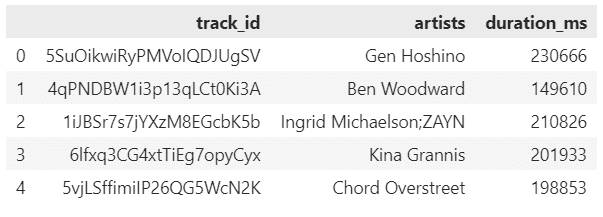
    1️⃣ .head()

    Use case:

    เรียกดู 5 rows แรกของ dataset

    ตัวอย่าง:

    # View the first 5 rows
    spotify.head()
    

    ผลลัพธ์:

    Note:

    • ถ้าต้องการดูมากกว่า 5 rows ให้ใส่จำนวน rows ที่ต้องการ เช่น spotify.head(10) จะเรียกดู 10 rows แรก

    .

    2️⃣ .info()

    Use case:

    ดูข้อมูลภาพรวมของ dataset

    ตัวอย่าง:

    # Get overview of the dataset
    spotify.info()
    

    ผลลัพธ์:

    .

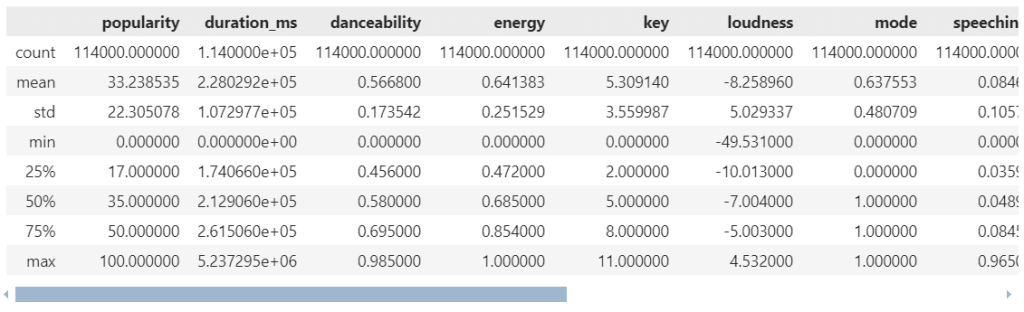
    3️⃣ .describe()

    Use case:

    เรียกดู summary stats ของ datasets ซึ่งได้แก่:

    • Count
    • Mean
    • Standard deviation (std)
    • Min
    • Quartiles
      • 25
      • 50
      • 75
    • Max

    ตัวอย่าง:

    # Get summary stats
    spotify.describe()
    

    ผลลัพธ์:

    Note:

    โดย default, .describe() จะสรุปข้อมูลเฉพาะ column ที่เป็น numerical variable เท่านั้น

    ถ้าเราต้องการ summary stats ของ categorical variable เราสามารถใช้ argument include="all" ได้:

    # Get summary stats for all variable types
    spotify.describe(include="all")
    

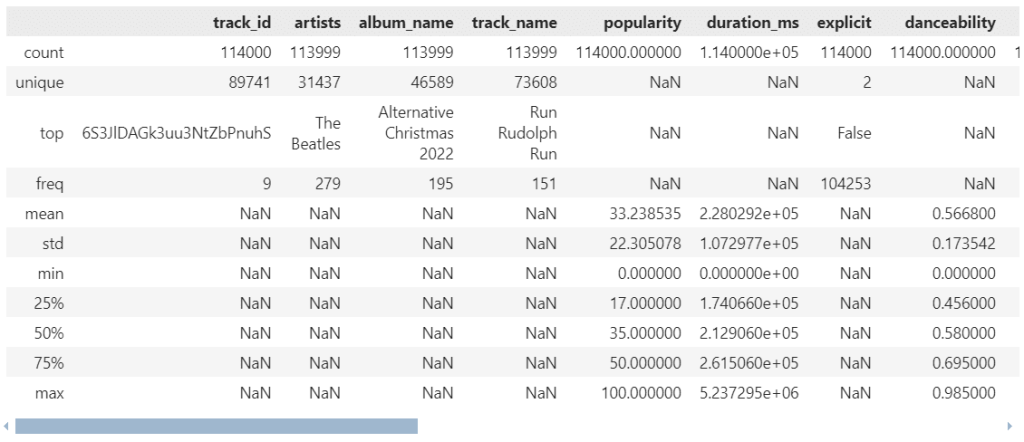
    ผลลัพธ์:

    จะเห็นได้ว่า ตอนนี้เราจะได้ summary stats ของทั้ง numerical (เช่น popularity) และ categorical variables (เช่น artists)

    .

    4️⃣ .shape

    Use case:

    ดูจำนวน rows และ columns ของ dataset

    ตัวอย่าง:

    # See the dimensions of the dataset
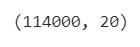
    spotify.shape


    ผลลัพธ์:

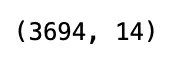
    • 114000 คือ จำนวน rows
    • 20 คือ จำนวน columns

    🎶 Playlist #2 – Selecting & Filtering

    ในกลุ่มการใช้งานที่ 2 เรามาดูวิธีการเลือกและกรองข้อมูลกัน:

    1. df[condition]
    2. .query()

    .

    1️⃣ df[condition]

    Use case:

    df[condition] เป็น syntax เพื่อกรองข้อมูล

    ตัวอย่าง:

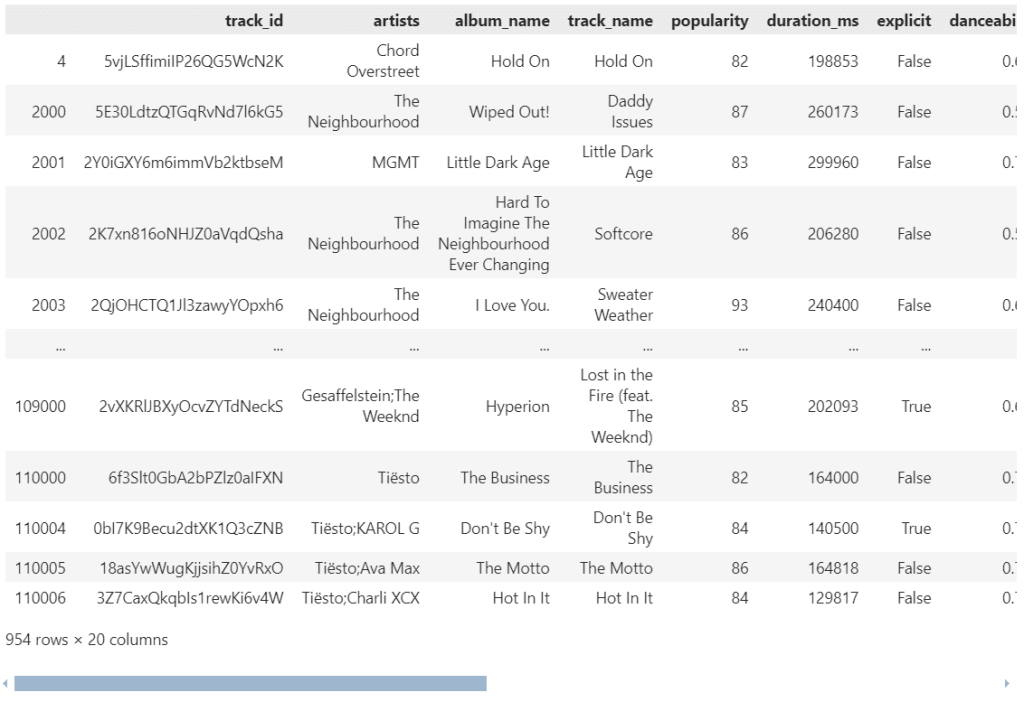
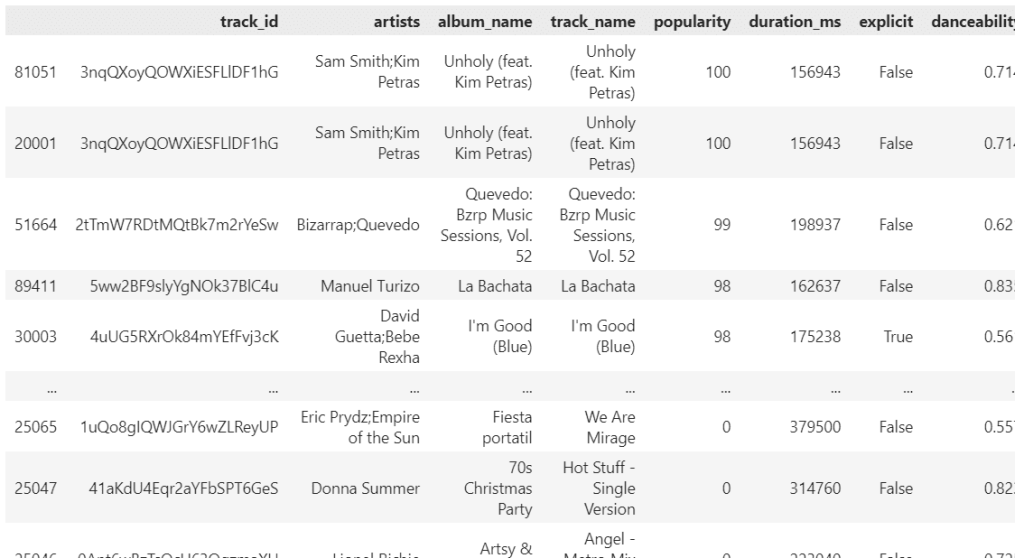
    เราต้องการดูข้อมูลเพลงที่มีคะแนนความนิยม (popularity) สูงกว่า 80:

    # Select records where popularity is greater than 80
    spotify[spotify["popularity"] > 80]
    

    ผลลัพธ์:

    Note:

    ในการกรอง เราสามารถใช้ comparison operators เหล่านี้ช่วยได้:

    Comparison OperatorMeaning
    ==เท่ากับ
    !=ไม่เท่ากับ
    >มากกว่า
    >=มากกว่า/เท่ากับ
    <น้อยกว่า
    <=น้อยกว่า/เท่ากับ

    นอกจากนี้ เราสามารถใช้ Boolean operators เพื่อเพิ่ม conditions ในการกรองข้อมูลได้:

    Boolean OperatorMeaning
    &and
    ``
    !not

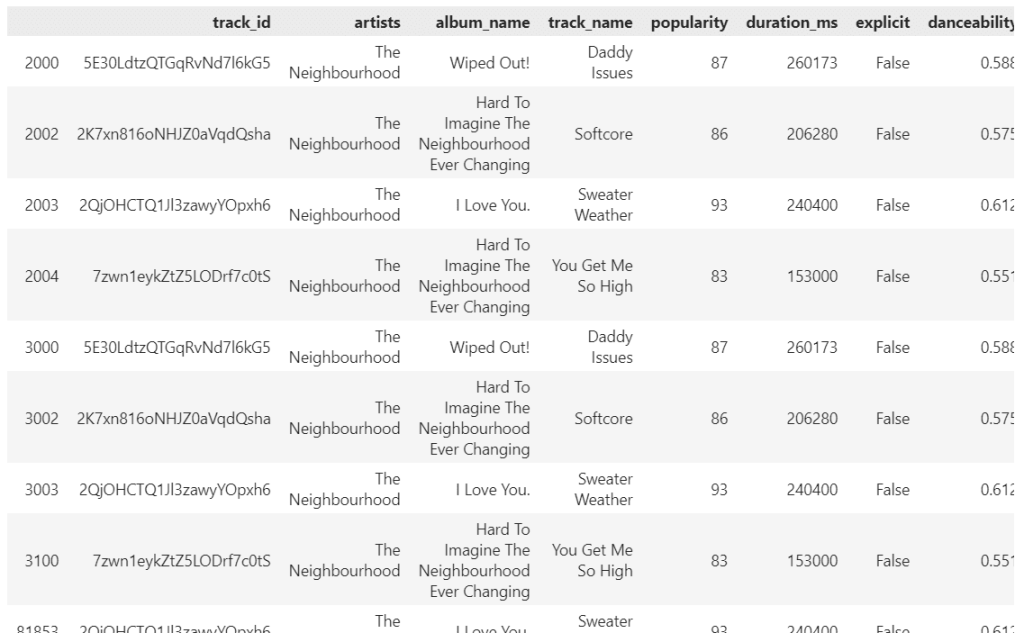
    เช่น ดูข้อมูลเพลงที่มีคะแนนความนิยม (popularity) สูงกว่า 80 จากวง The Neighbourhood (ดูจาก artists):

    # Select records where popularity is greater than 80 from The Neighbourhood
    spotify[(spotify["popularity"] > 80) & (spotify["artists"] == "The Neighbourhood")]
    

    ผลลัพธ์:

    .

    2️⃣ .query()

    Use case:

    .query() ทำหน้าที่คล้ายกับ df[condition] นั่นคือ กรองข้อมูล

    แต่ .query() มีข้อดีอยู่ 2 อย่าง:

    1. ใช้งานง่าย
    2. เหมาะกับการกรองข้อมูล ด้วย conditions ที่ซับซ้อน

    การเขียน input ของ .query() เราจะใช้ใน syntax ของ SQL

    ตัวอย่าง:

    จากตัวอย่างก่อนหน้านี้ที่เราต้องการดูข้อมูลเพลงที่:

    • มีคะแนนความนิยม (popularity) สูงกว่า 80
    • จากวง The Neighbourhood (ดูจาก artists)

    เราสามารถเขียน .query() ได้ดังนี้:

    # Filter with .query()
    spotify.query("popularity > 80 and artists == 'The Neighbourhood'")
    

    ผลลัพธ์:

    Note:

    ถ้าเราเทียบระหว่าง df[condition] และ .query() :

    df[condition].query()
    spotify[(spotify["popularity"] > 80) & (spotify["artists"] == "The Neighbourhood")]spotify.query("popularity > 80 and artists == 'The Neighbourhood'")

    จะเห็นว่า .query():

    • สั้นกว่า
    • ทำความเข้าใจได้ง่ายกว่า

    🎶 Playlist #3 – Sorting

    หลังจากกรองข้อมูล บางครั้งเราอยากจะจัดลำดับข้อมูล เพื่อช่วยในการทำความเข้าใจข้อมูล:

    • .sort_values()

    .

    1️⃣ .sort_values()

    Use case:

    จัดเรียงข้อมูล โดย:

    • default จะเรียงจากน้อยไปมาก (A-Z)
    • ถ้าต้องการเรียงจากมากไปน้อย (Z-A) ให้ใช้ ascending=False

    ตัวอย่าง:

    ต้องการเรียงเพลงตามคะแนนความนิยม (popularity) จากสูงไปต่ำ เพื่อหาเพลงฮิต:

    # Sort tracks by popularity in descending order
    spotify.sort_values(by="popularity", ascending=False)
    

    ผลลัพธ์:


    🎶 Playlist #4 – Slicing

    ในกลุ่มนี้ เราจะมาดู 4 วิธี เพื่อดึง rows และ/หรือ columns ออกจาก dataset กัน:

    1. df[column]
    2. .loc[]
    3. .iloc[]
    4. .filter()

    .

    1️⃣ df[column_name]

    Use case:

    df[column_name] เป็น syntax เพื่อเลือกข้อมูลจาก column ที่ต้องการ โดย:

    • df หมายถึง ชื่อ dataset
    • column_name หมายถึง ชื่อ column ที่เราเลือก

    ตัวอย่าง:

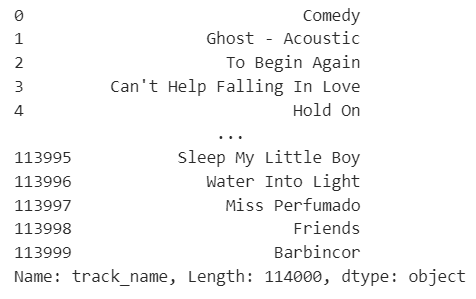
    เลือกดูชื่อเพลง (track_name):

    # Select column track_name
    spotify["track_name"]
    

    ผลลัพธ์:

    Note:

    ถ้าต้องการมากกว่า 1 column เราสามารถใส่ input เป็น list ได้

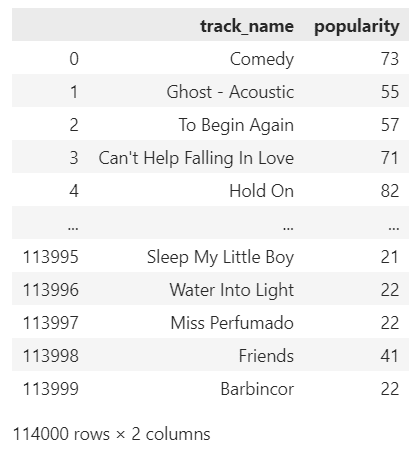
    เช่น เลือกชื่อเพลง (track_name) และคะแนนความนิยม (popularity):

    # Select columns track_name and popularity
    spotify[["track_name", "popularity"]]
    

    ผลลัพธ์:

    .

    2️⃣ .loc[]

    Use case:

    เลือก rows และ/หรือ columns โดยใช้ ชื่อ rows และ columns (label-based)

    Syntax:

    .loc[] มีหลักการใช้งานดังนี้:

    SyntaxFor
    df.loc[r_lab]เลือก 1 row
    df.loc[rx:ry]เลือกมากกว่า 1 rows
    df.loc[[r_list]]เลือกมากกว่า 1 rows
    df.loc[:, c_lab]เลือก 1 column
    df.loc[:, cx:cy]เลือกมากกว่า 1 column
    df.loc[:, [c_list]]เลือกมากกว่า 1 columns
    • r_lab คือ ชื่อ row
    • rx:ry คือ ช่วง rows ที่ต้องการเลือก
    • [r_list] คือ list ของ rows ที่ต้องการเลือก
    • c_lab คือ ชื่อ column ที่ต้องการเลือก
    • cx:cy คือ ช่วง columns ที่ต้องการเลือก
    • [c_list] คือ list ของ columns ที่ต้องการเลือก

    ตัวอย่าง:

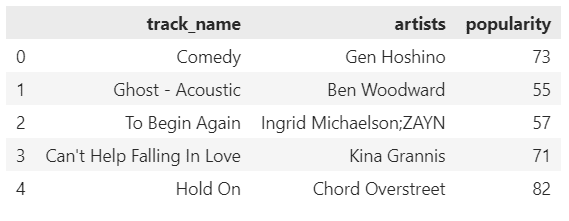
    เลือก 5 rows แรก และแสดงเฉพาะ:

    • ชื่อเพลง (track_name)
    • ชื่อศิลปิน (artists)
    • คะแนนความนิยม (popularity)
    # Select first 5 rows from track_name, artists, popularity
    spotify.loc[0:4, ["track_name", "artists", "popularity"]]
    

    ผลลัพธ์:

    .

    3️⃣ .iloc[]

    Use case:

    เลือก rows และ/หรือ columns โดยใช้ ตำแหน่ง rows และ columns (position-based)

    Syntax:

    .iloc[] มีวิธีการใช้งาน คล้ายกับ .loc[] ดังนี้:

    SyntaxFor
    df.iloc[r_index]เลือก 1 row
    df.iloc[rx:ry]เลือกมากกว่า 1 rows
    df.iloc[[r_list]]เลือกมากกว่า 1 rows
    df.iloc[:, c_index]เลือก 1 column
    df.iloc[:, cx:cy]เลือกมากกว่า 1 column
    df.iloc[:, [c_list]]เลือกมากกว่า 1 columns
    • r_index คือ ตำแหน่ง row
    • rx:ry คือ ช่วง rows ที่ต้องการเลือก
    • [r_list] คือ list ของ rows ที่ต้องการเลือก
    • c_index คือ ตำแหน่ง column ที่ต้องการเลือก
    • cx:cy คือ ช่วง columns ที่ต้องการเลือก
    • [c_list] คือ list ของ columns ที่ต้องการเลือก

    ความแตกต่างระหว่าง .loc[] และ .iloc[] คือ สิ่งที่ใช้ในการเลือก s และ columns:

    • .loc[] ใช้ ชื่อ (label)
    • .iloc[] ใช้ ตำแหน่ง (position)

    ตัวอย่าง:

    เลือก 5 rows แรก และแสดงเฉพาะ:

    • ชื่อเพลง (track_name)
    • ชื่อศิลปิน (artist_name)
    • คะแนนความนิยม (popularity)
    # Select first 5 rows from track_name, artists, popularity
    spotify.iloc[0:5, [0, 1, 5]]
    

    ผลลัพธ์:

    .

    4️⃣ .filter()

    Use case:

    .filter() ทำหน้าที่คล้ายกับ df[condition] แต่ทรงพลังกว่า เพราะเลือกกรองข้อมูลได้ทั้ง rows และ columns

    Syntax:

    df.filter(condition, axis)
    
    • df คือ ชื่อ dataset
    • condition คือ เงื่อนไขในการเลือกข้อมูล ซึ่งเรามี 3 parametres ให้เลือกใช้:
      • items กรองตาม labels ของ rows หรือ columns
      • like กรองตาม คำค้นหา
      • reg กรองตาม regular expression
    • axis ระบุว่า ต้องการเลือก rows (0) หรือ columns (1)

    ตัวอย่าง:

    เลือก rows ที่เลข 123:

    # Select rows with "123"
    spotify.filter(like="123", axis=0)
    

    ผลลัพธ์:

    หรือ เลือกข้อมูลจาก columns:

    • ชื่อเพลง (track_name)
    • ชื่อศิลปิน (artist_name)
    • คะแนนความนิยม (popularity)
    # Select first 5 rows from track_name, artists, popularity
    spotify.filter(items=["track_name", "artists", "popularity"])
    

    ผลลัพธ์:


    🎶 Playlist #5 – Aggregating

    สุดท้าย เรามาดูวิธีการสรุปข้อมูลกัน:

    1. Aggregation functions
    2. .agg()
    3. .groupby()

    .

    1️⃣ Aggregation Functions

    ในกรณีที่เราต้องการ คำนวณค่าทางสถิติ pandas มี functions ให้เลือกใช้งานมากมาย เช่น:

    FunctionMeaning
    .sum()หาผลรวม
    .mean()หาค่าเฉลี่ย
    .median()หาค่ากลาง
    .mode()หาค่าที่ซ้ำมากที่สุด
    .min()หาค่าน้อยที่สุด
    .max()หาค่ามากที่สุด
    .std()หา standard deviation (SD)
    .cumsum()หาผลรวมสะสม
    .value_counts()นับจำนวนข้อมูล
    .nunique()นับจำนวนข้อมูลที่ไม่ซ้ำ

    ตัวอย่าง:

    ต้องการหาค่าเฉลี่ยของคะแนนความนิยม (popularity):

    # Calculate the mean of popularity
    spotify["popularity"].mean()
    

    ผลลัพธ์:

    หรือหา SD ของคะแนนความนิยม (popularity):

    # Calculate the SD of popularity
    spotify["popularity"].std()


    ผลลัพธ์:

    .

    2️⃣ .agg()

    Use case:

    ในบางครั้ง เราต้องการคำนวณหลายค่าทางสถิติพร้อมกัน เช่น ตัวอย่างก่อนหน้านี้ที่เราต้องการหา mean และ SD

    แทนที่เราจะเขียน code เพื่อแสดงผลแยกกัน เช่น:

    # Calculate mean
    spotify["popularity"].mean()
    
    # Calculate SD
    spotify["popularity"].std()
    

    เราสามารถใช้ agg() เพื่อช่วยลดเวลาได้

    ตัวอย่าง:

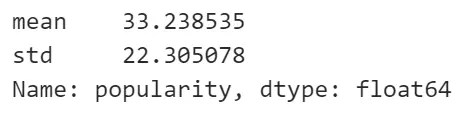
    หาค่าเฉลี่ยและ SD ของคะแนนความนิยม (popularity):

    # Calculate mean and SD of popularity
    spotify["popularity"].agg(["mean", "std"])
    

    ผลลัพธ์:

    Note:

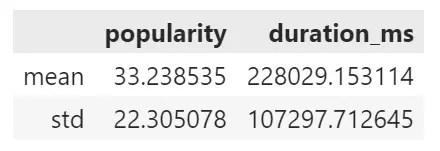
    เราสามารถใช้ .agg() เพื่อคำนวณค่าทางสถิติกับหลาย column พร้อมกันได้ เช่น หาค่า:

    • mean
    • std

    ให้กับ:

    • คะแนนความนิยม
    • ความยาวของเพลง
    # Calculate mean and SD for popularity and duration_ms
    spotify[["popularity", "duration_ms"]].agg({
    		"popularity": ["mean", "std"],
    		"duration_ms": ["mean", "std"]
    		})
    

    ผลลัพธ์:

    .

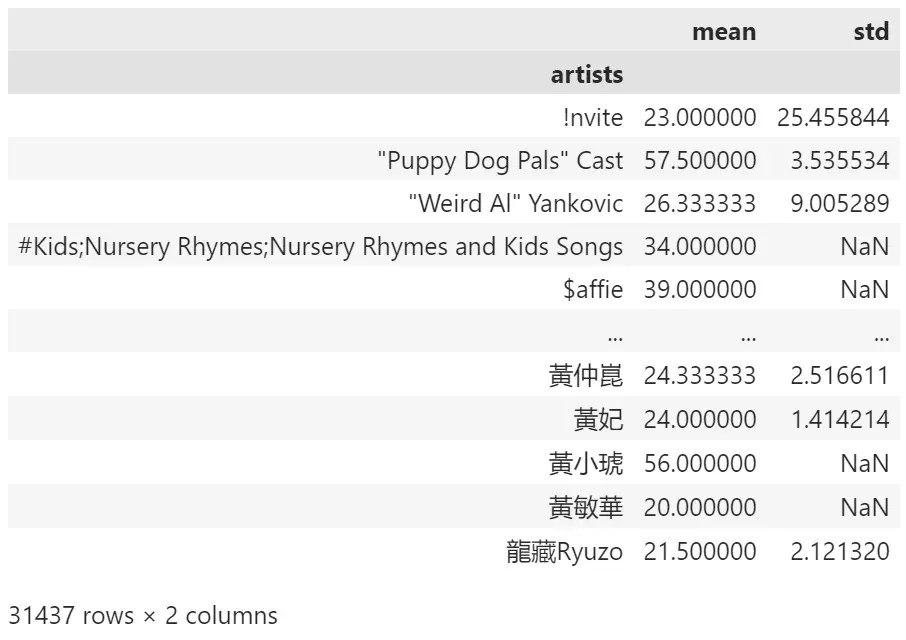
    3️⃣ .groupby()

    Use case:

    บางครั้ง เราต้องการคำนวณค่าทางสถิติตามกลุ่มข้อมูล

    เราสามารถใช้ .groupby() เพื่อจับกลุ่มข้อมูล ก่อนจะคำนวณค่าทางสถิติได้

    ตัวอย่าง:

    ต้องการหา ค่าเฉลี่ยและ SD ของคะแนนความนิยม (popularity) ของศิลปินแต่ละคน:

    # Group by artists and calculate mean of popularity 
    spotify.groupby("artists")["popularity"].agg(["mean", "std"])
    

    ผลลัพธ์:


    ⏭️ Next Song

    .

    💻 Example Code

    สำหรับคนที่ลองรัน code ด้วยตัวเอง สามารถโหลด code ตัวอย่างได้ที่ GitHub

    .

    📚 Further Reading

    สำหรับคนที่สนใจเรียนรู้เพิ่มเติมเกี่ยวกับ pandas สามารถศึกษาต่อได้ตาม links ด้านล่าง:

  • Intro to Python: ทำความรู้จักกับภาษา Python และวิธีใช้งานเบื้องต้น สำหรับผู้เริ่มต้น พร้อมตัวอย่าง

    Intro to Python: ทำความรู้จักกับภาษา Python และวิธีใช้งานเบื้องต้น สำหรับผู้เริ่มต้น พร้อมตัวอย่าง

    ในบทความนี้ เราจะไปทำความรู้จักกับภาษา Python กัน:

    • Python คืออะไร?
    • วิธีเขียน Python เบื้องต้น
    • Data types ใน Python
    • การทำงานกับ data types ใน Python

    ถ้าพร้อมแล้ว ไปเริ่มกันเลย


    1. 🐍 Python คืออะไร?
    2. 🏁 Getting Started With Python
    3. 👶 Baby Steps
      1. 🔢 (1) Basic Arithmetic
      2. 📦 (2) Variables
    4. 🍞 Data Types
    5. 👉 Integre & Float
      1. 1️⃣ Arithmetic
      2. 2️⃣ Type Casting
    6. 👉 String
      1. 1️⃣ Markers of String
      2. 2️⃣ Type Casting
      3. 3️⃣ Concatenate
      4. 4️⃣ String Methods
    7. 👉 Boolean
      1. 1️⃣ Check for True & False
      2. 2️⃣ Comparison
    8. 👉 List
      1. 1️⃣ Purpose
      2. 2️⃣ Indexing & Slicing
      3. 3️⃣ Check Length
      4. 4️⃣ Add to List
      5. 5️⃣ Update List
      6. 6️⃣ Delete From List
    9. 👉 Dictionary
      1. 1️⃣ Purpose
      2. 2️⃣ Extract Values
      3. 3️⃣ Get Keys & Values
      4. 4️⃣ Add to Dictionary
      5. 5️⃣ Update Dictionary
      6. 6️⃣ Delete From Dictionary

    🐍 Python คืออะไร?

    Python เป็น high-level programming language ที่พัฒนาโดย programmer ชาวดัชต์ Guido van Rossum ในช่วง ปี ค.ศ. 1980-1990 เพื่อทำให้การเขียน programme เป็นเรื่องง่าย

    van Rossum เรียกภาษาที่คิดขึ้นมาว่า Python ตามชื่อกลุ่มนักแสดงตลกจากประเทศอังกฤษ Monty Python หรือ The Pythons เพราะคำว่า Python สั้น จำง่าย และดูลึกลับ (ไม่มีความเกี่ยวข้องกับชนิดงู Python แต่อย่างใด)

    .

    เนื่องจาก Python เป็น high-level language หรือมีความใกล้เคียงกับภาษามนุษย์ (มากกว่าภาษาคอมพิวเตอร์) จึงเป็นภาษาที่ใช้งานและทำความเข้าใจง่าย และเป็นที่นิยมของนักพัฒนาทั่วโลก

    ในปัจจุบัน (2025) Python ครองอันดับในฐานะ programming language ที่เป็นที่นิยมมากที่สุด (อ้างอิง TIOBE):

    นอกจากใช้งานง่ายแล้ว Python ยังมีข้อดีอื่น ๆ อีก ได้แก่:

    • เป็น open source
    • มี libraries รองรับการใช้งานที่มากมายและหลากหลาย
    • แก้ bug ได้ง่าย
    • ใช้ได้กับหลายระบบปฏิบัติการ ทั้ง Windows, macOS, และ Linux

    .

    การใช้งาน Python มีตั้งแต่:

    • เขียน programme
    • เขียน web application
    • ทำ web scraping
    • ทำ data analysis
    • พัฒนา AI และ machine learning

    🏁 Getting Started With Python

    สำหรับการเริ่มใช้งาน Python เราสามารถติดตั้ง Python บนคอมพิวเตอร์ของเรา โดยดาวน์โหลด Python จาก https://www.python.org/downloads/:

    หรือใช้งานผ่าน online services ฟรี เช่น:

    Note: บทความนี้มีตัวอย่าง code ใน Google Colab สามารถกดเข้าไปดูได้


    👶 Baby Steps

    หลังจากเตรียมตัวให้พร้อมแล้ว เรามาดูวิธีเขียน Python เบื้องต้นกัน

    .

    🔢 (1) Basic Arithmetic

    สำหรับก้าวแรกในการเขียน Python เรามาเริ่มจากการคิดเลขง่าย ๆ กัน เช่น:

    บวก:

    # Addition
    3 + 4
    

    ลบ:

    # Subtraction
    10 - 7
    

    คูณ:

    # Multiplication
    2 * 2
    

    หาร:

    # Division
    9 / 3
    

    เราจะเห็นได้ว่า Python สามารถคิดเลขให้ได้อย่างรวดเร็ว:

    .

    📦 (2) Variables

    ในการทำงานกับ Python เราสามารถสร้าง variable เพื่อช่วยเก็บข้อมูลได้ (แทนที่การเขียน code เรียกใช้ข้อมูลเองทุกครั้ง)

    เช่น เราสามารถเก็บเงินค่าขนม:

    # Create allowance variable
    allowance = 100
    

    และค่าใช้จ่าย:

    # Create expense variable
    expense = 40
    

    แล้วเรียกใช้งานทั้งสองค่า เช่น ดูว่าเดือนนี้เราเหลือเงินเท่าไร:

    # Calculate remaining balance
    allowance - expense
    

    ผลลัพธ์:

    60

    .

    เราสามารถ update ค่าใน variable ได้ เช่น update expense จาก 40 เป็น 70:

    # Update expense
    expense = 70
    

    ถ้าเราคำนวณเงินคงเหลือ:

    # Calculate remaining balance
    allowance - expense
    

    เราจะได้ค่าที่ต่างไปจากเดิม:

    30

    .

    สุดท้าย เราสามารถเก็บผลลัพธ์ที่ได้ ไว้ใน variable ตัวใหม่ เพื่อเรียกใช้งานในภายหลังได้:

    # Store remaining balance in a variable
    remain = allowance - expense
    
    # Check remaining balance
    remain
    

    ผลลัพธ์:

    30

    Note: เราสามารถลบ variable ได้ด้วย del() เช่น del(remain) จะลบ remain จาก Python


    🍞 Data Types

    ตอนนี้ เรารู้วิธีการทำงานกับ Python เบื้องต้นแล้ว

    เรามาทำความรู้จักกับ data type หรือประเภทข้อมูล ซึ่งเป็นตัวกำหนด action ที่เราสามารถกระทำใช้กับข้อมูลได้

    .

    โดย Python มี 6 data types ที่เราใช้บ่อย ได้แก่:

    No.TypeMeaningExample
    1Integreเลขจำนวนเต็ม11
    2Floatเลขทศนิยม3.78104
    3Stringข้อความ"Python"
    4Booleanจริง/ไม่จริงTrue
    5Listเก็บข้อมูลได้หลายประเภท[”John”, 34, True]
    6Dictionaryเก็บ key-value pair{"name": "John", "age": 34, "is_male": True}

    เราไปดูกันว่า แต่ละ data type สามารถทำอะไรได้บ้าง


    👉 Integre & Float

    .

    1️⃣ Arithmetic

    จากที่ได้เห็นก่อนหน้านี้ เราสามารถใช้ integre และ float ในการคำนวณเลขได้ เช่น:

    3 * 7
    

    และ

    7.3915 - 3.2914
    

    .

    2️⃣ Type Casting

    ทั้งนี้ เราสามารถเปลี่ยนข้อมูลบางประเภท ให้เป็น integre และ float ได้ดังนี้

    เปลี่ยนให้เป็น integre:

    # Convert to integre
    int(100.50)
    

    ผลลัพธ์:

    100

    เปลี่ยนให้เป็น float:

    # Convert to float
    float("100")
    

    ผลลัพธ์:

    100.0

    👉 String

    .

    1️⃣ Markers of String

    String ใน Python จะอยู่ใน "" หรือ '' เสมอ เช่น

    # Single-line string
    "John"
    

    หรือ

    # Single-line string
    'John'
    

    ถ้าเรามีข้อความหลายบรรทัด ให้ใช้ """ หรือ ''':

    # Multiple-line string
    """
    My name is Wick.
    John Wick.
    I'm looking for my dog.
    """
    

    หรือ

    # Multiple-line string
    '''
    My name is Wick.
    John Wick.
    I'm looking for my dog.
    '''
    

    .

    2️⃣ Type Casting

    เราสามารถเปลี่ยนข้อมูลต่าง ๆ ให้เป็น string ได้โดยใช้ str() เช่น:

    str(100)
    

    ผลลัพธ์:

    '100'

    สังเกตว่า ตอนนี้ 100 อยู่ใน '' แสดงว่า 100 เป็น string และไม่ใช่ integre แล้ว

    ถ้าเราเอา 100 นี้ไปคิดเลข ระบบจะส่ง error กลับมา เพราะเราไม่สามารถคำนวณเลขด้วย string ได้:

    TypeError                                 Traceback (most recent call last)
    <ipython-input-49-efc4e6e83db0> in <cell line: 0>()
          1 # String cannot be used in arithmetic operation
    ----> 2 str(100) + 100
    
    TypeError: can only concatenate str (not "int") to str

    .

    3️⃣ Concatenate

    แม้ว่าเราจะไม่สามารถบวกลบ string ได้ แต่เราสามารถใช้ + เพื่อรวม string เข้าด้วยกันได้ เช่น:

    "I have " + str(100) + " THB."
    

    ผลลัพธ์:

    'I have 100 THB.'

    .

    4️⃣ String Methods

    นอกจากการรวม string แล้ว เรายังมีอย่างอื่นที่ใช้กับ string ได้อีก เช่น:

    No.MethodExplain
    1upper()เปลี่ยนให้เป็นพิมพ์ใหญ่ทั้งหมด
    2lower()เปลี่ยนให้เป็นพิมพ์เล็กทั้งหมด
    3capitalize()เปลี่ยนอักษรแรกให้เป็นพิมพ์ใหญ่
    4title()เปลี่ยนอักษรแรกของทุกคำให้เป็นพิมพ์ใหญ่
    5strip()ลบ space ออกจากก่อนและหลังคำ
    6replace()แทนที่คำ
    7split()แยกคำ
    8join(iterable)รวมคำ
    9find(substring)หาตำแหน่งของคำ
    10count()นับตัวอักษรที่ต้องการ

    👉 Boolean

    Boolean เป็นเหมือนกับค่า on (True) และ off (False) ของ switch ซึ่งเป็นพื้นฐานของการทำงานของคอมพิวเตอร์

    .

    1️⃣ Check for True & False

    เราสามารถใช้ bool() เพื่อเช็กว่า ข้อมูลเราเป็น True หรือ False เช่น:

    bool("John")
    

    ผลลัพธ์:

    True

    .

    bool() จะส่ง True กลับมาทุกครั้ง ยกเว้นในกรณีเหล่านี้:

    TypeFalseExplain
    Integrebool(0)เลขเป็น 0
    Stringbool("")String ที่เป็นค่าว่าง
    Booleanbool(False)Boolean ที่เป็นค่า False
    Listbool([])List ที่เป็นค่าว่าง
    Dictionarybool({})Dictionary ที่เป็นค่าว่าง

    .

    2️⃣ Comparison

    Python จะส่งค่า boolean กลับมา เมื่อเราทำการเปรียบเทียบ เช่น:

    10 > 5
    

    ผลลัพธ์:

    True

    .

    หรือ

    10 < 5
    

    ผลลัพธ์:

    False

    👉 List

    .

    1️⃣ Purpose

    List ใช้เก็บข้อมูลหลาย ๆ ค่า เช่น:

    • Integre
    • Float
    • String
    • Boolean
    • List
    • Dictionary
    • etc.

    เช่น:

    # List can store data of different types
    a_list = [10, 15.94, "ok", True, ["egg", "milk"], {"store": "Walmart"}]
    

    .

    2️⃣ Indexing & Slicing

    เราสามารถดึงข้อมูลที่อยู่ใน list ได้ โดยการใช้ []:

    SyntaxExplain
    list[x]ดึงข้อมูลในตำแหน่งที่ x
    list[-x]ดึงข้อมูลในตำแหน่งที่ -x (นับจากหลังมาหน้า)
    list[x:y]ดึงข้อมูลในตำแหน่งระหว่าง x และ y-1 (ข้อมูลที่ y จะไม่ถูกดึงมาด้วย)
    list[-x:-y]ดึงข้อมูลในตำแหน่งระหว่าง -x และ -y-1 (ข้อมูลที่ -y จะไม่ถูกดึงมาด้วย)

    .

    เช่น เรามี list ผลไม้:

    # A list
    my_list = ["apple", "banana", "cherry"]
    

    เราสามารถดึง “apple” ออกได้โดยใช้:

    # Get "apple"
    my_list[0]
    

    ผลลัพธ์:

    'apple'

    Note: เราใช้ 0 เพราะใน Python เราจะเริ่มนับตำแหน่งที่ 1 เป็น 0

    .

    หรือเลือก “apple” ถึง “cherry”:

    # Get "apple" to "cherry"
    my_list[0:3]
    

    ผลลัพธ์:

    ['apple', 'banana', 'cherry']

    .

    3️⃣ Check Length

    เราสามารถหาความยาวของ list ได้ด้วย len() เช่น:

    # Check length
    len(my_list)
    

    ผลลัพธ์:

    3

    .

    4️⃣ Add to List

    เราสามารถเพิ่มข้อมูลลงใน list ได้ด้วย 2 วิธี:

    No.WayExample
    1.append()เพิ่มข้อมูล 1 ค่า
    2.extend()เพิ่มข้อมูลจาก list หรือ string

    .

    ตัวอย่าง .append():

    # append()
    my_list.append("orange")
    
    my_list
    

    ผลลัพธ์:

    ['apple', 'banana', 'cherry', 'orange']

    .

    ตัวอย่าง .extend():

    เรามี 2 lists ที่ต้องการรวมกัน:

    # Lists to merge
    list_1 = [1, 2, 3]
    list_2 = [4, 5, 6]
    

    ให้เราใช้ .extend() แบบนี้:

    # extend()
    list_1.extend(list_2)
    

    ผลลัพธ์:

    [1, 2, 3, 4, 5, 6]

    .

    5️⃣ Update List

    เราสามารถ update ข้อมูลใน list ได้ โดยการระบุตำแหน่งข้อมูลที่เราต้องการ update

    เช่น เราต้องการเปลี่ยน “orange” เป็น “kiwi”:

    # Update list
    my_list[3] = "kiwi"
    
    my_list
    

    เมื่อเราเรียกดู my_list เราจะเห็นว่า “orange” เปลี่ยนเป็น “kiwi”:

    ['apple', 'banana', 'cherry', 'kiwi']

    .

    6️⃣ Delete From List

    เราสามารถลบข้อมูลออกจาก list ได้ด้วย .remove()

    เช่น ลบ “kiwi” ออกจาก my_list:

    # Delete from list
    my_list.remove("kiwi")
    
    my_list
    

    ผลลัพธ์:

    ['apple', 'banana', 'cherry']

    👉 Dictionary

    .

    1️⃣ Purpose

    Dictionary มีไว้เก็บ key-value pair เช่น:

    # A dictionary
    cities = {"Thailand": "Bangkok",
              "Japan": "Tokyo",
              "Brazil": "Brasilia"}
    

    .

    2️⃣ Extract Values

    เราสามารถดึงข้อมูลออกจาก dictionary ได้ด้วยการระบุ key ของข้อมูล

    เช่น ต้องการดึง “Tokyo” ให้เราระบุ “Japan”:

    # Extract values from list
    cities["Japan"]
    

    ผลลัพธ์:

    'Tokyo'

    .

    3️⃣ Get Keys & Values

    เราสามารถดู keys และ values ทั้งหมดใน dictionary ได้ด้วย .keys() และ .values() เช่น:

    # Get keys
    cities.keys()
    

    ผลลัพธ์:

    dict_keys(['Thailand', 'Japan', 'Brazil'])

    .

    และ

    # Get values
    cities.values()
    

    ผลลัพธ์:

    dict_values(['Bangkok', 'Tokyo', 'Brasilia'])

    .

    4️⃣ Add to Dictionary

    เราสามารถเพิ่มข้อมูลลงใน dictionary ได้ โดยการใส่ key และ value ใหม่ เช่น:

    # Add to dictionary
    cities["US"] = "New York"
    
    cities
    

    ผลลัพธ์:

    {'Thailand': 'Bangkok',
     'Japan': 'Tokyo',
     'Brazil': 'Brasilia',
     'US': 'New York'}

    .

    5️⃣ Update Dictionary

    เราสามารถ update ข้อมูลใน dictionary ได้ด้วยเรียก key และใส่ value ใหม่ เช่น:

    # Update dictionary
    cities["US"] = "Washington DC"
    
    cities
    

    ผลลัพธ์:

    {'Thailand': 'Bangkok',
     'Japan': 'Tokyo',
     'Brazil': 'Brasilia',
     'US': 'Washington DC'}

    .

    6️⃣ Delete From Dictionary

    เราสามารถลบข้อมูลออกจาก dictionary ได้ด้วย del

    เช่น ลบ “US”: “Washington DC” ออก:

    # Delete from dictionary
    del cities["US"]
    
    cities
    

    ผลลัพธ์:

    {'Thailand': 'Bangkok', 'Japan': 'Tokyo', 'Brazil': 'Brasilia'}
  • Seaborn 101: มาดูวิธีสร้างกราฟ 5 แบบ + 3 วิธีตกแต่งกราฟอย่างง่ายใน Seaborn กัน

    Seaborn 101: มาดูวิธีสร้างกราฟ 5 แบบ + 3 วิธีตกแต่งกราฟอย่างง่ายใน Seaborn กัน

    ในบทความนี้ เราจะมาทำความรู้จักกับ seaborn และวิธีการใช้ seaborn เพื่อสร้างและตกแต่งกราฟเบื้องต้นกัน

    ถ้าพร้อมแล้วมาเริ่มกันเลย


    1. ⚓ Intro to Seaborn
    2. 🍔 Dataset ตัวอย่าง
    3. 🤔 ก่อนเริ่มสร้างกราฟ
    4. 💻 Syntax ของ Seaborn
    5. 👉 การสร้างกราฟพื้นฐาน
      1. 📊 1. Histograms
      2. 📊 2. Box Plots
      3. 📊 3. Scatter Plots
      4. 📊 4. Line Plots
      5. 📊 5. Bar Plots
    6. 🔵 การใช้สีเพื่อเพิ่มตัวแปรในกราฟ
    7. 🖼️ การตกแต่งกราฟ
      1. 🎨 1. สี
      2. 🎨 2. Style
      3. 🎨 3. ข้อความ
    8. 💪 สรุป Seaborn 101
    9. ⏭️ Next
      1. 🧑‍💻 Example Code on GitHub
      2. 📚 Further Reading

    ⚓ Intro to Seaborn

    seaborn เป็น library สำหรับ visualise data ใน Python ซึ่งต่อยอดมาจาก:

    • pandas: library สำหรับ data transformation
    • matplotlib: library สำหรับสร้างกราฟ

    เพราะ seaborn ต่อยอดจาก pandas และ matplotlib จึงทำให้เราสามารถใช้ 3 libraries นี้ร่วมกันได้อย่างลงตัว

    จุดเด่นหลักของ seaborn คือ ความสามารถในการสร้างกราฟที่สวยงามได้อย่างง่าย

    มาดูกันว่า การสร้างกราฟด้วย seaborn ง่ายแค่ไหน


    🍔 Dataset ตัวอย่าง

    ในบทความนี้ เราจะใช้ tips ซึ่งเป็น built-in datasets ของ seaborn เพื่อดูวิธีใช้ seaborn กัน

    tips เป็น dataset เกี่ยวกับ tip ที่พนักงานในร้านอาหารได้รับ โดยมี columns ดังนี้:

    No.ColumnDescription
    1total_billจำนวนเงินค่าอาหาร
    2tipจำนวนเงินค่า tip
    3sexเพศของคนจ่ายบิล
    4smokerสถานะการสูบบุหรี่ของคนจ่ายบิล (สูบ vs ไม่สูบ)
    5dayวันของสัปดาห์
    6timeช่วงเวลาของวัน (lunch vs dinner)
    7sizeจำนวนแขกที่มาด้วยกัน

    🤔 ก่อนเริ่มสร้างกราฟ

    ก่อนเริ่มสร้างกราฟ ให้เราทำ 2 อย่างก่อน:

    .

    (1) import seaborn ก่อน พร้อมกับ libraries อื่น ๆ ที่มักใช้ร่วมกัน:

    # Import libraries
    import pandas as pd
    import matplotlib.pyplot as plt
    import seaborn as sns
    

    Note: seaborn ใช้ตัวย่อว่า sns ตามชื่อตัวละคร Samuel Norman Seaborn จากทีวีซีรี่ย์ The West Wing

    .

    (2) ต่อจากนั้นให้ load dataset tips ที่จะใช้งาน:

    # Load the dataset
    tips = sns.load_dataset("tips")
    

    Note: ถ้าเรา preview ด้วย .head() เราจะเห็นข้อมูลแบบนี้:

    Dataset: tips

    ในกรณีที่เราต้องการ import dataset จากข้างนอก เราสามารถใช้ pandas ช่วยได้ เช่น pd.read_csv() เพื่อโหลดไฟล์ CSV


    💻 Syntax ของ Seaborn

    Syntax ในการสร้างกราฟด้วย seaborn มีดังนี้:

    sns.plot(data, x, y, customisation)
    
    plt.show()
    • sns.plot = เรียกชื่อกราฟที่ต้องการสร้าง
    • data = ชุดข้อมูลที่ใช้สร้างกราฟ
    • x = ข้อมูลแกน x
    • y = ข้อมูลแกน y
    • customisation = การตั้งค่าเพื่อตกแต่งกราฟ
    • plt.show() = แสดงกราฟบนหน้าจอ

    👉 การสร้างกราฟพื้นฐาน

    มาดูวิธีการสร้าง 5 กราฟพื้นฐานกัน:

    1. Histogram
    2. Box plot
    3. Scatter plot
    4. Line plot
    5. Bar plot

    .

    📊 1. Histograms

    Histogram เป็นกราฟเพื่อสำรวจการกระจายตัว (distribution) ของข้อมูล

    ตัวอย่าง:

    ดูการกระจายตัวของ tip ที่พนักงานได้รับ:

    # Create a histogram of tips
    sns.histplot(data = tips,
                 x = "tip")
    
    # Show the plot
    plt.show()
    

    Note: สำหรับ histogram เราจะละแกน y ไว้ เพราะ y จะแสดงความถี่ของข้อมูลบนแกน x

    ผลลัพธ์:

    Histogram

    Note: จะเห็นว่า tip ที่พนักงานได้รับ อยู่ในช่วง 0.5 ถึง 10 ดอลล่าร์ โดยอยู่ในช่วง 2 ถึง 4 ดอลล่าร์มากที่สุด

    .

    📊 2. Box Plots

    Box plot ทำหน้าที่คล้ายกับ histogram คือ ช่วยในการสำรวจการกระจายตัวของข้อมูล

    ข้อแตกต่างของ box plot จาก histogram ก็คือ เราสามารถดู distribution หลาย ๆ อันได้บน box plot

    ตัวอย่าง:

    ดูการกระจายตัวของ tip ที่ได้ แบ่งตามมื้ออาหาร

    # Create a box plot of tips by time
    sns.boxplot(data = tips,
                x = "time",
                y = "tip")
    
    # Show the plot
    plt.show()
    

    ผลลัพธ์:

    Box plot

    Note: จะเห็นว่า การกระจายตัวของ tip ในแต่ละมื้อมีความใกล้เคียงกันมาก

    .

    📊 3. Scatter Plots

    Scatter plot ใช้สำรวจความสัมพันธ์ระหว่างตัวแปร 2 ตัว

    ตัวอย่าง:

    ความสัมพันธ์ระหว่างจำนวนเงินค่าอาหาร และ tip

    # Create a scatter plot of tips vs total bill
    sns.scatterplot(data = tips,
                    x = "total_bill",
                    y = "tip")
    
    # Show the plot
    plt.show()
    

    ผลลัพธ์:

    Scatter plot

    Note: จากกราฟ เราจะเห็นได้ว่า จำนวน tip ดูเหมือนจะเพิ่มขึ้นตามจำนวนเงินค่าอาหาร

    .

    📊 4. Line Plots

    Line plot ใช้สำรวจการเปลี่ยนแปลงของตัวแปรตามช่วงเวลา หรือตามตัวแปรอีกตัว

    ตัวอย่าง:

    ดูการเปลี่ยนแปลงของ tip ตามจำนวนแขก

    # Create a line plot of tips vs party size
    sns.lineplot(data = tips,
                 x = "size",
                 y = "tip")
    
    # Show the plot
    plt.show()
    

    ผลลัพธ์:

    Line plot

    Note: กราฟแสดงให้เห็นว่า tip เพิ่มขึ้นตามจำนวนแขก

    .

    📊 5. Bar Plots

    Bar plot ใช้สำรวจตัวแปรตามการจัดกลุ่มของตัวแปรอีกตัว

    ตัวอย่าง:

    ดูจำนวน tip ในแต่ละวันของสัปดาห์

    # Create a bar plot of tips vs day of week
    sns.barplot(data = tips,
                x = "day",
                y = "tip")
    
    # Show the plot
    plt.show()
    

    ผลลัพธ์:

    Bar plot

    Note: เราจะเห็นว่า ในแต่ละวัน พนักงานได้ tip ใกล้เคียงกัน แต่ในวันเสาร์และอาทิตย์จะได้เยอะกว่าวันพฤหัสฯ และวันศุกร์


    🔵 การใช้สีเพื่อเพิ่มตัวแปรในกราฟ

    จนถึงตอนนี้ เราจะเห็นว่า กราฟที่เราสร้างได้มีตัวแปร 1-2 ตัวเท่านั้น

    ถ้าเราต้องการเพิ่มตัวแปรที่สามเข้าไป (โดยไม่เปลี่ยนประเภทกราฟ) เราสามารถทำได้ง่าย ๆ ด้วยการใช้สี ผ่านการเพิ่ม parametre ชื่อ hue

    ยกตัวอย่างเช่น:

    ใน scatter plot ที่แสดงความสัมพันธ์ระหว่าง tip และจำนวนเงินค่าอาหาร เราต้องการเพิ่มตัวแปรการสูบบุหรี่เข้าไปด้วย

    • ตัวแปร 1: tip
    • ตัวแปร 2: ค่าอาหาร
    • ตัวแปร 3: การสูบบุหรี่ของลูกค้า

    เราสามารถทำได้ตามนี้:

    # Create a scatter plot: tips vs total bill vs smoker types
    sns.scatterplot(data = tips,
                    x = "total_bill",
                    y = "tip",
                    hue = "smoker")
    
    # Show the plot
    plt.show()
    

    ผลลัพธ์:

    Third variable added as hue

    จากกราฟ เราจะเห็นได้ว่า seaborn จัดการเปลี่ยนสีข้อมูลให้เองโดยอัตโนมัติ

    ทั้งนี้ ถ้าเราต้องการเปลี่ยนกราฟเป็นสีอื่น เราต้องปรับ code ของเราเพิ่มเติม


    🖼️ การตกแต่งกราฟ

    มาดู 3 วิธีในการตกแต่งกราฟใน seaborn กัน:

    1. สี
    2. Style
    3. ข้อความ

    .

    🎨 1. สี

    ใน seaborn เราสามารถปรับสีของกราฟได้ด้วย 2 วิธี:

    1. ใช้ palette
    2. ใช้ sns.set_palette()

    .

    วิธีที่ 1: กำหนด parametre ที่เรียกว่า palette

    เช่น สำหรับ scatter plot ก่อนหน้านี้ ถ้าเราอยากเปลี่ยนข้อมูลเป็นสีดำและแดง เราสามารถเขียน code ได้ดังนี้:

    • เราสร้าง dictionary ชื่อ colours เพื่อระบุว่า สีไหนจะใช้กับการสูบบุหรี่ประเภทไหน:
    # Specify colours
    colours = {"Yes": "red",
               "No": "black"}
    
    • จากนั้น เราก็ใช้ colours เป็น argument ของ palette:
    # Create a scatter plot
    sns.scatterplot(data = tips,
                    x = "total_bill",
                    y = "tip",
                    hue = "smoker",
                    palette = colours)
    
    # Show the plot
    plt.show()
    

    ผลลัพธ์:

    Customise colour with palette

    .

    วิธีที่ 2: เรียกใช้ sns.set_palette()

    ในกรณีที่เราไม่อยากกำหนด palette เอง เราสามารถเรียก sns.set_palette() แทนได้

    sns.set_palette() จะเรียกใช้และ apply ชุดสีที่เราต้องการให้กับกราฟของเราโดยอัตโนมัติ

    สำหรับ sns.set_palette() เราสามารถใส่ argument ได้ดังนี้:

    No.Argumentค่าสี
    1"deep"ค่า default ที่ seaborn ใช้
    2"muted"เป็น "deep" เวอร์ชันสีอ่อนกว่า
    3"pastel"สีพาสเทล
    4"dark"สีเข้ม
    5"colorblind"สีสำหรับคนตาบอดสี

    เช่น:

    สร้าง scatter plot โดยใช้ "colorblind":

    • เราเรียกใช้ sns.set_palette() โดยใส่ argument เป็นชื่อ palette ที่ต้องการใช้ (ในกรณีนี้ คือ "colorblind" ซึ่งเหมาะกับคนตาบอดสี):
    # Set the palette
    sns.set_palette("colorblind")
    
    • จากนั้น สร้าง scatter plot เหมือนเดิม (3 ตัวแปร แต่ไม่มี palette):
    # Create a scatter plot
    sns.scatterplot(data = tips,
                    x = "total_bill",
                    y = "tip",
                    hue = "smoker")
    
    # Show the plot
    plt.show()
    

    ผลลัพธ์:

    Customise colour with sns.set_palette()

    .

    🎨 2. Style

    นอกจากการเปลี่ยนสีกราฟแล้ว เรายังสามารถปรับ style ของกราฟได้ ผ่าน sns.set_style()

    โดยสำหรับ sns.set_style() เราสามารถใส่ argument ได้ดังนี้:

    No.Argumentสีพื้นหลังสีเส้นกราฟ
    1"white"ขาว ⚪ขาว ⚪
    2"dark"ดำ ⚫ดำ ⚫
    3"whitegrid"ขาว ⚪ดำ ⚫
    4"darkgrid"ดำ ⚫ขาว ⚪
    5"ticks"ขาว ⚪ไม่มี ✖️

    Note:

    • "white" เป็นค่า default ของ seaborn
    • "tick" เหมาะสำหรับกราฟที่เราต้องการเน้นแกน x และ y

    ยกตัวอย่างเช่น:

    เราต้องการปรับกราฟของเราเป็น dark theme ที่มี grid:

    • กำหนด argument ของ sns.set_style() เป็น "darkgrid":
    # Set the style
    sns.set_style("darkgrid")
    
    • สร้างกราฟที่ต้องการ:
    # Create a scatter plot
    sns.scatterplot(data = tips,
                    x = "total_bill",
                    y = "tip",
                    hue = "smoker")
    
    # Show the plot
    plt.show()
    

    ผลลัพธ์:

    Customise style with sns.set_style()

    .

    🎨 3. ข้อความ

    นอกจากสีและ style แล้ว เรายังสามารถตกแต่งกราฟเพิ่มเติม ด้วยการเพิ่มข้อความกำกับกราฟ อย่าง title และ labels (ชื่อแกน x และ y) ได้ด้วย

    เราสามารถทำสิ่งนี้ได้โดยใช้ functions ของ matplotlib (plt) แบบนี้:

    • สร้างกราฟ:
    # Create a scatter plot
    sns.scatterplot(data = tips,
                    x = "total_bill",
                    y = "tip",
                    hue = "smoker")
    
    • เพิ่ม title:
    # Add a title
    plt.title("Total Bill vs Tip", fontsize = 16)
    
    • เพิ่ม labels:
    # Add labels
    plt.xlabel("Total Bill ($)", fontsize = 12)
    plt.ylabel("Tip ($)", fontsize = 12)
    
    • แสดงกราฟ
    # Show the plot
    plt.show()
    

    ผลลัพธ์:

    Adding title and labels with plt.title(), and plt.xlabel() and plt.label()

    Note: จะเห็นแล้วว่า ตอนนี้กราฟของเรามีข้อความกำกับหัวข้อกราฟ (title) รวมทั้งแกน x และ y (labels)


    💪 สรุป Seaborn 101

    ในบทความนี้ เราเรียนรู้วิธีการสร้างกราฟง่าย ๆ ใน seaborn กัน

    โดยเราเริ่มจากการสร้างกราฟพื้นฐาน 5 อย่าง:

    กราฟSeaborn
    Histogramsns.histplot()
    Box plotsns.boxplot()
    Scatter plotsns.scatterplot()
    Line plotsns.lineplot()
    Bar plotsns.barplot()

    พร้อมการเพิ่มตัวแปรที่สาม:

    เพิ่มตัวแปรที่สามSeaborn
    เพิ่มผ่านสีhue

    และจบด้วยการปรับแต่งกราฟ:

    ปรับแต่งSeaborn
    สีpalette
    sns.set_palette()
    Stylesns.set_style()
    ข้อความplt.title()
    plt.xlabel()
    plt.ylabel()

    ⏭️ Next

    หวังว่า บทความนี้จะเป็นประโยชน์สำหรับคนที่ต้องการเรียนรู้เบื้องต้นเกี่ยวกับ seaborn

    .

    🧑‍💻 Example Code on GitHub

    สำหรับใครที่ต้องการลงมือทำเอง สามารถดูตัวอย่าง code ของบทความนี้ได้ที่ GitHub

    .

    📚 Further Reading

    สำหรับคนที่ต้องการเรียนรู้เพิ่มเติม สามารถอ่านเกี่ยวกับ seaborn ได้ตาม link ด้านล่าง: